
Bluesky Photo and Video Download: How It Differs From Twitter
Contents
- Why It's Confusing: Why the Twitter Approach Doesn't Carry Over
- How to Check a Post Yourself, Officially and Manually
- Why the Technical Difference Exists
- Quality, format, and case comparison
- Common places people get stuck
- Copyright and legal use
- How it differs from similar tools and platforms
- Summary
- Frequently asked questions
When you try to save a photo or video from Bluesky, the method you used on Twitter (X) often doesn't work the same way. No quality picker appears, and sometimes the post URL you paste in isn't even recognized. This article explains why the difference exists and how Bluesky media is actually stored and served. It focuses on "why it works this way" rather than on how to use a tool, so even if you use a different downloader, knowing this structure will save you some confusion.
Summary ① Bluesky offers a public read API, so you can get the original media URL for a post immediately without logging in. You don't need to go through a workaround the way you do with Twitter. ② With video, there's no quality to choose. You download the single original file that was uploaded, so it's always the highest quality — Bluesky doesn't pre-convert videos into multiple resolutions the way Twitter does. ③ It does recognize media attached directly to a quoted (reposted) post, but the post URL must be in the form bsky.app/profile/user/post/postid for the lookup to work properly.
Why It's Confusing: Why the Twitter Approach Doesn't Carry Over
If you land here searching for "save Bluesky images" or "bluesky video download," older Twitter download guides often show up first. Back in the Twitter days, a quality picker was expected, and there were plenty of community posts walking you through opening developer tools and digging the file URL out of the Network tab.
So you assume Bluesky works the same way, paste in a post URL, and when no quality selection screen appears, you go back and check whether "the tool is broken." It's common to refresh a few times or go hunting for another downloader. In reality, the tool isn't broken — there simply aren't multiple qualities to choose from in the first place.
Many people also try pasting a Bluesky URL into a downloader site they already use for Twitter or Instagram. Most of those sites are built to support one specific platform, so if you feed them a link from a service that isn't on their list, you just get a message like "unsupported link" and that's the end of it. Bluesky is a relatively recent addition to the mainstream, so general-purpose downloaders often haven't added it to their supported list yet.
Terminology adds to the confusion too. In Bluesky's early days, there was a culture of calling posts "skeets," but "post" is the term officially used now. Older community threads and early user write-ups still mix in the old wording, so search results look like information from different points in time all jumbled together — another factor that makes things harder to follow.
Then there's the starting point: no "download" button is visible anywhere on screen. You have to right-click or long-press on the photo or video to bring up a save-related menu, so first-time users assume there's no save feature at all and start searching. It's not that saving is impossible — the button just isn't exposed anywhere.
Because of this, the false idea that "you can't save anything from Bluesky" spreads. If you look at questions in community forums, you'll see cases where someone concluded it was impossible because they didn't know the method, mixed in with cases where the post genuinely had no media. To tell those two apart, you ultimately have to check the URL format and whether media is attached, one at a time.
When the Post URL Is the Problem
Another source of confusion is the URL format. A Bluesky post URL looks like bsky.app/profile/user/post/postid, and the unfamiliar part is that "user" isn't the username you'd expect — it's a handle. Default handles look like username.bsky.social, but some users connect a domain they own and use that as their handle.
Because of this, people often copy a profile page URL or the home screen URL, paste it in, and ask "why isn't this working?" A profile URL doesn't contain the post ID that identifies a specific post, so there's no way to know which post's media you're asking for. You need to copy the individual URL that points to exactly one post.
People also get confused because they can't tell reposts apart from quote posts. A plain repost shows the original post again as-is, while a quote post is a new post with the original attached to it. Either way, the actual media lives on the original post — if you don't know that, you might paste only the URL of the person who quoted it and wonder why no media shows up.
There's also confusion caused by mobile apps and the desktop web having different layouts. In a desktop browser, you can just copy the URL from the address bar, but in the mobile app the post URL isn't displayed on the post screen — "Copy link" is tucked inside the share menu. People genuinely do fail to find that menu and end up copying the profile share link instead.
The right-click menu on a video player behaving differently from site to site is another cause of confusion. Some services overlay their own custom playback controls, so right-clicking brings up a menu built by that service instead of the browser's default menu. If that's what you're used to, encountering a page where the browser's default menu appears as normal can actually feel wrong — like "is this how it's supposed to work?"
How to Check a Post Yourself, Officially and Manually
The most basic approach is to check with nothing but your browser. Public Bluesky posts open without logging in. Type the post URL into the address bar, or open the link you copied from the share button, and the photos and videos appear right on the screen.
Saving a photo is simple. On the post screen, right-click the image and choose "Copy image address" or "Save image as." Because the image is rendered with a standard tag, you can grab the original file URL directly.
Video takes a bit more work. In many browsers, right-clicking the player doesn't show a "Save video" option right away. In that case, open DevTools, go to the Network tab, play the video, and find the request that actually fetches the file.
In the Network list, look for a request whose extension ends in mp4 or whose Type column shows a video, and copy that URL. Open the URL in a new tab and the video either plays or downloads right away. If it plays, just right-click again to save it.
It's also common for a single post to carry several photos. Each photo has its own original file URL, so you have to right-click and save them one at a time. In a gallery layout with several images, you may need to open the enlarged view before the right-click menu gives you the correct URL for each one.
Worth noting: the right-click menu wording differs slightly by browser. Chrome and Edge say "Copy image address," while Safari says "Copy image link." Whichever browser you use, the goal is the same — copy the URL where the original file lives.
Quoted (Reposted) Posts: Open the Original First
If you want the media from a quoted post, you need one more step. Click the original post card shown inside the quote to open the original post itself, and check whether the media is attached directly there. If the original only links out and has no media, there's no file to save in the first place.
None of this is especially hard on its own. But opening DevTools and digging through the Network list every time you want a single photo or a single video gets tedious fast. If you have several posts to save, you repeat the whole routine over and over.
For someone who has never touched DevTools, the barrier is higher still. Opening the Network tab, applying a filter, and picking the real video file request out of dozens of requests is confusing if you're not used to it. People sometimes copy the wrong request URL and end up with nothing but junk data.
And if you only use a phone and not a computer, this method is hard to attempt at all. Most mobile browsers don't offer a menu that opens DevTools the way a desktop browser does. Having to boot up a computer just to check is the biggest limitation of the manual approach.
If you use a tool that takes a post URL, handles all of this for you, and shows the photos and videos separately, you can skip the whole step.
What to Check After You Save
Get in the habit of opening each file once after saving to confirm it actually plays. If you copied the wrong request from the Network tab, you can end up with an empty file that won't play or shows only an error message.
File names also often end up as the post URL or a random string, which makes it hard to tell later which post a file came from. Adding the poster's name or the date to the file name when you save makes cleanup much easier down the road.
How to Check That the Post URL Is Correct
A quick visual check before you paste a URL filters out most failures in advance. First, look for the path segment post in the URL. If it's missing, you're probably looking at a profile URL.
Second, confirm that a post ID mixing letters and numbers follows post. Third, check that the URL starts with bsky.app. Even for an account using a custom domain handle, the post URL itself still starts with bsky.app. Checking just these three things cuts out most of the trouble caused by URL format.
Once you build the habit of scanning a URL like this, you can run the same quick check every time you save another post. If you're collecting and saving several posts at once, confirming these three conditions before you copy each URL is far more efficient than finding the error later and starting over from scratch.
Free · No login needed · Saves the original quality
Why the Technical Difference Exists
The difference comes down to how each service handles media data. Whether a quality picker shows up isn't a coincidence — it follows from how each service exposes posts and media publicly.
Why the original URL is visible without logging in
Bluesky offers a public read API (AppView). If a post is set to public, anyone — logged in or not — can query that post's data and the original URLs of its attached media through the same API. The tool downloads the exact data your browser uses to draw the screen.
Twitter (X) works differently. Even for public posts, the original media URL doesn't show up easily through a normal read path, so download tools reportedly have to go through a separate workaround called "syndication." Bluesky doesn't need that workaround at all, because its API was built for public reads from the start.
The upshot: with just a post URL, you can ask what media that post attached and where the original file lives, with no login or authentication step. And since there's no workaround in between, the result matches what the app actually shows.
Why you don't need to pick a quality
Most video services pre-transcode uploaded video into several resolutions ahead of time and serve whichever one fits the playback environment. Twitter reportedly pre-transcodes video into multiple resolutions too, which is why download tools have to ask you which resolution you want.
Bluesky skips that pre-transcoding step. It serves the single file the uploader posted, so there was only ever one thing to pick. It's not that the quality picker is missing — it's that there's no reason to build one. And that one file is the original, so what you get is always the same top quality the uploader posted.
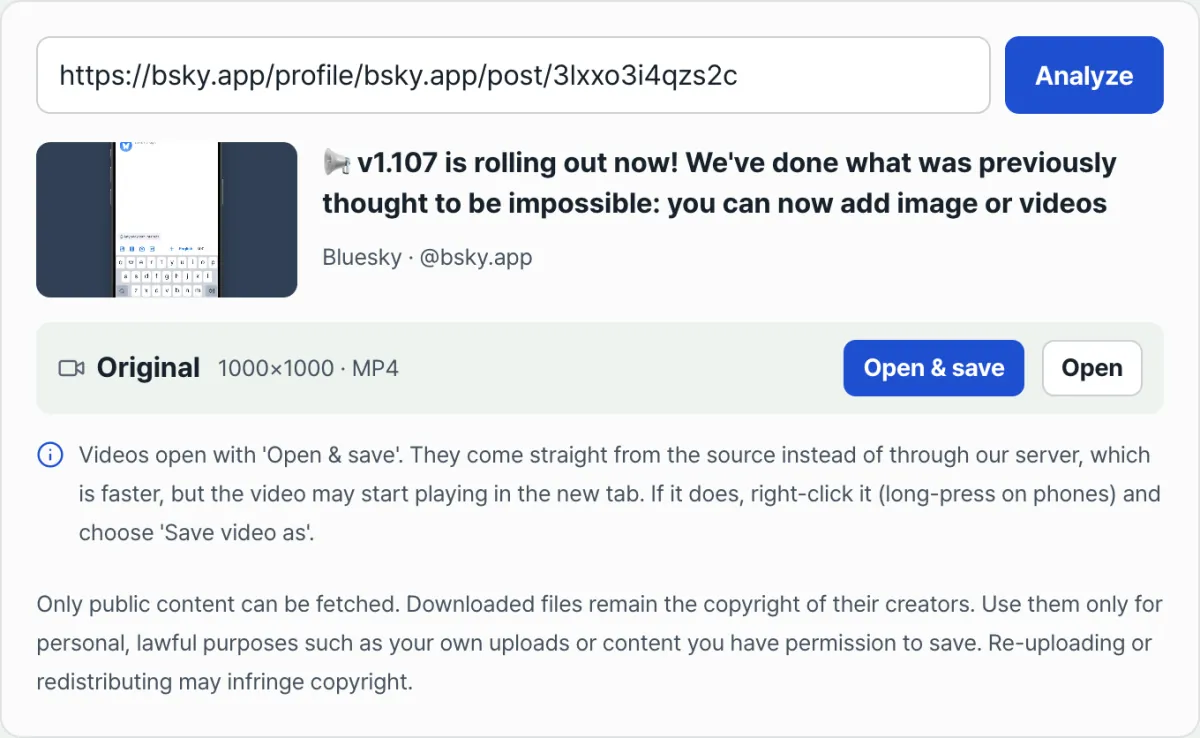
You can see this structure in action on a post from Bluesky's official account (@bsky.app). Analyzing the post that announced image and video attachments shows a 1000×1000 original MP4 video, unchanged. A video uploaded in a square ratio comes down in that exact ratio with no processing — a direct example of the structure described above.
What "original" actually means
Here, "original" doesn't just mean "good quality." It means, more or less, the same file the uploader posted, down to the byte. Files you get from streaming services are often re-encoded from the original to suit playback, and that process can shift compression levels or color data slightly.
Files you get from Bluesky skip that re-encoding step and are the file exactly as it was uploaded. So the 1000×1000 size isn't a spec the service chose arbitrarily — it's just the real size of the file the uploader edited and posted in that ratio.
Why the post URL format is strict
The reason the post URL has to be in the form bsky.app/profile/user/post/postid ties back to the same read method. For the public read API to find one specific post, it needs both whose post it is (the user handle) and which of that person's posts it is (the postid).
If either is missing or the format is off, the API can't determine which record to look up. That's also why a profile URL alone doesn't work: a profile URL only says "whose," and has nothing about "which post."
Why media in quoted posts gets detected
Detecting media attached directly to a quoted (reposted) post follows from the same structure. A quote doesn't paste a screenshot of the original post — it stores a reference pointing to the original post as data.
Follow that reference and you can see what media is attached to the quoted original. But if the original has only link text and no media, there's no media to follow, so having no file to save is the normal state.
Storing these references as data also helps on the tool-building side. Instead of guessing from pixels what's on screen, you can identify quote relationships and attached media directly inside the post data. You don't see this happen, but you feel it in the result: quoted posts get picked up too.
Bluesky has kept this public read structure from the start, likely because it was built to champion an open API from day one. A policy that leaves data readable without a login wall applies to attached media just as it does to posts — which is where all the traits described above come from.
You get the same result checking in your browser
You can confirm this structure is really open by opening the Network tab in your browser's developer tools. The moment a post loads, the requests the browser sends and receives contain that post's data and media URLs. That's also the reason the manual check described in Section 2 works.
Open the same public post once while logged in and once while logged out, and the media URL you get doesn't change. Login status affects the extra features on screen (liking, commenting, and so on), but not reading the media data of a public post.
Where you actually notice this structure
You notice this structure in two main ways. One is the missing quality picker, as covered above. The other is speed. With no multi-step workaround, getting from a post URL to the original URL is relatively simple.
Of course, that simplicity is just a side effect of the user experience — it doesn't mean the service encourages downloading. The public read API exists to draw the app and web screens, and download tools can simply make use of that same data. This connects to the copyright section coming later.
Putting the facts together
Here are the five facts covered so far, one sentence each. The public read API hands over original media URLs without a login, the URL points to exactly one file — the uploaded original, quoted posts get detected by following references, and every lookup requires a precise URL that includes the postid.
These five aren't separate traits so much as results that come from one structure. A single starting point — "an API built for public reads" — shows up at once as no login needed, the original file served as-is, a strict URL format, and quote detection. Understand one, and the rest explain themselves.
Quality, format, and case comparison
Here's the difference described so far, laid out in a table. For most rows, the "why" comes down to the public lookup API and the original-file structure covered earlier.
| Category | Bluesky | Notes |
|---|---|---|
| Quality options | None (only one original file exists) | The uploaded file is served as-is, with no conversion |
| Video format | Whatever format the uploader posted (for example, MP4) | No separate transcoding |
| How to save images | Right-click "Copy image address" to get the original URL | No login needed |
| Posts with multiple photos | Each photo has its own original URL | You have to check them one at a time |
| Quoted (reposted) media | Recognized when the media is attached directly to the original post | Not covered when the post only links out |
| Login required? | No (for public posts) | Accessed through the public lookup API |
| Post URL format | bsky.app/profile/user/post/post-id | Lookup fails if the format is different |
| Posts from private accounts | Can't be looked up | The public API only covers public posts |
| Copying the link in the mobile app | Use the "Copy link" item in the share menu | It's in a different spot than on desktop |
As the table shows, most rows on the Bluesky side come down to "as-is" and "exactly as posted." That's because nothing gets reprocessed and no options are prepared in advance. By contrast, a service with multiple quality tiers or several workaround paths will naturally fill up more rows.
The row you'll probably notice first is "Quality options." A choice that feels obvious on other services is missing entirely, and that single fact is the most direct demonstration that Bluesky handles media in a fundamentally different way.
The second thing worth a closer look is the "Post URL format" row. Most rows here resolve to "not needed" or "none," but this one actually has stricter requirements. The lookup process itself is simpler — the trade-off is that the one input it needs (the exact post URL) has to be exactly right.
Common places people get stuck
When something goes wrong in practice, it usually narrows down to a handful of cases.
| Symptom | Cause | Fix |
|---|---|---|
| You paste a URL and it says the post can't be found | You pasted a profile or home URL, not an individual post URL | Recheck using the individual post URL in the bsky.app/profile/user/post/post-id format |
| The image shows up but the video doesn't | The quoted original post only links out and has no media attached | Open the original post directly and check whether media is attached |
| It won't work because the post is from a private account | The public lookup API only covers public posts | Private posts are never eligible for lookup in the first place |
| The saved video looks low quality | The uploader posted the original at low quality to begin with | The original is that quality, so a higher-quality version doesn't exist |
| It doesn't work when the handle is a custom domain | You mistook a profile URL for a post URL | Copy the individual post URL again with the share button on the post screen |
| You paste the URL of a deleted post | The post was deleted or switched to private | Nothing is broken — it simply can't be looked up anymore |
| Only some of the photos in a multi-photo post get saved | You only clicked the first photo in the gallery view | Open each photo in full view and save them one at a time |
| The saved video won't play | You copied the wrong request in the Network tab | Check again that the request's Type is the video entry |
| Only some media shows up in a post with both photos and video | Each media type appears in a different spot on the screen | Scroll to the end of the post to see all attached media |
Most problems come down to the URL format or to a post that simply has no media. It's usually a matter of not checking closely enough rather than a tool error.
Confusing a profile URL with a post URL is the most common case by far. Both start with bsky.app, so they look similar at a glance, but a post URL must contain the path segment post along with a post ID. Getting that one distinction right clears up more than half of all errors.
If you hit a symptom that isn't in this table, try reopening the post in a fresh browser window while logged out (incognito mode, for example). That's the fastest way to tell whether the problem is temporary and caused by your account settings, an extension, or a cached version of the page.
Copyright and legal use
A Bluesky downloader can only pull content that's posted publicly. Private accounts and follower-only posts aren't visible through the public lookup API either, so they're never eligible for saving in the first place.
Being public doesn't mean the copyright goes away, though. Whoever posted the photo or video still holds the copyright, and downloading just copies that file onto your device — it doesn't change who owns the rights.
So the safe approach is to use saved files only for personal, lawful purposes: material you made yourself, or content you have the creator's permission to use.
If you reupload or redistribute a saved photo or video to another account or another platform without crediting the creator, that can amount to copyright infringement. Get in the habit of mentioning the creator's account or otherwise stating the source.
When you break down the situations where people actually need to save something, most are personal. Saving a post you uploaded yourself so you have it on another device, keeping a photo a friend tagged you in for your own album, or archiving a post you know will be hard to find again later are all typical. For uses like these, the odds of stepping on the creator's rights are low.
The problematic cases usually involve redistribution. Posting a saved video to another social media account without crediting the creator, or using it in ads or promotional material without permission, are the classic examples. If that's what you want to do, contact the creator and ask for permission first.
Commercial use calls for extra caution. Watching something as a hobby and using it in something that generates revenue can be treated differently under copyright law, so if you're considering commercial use, get the creator's explicit consent first.
None of this is specific to one tool. The principles are the same for any media-saving tool: you can only pull public content, the copyright in a downloaded file belongs to the original creator, and you should use it only for personal, lawful purposes — your own material, or content you have permission to use. Keep in mind that reuploading and redistributing can infringe copyright.
How you use it depends on your own situation and goals, so the specifics are ultimately your call — as long as you stay within those principles. But one standard should never move: does this respect the original creator's rights?
How it differs from similar tools and platforms
Tools that save photos and videos work very differently depending on how the target platform is built. Downloaders for Twitter (X) often rely on workarounds like syndication, and for video you usually get a screen asking you to pick one of several quality levels.
Many video services that use adaptive streaming are the same story: if you don't pick a quality, the download itself often becomes unclear. That's because these services prepare files split into several resolutions from the start.
A Bluesky tool doesn't have that structure. The public lookup API already hands back the original media URL directly, so no workaround is needed, and there's only one quality — the original — so there's no selection screen at all.
How it differs from image-only and video-only tools
Some social media download tools are built only for photos, and some only for video. That split exists because services handle photos and video in completely different ways. A photo is usually just a single static file, but some services only offer video in a streaming-only format, which makes it hard to save as a file without converting it first.
Bluesky serves the original file as-is for both photos and video, so there's no reason to split tools into photo-only and video-only. One tool takes a post URL and finds the original the same way whether it's a photo or a video.
Download tools built for different social and video platforms — Twitter, Pinterest, Naver TV, and so on — split along the same lines. Any tool ultimately has to follow how that platform publishes its media, so when the platform is different, the tool's internal behavior is different too. The surface flow looks the same — paste a URL, press save — but the lookup actually happening underneath differs from platform to platform.
What the tool does is simple
So the tool's job is simple. It takes a post URL and presents the original URL the public API returns in a form that's easy to click. From your side it feels like one button and done, but the difference is structural — it comes from the two services publishing media data in different ways.
This is also the part that could shift if a service changes its policy. Right now the public lookup API is open, so you can get the original URL directly, but how open a service chooses to be is up to its operators. Keep in mind that if that changes, the way you check may change with it.
For that reason, instead of a simple "this tool is better than that tool" comparison, it helps more to understand which public structure each tool relies on. Once you know how a platform is built, you can judge for yourself why a tool behaves the way it does and what might change later.
Summary
When you save photos and videos from Bluesky, the missing quality picker isn't a bug — that's just how it's built. The public lookup API returns the original file URL directly, and there's only one uploaded file to begin with.
A post URL has to be in the form bsky.app/profile/user/post/postid for the lookup to work, and quoted posts are only picked up when the media is attached directly to the original post.
The most common mistakes are mixing up a profile URL with a post URL, and saving only some of several images. Check whether you have an individual post URL and whether you saved each photo separately, and most problems go away.
The copyright on any file you save still belongs to the original creator, so it's safest to use it only for personal, lawful purposes. And remember: if you plan to reupload, redistribute, or use it commercially, get the creator's permission first.
Instead of opening developer tools every time to hunt down the file URL, paste the post URL into a tool that handles the process for you — it's much faster.
Free · No login needed · Saves the original quality
Frequently asked questions
Can I save without logging in?
If the post is public, yes — no login needed. Bluesky's public lookup API is open, so the same data is available whether you're signed in or not. Posts from private accounts or posts set to followers-only don't show up through this API, so they aren't something you can save. Being able to view and save photos and videos from public posts without creating an account is the biggest difference you'll notice compared with Twitter.
Can't I choose the video quality?
There's nothing to choose. Bluesky doesn't pre-convert videos into several resolutions; it keeps just the one original file that was uploaded. So the file you get is always the same top quality as what the uploader posted, and having no quality screen is normal behavior. If it looks low quality, that's not the tool — the uploader posted it at that quality in the first place.
Does it save photos and videos from a quoted (reposted) post?
If the media is attached directly to the quoted original post, it gets picked up too. If the original only has a link and no media, there's nothing to save in the first place, so open the original post and check whether media is attached. With a plain repost, the original post is shown as-is, so the same check applies.
Where do I copy the post URL from?
Tap the share button on the post and you can copy a link that points to that one post. The lookup works only if it's an individual post URL ending in the form bsky.app/profile/user/post/postid — not a profile page or a search results URL. In the mobile app, the "Copy link" item is in the post's three-dot (more) menu.
Can I save posts from private accounts?
No. The public lookup API only covers posts set to public, so posts visible only to followers, or posts from private accounts, can't be looked up at all. It's a structural limit with no workaround. If you switch your account to private, your past posts drop out of the lookup too.
Can I repost the photos and videos I saved somewhere else?
The copyright still belongs to the original creator, so reuploading a file as-is to another account or platform without credit can amount to copyright infringement. It's safest to use it only for personal, lawful purposes — content you made yourself, or content you have permission to use. If you plan to use it commercially, like in ads or promotion, ask the creator for permission first.
Can I just do the same thing I do for Twitter (X) downloads?
No. Twitter usually needs a separate workaround like syndication, and you often have to pick a video quality, while Bluesky's public lookup API returns the original URL directly and there's only one quality — the original — so no workaround or selection step is needed. That structural difference is also why a Bluesky URL pasted into a Twitter downloader gets treated as an unsupported link.
This article was adapted from our Korean original. Read the Korean original