
Convert WebP to PNG Without Losing Transparency
Contents
You shouldn't convert a WebP image with a transparent background to JPG. JPG can't store an alpha channel (transparency information), so the transparent parts of a logo or icon get forcibly filled with white or black. This post explains why that happens and how to change formats while keeping both transparency and image quality intact.
Summary ① JPG has never had a structure for storing an alpha channel (transparency information), so it always fills transparent areas with a solid color ② WebP supports transparency, but it mixes lossy and lossless modes, so whether quality is lost depends on the file ③ If you want to preserve both transparency and the original quality, converting to PNG is the safest choice
Why the transparent background disappears when you convert WebP to JPG
Sometimes you download a file from a logo maker site or an icon download page and it comes as a WebP, so you convert it to JPG for a blog post or document — and then find that the transparent background has turned into a white square. If you were planning to place that logo on a dark background, the white square shows up loud and clear and you have to start over from scratch.
This isn't a bug in your image editor. It's because the JPEG (JPG) format was designed back in 1992, when it was standardized, to store only three RGB channels. There's simply no place in the file structure for a fourth channel that records how transparent each pixel is — the alpha channel. So no matter which tool you use, the moment you save as JPG, the pixels that were transparent get painted white or black.
WebP, by contrast, is a relatively recent format that Google introduced in 2010, and it was designed to support an alpha channel from the start. That said, WebP uses both lossy and lossless compression. Lossy WebP keeps transparency, but it has already thrown away color information during compression, so keep in mind that converting it to another format won't bring that loss back.
How to convert while keeping transparency
The most reliable way to preserve transparency is to save the result as PNG instead of JPG. PNG was created in 1996 to avoid the patent issues around GIF, and it was designed from the start to support both lossless compression and an 8-bit alpha channel, so it preserves transparency and quality at the same time.
To do it manually, open the WebP file in an image editor such as Paint, Photoshop, or Preview on a Mac, then choose PNG as the file type in the Save As menu. If the save options include a setting for background color, make sure it's set to transparent or none. Some programs default to white, so even if you pick PNG as the format, the result can end up with a white background underneath.
PNG is a lossless format, so even if you decompress and re-save it, the pixel values stay exactly the same as the original. Note, though, that WebP's lossless compression algorithm and PNG's compression algorithm work differently, so if the original was a lossy WebP, converting to PNG won't undo that loss.
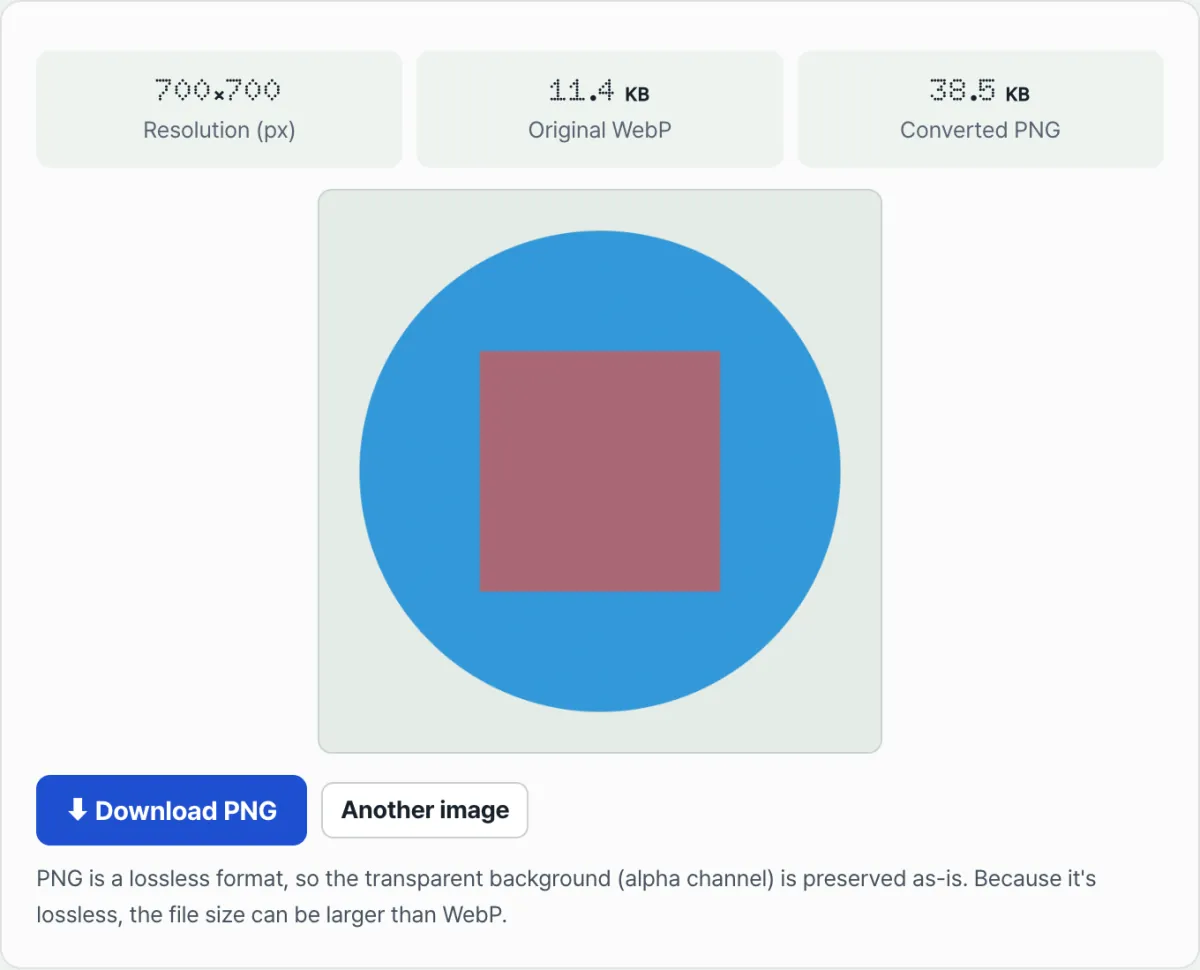
Check it with our tool. Upload a WebP file and it converts it to a lossless PNG with the transparent areas intact, ready to download right away.
Free · No install, runs right in your browser · Keeps the transparent background
Common stumbling blocks
| Situation | Why it happens |
|---|---|
| The background turned white after converting WebP to JPG | JPG has no structure for storing an alpha channel, so it fills transparent pixels with a solid color |
| Quality dropped even after converting WebP to PNG | If the original WebP was saved with lossy compression, converting to PNG won't recover that loss |
| The file got bigger after saving | PNG is lossless, so its compression rate is lower and a larger file than the same image in WebP or JPG is normal |
The bottom line
- JPG can't store an alpha channel, so converting an image with a transparent background to JPG always produces a solid background.
- WebP supports transparency, but it mixes lossy and lossless modes, so quality isn't guaranteed.
- To preserve both transparency and the original quality, saving as PNG is the safest option.
- When saving, check that the background color option isn't set to white by default.
Free · No install, runs right in your browser · Keeps the transparent background
Frequently asked questions
Does converting WebP to PNG make the file bigger?
Yes, it often does. PNG uses lossless compression, so its compression rate is lower than WebP or JPG, which means a larger file even at the same quality. If it's a photo that doesn't need transparency, keeping it as WebP or JPG is better for file size.
Can I restore transparency to an image that already got a white background from being saved as JPG?
No, you can't. The moment you save as JPG, the information about which parts were originally transparent disappears from the file. If you still have the original WebP or PNG file, you need to convert from that file again. If you don't, you'll have to erase the background from scratch.
How do I check that a file converted to PNG actually kept its transparent background?
When you open the file in an image editor or a browser, if the transparent areas show up as a gray checkerboard pattern rather than white, transparency was preserved. If you see a white background, a background color was filled in during conversion, so check your save options again.
This article was adapted from our Korean original. Read the Korean original