
JPG to WebP: How Much Smaller Will Your Files Be?
When you run a speed check on your site with Google PageSpeed Insights or Lighthouse, you'll often see a warning that says "Serve images in next-gen formats." Click into it and a list of JPG files tends to get called out. This post explains why JPGs end up in the crosshairs and how much smaller your files actually get when you switch to WebP.
Summary ① Google PageSpeed flags JPGs because WebP uses a compression method that produces files 25–35% smaller on average at the same visual quality ② JPG only compresses in 8x8 blocks, while WebP combines predictive coding with references between blocks to remove more duplicate data ③ If you want to cut file size without losing quality, use lossless WebP. If you can accept more compression, use lossy WebP and tune the quality value
Why PageSpeed Flags JPGs
Run a speed audit on a page with images and you'll almost always trip the "Serve images in modern formats" item. Expand it and you'll see the list of JPG files in use, with "Potential Savings" listed for each one.
This warning shows up because browser support is no longer a problem. WebP was released in 2010, and today Chrome, Safari, Firefox, and Edge all support it. Meanwhile, images uploaded to pages built years ago are often still sitting there as JPGs.
Loading speed also affects Core Web Vitals (especially LCP, Largest Contentful Paint), which is a ranking signal. So if a single banner image is an 800KB JPG, swapping it for a WebP of the same quality often drops it into the 500KB range, and on pages with several images those savings stack up.
How to Convert JPG to WebP
There are two manual ways to do this conversion.
First, install cwebp — Google's official encoder — in your terminal and convert files one at a time. For example, typing cwebp -q 80 photo.jpg -o photo.webp produces a converted WebP file at quality 80 (on a scale of 0 to 100). The lower the quality number, the smaller the file, but compression artifacts start to show. For images with lots of gradients, like photos, it's safer to pick a value between 75 and 85 while checking the result by eye.
Second, open "Export As" in an image editor like Photoshop or GIMP and switch the file type to WebP. Both methods give the same result, but if you have several files or the terminal feels unfamiliar, opening a program and matching the options every time gets tedious.
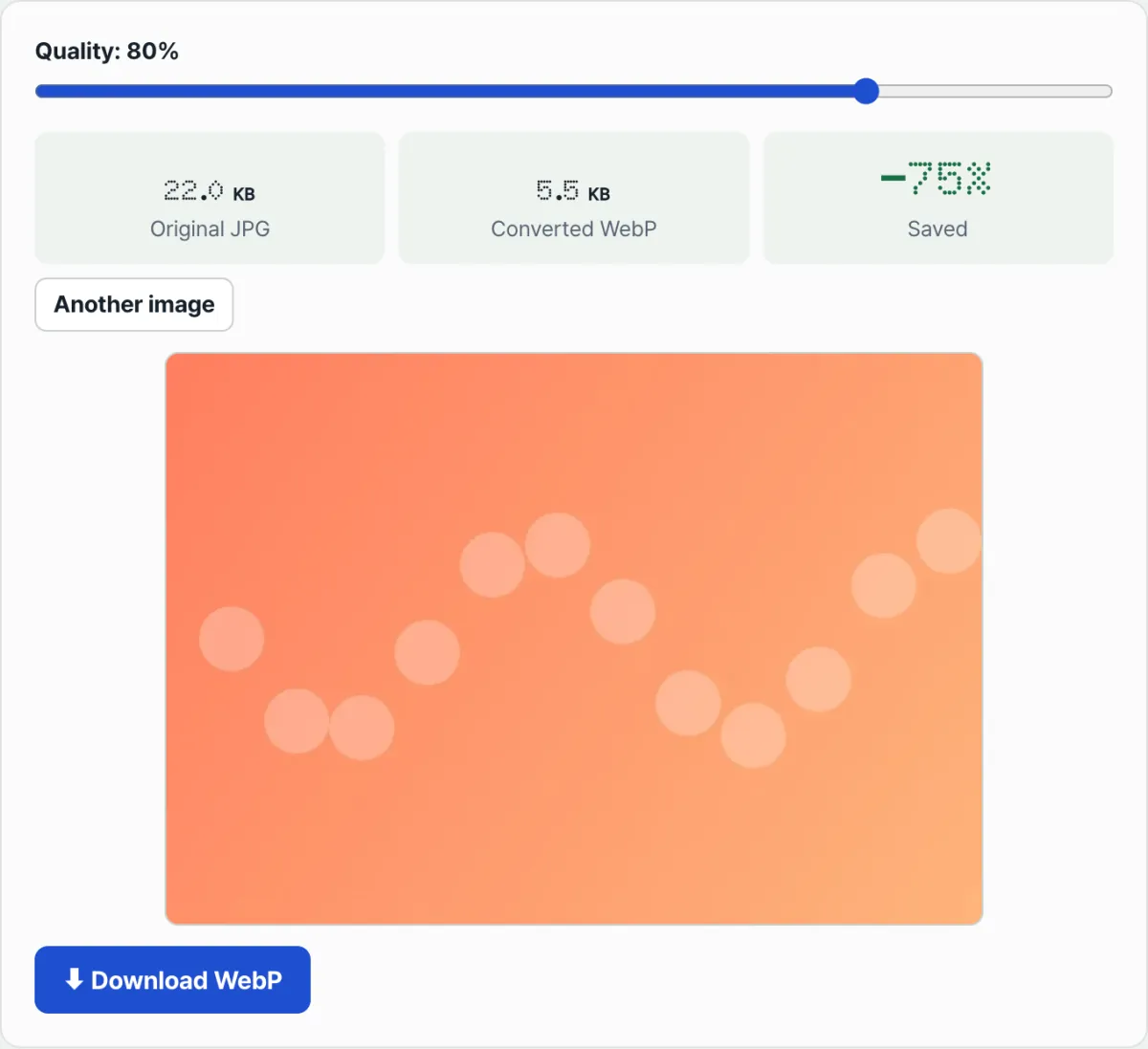
Check it with our tool. Upload a JPG and move the quality slider, and you'll see right away how much the file size differs before and after conversion — then download it.
Free · no sign-up · adjust quality, compare file sizes before and after, and download
Common Sticking Points
| Situation | Why it happens |
|---|---|
| The image looks blurry after converting to WebP | If you set the quality value too low, lossy compression smears the colors |
| Wondering whether PNGs with transparent backgrounds can become WebP too | WebP supports an alpha channel (transparency), so you can use it instead of PNG and the transparent background stays intact |
| You heard it doesn't show up in old browsers | That's a story about older Safari and Internet Explorer from years ago. Every major browser shipping today supports WebP |
Bottom Line
JPG relies only on older block compression, while WebP adds predictive coding on top, so files come out smaller at the same quality. PageSpeed and Lighthouse flag JPGs because that size difference translates directly into a loading speed difference. To convert by hand, use the cwebp command or the export feature in an image editor, and it's safest to pick a quality value between 75 and 85 while comparing against the original.
Free · no sign-up · adjust quality, compare file sizes before and after, and download
FAQ
Does converting to WebP lower image quality?
With lossy compression the result isn't 100% identical to the original, but at a quality value around 80 the difference is hard to spot with the naked eye. If you can't give up any quality at all, go with lossless WebP — though in that case the size savings are smaller than with lossy.
Should I convert every JPG to WebP?
Rather than small images you reuse over and over like logos and icons, you'll notice the biggest difference starting with large images like banners and product photos. What affects loading speed isn't the number of files — it's the total accumulated size.
Does converting to WebP raise my PageSpeed score right away?
Reducing image size directly helps your LCP. But the overall score also reflects other factors like server response time and JavaScript execution time, so converting images alone won't get you a perfect score instantly.
This article was adapted from our Korean original. Read the Korean original