
AVIF to JPG Conversion: Fix Photos That Won't Open
Contents
- The Problem: AVIF Compresses Best, So Why Is It a Headache at Work?
- The Fix: A 3-Step Conversion Using Your Browser's Native Canvas
- Under the Hood: How the AV1 Codec and JPG's 8x8 DCT Blocks Differ Structurally
- AVIF vs. WebP vs. Traditional JPG/PNG: Full Comparison
- 5 Common Mistakes When Converting AVIF
- The 5-Step Lossless AVIF to JPG Workflow
- 7 Image Conversion Tips
- Final Decision Tree: Which Format Should You Convert To?
- Image Codec & File Extension Cheat Sheet
- Frequently Asked Questions
You've probably hit this: you save an AVIF image file from a recent smartphone camera or a big shopping site, then try to drop it into Photoshop, Hangul (HWP), or PowerPoint, or upload it to a government website — and you get "unsupported file format."
Your file isn't broken. AVIF is a next-gen format built on the AV1 video codec developed by the Alliance for Open Media (AOMedia), applied to still images. Older software and government systems still don't ship an AV1 decoder, and that's where the compatibility problem comes from.
Here's why renaming the file to .jpg doesn't fix it the way it does with JFIF, plus how to safely re-encode to universal JPG/PNG inside your browser with no loss of quality, and how to handle transparent backgrounds.
Key takeaways ① How AVIF works: It applies the highly efficient AV1 video codec to a single frame, so at the same visual quality it's more than 50% smaller than JPG — but older viewers and office programs can't open it. ② Don't just change the extension: The binary data inside uses a completely different compression algorithm, so renaming to '.jpg' causes a header mismatch and permanently corrupts the file. ③ Transparent backgrounds (alpha channel): A cutout AVIF with transparency should be converted to PNG, or if you convert to JPG you have to set a white or black background color (HEX), otherwise the background turns black. ④ 100% on-device conversion: This tool never uploads to a server. It uses the native canvas engine in modern browsers to convert to JPG/PNG in 0.1 seconds.
The Problem: AVIF Compresses Best, So Why Is It a Headache at Work?
AVIF (AV1 Image File Format) is an open format led by Google, Apple, Netflix, and Microsoft, and on the web it's the best format going for cutting load times.
But in real working environments, serious compatibility barriers remain:
- Office and graphics tools: Can't open directly in older Photoshop (versions before CC 2022), Illustrator, Hangul (HWP), or PowerPoint.
- Government and job portals: Legacy whitelist systems that only accept .jpg and .png when you upload a scanned ID or a headshot.
- Social media and messenger apps: Thumbnails fail to render on some community boards.
And unlike JFIF, an AVIF file won't open just because you typed .jpg at the end of the file name. The internal encoding is completely different, so you have to run it through a decode-then-re-encode pipeline.
The Fix: A 3-Step Conversion Using Your Browser's Native Canvas
- Step 1 (verify the file): Drag the AVIF into a tab in a modern browser — Chrome, Edge, Firefox, or Safari — and check that it displays.
- Step 2 (pick a format): Choose PNG if you need to keep transparency, or JPG for regular photos or when you want a smaller file.
- Step 3 (adjust the quality slider): Set JPG quality to 90–95% and you keep quality that's hard to tell apart from the original by eye, in a JPG that opens on almost any device or program.
Free · no install · just drag a file to convert to high-quality JPG/PNG in a second
Under the Hood: How the AV1 Codec and JPG's 8x8 DCT Blocks Differ Structurally
The computer graphics principles behind why changing the extension can't work, and why canvas re-encoding is mandatory.
1. How the Binary Headers Differ
- JPG files: The first 2 bytes are fixed to the magic number 0xFF 0xD8 (SOI) and the end is 0xFF 0xD9 (EOI). Compression uses an 8x8-pixel discrete cosine transform (DCT).
- AVIF files: Built on the ISO Base Media File Format (ISOBMFF), with an ftypavif or ftypavis signature in the opening header.
- The moment a viewer reads the magic number in the header and the format doesn't match, it throws a parsing error and refuses to run.
2. The Browser HTML5 Canvas Re-encoding Formula
- Call the browser's hardware AV1 decoder through an Image() object and load the decompressed 32-bit RGBA bitmap into GPU memory.
- Call the canvas.toBlob(callback, 'image/jpeg', 0.92) method to generate a pure JPG binary in real time using the standard JPEG quantization matrix.
AVIF vs. WebP vs. Traditional JPG/PNG: Full Comparison
| Item | AVIF (AV1 codec) | WebP (VP8/VP9) | JPG (JPEG) | PNG |
|---|---|---|---|---|
| Compression efficiency | Best (50% smaller than JPG) | High (30% smaller than JPG) | Average (baseline) | Low (large lossless files) |
| Compatibility | Modern web browsers only | Full support in all web browsers | Almost every device and program | Almost every device |
| Transparency (alpha) | Supported | Supported | Not supported (filled with a solid color) | Fully supported (lossless) |
| HDR / 10- and 12-bit | Fully supported (wide color gamut) | Not supported (8-bit) | Not supported (8-bit) | Not supported |
| Best used for | Images optimized for the modern web | Next-gen web standard images | Official documents, print, government submissions | Logos, icons, cutout photos |
5 Common Mistakes When Converting AVIF
- Renaming the extension to .jpg and nothing else: The codec inside doesn't change, so graphics tools throw a file-corruption error.
- Converting a transparent image to JPG and getting a black background: You didn't set a background color because you didn't know JPG has no transparency (pick PNG instead).
- Cranking JPG quality below 50%: AVIF's excellent image quality gets crushed, and noise artifacts show up around text.
- Trying to convert in an old browser (IE and friends): The browser has no AV1 decoder, so the conversion tool doesn't work (use a current version of Chrome or Safari).
- Uploading a sensitive personal ID to a server-based site: You send a scanned government ID or a contract image to a server and risk a security incident.
The 5-Step Lossless AVIF to JPG Workflow
- Step 1 (get the original AVIF file): Have the .avif file you downloaded from your phone or the web ready.
- Step 2 (drag and drop it into this converter): Drop the file into the upload box on the screen of the AVIF to JPG/PNG Converter.
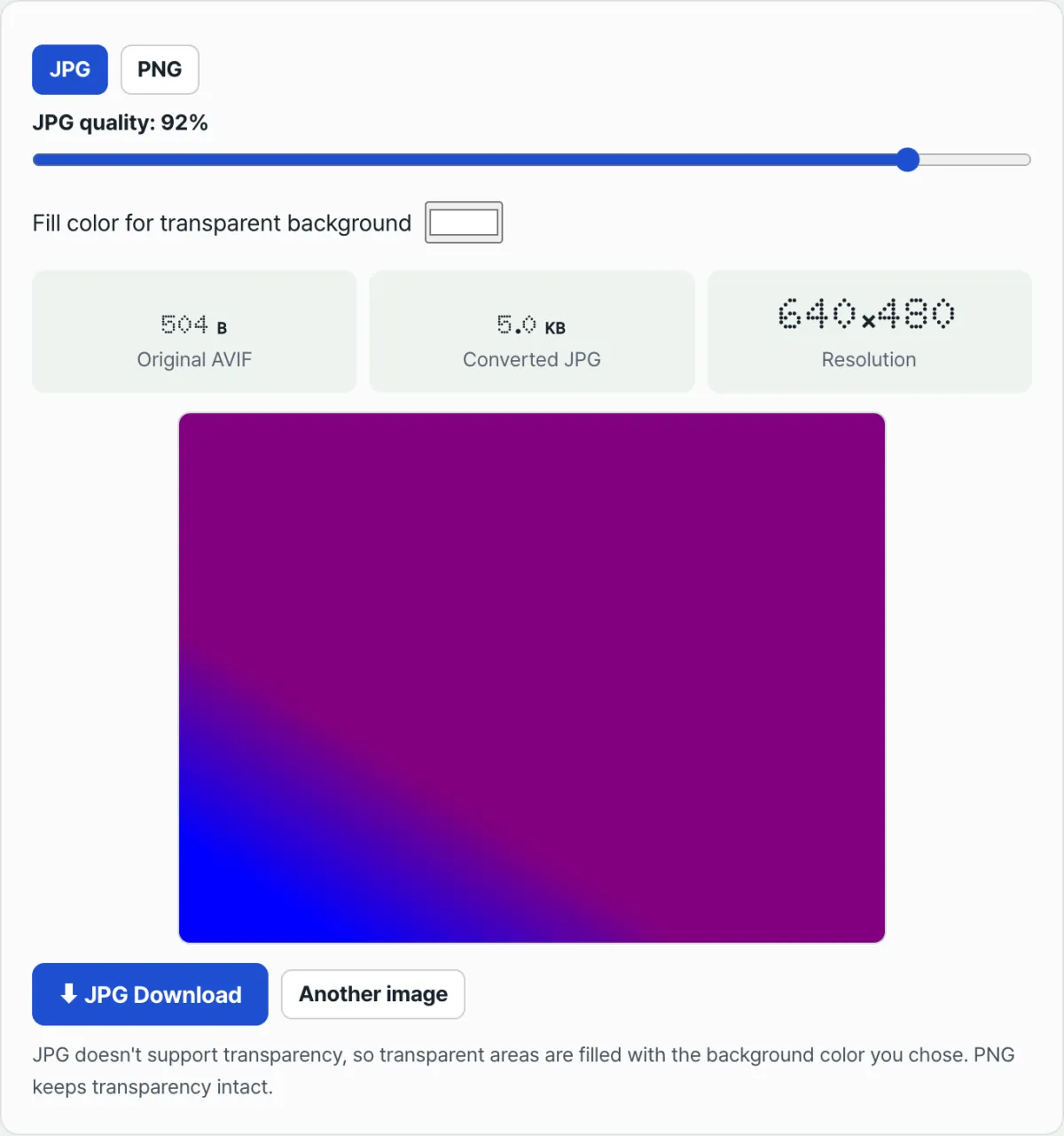
- Step 3 (choose the output format and options): For regular photos pick JPG (92% quality), for transparent images pick PNG in the tabs.
- Step 4 (compare sizes in real time): Check the original AVIF size and the converted JPG size shown on screen.
- Step 5 (download the JPG and insert it): Download it right away and attach it to Photoshop, your document, or a government website.
7 Image Conversion Tips
- Start comparing around 90% JPG quality: The file gets much smaller than at 100%, and the difference is often hard to see. It varies from photo to photo, so compare it yourself.
- Use the HEX background color option: Even for a cutout image, if it's headed for a white document, set the background color to #FFFFFF in the JPG tab before converting and you'll save a lot of space.
- Turn off AVIF/HEIC on your iPhone camera: If compatibility comes first, go to [Settings ➔ Camera ➔ Formats ➔ 'Most Compatible'] so it saves as JPG from the start.
- Be careful when converting files for print: To avoid RGB ➔ CMYK color shifts, run the converted JPG through a graphics tool and check the colors once more before sending it to the print shop.
- Open the image in a new tab in Chrome: While browsing, paste an AVIF image's URL into the browser's address bar and you can view the original right away.
- How to choose between WebP and AVIF: Use WebP for web delivery that has to cover legacy browsers, and AVIF when maximum compression is the goal.
- Bookmark this converter: When you're submitting government paperwork or working in Photoshop, skip the software install and get past the extension barrier in 1 second.
Final Decision Tree: Which Format Should You Convert To?
- Case A (government paperwork, ID photo for a résumé, inserting into an Office document) ➔ JPG (high-compatibility conversion at 92% quality)
- Case B (product cutouts with a transparent background, brand logos, icons) ➔ PNG (100% lossless transparency preserved)
- Case C (high-quality print output for photo shoots, large photo book production) ➔ JPG (maximum quality)
- Case D (optimizing website load speed, shipping to modern browsers) ➔ Keep the original AVIF (or use WebP)
Image Codec & File Extension Cheat Sheet
- AVIF (AV1 Image File Format): A highly efficient open-source image format based on AV1, the video compression standard.
- Magic Number: A unique hexadecimal binary signature written at the very start of a file to identify its type.
- Alpha Channel: A data channel that stores the transparency of image pixels (0% fully transparent to 100% fully opaque).
- Re-encoding: The process of decoding compressed data back into raw bitmap pixels and then compressing it again with a different codec algorithm.
Frequently Asked Questions
Why won't an AVIF file open if I just rename the extension to .jpg?
The extension is only a name tag that tells the operating system which program to open the file with. The actual data inside the file is still encoded with the complex AV1 video codec, so a viewer can't read it and crashes.
Does the image quality get badly degraded or ruined during conversion?
Not at all. Our tool uses a high-quality quantization matrix at the default 92% quality to produce a precise JPG that preserves the original AVIF's color and sharpness exactly.
Will the personal photos I upload for conversion leak to a server?
Our tool doesn't communicate with any external server. It runs entirely offline inside the canvas memory of your web browser, so there's no risk of your personal photos leaking anywhere.
This article was adapted from our Korean original. Read the Korean original