
Base64 to Image: Restore a Base64 String into a Real Image File
Contents
- How to Identify an Image Format From the First 5 Characters of a Base64 String
- 3 Ways to Restore a Base64 String Into an Image File
- Under the Hood: The Base64 ➔ Uint8Array ➔ Blob Memory Pipeline
- Base64 Starting String vs. Magic Number Cheat Sheet
- 5 Common Mistakes When Restoring Base64 Images
- The Flawless 5-Step Base64 ➔ Image File Workflow
- 7 Base64 Recovery Tips
- Final decision tree: Which method should you use to recover the image?
- Base64 image recovery key terms cheat sheet
- Frequently Asked Questions
When you call a generative AI API like OpenAI's DALL-E or Stable Diffusion, work with an OCR text-recognition API, or dig through email source code, you'll eventually run into a giant blob of text — tens of thousands of characters long — that starts with something like 'data:image/png;base64,iVBORw0KGgoAAAANSUhEUgAA...'.
That long string isn't an error code. It's Base64 data: an entire image file encoded as text.
This guide covers it all: how to identify PNG/JPG format from the first few characters (the magic bytes) of a raw Base64 string with no prefix, and the full decoding pipeline that shows you the actual image in your browser in one second and lets you download it as a file (.png, .jpg).
Key takeaways ① Identify the format from the first characters: 'iVBORw0KG' is the unique Base64 signature of a PNG file, '/9j/' is JPEG, 'R0lGOD' is GIF, and 'UklGR' is WebP. ② Data URI vs. raw Base64: Even without the 'data:image/...;base64,' prefix, our tool automatically reads the magic bytes and restores the image with the correct file extension. ③ Automatic cleanup of line breaks and spaces: Line breaks (LF, CR) and spaces that sneak in when you copy an API response are removed automatically, which eliminates decoding errors at the source. ④ Local Blob creation: A binary Blob object is created in browser memory with no server upload, so you download the image file at top speed.
How to Identify an Image Format From the First 5 Characters of a Base64 String
Even if a raw Base64 string is missing its prefix (data:image/png;base64,), the first few characters tell you what kind of image file it is in 0.1 seconds. That's because every image file has a fixed magic number in its first 2 to 4 bytes:
- iVBORw0KG... ➔ PNG file: The PNG magic bytes 0x89 0x50 0x4E 0x47 (.PNG), when converted to Base64, always start with iVBOR.
- /9j/... ➔ JPG / JPEG file: The starting bytes of a JPEG, 0xFF 0xD8 0xFF (SOI), always encode to Base64 starting with /9j/.
- R0lGOD... ➔ GIF file: The GIF header string GIF89a or GIF87a, converted to Base64, always starts with R0lGOD.
- UklGR... ➔ WebP file: The RIFF magic bytes of a RIFF container–based WebP, converted to Base64, start with UklGR.
3 Ways to Restore a Base64 String Into an Image File
- Method 1 (Paste into the browser address bar): Put the entire data:image/png;base64,... string into the Chrome/Edge address bar and the image appears instantly. You can right-click and choose "Save image as." (One catch: if the string is tens of thousands of characters long, the address bar length limit can truncate it.)
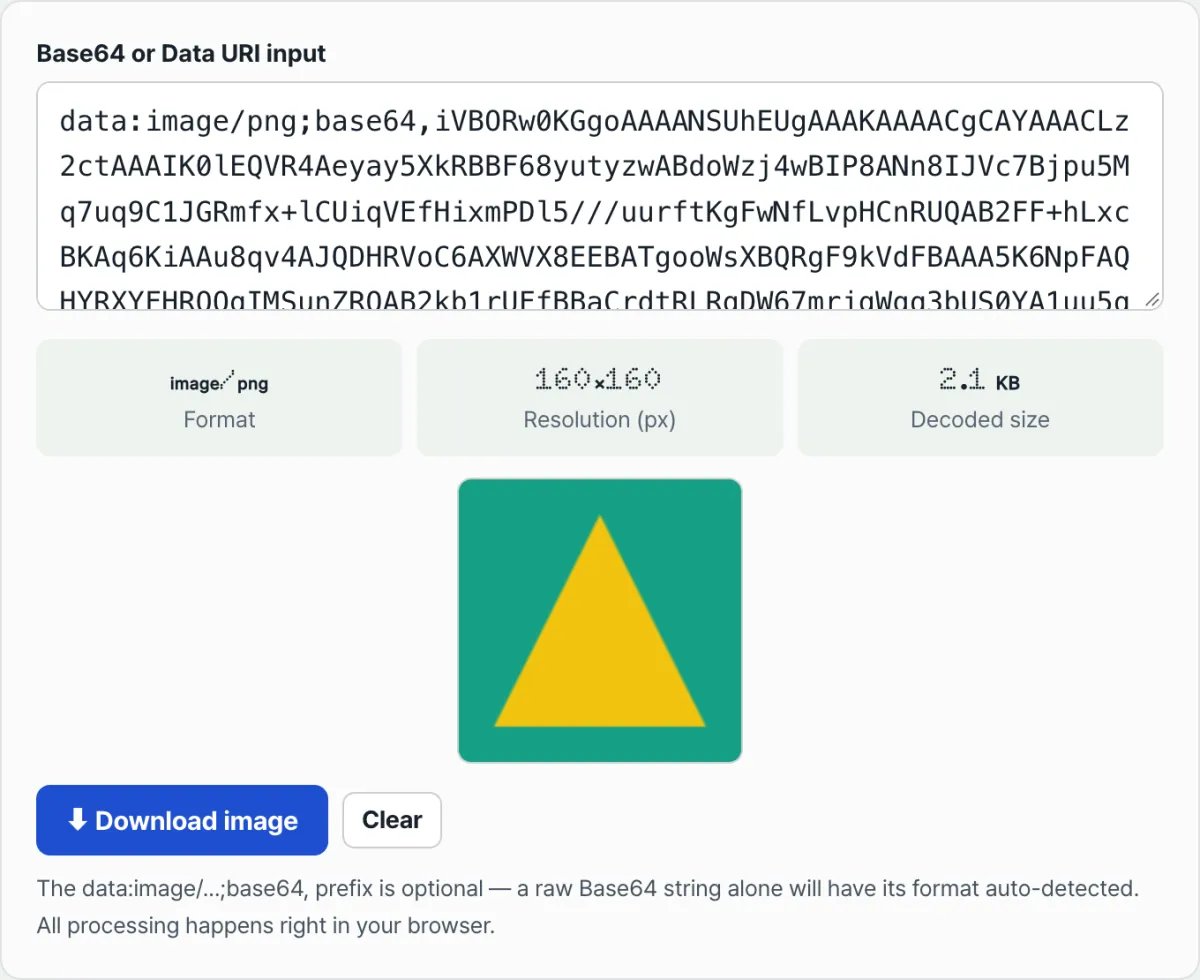
- Method 2 (Use this web restorer — safest): Paste the string in and it detects the format automatically, displays the image in one second, and downloads a high-quality file in one click.
- Method 3 (Terminal CLI command): In a Linux/macOS terminal, restore it with the command echo "iVBORw..." | base64 -d > result.png.
Free · Just paste your Base64 text to preview the real image in one second and download the file right away
Under the Hood: The Base64 ➔ Uint8Array ➔ Blob Memory Pipeline
Here's the JavaScript pipeline the browser runs to turn text back into a real image file in memory.
1. 6-Bit Reverse Mapping and Byte Buffer Restoration
function base64ToBlob(base64Data, contentType = "image/png") {
  // 1. Strip the Data URI prefix and whitespace
  const cleanBase64 = base64Data.replace(/^data:image/w+;base64,/, "").replace(/s/g, "");

  // 2. Decode the binary string with atob()
  const byteCharacters = atob(cleanBase64);
  const byteNumbers = new Array(byteCharacters.length);

  // 3. Build an 8-bit unsigned integer array (Uint8Array)
  for (let i = 0; i < byteCharacters.length; i++) {
    byteNumbers[i] = byteCharacters.charCodeAt(i);
  }
  const byteArray = new Uint8Array(byteNumbers);

  // 4. Create an immutable binary file object (Blob)
  return new Blob([byteArray], { type: contentType });
}
2. Creating a Memory Object URL and Auto-Downloading
- Give the resulting Blob object to URL.createObjectURL(blob) to create a virtual browser file path (blob:https://...).
- Dynamically create an <a download="image.png"> tag and fire a click event, and the file is saved locally with no server round trip.
Base64 Starting String vs. Magic Number Cheat Sheet
| Image format | Actual binary magic bytes | Base64 starting string pattern | Correct extension |
|---|---|---|---|
| PNG | 89 50 4E 47 0D 0A 1A 0A | iVBORw0KG... | .png |
| JPEG / JPG | FF D8 FF E0 or FF D8 FF E1 | /9j/4AAQ... | .jpg / .jpeg |
| GIF (animated) | 47 49 46 38 39 61 (GIF89a) | R0lGODlh... | .gif |
| WebP | 52 49 46 46 ... 57 45 42 50 | UklGR... | .webp |
| BMP (bitmap) | 42 4D (BM) | Qk0... | .bmp |
| SVG (XML vector) | 3C 73 76 67 (<svg) | PHN2Zy... | .svg |
5 Common Mistakes When Restoring Base64 Images
- Quotes or prefix broken during copy: The opening and closing double quotes of "data:image/png;base64,... get included in the text and cause a parsing error.
- Saving with the wrong extension: Forcing PNG data (iVBOR) into a .jpg file means your image viewer can't open it.
- Leaving stray spaces or line breaks: Line breaks copied from email or a terminal trigger an InvalidCharacterError in the atob() function.
- Hitting the browser's address bar length limit: Pasting a multi-MB high-resolution Base64 string into the address bar freezes the browser.
- Using a server-upload converter site: Uploading a confidential company design or signature image to an external server converter exposes it to leaks.
The Flawless 5-Step Base64 ➔ Image File Workflow
- Step 1 (Copy the Base64 text): Copy the full Base64 string from the API response JSON, source code, or log file.
- Step 2 (Paste it into this restorer's input box): Paste the copied text into the input box (with or without the Data URI prefix).
- Step 3 (Automatic format detection and error cleanup): The tool strips line breaks and reads the magic bytes to determine the image format.
- Step 4 (Check the live preview): Confirm that the actual picture appears clearly in the viewer on the right.
- Step 5 (Download the genuine image file): Click the [Download Image] button to save it to your computer or phone with the original extension (.png, .jpg, and so on).
7 Base64 Recovery Tips
- 1-second Chrome DevTools console viewer: Type
window.open("data:image/png;base64," + b64Text)into the console and it opens instantly in a new tab. - One-line Python recovery script:
import base64; open("out.png", "wb").write(base64.b64decode(b64_str)) - Check that the transparent background (PNG) is preserved: You can instantly confirm whether the recovered image is a transparent cutout image with a checkerboard background.
- GIF animations (animated images) recover perfectly too: Animated GIFs encoded in Base64 are restored into perfectly playable files with no frame loss.
- Optimized for pasting large text: This tool is built on a virtual DOM, so it handles long text of hundreds of thousands of characters smoothly with no browser lag.
- How to tell a PDF file is Base64: If it starts with
JVBERi0, it's not an image but a PDF document. - Bookmark this tool: Every time you run into a Base64 image during AI API work or web crawling, visualize it in one second.
Final decision tree: Which method should you use to recover the image?
- Case A (You want to see the API response text right away, save it as a file, and keep it) ➔ Use this web tool (safest and most intuitive)
- Case B (You're saving thousands of Base64 strings as files in bulk on a backend) ➔ Python / Node.js Buffer script automation
- Case C (You want to quickly check a simple icon under 10KB) ➔ Paste the Data URI into the browser address bar
- Case D (You're in a Linux remote server terminal) ➔
base64 -dcommand-line CLI command
Base64 image recovery key terms cheat sheet
- Magic Number: A unique binary byte signature at the very start of a file that identifies the file format.
- Blob (Binary Large Object): An immutable object in JavaScript for handling large binary data such as images and audio.
- atob(): Short for ASCII to Binary, a built-in JavaScript global function that decodes a Base64 string.
- Object URL: A temporary virtual URL (
blob:...) created so the browser can access Blob data stored in memory.
Frequently Asked Questions
Can I recover plain text that has no prefix like data:image/png;base64,?
Yes, it's fully supported. Even without the Data URI header at the front, this tool automatically analyzes the magic bytes inside the string and converts it to the right format among PNG, JPG, GIF, and WebP.
Does the recovered image lose quality or get damaged compared to the original?
Not at all. Base64 decoding is a lossless, reversible conversion, so the image is restored with the exact same pixels as the original.
Is there any risk that the Base64 image text I paste leaks to a server?
None at all. All Base64 decoding and file downloads in this tool happen locally inside your browser's memory, and no image data is ever sent to an external server.
This article was adapted from our Korean original. Read the Korean original