
Why HEIC Won't Open on Galaxy or Windows — and How JPG Fixes It
Contents
- Why HEIC Exists: Containers and Codecs Are Different Things
- So Why Won't It Open on Other Devices?
- Does Converting to JPG Really Solve Everything? Understanding the Trade-Off
- How to Adjust and Check Conversion Quality Yourself
- How This Tool Handles the Codec Problem for You
- Recap
- Frequently Asked Questions
You've probably sent a photo from your iPhone to a Galaxy phone and found it wouldn't open. Or maybe you uploaded one to your company's expense report system and it got bounced back with "unsupported file type." The file is clearly a photo, but when you look at the extension, it's not .jpg — it's .HEIC. This isn't because the file is corrupted. It's because the "packaging" of the photos your iPhone takes by default is different.
Summary ① HEIC, the default iPhone photo format, is an HEIF container that uses a compression method called HEVC, so it produces smaller files than JPG at the same image quality. ② The reason a file won't open isn't the "format" — it's that the viewer doesn't support the "codec" inside it. ③ Converting to JPG widens compatibility, but it goes through one more round of recompression, so you lose a little file size and image quality.
Why HEIC Exists: Containers and Codecs Are Different Things
There's a common point of confusion when it comes to understanding photo files. We call extensions like ".jpg" and ".heic" a "format," but really two layers are stacked on top of each other. One is the "container," the box that holds the data. The other is the "codec," which actually compresses the image inside it.
With JPG, the container and codec are effectively bundled into one, so this distinction doesn't show. HEIC, on the other hand, is the result of applying HEVC (H.265), a video compression codec, to a single image inside a container called HEIF (High Efficiency Image Format). Even though the name says "HEIC," the heart of this file is really not the container but the HEVC codec inside it.
The reason iPhone uses this combination as its default is simple. HEVC has far higher compression efficiency than the old codec JPG uses, so it can cut file size by nearly half while maintaining similar image quality. You can fit far more photos in the same storage space, which makes it a sensible default for a smartphone with limited storage.
So Why Won't It Open on Other Devices?
Here's where the real problem shows up. For a photo viewer or app to open an HEIC file, it needs to do more than parse the HEIF container — it has to actually decode the HEVC codec inside it. Unlike JPG, an old codec that's effectively built into everything, HEVC decoders are tangled up with patent and licensing costs, so they aren't built into every platform by default.
That's where the phenomenon of "it recognizes the format but can't draw the contents" comes from. It also explains why a file icon appears but the preview shows up gray, or why an upload form accepts the file based on the extension alone and then fails at the actual processing step. This doesn't mean the file is broken — it means the side reading the file doesn't have the codec support it needs.
Codec support and the timing of when it arrives keep changing by manufacturer and operating system, so declaring "this device works and that one doesn't" in a table actually creates more confusion than clarity. There's one principle you can state with certainty: the essence of the problem is not the container (HEIF) but whether the codec (HEVC) is supported.
Does Converting to JPG Really Solve Everything? Understanding the Trade-Off
Converting HEIC to JPG gets around this codec problem. JPG is a codec that opens without exception in effectively every photo viewer, web upload form, messenger, and editing program. Looking at compatibility alone, it's a clear win.
But it's not a free win. The image inside an HEIC is already compressed once with HEVC. Converting it to JPG means decompressing it and recompressing it in JPG, and going through compression again adds one more round of subtle image quality loss. And since HEVC had better compression efficiency than JPG, a JPG file that tries to keep the same image quality will generally be larger than the original HEIC.
So conversion is closer to a trade: you pay a little file size and image quality to buy compatibility. If you're only going to archive photos long term, keeping the original HEIC is the better choice. If you need to upload them to another device or form right now, this level of trade-off is worth accepting.
How to Adjust and Check Conversion Quality Yourself
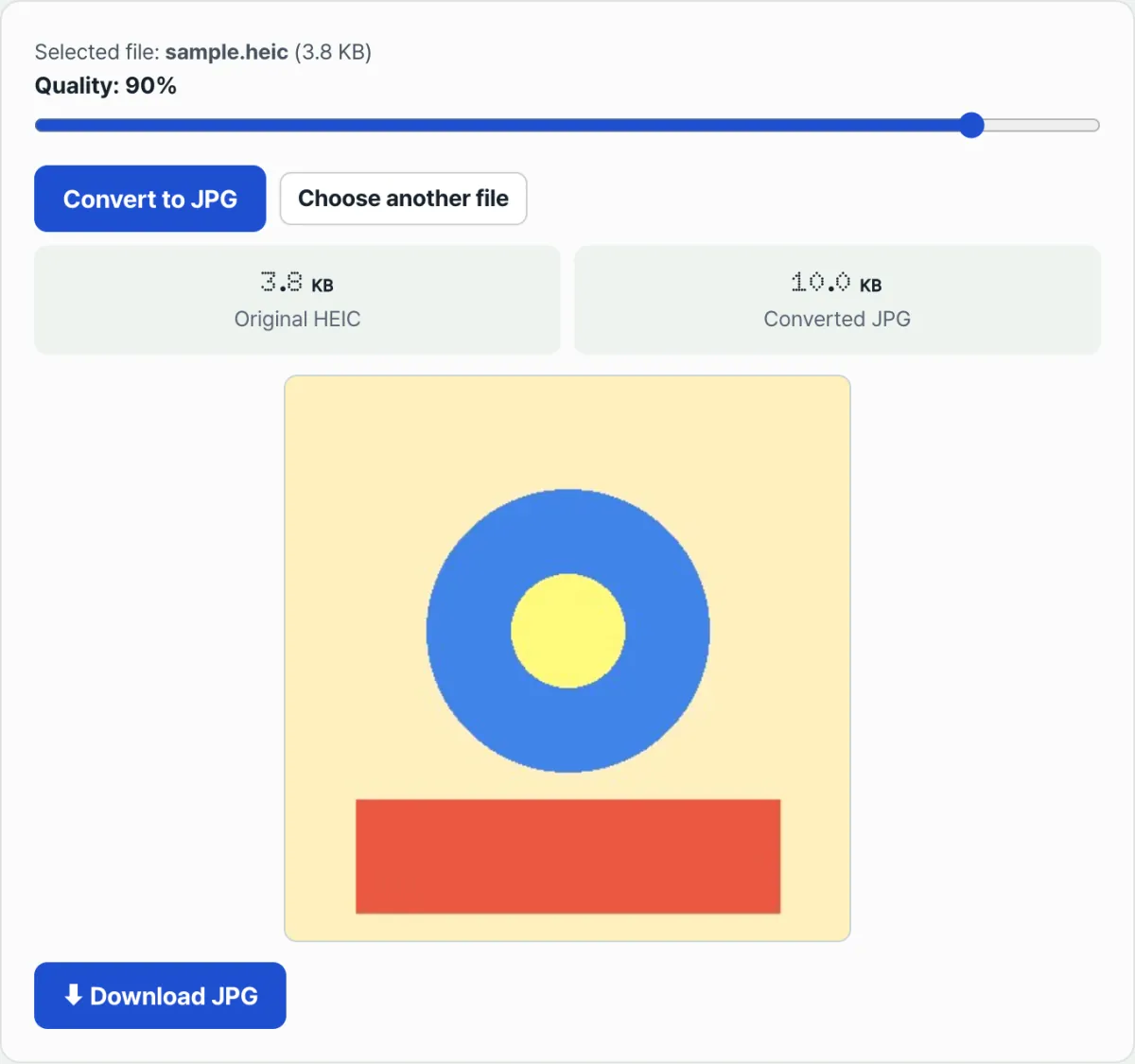
The most reliable way to feel this trade-off is to change the quality value yourself and compare the resulting file sizes. Set quality close to 100% and you keep image quality nearly identical to the original, but the file gets bigger. Lower the quality and the file shrinks, but the loss of detail grows. Where the line falls for "light enough and sharp enough" depends on the photo and the purpose, so comparing with your own eyes is the most accurate approach.
Convert HEIC and HEIF photos to JPG right in your browser. Quality control included · no files uploaded to a server
How This Tool Handles the Codec Problem for You
The HEIC to JPG Converter handles the decoding process described above inside your browser. When you drag and drop or click to select an HEIC or HEIF file, the tool interprets the HEVC codec data inside the file itself and re-encodes it as JPG. In other words, the conversion happens regardless of whether your device or browser supports HEVC.
The quality slider can be adjusted from 10% to 100%. If you change the value, any previous result is cleared and you need to press the convert button again to get a new result. When conversion finishes, the original HEIC size and the converted JPG size are shown together, so you can immediately check the "compatibility vs. file size" trade-off in numbers. If a file isn't in HEIC or HEIF format, it won't even reach the conversion step — you'll get a message saying the format doesn't match.
Recap
- iPhone's HEIC is the output of the HEVC codec inside an HEIF container, and its smaller file size than JPG at the same image quality is why it was adopted as the default.
- The reason a file won't open isn't that the software "doesn't know the format" — it's that there's no support for decoding the HEVC codec inside it. That support keeps changing by manufacturer and version, so you can't make blanket statements about specific devices.
- JPG conversion is a trade: you gain compatibility and accept a slight increase in file size and loss of image quality from recompression.
- A sensible approach is to keep originals in HEIC for archiving and convert only the photos you need to share or upload right now to JPG.
- Adjust the quality value yourself and compare the sizes of the original and converted files to feel the trade-off firsthand.
Convert HEIC and HEIF photos to JPG right in your browser. Quality control included · no files uploaded to a server
Frequently Asked Questions
Why won't my HEIC file open in the Galaxy or Windows photo viewer?
An HEIC file contains image data encoded with a video compression codec called HEVC. To open it, the viewer needs to recognize the HEIF container and also decode the HEVC codec. In an environment without that codec support, preview or viewing fails even if the file isn't corrupted.
So is HEIC a problematic format?
No. HEIC (HEIF + HEVC) is an efficient combination that can hold the same image quality in less space. The problem isn't the format itself — it's the compatibility issue that arises when you try to open it in a program or service that doesn't support the codec. Depending on your purpose, keeping the original as HEIC can actually be better.
Will converting to JPG noticeably degrade image quality?
If you set the conversion quality high enough (for example, 90% or above), it stays at a level where differences are hard to see with the naked eye. That said, since you're recompressing an image that was already compressed once with HEVC into JPG, there is theoretically one more round of subtle loss, and the lower you set the quality value, the more noticeable that loss becomes.
Is it normal for the converted JPG to be larger than the original HEIC?
Yes, it's normal. HEVC has better compression efficiency than JPG, so holding the same level of image quality in JPG generally takes more space. This isn't an error in the conversion process — it's a natural result of the difference in compression efficiency between the two codecs, and you can confirm it directly by comparing the original and converted sizes side by side on the result screen.
This article was adapted from our Korean original. Read the Korean original