
Why Saved Instagram Photos Look Blurry: Screen vs Original
Contents
- You saved it and it's blurry: so where does it go wrong?
- How to Check It Yourself Without a Tool
- Why the same photo exists in several sizes
- What You Actually Get, Method by Method
- Where People Get Stuck
- Copyright and Legitimate Use
- How it differs from similar-looking methods
- In short
- Frequently asked questions
If a photo you saved from Instagram looks blurry, the quality didn't degrade during saving. You got a different file to begin with — not the original. The cover image a post page serves for link previews is a small square cropped to 351×350, and the uploaded original exists separately from it.
Summary ① Neither the image you see on screen nor the one shown in link previews is the original — both are pre-made downscaled versions. The preview version is a 351×350 crop. ② The size of the "original" varies from post to post. In testing, some were 3072×4096, and older posts sometimes had originals that were only 584×584. ③ You can only check public posts. Private accounts and Stories are out of scope, and copyright always belongs to the original creator.
You saved it and it's blurry: so where does it go wrong?
It shows up the moment you zoom in
You don't notice when you save it. You notice when you zoom in. Pinch to spread the photo in your camera roll and the edges of letters turn to mush, while faces lose the sharpness around the eyes.
The same photo looked fine in the Instagram app, and only the saved copy is blurry, so you figure "saving must degrade quality" and move on. In reality, the file the app was showing you and the file you downloaded are two different files.
This is worst with the square preview image that appears when you paste a post link into a messenger app such as KakaoTalk or WhatsApp. Tap that and save it, and you get the worst result — because the image sitting in that spot is the 351×350 crop.
It becomes a problem when you need it big
If you're only ever viewing it on a phone screen, you honestly won't notice much. The trouble starts when you need it for something bigger.
Put it in a presentation and throw it on a projector, drop it into print, or set it as a laptop wallpaper, and it immediately shows. 351×350 isn't enough to fill half a slide, let alone a single A4 page.
The fact that it's cropped square also catches up with you later. A tall portrait turns out to have its top and bottom cut off, or a wide landscape has lost its left and right edges. Crops can't be undone — the pixels that were cut away simply aren't in that file.
The same goes for photos you uploaded yourself
This is the confusing part: it doesn't only happen with other people's posts.
If you've lost the original file and try to download a photo you posted to your own account, you get the same downscaled version. Even when the uploader is you, the preview image the page serves is the same cropped version.
So the expectation that "it's my own upload, so I'll get the original" doesn't hold. Regardless of who uploaded it, which file you pull is what determines the quality.
This hits hardest if you cleaned up your camera roll when you switched phones, or a messy backup cost you the originals. It feels like you should be able to get them back since they're still on Instagram, but every time you tap save, you end up with nothing but a small file.
What you need here isn't a different tool — it's a different path. You have to start from the file list, not from the screen, to reach the original.
Carousel posts make it even messier
Carousel posts you swipe through are one step more complicated.
The cover image for previews is usually made from just the first slide. So if you share a link and save the preview, the second and third slides never reach your hands at all.
On top of that — and I'll get into this later — each slide in a carousel can have a different original size. Within a single post, one slide is big and another is small. You'll find actual measurements of posts like that in the middle of this article.
Save the link and you may never get the photo later
It's also common to jot down just the link, thinking "I'll grab it later if I need it." That isn't saving the photo.
If the post is deleted or the account goes private, that address no longer opens. The moment it stops being viewable while logged out, there's no way to reach that photo.
The "Saved" feature inside the Instagram app is the same kind of thing. It isn't a feature that downloads a file to your device — it's a bookmark to the post. If the original disappears, your saved list goes empty too.
How to Check It Yourself Without a Tool
That's the symptom. Now here's the procedure you can run with your own hands. All you need is a browser.
Step 1: First, confirm the post is public
Start by checking whether the post is visible without logging in. Open a private window (incognito) in your browser and paste the post URL.
If the photo shows up while you're logged out, the post is public. If a login screen appears or you get "Page unavailable," the post is private or deleted. In that case there is no way to get the original by any method. That's the end of the decision.
The accurate way to grab the URL is the three-dot menu at the top right of the post, then Copy link. If you copy from the address bar instead, you'll often get a long tracking string tacked onto the end.
Another common mistake is confusing an account profile URL with a post URL. What you need is the post URL that points to one specific photo. An account's main page URL won't identify which photo you mean.
Step 2: Measure the actual size of the preview image
This step lets you see with your own eyes that you've been downloading blurry files.
Right-click the photo in the post in your browser and choose "Save image as." Then check the size of the saved file. On a Mac, select the file in Finder and press the spacebar to see the dimensions. On Windows, right-click → Properties → Details tab shows width and height.
If you get 351×350 here, that means everything you've downloaded so far was a crop made for share previews. A number close to square is itself the signal — if the original wasn't square, it got cut.
One more thing: the criterion is width × height in pixels, not file size. The same photo can vary in file size depending on compression settings, but the area that was cropped away and the reduced dimensions don't come back through file size. If you glance at a few MB and think "that's probably the original," you'll miss the number you actually need to check. Conversely, if the file is small but the dimensions match the original, it is the original.
Step 3: Check the preview URL in the page source
Go one level deeper and you can see where that image is specified.
Right-click on the post page → "View page source," then use Ctrl+F (Cmd+F on Mac) to find og:image. The URL written there is the image messengers and search engines use as the preview.
og stands for Open Graph. It's the spot where a page pre-writes which image and title to show when the link is shared. That spot was built from the start to be "small and square," so the original doesn't go there.
Step 4: Dig through the images that actually loaded
To find a file closer to the original, use developer tools. Open them with F12 (Cmd+Option+I on Mac), select the Network tab, and refresh the page.
Click the Img filter to leave only the image requests this page actually made. Click each photo file in the list to check its preview and dimensions, and you can tell what size the file used for on-screen display is.
By this point you'll see for yourself that several copies of the downscaled on-screen version exist. But picking out the largest candidate in that list is a different problem. You have to scan the candidate list inside the response by eye, and for a carousel you have to repeat it once per slide.
Step 5: For multiple photos, repeat it for each one
For a carousel post, you have to repeat steps 2 through 4 once per slide. Click the arrow to move to the next slide, find the newly loaded image again, save it again, and check the dimensions again.
For a 10-photo post, that's ten rounds. And since each slide has a different original size, guessing "I checked one, so the rest must be the same" doesn't work.
Step 6: Compare the file you got against the original
Finally, here's how to judge whether the file in your hands is the original. Look at two things.
The first is aspect ratio. If the width-to-height ratio of your saved file differs from the ratio of the photo you saw on screen, it was cropped. If a photo that was tall ended up saved close to square, it's a cropped copy.
The second is the nature of the dimensions. Instagram records the original dimensions for each post. If the values recorded there match the dimensions of the file you downloaded, you got the original. The real-world test later in this article is a case confirmed by exactly this comparison.
If both of these check out, you don't need to hunt for a bigger file. If they don't line up, you're still at the downscaled stage.
How far can you get with only a phone?
Of the steps above, steps 3 and 4 are effectively for PC only. Mobile browsers don't have View page source or developer tools, or they're hard to use.
What you can do on a phone is steps 1 and 2: confirm whether the post is public with a private window, and check the dimensions of the saved file in your photo library's info panel. Open the image in your gallery or photos app and tap the info button to see the width and height.
If you get 351×350 there, the diagnosis is done. But finding a bigger file is hard with just a phone, so a realistic option is to move the URL to a PC or paste just the URL somewhere that checks it for you.
If that repetition sounds tedious, you can paste a single URL below and sort it all out in one go. It shows the original dimensions of each slide as a list, so you don't have to repeat step 4 for every slide.
Free · no sign-up · photos from public posts at original resolution
Why the same photo exists in several sizes
Uploading one photo creates several copies
When Instagram receives a photo, it doesn't keep just that one file. It makes copies at several sizes in advance, matched to screen sizes and uses.
The reason is simple. If it sent the full multi-thousand-pixel original every time you scrolled your feed, it would eat data and load slowly. So it picks a small copy for a small screen and a large copy for a large one.
In other words, what we call "the photo I saw on Instagram" isn't the original — it's the copy that was picked as right for my screen at that moment. Seeing it clearly on screen doesn't mean you saw the original.
The preview slot gets the smallest square
Of all those copies, the one assigned to the share preview slot is the 351×350 crop.
Cards that appear in messenger bubbles or search results are small and mostly close to square. Drop a tall photo straight into that slot and the top and bottom spill out, so a copy pre-cropped to a square gets prepared separately.
The problem is that this is the copy people grab first when they try to save a photo. Right-click and save, or download the preview image, and this small crop comes with it. Measurements confirm it. You're not getting a degraded-quality version of the original — you're getting a different file that was cropped small from the start.
Breaking down the number 351×350
The number itself carries information. 351×350 isn't an exact square — it's 1 pixel wider than it is tall.
That tells you it was fitted "close to" a square. It's the size that came out of the process of cropping whatever the original's ratio was to fit that slot, not a size that followed the original's ratio.
So from this file alone you can't even tell whether the original was tall or wide. Once the ratio is cropped away, the original's fingerprints are already gone.
It's not blurry: it's small
Here's a spot where the wording gets confusing. People call this "bad quality," but what actually happened is "small size."
Stretch a 351×350 file to fill a phone screen and each pixel takes up the space of several. That result is the smearing we experience as blur. The file wasn't stored hazy — you're looking at something small, enlarged.
There's a practical reason this distinction matters. If the blur were a compression problem, retouching could improve it somewhat. If it's a size problem, there's only one fix — get a bigger file.
Picking a size to fit the screen is how the web generally works
This isn't an unusual design unique to Instagram. Services with lots of images mostly take the same approach.
They prepare the same photo at several sizes and send whichever fits the screen size and purpose of the device connecting. Sending a big file to a small phone wastes data with no visible difference on screen.
So understanding this as "Instagram lowers the quality" points you the wrong way. The question is which copy from the set lands in your hands, and the original is still sitting right there in that list.
The top of the candidate list is the uploaded original
So where is the original? Another response inside Instagram contains a candidate list called image_versions2. It's a list of the same photo's copies at various sizes.
The largest entry in that list corresponds to the uploaded original. That's not an estimate — it was confirmed by comparison. In one post from NASA's official account (@nasa), the original dimensions the post recorded for itself (original_width, original_height) were 1440×1440, and the largest entry in the candidate list was exactly 1440×1440. The two values match.
Once you know this structure, the blur becomes clear. The original didn't disappear — you were picking an entry from the bottom of the list instead of the top.
'Original' isn't a fixed number
Let's clear up a common misunderstanding here. Memorizing it as a single number, like "Instagram original = 1080px," doesn't work.
The original is whatever size the uploader posted, and it differs from post to post. Recent posts are usually 1080px or larger, but bigger originals sometimes stay in place too.
It goes the other way as well. One post from 2019 that was measured had an original of 584×584. In that case, 584 is that post's original. There's no larger file to find, because it doesn't exist. There's no way to produce an image bigger than the original — you can't bring back pixels that aren't there.
So if you download an old post and conclude "this site can't give me the original," you're wrong. What you need to check isn't the tool but what that post's original size was to begin with.
When an old post comes out small
Seeing a number like 584×584 makes it feel like something got shrunk somewhere. Only one fact is confirmed — the original that remains in that post is that size.
A photo uploaded years ago was a file created on the devices and app environment of that time, so it may differ from the sizes we're used to now. There's no way to reconstruct that situation today, and no need to.
What matters is the standard for judging. If the file you got matches the original dimensions the post recorded, that file is the original. Not liking the number and not being the original are two different problems.
And anyone can check this. You just put the original dimensions the post recorded for itself next to the dimensions of the file you downloaded and compare them — and the @nasa case above is exactly the result of checking that way.
In multi-photo posts, each photo has its own original
Carousels make this most obvious. Even within one post, the original size can differ from photo to photo.
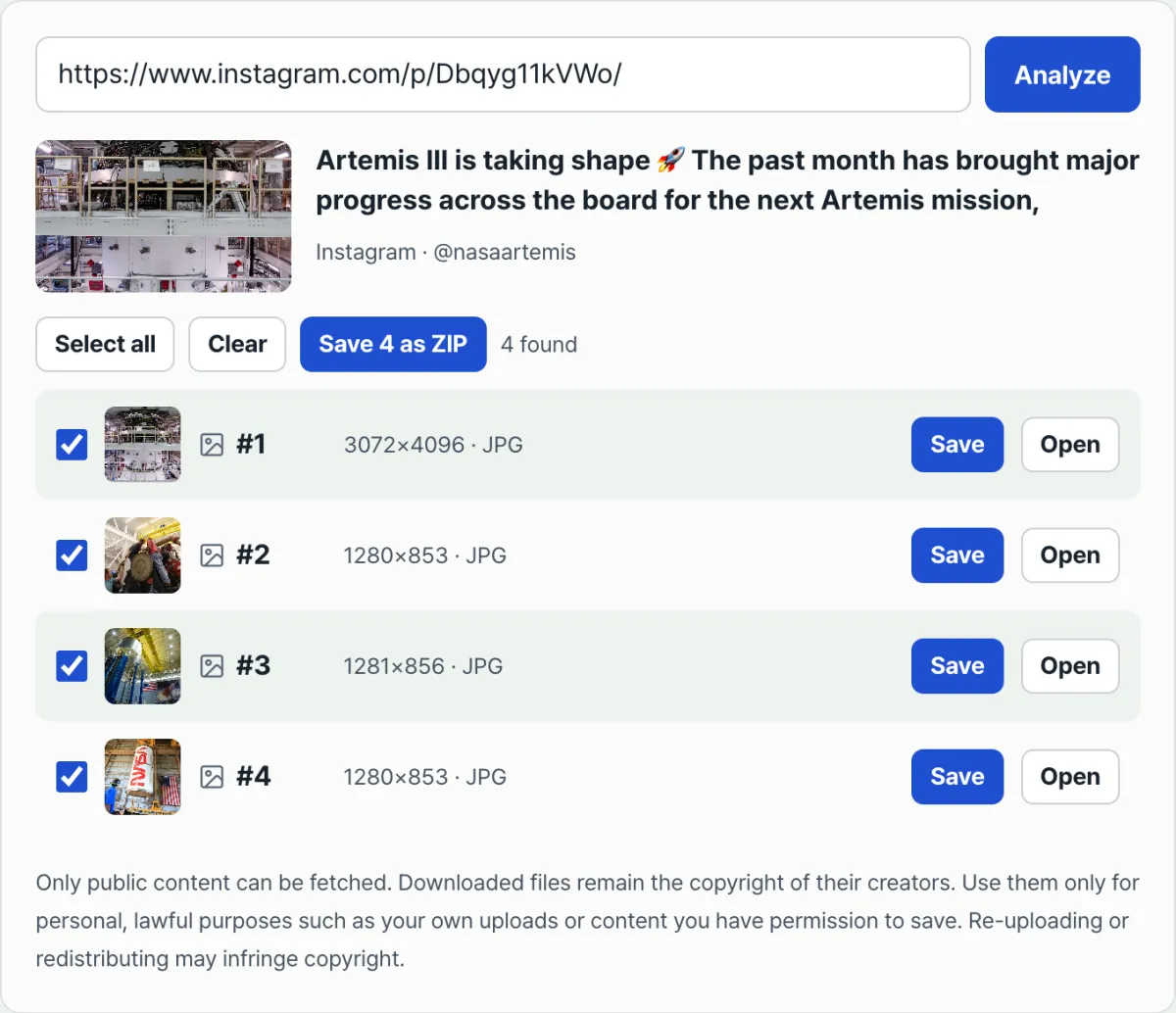
A measured NASA carousel post about Artemis is one example. The first photo was 3072×4096, and the other three were 1280×853, 1281×856, and 1280×853. The first photo is far larger than the others by pixel count.
The one number that's off at 1281×856 matters too. It's evidence that this isn't a precisely standardized format but the uploaded file exactly as it was. A copy generated automatically to a spec wouldn't leave that 1-pixel difference.
In short, with carousels you need to check each photo, not judge the post as a whole. A large first photo doesn't mean the rest are large, and a small first photo doesn't mean the rest are small.
The reason is simple. The photos in a single carousel post don't necessarily come from the same device under the same conditions. It's common for a camera shot and an image made on screen to be mixed in one post.
That's why, as in the measurements above, one photo comes out unusually large. It's not a rule — it's the character of the uploaded files showing through.
Screenshots aren't a workaround
Since the original won't come out, a lot of people decide to capture the screen instead. That goes the wrong direction.
A screenshot re-saves the pixels drawn on screen. The copy displayed at that moment is the ceiling, and the capture process adds another round of recompression on top. However big the original was, pixels outside the screen don't make it into the capture.
On top of that, the interface gets captured too. You have to crop out the like and comment area, the account name, the time display at the top, and the more you crop, the fewer pixels you have left.
It's natural to think that enlarging the screen on a PC before capturing would be better. Enlarging the screen can make the browser pick a bigger copy, but the ceiling is still whatever copy got picked then. Not the original — somewhere in the middle of the list.
Photos and videos take different paths
One thing to separate out. The candidate list structure described so far is about photos.
Reels and videos follow the video file path, not the image candidate list, so if you approach them like a photo you'll only end up with a thumbnail. If you need the video, you have to use a video method from the start.
Stories are another case. Stories are content you can only see when logged in, so you can't reach them while logged out, and the methods described in this article won't handle them.
When access itself is blocked, the structure is the same
The same place explains why private accounts and deleted posts don't work. To see the candidate list, you first have to reach that post's page, and if the page won't open while you're logged out, there's no way to get to the list.
So it's not that you lack the "skill to find the original" — the door is locked. The only way to open a locked door is to borrow account access, and that's outside the scope of this article.
So flipping the order of your checks saves time. Before wondering about the original size, check whether the post is visible while logged out.
What You Actually Get, Method by Method
If you line up everything so far by method, it comes out like this.
| Method | File you actually get | Cropped? | Multiple photos | Limitation |
|---|---|---|---|---|
| Screen screenshot | The pixels drawn on screen | Interface included | Manual, one per slide | Compression applied one more time |
| Right-click save | 351×350 preview crop | Cut to a square | Manual, one per slide | The cropped part can't be recovered |
| Save from a messenger preview | The og:image as-is | Cut to a square | First slide only | The other slides can't be reached at all |
| DevTools Network | The copy made for on-screen display | Original aspect ratio kept | Manual, one per slide | Hard to find the largest candidate |
| Largest entry in the candidate list | The uploaded original | Original aspect ratio kept | Each slide has its own | You have to dig through responses yourself |
| Our tool | The largest candidate for each slide | Original aspect ratio kept | All at once, as a list | Public posts only |
There's just one thing that separates the rows in that table. Which copy out of the several you picked. There's no technology that makes the quality better — it's the difference between choosing a big file and a small file from the start.
The top three rows and the bottom three rows are also different in nature. The top three start from "what's visible on screen," so the screen becomes the ceiling. The bottom three start from "a list of stored files," so they can reach the original.
That also explains why saving with a tap on your phone gives such bad results. The path that's closest to your hand is the one that starts on the screen side.
One more thing: no matter which method you use, you will never get a result bigger than the original. A post uploaded at 584×584 is 584×584 at most no matter which route you take. The last row of the table is no exception — it can't conjure up a size that isn't in the list.
Where People Get Stuck
| Symptom | Cause | Fix |
|---|---|---|
| The file you got is cropped into a square | You got the share-preview crop (351×350) | You need the largest entry in the candidate list, not the preview |
| It shows "not found" | The account is private or the post was deleted | First check in an incognito window while logged out to see whether it appears |
| You got it and it's small, like 584×584 | That post's original is itself small (an old post) | That size is the original. A bigger file doesn't exist |
| Only the first slide comes through and the rest are missing | The preview image is made from just one representative slide | For a carousel, you have to check each slide separately |
| Same post, but the slides are different sizes | Because the original is stored exactly as it was uploaded | That's normal. Just check slide by slide |
| You get a single thumbnail instead of a photo | It's a Reel or a video post | For video, you need a video method, not a photo one |
| You paste the address and it isn't recognized | A tracking string or an in-app address got mixed in with it | Grab it again with "Copy link" from the three-dot menu |
The second and third rows of the table are different in nature. The second is a case that's impossible from the start, and the third is a case where you did get the original and the original was just small.
If you can't tell these two apart, you'll decide something doable isn't doable, or you'll keep trying something that isn't going to work. The test is the first step we looked at earlier — if it shows up while you're logged out, it's public; if it doesn't, that's the end of it.
The address problem from the last row comes up often too. An address passed along with the share button in the app sometimes has a string on the end showing where it came from, and an address that came through search results or another site sometimes has a different domain wedged in the middle.
When that happens, the surest fix is to grab it again with "Copy link" from the three-dot menu on the post screen. The address that comes out of that route is the official address pointing to the post.
Copyright and Legitimate Use
Being technically able to download something and being free to use it however you like are two completely different things. This distinction is the most important part of this article.
Public means permission to view, not permission to use
A public post means "it's open for anyone to see," not "anyone can take it and use it." The copyright on a photo belongs to the original creator who shot it and posted it.
Setting something to public is a choice about who can view it, not an act of giving up your rights. It's the same structure as a book on display in a bookstore — anyone can open it and read it, but that doesn't mean you can copy and distribute it.
The conclusion doesn't change if the account belongs to a company or a public institution. Even if a photo was posted for promotional purposes, the terms of use are set by that institution, and you can't assume that because it's promotional material you're free to use it.
The Safer Side and the Riskier Side
It's better to keep the safe range narrow. That covers recovering originals of material you posted yourself, using something with permission from the original creator, and keeping and referencing something for personal use.
The risky side, on the other hand, is fairly clear. Reposting a photo you got on your own account, moving it to a blog or community, putting it on a product page or in an ad, or editing it and distributing it as if it were new content can all be copyright infringement.
"People think that crediting the source makes it fine — that's a common misunderstanding. A source credit is a courtesy and a minimum label, but on its own it doesn't stand in for permission. You have to get permission from the rights holder.
If it's for work, it pays to be extra careful. Putting something in internal materials or a proposal is different in nature from keeping it for your own reference, and the more a document goes out under a company's name, the wider the fallout if it becomes a problem later. If the use goes beyond the personal range, it's safer to ask the rights holder in advance about the scope of use and to keep a record of what answer you got.
What Else You Can Run Into Besides Copyright
If there are people in the photo, a portrait rights issue comes up alongside copyright. Even if the photographer gives permission, using a photo of someone who hasn't agreed to it is a separate dispute.
Photos with a big brand logo or product in them can spill over into trademark issues, and collecting photos where a person's face is identifiable into a list is a sensitive area from a privacy standpoint too.
To sum up, what this article explains goes only as far as "why you end up with a blurry file" and "where the original lives." How you use it after that is a judgment call within your own scope of rights, and when the call is unclear, asking the rights holder is the surest way.
How it differs from similar-looking methods
It's not the same as enlarging or sharpening
Plenty of people try to revive a blurry saved copy with an image editor or an upscaling feature. That's a different kind of thing from what this post covers.
Upscaling estimates the pixels that aren't there and fills them in. Stretch a 351×350 image to 3000px and the detail that was in the original still doesn't come back. Picking the largest entry from the candidates list, on the other hand, means choosing a file that already exists. It's a selection, not a restoration.
That's why the order matters. Get the largest original first, and only look at enhancement if that still isn't enough. If you start by enlarging a small file, you've fixed the ceiling for everything you do afterward.
It's not the same as screen capture apps or browser extensions
An app with a capture feature or a browser extension still ends up saving what's drawn on the screen. For the reasons above, the on-screen copy is the ceiling.
Extensions also often ask for permission to read the contents of Instagram pages. That's access to pages while you're logged in, so if you don't check what you're installing, you take on account-related risk.
A method that just takes a link and checks it doesn't touch your login credentials. It only handles public posts that anyone can see without logging in, so it never needs account access in the first place. That's the flip side of the "public posts only" limitation.
It's not the same as services claiming to grab stories or private accounts
Some services advertise that they'll save stories or handle private accounts for you. This one doesn't.
Stories are content you have to be logged in to see, and a private account opens only to people whose follow requests were approved. Getting either one means borrowing someone's logged-in session. Handing over account credentials isn't just risky — it reaches past what the poster left open.
So the scope stays limited to photos in public posts. Spelling out what it can't do is better than letting you assume it can and handing over an account.
It's not the same as the Instagram app's 'Save' feature
The app has a save icon too, so it's easy to think you've already saved the photo. It's a different thing.
Saving in the app just adds the post to a favorites list. No image file lands on your device, so if the original post is deleted or switched to private, you can't see it in that list either.
Keeping a file and remembering where something lives give you different results. If you plan to use it large later, you need to get the original as a file at that point — and even then, usage rights are a separate question you still have to check.
It's not the same as downloading one at a time
The difference shows up most in multi-photo posts. Downloading one at a time means tapping through arrows and repeating the same task for every photo, and it's hard to tell whether you skipped one along the way.
It matters even more because each photo's original is a different size. When you see them all in one list, you can compare at a glance which are large and which are small. When you download one at a time, you have to reopen file info later and compare.
That's also why it's better to pick only the photos you need and bundle them in one go. The real difference isn't fewer repeated steps — it's fewer things missed and fewer mistakes.
In short
Your Instagram photo looks blurry not because quality was stripped out, but because you got the small one out of several copies of the same photo.
The image that fills the share-preview slot is a 351×350 crop, and that's the file you get when you save via right-click or pull it from a messenger preview.
The original is the largest entry in the candidates list. In our tests, the original dimensions recorded on the post and the largest candidate matched exactly at 1440×1440.
Original size varies from post to post, and in a carousel, from photo to photo. One post had a 3072×4096 photo and a 1280×853 photo side by side.
The scope is public posts only, and the copyright belongs to the original creator. Use it only for personal, lawful purposes — your own material, content you have permission for, and so on.
Free · no sign-up · photos from public posts at original resolution
Frequently asked questions
Why do Instagram photos look blurry when I save them?
It's not that saving downgrades the quality — you're downloading a different file from the start. Instagram keeps several copies of a photo at different sizes, and the share-preview slot is assigned a small square cropped to 351×350. That's the file you get when you save via right-click or pull it from a messenger preview. The uploaded original exists separately.
How many pixels is an Instagram original?
There's no single number. The original is whatever size the uploader posted, so it varies by post. Recent posts are usually 1080px or more, and sometimes a larger original is still stored. In our tests we saw one at 3072×4096, while a 2019 post had an original that was itself 584×584. In that case, 584 was the original.
Are the photos in a multi-photo post different sizes?
They can be. A carousel stores each photo exactly as it was uploaded, so the originals differ from one to the next. When we checked a NASA Artemis post, the first photo was 3072×4096 and the other three were 1280×853, 1281×856, and 1280×853. Numbers that are off by a pixel show these are originals as uploaded, not copies resized to a standard.
Can't I just take a screenshot instead?
You can, but you lose quality. A screenshot re-saves the pixels drawn on the screen, so the copy displayed at that moment is the ceiling — and the capture adds another round of compression on top. You also get the like and comment area and the account name in the frame and have to crop them out later, and the more you crop, the fewer pixels you keep.
Can I save from private accounts or stories?
No. It only handles public posts that anyone can see without logging in. A private account opens only to approved followers, and stories are content you have to log in to see, so neither is supported. Deleted posts are the same story. The test is simple: open the post in a private window while logged out and see whether the photo shows up.
Can I post a saved photo on my blog?
Not without separate permission, because the copyright belongs to the original creator. A public post means it's open for viewing, not that it's cleared for use. Use it only for personal, lawful purposes — recovering your own material, content you have permission for, and so on — and reuploading or redistributing it can infringe.
The photo I got is small: can I just enlarge it?
Enlarging won't bring back the original's detail. Upscaling estimates pixels that aren't there, so blowing a 351×350 up to 3000px won't restore what was cropped away or lost. Better to change the order: get the largest original first, and only look at enhancement if that still isn't enough.
This article was adapted from our Korean original. Read the Korean original