
JPG to PNG Conversion: Why the Image Quality Stays the Same
Converting a JPG file to PNG doesn't improve your photo quality. The information that was already discarded the moment the JPG was saved doesn't come back just because you switch the file to PNG. PNG only re-saves that discarded state as-is, losslessly.
Summary ① JPG is a lossy compression format that already throws away some image information the moment it saves ② Converting to PNG doesn't restore that lost information, and the file may actually get bigger ③ Here's how to convert JPG to lossless PNG right in your browser
The Problem
Print shops, document intake desks, and logo submission forms often say "PNG files only." Most photos you take or save on a smartphone are JPG, so you figure you just need to change the extension to PNG and go ahead with the conversion.
But when you zoom in on the converted PNG, the blur and the smudges around edges from the original JPG are still there. That's where the question comes up: "PNG is supposed to be lossless, so why is the quality the same?"
To get to the point: this isn't a conversion error. It's normal behavior. PNG preserves exactly the information that's still there. It has no way to bring back information that's already gone.
The Solution
JPG is a lossy compression format that selectively discards information the human eye doesn't notice much when it saves the file. It reduces file size by recording color information more sparsely than brightness information (chroma subsampling) and by breaking the image into small blocks and smearing out fine detail (high-frequency components).
The information discarded in this process isn't stored anywhere in the file. The stronger the JPG compression, or the more times you've saved an image as JPG, the more gets thrown away, so when you zoom in, the blocky smudges in 8×8 pixel units (block noise) become more obvious.
PNG works the opposite way: it's lossless compression. It compresses and stores the pixel values currently on screen without discarding a single one. So converting a JPG to PNG is really just "repackaging an already-smeared photo losslessly," and the smeared traces are preserved exactly as they are.
There's an easy way to check for yourself. Open a JPG in any image editing program, zoom in as far as you can on text or the area around an edge, then export the same file as PNG and zoom in on the same spot again. You can see with your own eyes that the smudged traces in both images are identical down to the pixel.
The same principle explains why the file gets bigger. JPG is designed to shrink file size dramatically by exploiting the repeating patterns in images where colors change naturally, like photos. PNG compresses every pixel value exactly as it is, so for photo-like images the file size is often larger than the original JPG.
If you want to see the conversion result for yourself in your browser, try it with our tool.
Upload a JPG and we'll turn it into a lossless PNG right in your browser.
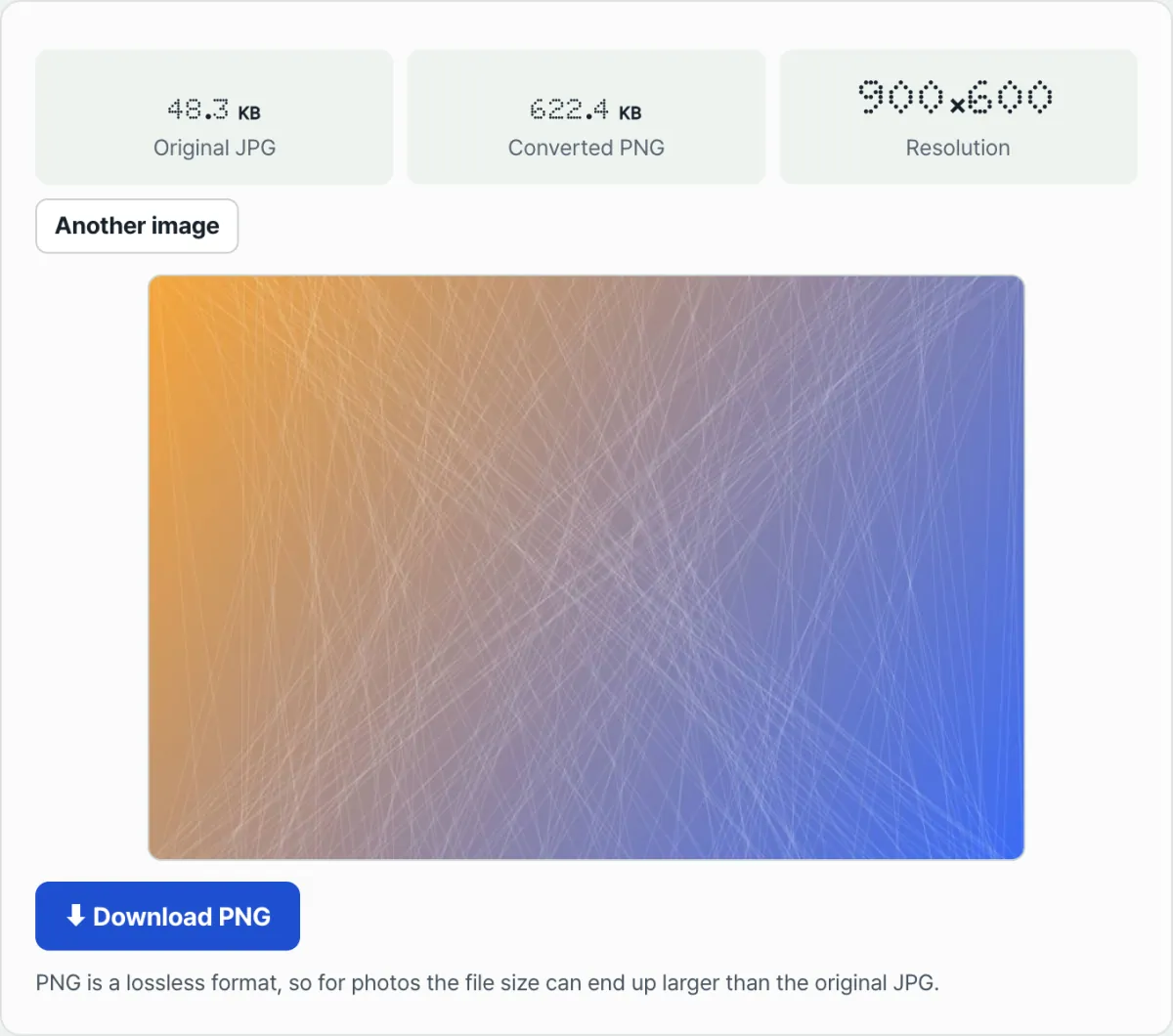
This tool draws the JPG onto a canvas inside your browser and re-encodes it as a lossless PNG. It doesn't upload your file to a server — it shows the result right there on the spot, along with the original JPG size, the converted PNG size, and the resolution.
Common Sticking Points
| Symptom | Cause | What to check |
|---|---|---|
| I converted it to PNG but the quality is the same | The information was already discarded when it was saved as JPG, and no method can restore it | This is normal. If quality matters, save the original at high quality from the start going forward |
| The PNG file is actually bigger | PNG is lossless, so it stores even the smudges JPG compression left behind | This is normal. There's no quality loss — only the file size went up |
| I converted JPG↔PNG several times | Loss only happens when you save as JPG again; PNG itself is lossless | Just check whether the file was re-saved as JPG at any point in between |
| I needed a transparent background, but it's still white | The JPG format itself has no transparency (alpha channel) information | Removing the background requires a separate background-removal step |
The Bottom Line
Converting JPG to PNG isn't a task that "improves" quality — it's a task that "locks in" the current state losslessly. Information already discarded by JPG compression can't be brought back by any conversion tool.
On the other hand, if you want to edit and store the image from here on with no further loss, switching to PNG is a sensible choice. Just keep in mind that for images where colors change continuously, like photos, the file size may get bigger.
Upload a JPG and we'll turn it into a lossless PNG right in your browser.
Frequently Asked Questions
Does converting to PNG improve the quality?
No. PNG simply stores the pixel information that's already there, so the quality doesn't get better or worse. Detail lost at the JPG stage can't be recovered by converting to PNG.
PNG is compressed too: doesn't it throw away information?
PNG compresses differently from JPG. It uses lossless compression (DEFLATE) that shrinks data by grouping repeating patterns, so when you decompress it, the pixel values are exactly the same as the originals. The underlying principle is completely different from JPG's lossy compression, which selectively discards information that affects quality.
Is it safe to convert a photo to PNG after it's already been saved as JPG several times?
Yes. From the moment you convert it to PNG, no more loss occurs. However, the loss that piled up from re-saving it as JPG multiple times before that already happened, independent of the PNG conversion, and can't be reversed.
This article was adapted from our Korean original. Read the Korean original