
SVG path decimals: how many can you trim safely?
Contents
SVG paths exported from design tools often keep 6–7 decimal places in their coordinates. You know trimming them makes the file lighter, but it's hard to guess how far you can go before the shape changes. If you know the viewport size and the size it's actually rendered at, you can calculate that number yourself.
Summary ① How many pixels one coordinate unit occupies on screen is set by "render size ÷ viewport (viewBox) size." ② When you round to n decimal places, the coordinate can be off by at most 0.5 × 10⁻ⁿ units, and you can convert that to pixels to see whether it's visible. ③ If the calculated error is much smaller than 1 pixel, it won't be distinguishable on a typical screen.
Why Does an Exported SVG Have So Many Decimals?
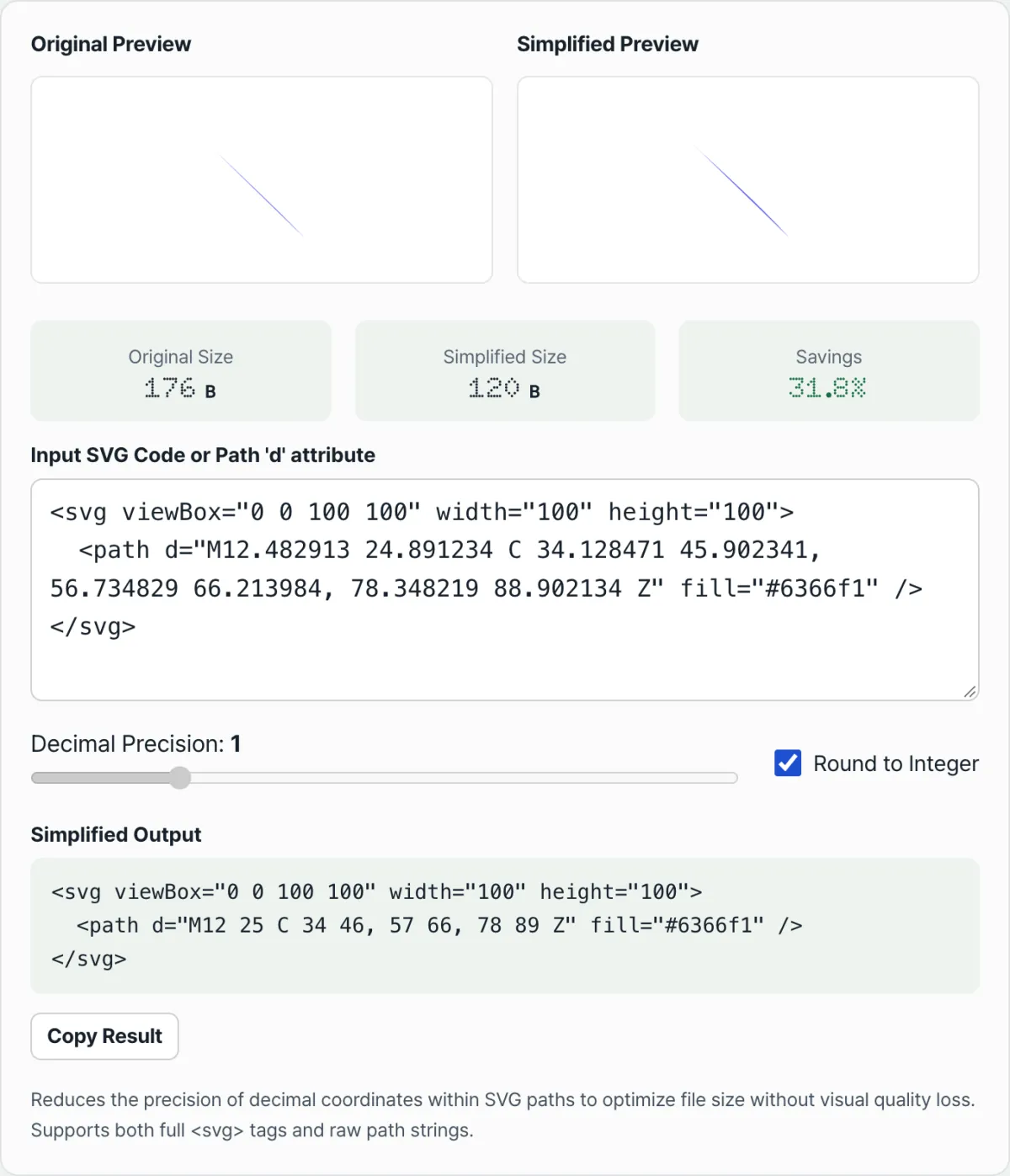
When you draw a shape in Inkscape or Figma, floating-point operations pile up across the rotation and Bézier curve calculations. So the stored coordinates end up far more precise than the display needs — something like "M12.482913 24.891234."
That precision exists to reduce error when the editor recalculates the shape. It's not information the browser needs to draw the image. The real question is "how many decimal places are safe to keep," and that depends not on the file itself but on how many pixels wide this SVG actually gets used at on screen.
How to Calculate How Many Decimal Places You Can Drop
The formula itself is simple. Work out how many pixels one coordinate unit equals, then multiply that by the maximum error for each rounding level.
Step 1: Find Out How Many Pixels One Coordinate Unit Equals
If you use an SVG with viewBox="0 0 100 100" as a 24×24px icon, then 1 unit = 24 ÷ 100 = 0.24px. Use the same file as a 200×200px banner and 1 unit grows to 2px.
Step 2: Find the Maximum Error for Each Rounding Level
When you round to n decimal places, the coordinate can be off by at most 0.5 × 10⁻ⁿ units. Round to a whole number (n=0) and the maximum shift is 0.5 units; round to 1 decimal place (n=1) and it's up to 0.05 units.
Step 3: Multiply the Two Values to Get the Error in Pixels
For a 24px icon, the maximum error from whole-number rounding is 0.5 × 0.24px ≈ 0.12px, and for 1 decimal place it's 0.05 × 0.24px ≈ 0.012px. Both are far smaller than a single pixel, so they get blurred away within the anti-aliasing.
Scale the same file up to a 200px banner and the error from whole-number rounding grows to 0.5 × 2px = 1px, so curves can look slightly angular. In other words, the safe number of decimal places isn't set by the file — it's set by where and how large it's used.
Check it with our tool. Instead of repeating this math by hand for every file, you can move a slider to change the decimal places and compare the original and simplified previews side by side, along with the file size savings.
Free · No install, converts instantly in your browser · Your code is never sent to a server
Common Sticking Points
| Situation | Cause |
|---|---|
| Whole-number rounding still leaves visible artifacts on a small icon | The viewBox units themselves are large (e.g., 0 0 1000 1000 instead of 0 0 24 24), or the actual render size is bigger than you think. Rerun the Step 1 and 2 calculations |
| You trimmed the decimals but the file size barely dropped | The coordinate precision was already short, or non-path text like comments and metadata makes up most of the file size |
| Only the curve (C, Q) segments look muddy | Curve control points react more sharply to position changes than straight-line coordinates, so the same decimal precision can have a bigger visual impact |
| The coordinates changed but opacity and stroke-width didn't | This tool only cleans up the numbers inside the d attribute. To trim other decimal values too, you need a separate full SVG optimizer |
Key Takeaways
- How many pixels one coordinate unit equals is set by "render size ÷ viewBox size."
- Rounding to n decimal places can shift coordinates by at most 0.5 × 10⁻ⁿ units; convert that to pixels, and if it's much smaller than 1px, it won't be noticeable.
- The same file has different safe decimal limits when used small like an icon versus scaled up large.
- If there's any chance you'll use it at a large size, keeping 1–2 decimal places is safer than rounding to whole numbers.
Free · No install, converts instantly in your browser · Your code is never sent to a server
Frequently Asked Questions
Can I delete all the decimals in SVG paths and use only whole numbers?
For icons used small, within a few dozen pixels, it's usually fine. But if you scale those same coordinates up for a large banner or print, whole-number rounding error grows to pixel scale and curves can look angular, so it's safer to check the render size with the formula above first.
Why don't design tools export short decimals in the first place?
Because rotation and Bézier curve calculations inside the editor use floating-point math, where error tends to accumulate, so the tool stores far more decimal places than the display needs. That precision is for calculation accuracy when you re-edit — it's not information you see on screen.
How much file size do I save by trimming decimals?
It depends on how many coordinates there are and how many decimal places they started with, but trimming 6–7 decimals down to 1–2 often cuts the character count per number by more than half. The more paths a complex icon has, the bigger the savings.
Can I trim curve control points (C and Q commands) by the same standard?
Yes, the same decimal precision applies to every number inside the d attribute. But curve control points can be more sensitive to position changes than straight-line coordinates, so for a path with lots of curves, it's safer to double-check with the result preview.
This article was adapted from our Korean original. Read the Korean original