
Convert JPG, PNG, WebP, AVIF, and BMP in One Place
Contents
- Why one format change takes you through several sites
- Converting it yourself vs. doing it all in one place
- Where people get stuck
- Bottom line
- Core Technical Mechanics: JPG vs PNG vs WebP vs AVIF Compression Algorithms
- All-Around Spec Comparison Matrix of the 5 Major Image Formats
- 5 Common Mistakes People Make When Converting Image Formats
- A 5-Step All-in-One Image Conversion Workflow
- 7 Image Optimization Tips
- Final Decision Tree: Which Image Format Should You Choose?
- Cheat Sheet: Key Image Format and Compression Terms
- Frequently Asked Questions
You've probably typed "png to jpg," "webp convert," or "avif convert" into a search bar more times than you can count. Every time the format combo changes, you move to a different site, and each one has its own upload size limit, its own ads, and its own watermark rules. This post explains why that keeps happening, and how to handle image format conversion in every direction from one place.
Summary ① Most image format conversion sites are built to support only one direction, "A to B," so the more combinations you need, the more sites you have to hunt down ② Changing the file extension doesn't change the format. You actually need to re-encode the pixel data using a different compression method ③ Built-in operating system tools mostly save only older formats like JPG, PNG, and BMP, so they often can't handle relatively recent formats like WebP and AVIF
Why one format change takes you through several sites
One day you need to turn a PNG for your website into a smaller WebP. Another day someone sends you a WebP and you need it back as a JPG so an older program can open it. The direction you need changes day to day, so you end up typing a new search every time.
The problem is that most of what you find is a site that supports only one direction. A site that converts PNG to WebP often can't handle BMP or AVIF, and even when it can, the upload limits and sign-up requirements differ from site to site, so you have to check them all over again. These sites get built one direction at a time because the search terms themselves split apart: "png to webp," "webp to jpg," and so on.
In the end, just moving between five formats — JPG, PNG, WebP, AVIF, and BMP — gives you twenty possible conversion directions in theory, and almost nobody bookmarks the best site for each one. So you search again, close the ads, hit a size limit, and go looking for another site. Over and over.
Converting it yourself vs. doing it all in one place
You can do basic conversions without any tool. On a Mac, open the image in Preview, then choose "File > Save As" and pick JPEG, PNG, or TIFF as the format to save in. On Windows, open it the same way in the Photos app or Paint, choose Save As, and you can switch between BMP, PNG, and JPG.
The catch is that this isn't just changing the extension — it's a real re-encode — and neither program usually lists relatively recent standardized formats like WebP or AVIF as save options at all. If you just rename the file to end in .webp, the internal data stays the same and only the label changes, so other programs won't open it. Avoid that.
In other words, built-in tools work for converting between older formats, but the moment WebP or AVIF is part of the combo, you need a separate converter. Instead of hunting for a different site for each direction, keep one tool open where you can choose both the input and output formats, and you can handle any combination on the same screen.
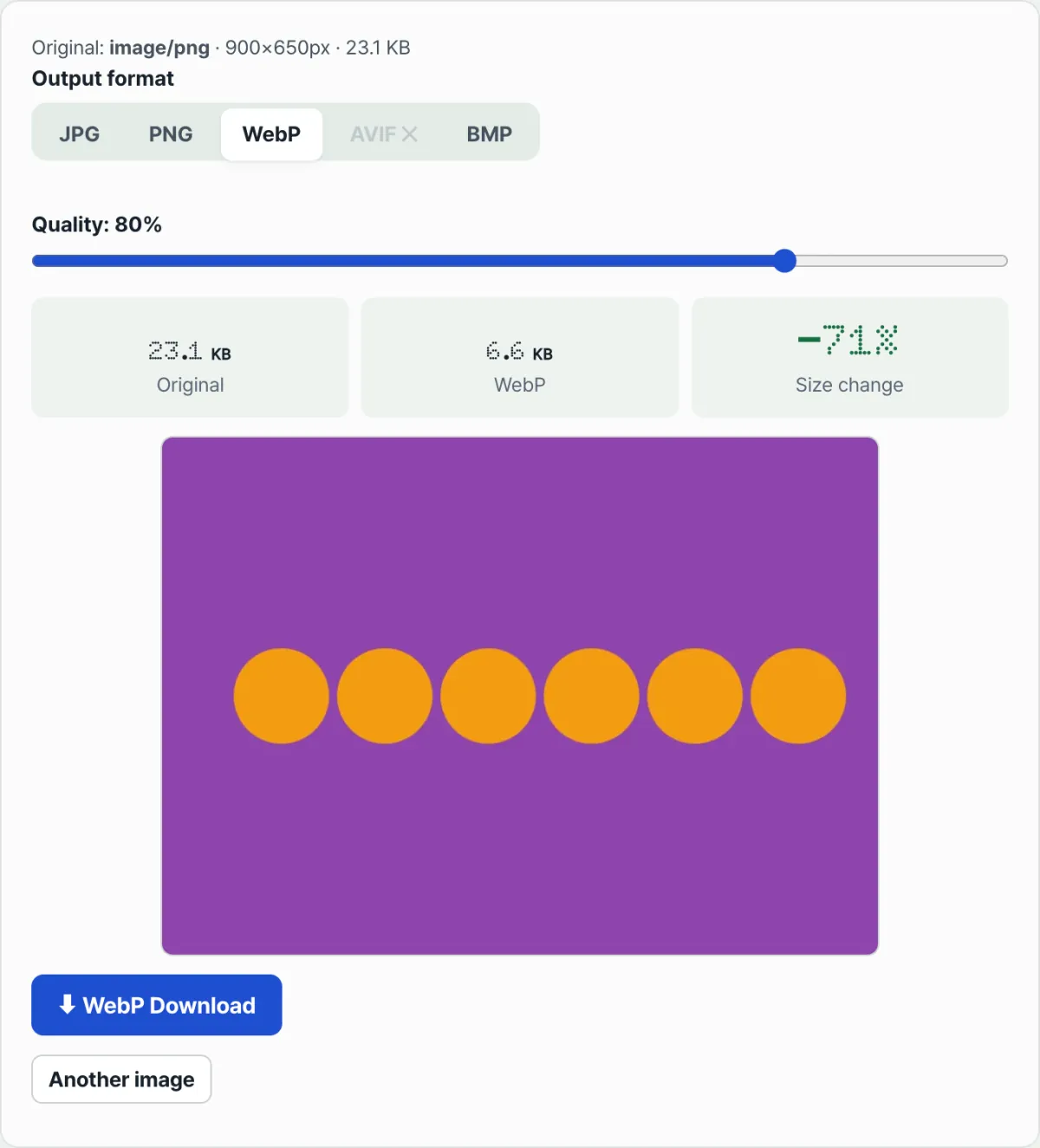
Check it with our tool. Upload the file you want to convert, pick the output format you want, and you get your result right there on the same screen for any JPG, PNG, WebP, AVIF, or BMP combination.
Free · No install · Convert right in your browser
Where people get stuck
| Situation | Why it happens |
|---|---|
| You saved the file with a new extension and now it won't open | The extension is just a label. The internal data format is unchanged, so the program can't interpret the data |
| The WebP and AVIF save options don't show up at all | Older image programs were never updated to support relatively recent standardized web formats |
| You converted PNG to JPG and the background filled in white | JPG doesn't support PNG's transparent areas, so they get replaced with a specific color when saving |
Bottom line
Most format conversion sites support only one direction, so the more combinations you need, the more sites you have to track down. Renaming an extension isn't the same as converting a format — real conversion requires re-encoding. Built-in operating system tools mostly cover older formats and often can't handle WebP or AVIF. With one tool where you can choose both input and output formats, any combination gets solved on the same screen.
Free · No install · Convert right in your browser
Core Technical Mechanics: JPG vs PNG vs WebP vs AVIF Compression Algorithms
A comparative analysis of the mathematical and engineering principles each image format uses to handle data.
1. Internal rendering & compression mechanics by format
- PNG (Portable Network Graphics): Uses lossless Deflate compression (LZ77 + Huffman coding). It preserves pixels exactly as they are, 100% intact, and supports 8-bit/16-bit alpha channels (transparency), but file sizes get very large with photographic data.
- JPG / JPEG: Lossy compression based on the discrete cosine transform (DCT) and chroma subsampling (4:2:0). It discards color information the human eye is insensitive to and concentrates on preserving brightness information, achieving high compression rates on real-world photos, but it produces mosquito noise along text edges and can't support transparent backgrounds.
- WebP (Google): Borrows intra-frame spatial prediction from the VP8 video codec. It supports lossy and lossless compression plus transparency at the same time, and at equal visual quality it's 70% lighter than PNG and 30% lighter than JPG.
- AVIF (Alliance for Open Media): The newest standard, built on AV1, the next-generation video codec. It delivers 20% higher compression than WebP and fully supports 10/12-bit HDR color space.
2. Magic number (signature bytes) and file header integrity
- Changing the file extension from .webp to .png with a text edit doesn't change the file format.
- Every graphics program reads the magic number recorded in the first 4–8 bytes of the file to determine the format.
- PNG: 89 50 4E 47 0D 0A 1A 0A
- JPEG: FF D8 FF
- WebP: 52 49 46 46 ... 57 45 42 50 (RIFF....WEBP)
- So you must use a real transcoding tool that runs the pixels through a canvas pipeline and writes a proper header again.
All-Around Spec Comparison Matrix of the 5 Major Image Formats
| Image format | File extension | Compression method | Transparency (alpha) support | HDR/wide gamut support | Browser/device compatibility | Recommended use |
|---|---|---|---|---|---|---|
| JPG / JPEG | .jpg, .jpeg | Lossy compression | ❌ No | ❌ (8-bit sRGB) | Almost every environment | Real-world photos, print, general sharing |
| PNG | .png | Lossless compression | ⭕ Full support | ❌ (8/16-bit) | Almost every environment | Logos, icons, text captures, cutouts |
| WebP | .webp | Lossy & lossless | ⭕ Full support | ❌ (8-bit) | 97% (all modern browsers) | Websites, e-commerce product pages |
| AVIF | .avif | Ultra-high-efficiency lossy/lossless | ⭕ Full support | ⭕ (10/12-bit HDR) | 93% (modern mobile/web) | Next-gen web optimization, HDR graphics |
| BMP / TIFF | .bmp, .tiff | Uncompressed / lossless | ⭕ Partial support | ⭕ Supported | 80% (mostly professional tools) | Industrial scanning, ultra-high-quality publishing masters |
5 Common Mistakes People Make When Converting Image Formats
- Converting a transparent PNG to JPG: The alpha channel gets destroyed, the background fills in black or white, and the graphic asset becomes unusable.
- Just renaming the file extension: This causes "corrupt file" or "unknown bitmap" errors when a program tries to open it.
- Pointless chains of lossy conversions (JPG ➔ WebP ➔ JPG): Quantization error builds up with every conversion, causing generation loss that smears the image fast.
- Saving illustrations and charts as low-quality JPG: Ugly compression artifacts show up around text and chart lines, which hurts readability.
- Uploading personal photos to a server-based converter: Sending ID cards, family photos, or internal confidential documents to an outside server is a security risk.
A 5-Step All-in-One Image Conversion Workflow
- Step 1 (Upload your files): Drag the original images you want to convert (one file or dozens at once) into the client-side all-in-one image converter on this site.
- Step 2 (Pick your output format): Choose from the dropdown based on your goal: WebP (web optimized), PNG (transparency and logos), JPG (compatibility and print), or AVIF (ultra-light).
- Step 3 (Balance quality): For lossy formats, use the slider to set quality (80–85% is recommended) and get the best size reduction.
- Step 4 (Lossless encoding in your browser via GPU): HTML5 Canvas and Wasm-native libraries finish the conversion locally in 1 second with no server upload.
- Step 5 (Download individually or as a ZIP): Check each converted image, then save them all at once with the Download All (ZIP) button.
7 Image Optimization Tips
- The golden number on the quality slider: 82%: For both WebP and JPG, the 80–85% range is the sweet spot where file size drops to less than half while the visible quality difference stays close to zero.
- Progressive compatibility with the HTML5 picture tag: List the avif and webp sources in that order inside the picture tag, then set jpg in the img tag, and you satisfy both modern browsers and older devices.
- Always use PNG for screenshots that contain text: Save UI screens with text as PNG or lossless WebP instead of JPG so the letters never blur.
- Protect your privacy by stripping EXIF metadata: Running an image through a conversion tool automatically scrubs sensitive metadata like GPS coordinates and the camera serial number.
- DPI only matters for printing: For images you post on the web, the DPI setting (72 vs 300) makes no difference — size and file size depend only on the pixel resolution (Width × Height).
- Convert favicons to 32×32 PNG or ICO: Don't use a large image as your favicon. Convert it to a lightweight PNG to speed up your site's first load.
- Use lossy WebP with alpha for cutout transparent images: Lossy WebP with Alpha keeps transparency while cutting file size to 1/4 of a PNG — a web designer's secret weapon.
Final Decision Tree: Which Image Format Should You Choose?
- Scenario A (Product pages and blog posts) ➔ WebP (quality 85) (blazing-fast loading and search engine optimization)
- Scenario B (Logos, icons, transparent cutouts, UI screenshots) ➔ PNG (24-bit with Alpha) (crisp pixel preservation)
- Scenario C (Offline print, photo prints, delivery to older software) ➔ JPG (top quality 100) (opens on almost any device)
- Scenario D (Cutting-edge mobile web and next-generation traffic savings) ➔ AVIF (quality 80) (the best compression efficiency available today)
Cheat Sheet: Key Image Format and Compression Terms
- Alpha channel: A dedicated channel that records each pixel's transparency (0% transparent to 100% opaque) alongside the RGB colors.
- Lossy compression: Irreversible compression that deletes tiny bits of visual information you can't perceive to cut file size dramatically (JPG, lossy WebP).
- Lossless compression: Reversible compression that restores the original bits exactly after decompression (PNG, lossless WebP).
- Chroma subsampling: A technique that reduces color resolution to compress images, exploiting the fact that human eyes are less sensitive to color (chroma) than to brightness (luma) — for example, 4:2:0.
- WebP: A next-generation open-source web image format developed by Google.
Frequently Asked Questions
Does converting a PNG to JPG lower the image quality?
JPG is lossy, so every save loses a little quality. But with a single conversion, the difference is hard to see with the naked eye. If you want to save with no quality loss, choose PNG or the lossless option in WebP.
What happens if I convert an image with a transparent background to JPG?
The JPG format doesn't support transparency (an alpha channel), so transparent areas get filled with a solid color such as white during conversion. If you need to keep a transparent background, save it as PNG or WebP.
I'm not sure which format to use. How should I decide?
For photos headed to the web, WebP or AVIF is better because the files are small. If compatibility with older programs matters, JPG or PNG is the safe choice. For images that need to stay transparent, go with PNG or WebP.
This article was adapted from our Korean original. Read the Korean original