
Why PNG Transparent Backgrounds Turn White in JPG
Contents
If you've ever saved a logo or icon with a transparent background as a JPG, you've probably seen the transparent areas come out painted white. That's not a mistake by the conversion program — the JPG file format simply can't represent transparency. Once you understand why, you can decide for yourself which images are fine to convert to JPG and when you should leave them as PNG.
Summary ① PNG has an alpha channel that stores transparency for each pixel, but the JPG format has no such concept at all ② So when you convert a transparent PNG to JPG, the pixels that were transparent always get filled with some color (usually white) ③ That's fine for images you'll only use on a white background, but logos and icons that go on colored backgrounds or dark mode should stay PNG
Why Does the Background Turn White When I Save a PNG as JPG?
When you make a logo or icon as a transparent PNG and save it as a JPG, the empty areas come out filled with a white rectangle. The outside of rounded corners on a screenshot gets filled in the same way, leaving them square.
The cause isn't your image editor — it's the JPG format itself. In addition to RGB color data, PNG has a separate alpha channel that stores how transparent each pixel is on a 0–255 scale, so it can represent anything from fully opaque to fully transparent and everything in between.
JPG, on the other hand, was designed to compress photos into small files, so its spec only defines lossy color compression. Transparency isn't part of the spec at all. So the moment you convert a PNG with an alpha channel to JPG, those transparent pixels have to be filled with some color.
How to Check: See for Yourself What Color Fills the Transparent Background
The simplest way to check is to open the PNG in any image editor (Windows Paint, macOS Preview, an online editor, and so on) and just export it as JPG. You'll see right away what color that program uses to fill the transparent areas.
Most programs fill with white by default, but some use black or another color, so you can't be sure of the result until you open it and look. If you're wondering whether a PNG even has transparent areas, the parts that show a gray-and-white checkered pattern (the checkerboard) in an editor are the transparent areas.
If the color is solid with no checkerboard, the PNG is already opaque, and converting it to JPG won't change the colors. On the other hand, if you plan to put a logo with a checkerboard on a colored background or a dark mode screen instead of a white page, converting to JPG will expose an unwanted white box.
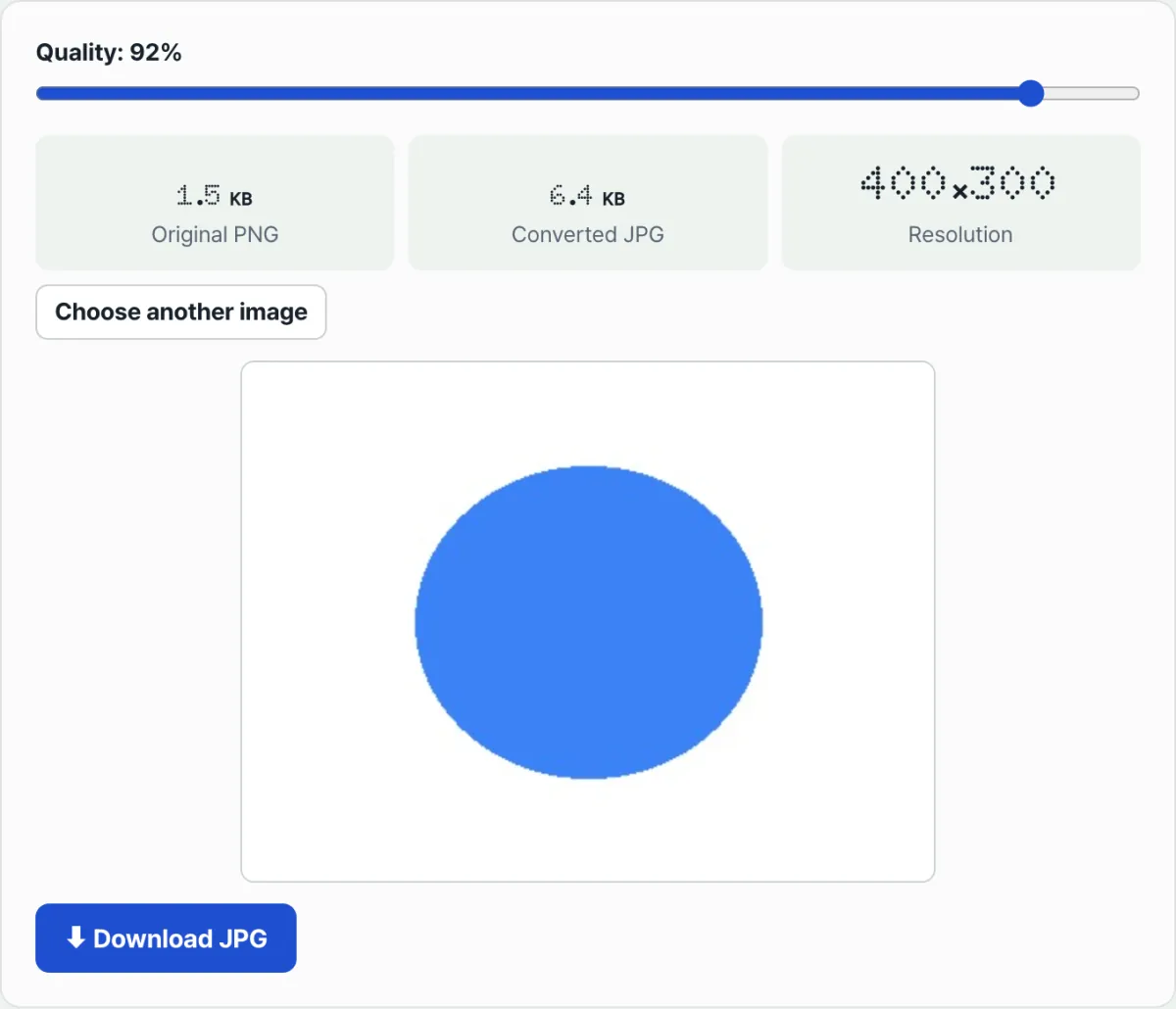
Check it with our tool. Upload a PNG and you'll see a JPG preview with the transparent areas filled in white, plus the change in file size compared with the original, right there on the spot.
Free · No sign-up · Convert PNG to JPG right in your browser
Common Sticking Points
| Situation | Why it happens |
|---|---|
| I saved a transparent icon as JPG and got a square logo | The alpha channel is gone, so the areas that were transparent get filled with an opaque color |
| I put a logo on a dark mode page and a white box shows up | JPG never blends with the background and is always opaque — whatever color was filled in at save time is what you see |
| A screenshot with rounded corners looks square in JPG | The transparent area outside the corners gets filled, revealing a rectangular outline |
| I always convert to JPG to shrink file size | That's fine for photos, but images that need transparency should stay PNG or WebP |
As the table shows, most of these problems happen when you convert to JPG without checking whether the image needs transparency. If it's a photo that doesn't need transparency, converting to JPG actually works in your favor.
The Bottom Line
PNG can represent transparency through its alpha channel, but the JPG format spec has no concept of transparency at all. So when you convert a PNG with a transparent background to JPG, those areas always get filled with some color (usually white).
If an image has no transparent parts to begin with — a photo or a screenshot, for example — converting to JPG costs you nothing and only shrinks the file size. But for logos and icons that will go on colored backgrounds or dark mode, it's safer to leave them as PNG (or WebP, which supports transparency).
Free · No sign-up · Convert PNG to JPG right in your browser
Frequently Asked Questions
Does converting a PNG to JPG always give it a white background?
When you convert a PNG with transparent areas to JPG, those areas always get filled with some color, and most programs use white by default. That said, the fill color can vary from program to program, so you may get something different than you expect.
Should I never save logos or icons as JPG?
If the image will only be used on a white background, converting to JPG won't cause any noticeable problem. But for logos and icons that will go on colored backgrounds, dark mode, or on top of other images, the transparent background is lost, so you should keep them as PNG.
When is it okay to convert to JPG?
If an image has no transparent parts to begin with — a photo or a screenshot, for example — converting to JPG won't hurt image quality and will only shrink the file size. For images that need a transparent background, though, it's safer to keep them as PNG.
This article was adapted from our Korean original. Read the Korean original