
Reduce SVG File Size: 6 Things Optimization Removes
Contents
When a single icon SVG exported from a design tool comes out at several kilobytes, the cause is usually not the artwork itself. It's editor metadata and unnecessarily long decimal coordinates that never show up on screen. You can delete all of it and the drawing stays exactly the same. So let's start by pinning down what's in there, why it's there, and what you can safely remove.
Summary ① Canvas settings, license metadata, and comments that editors save are text the browser never touches when it draws the image. ② Decimal values like coordinates and opacity are often stored with far more digits than the display needs. ③ Two items — decimal rounding and whitespace compression — can actually change the shape if you push them too far, so check the preview first.
Why your exported SVG is bigger than you expect
If you draw a single circle in Inkscape and save it as SVG, the code that actually draws the circle is one <circle> tag. But the saved file also carries a lot of other information.
The usual suspects are <sodipodi:namedview>, which records the canvas zoom level and grid settings; a <metadata> block with file info (which may include license details in RDF or Dublin Core format); and per-shape attributes like inkscape:label. Files exported from Illustrator look different but work the same way. They leave behind comments like <!-- Generator: Adobe Illustrator ... --> and their own metadata block.
What all of this has in common: it exists to restore your workspace when you reopen the file in that editor. The browser doesn't use any of it to render the image.
Coordinates have a similar problem. Inside the editor, coordinates are stored with many decimal places, like 32.128471, to reduce calculation error. But when you draw an icon at icon size on screen, that level of precision isn't distinguishable at the pixel level.
How to delete it by hand from the code
Here's the list in order, from items you can remove with no change to the shape, to items that can change the shape if you go too far.
1. XML declaration and DOCTYPE
The <?xml version="1.0" ...?> and <!DOCTYPE svg ...> lines at the top of the file. If you're not opening the file on its own to validate it as XML — if you're using it in an <img> tag or inlining it in HTML — it renders fine without the declaration.
2. Comments
Lines like <!-- Generator: ... --> that only record which program made the file. Removing them has no effect.
3. metadata and editor-only elements
The <metadata>...</metadata> block, <sodipodi:namedview>, and elements that start with inkscape:. All of it is information the editor left behind to restore your workspace, and none of it is involved in rendering.
4. Editor-only attributes and now-useless namespace declarations
Attributes like inkscape:label="Layer 1" on individual shape tags, plus the xmlns:inkscape, xmlns:sodipodi, xmlns:dc, xmlns:cc, and xmlns:rdf declarations that have nothing left to reference once the metadata block is gone. The default namespace xmlns="http://www.w3.org/2000/svg" is needed for rendering, so leave it alone.
5. Decimal rounding: can change the shape
Reduce decimal values like coordinates, opacity, and stroke width to 2–3 digits. Just keep in mind that rounding isn't limited to coordinates. If you drop the precision too low, a very thin stroke width or a low opacity value can round to 0 and disappear.
6. Whitespace and line-break compression: can change the shape
Line breaks and indentation between tags have nothing to do with the image, so they can go. But whitespace inside a <text> tag is the actual spacing between characters on screen. If you collapse that too, any SVG containing text can end up with different spacing.
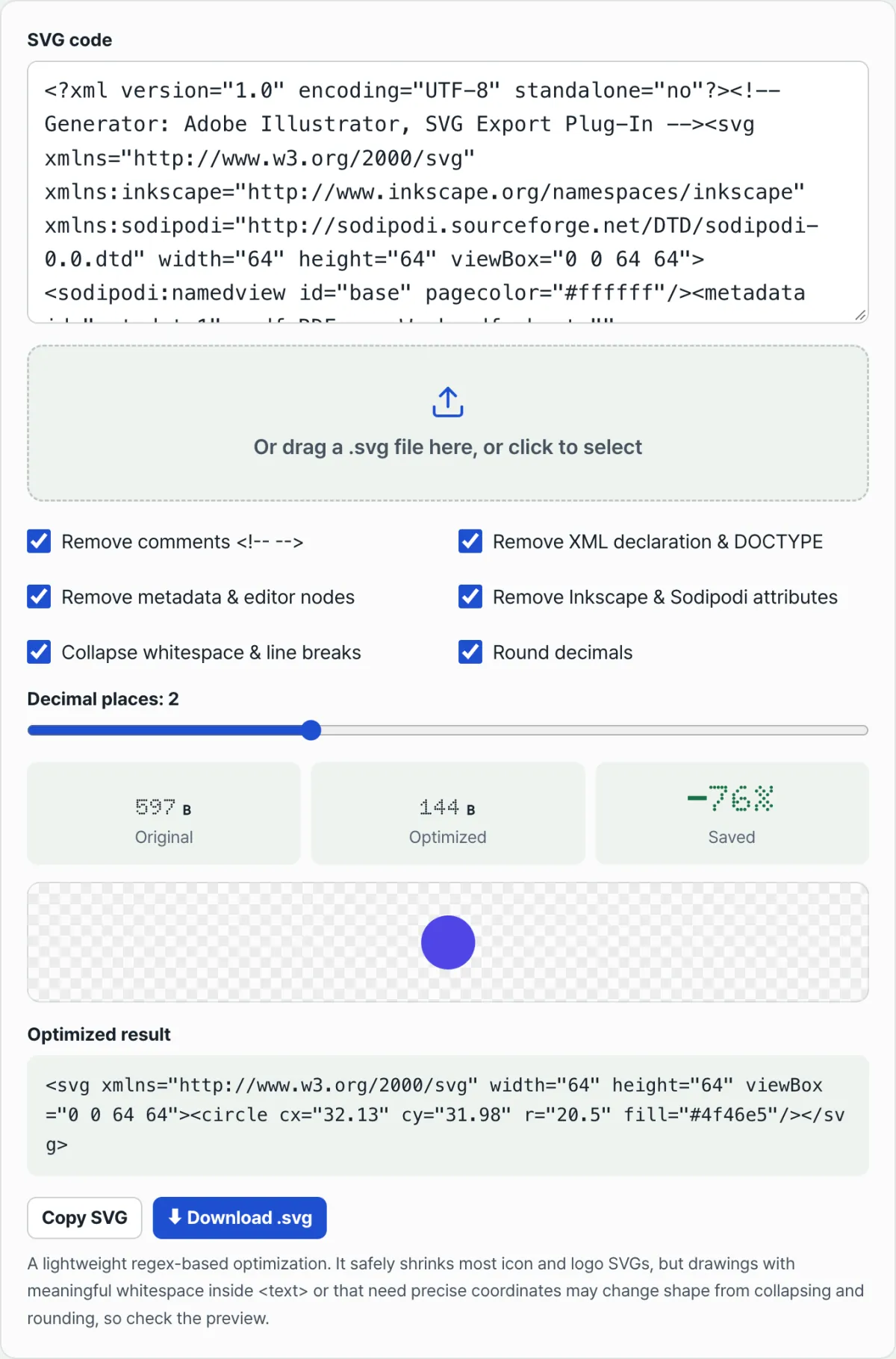
Checking and deleting six items by hand, file after file, turns into repetitive work as your icon count grows. Check it with our tool.
It optimizes right in your browser with no install, and SVGs you paste or upload are not sent to a server.
Common sticking points
| Situation | Cause |
|---|---|
| Letter spacing changes after optimizing | Whitespace compression applies to whitespace inside <text> with no exceptions. Check the preview |
| The preview doesn't appear | The output has to contain a complete <svg>...</svg> for the preview to show. A fragment alone won't do it |
| Thin lines disappear after lowering the decimal places | Rounding applies to every decimal value, not just coordinates — stroke-width, opacity, and the rest |
| xmlns is still there after turning off namespaces | Only inkscape, sodipodi, dc, cc, and rdf are removed. The default xmlns stays because rendering needs it |
| Savings shows 0% | You haven't entered an SVG yet, or you turned off every option |
The short version
- Your exported SVG is big because invisible editor metadata, comments, and excess decimal precision are left in the text — not because of the artwork.
- Removing the XML declaration, comments, metadata, and editor-only attributes doesn't affect rendering.
- Decimal rounding and whitespace compression are the exceptions that can affect the shape, so you need to check the number of rounding digits and confirm the result with the preview.
- It's a lightweight, regex-based optimizer. It skips advanced work like merging vectors and only removes what can be removed at the text level.
It optimizes right in your browser with no install, and SVGs you paste or upload are not sent to a server.
Frequently asked questions
Does optimizing change how the image looks?
Mostly no. Removing the XML declaration, comments, metadata, and editor-only attributes only deletes text that plays no part in rendering. That said, if you drop the decimal precision too low, or use whitespace compression on an SVG that contains text, the shape can change. Checking the preview on the results screen is the safer move.
How many decimal places should I use?
The default is 2, and you can adjust it from 0 to 6 with the slider. For SVGs used at icon size, 2 digits is enough most of the time. If thin lines or faint opacity seem to vanish after rounding, bump the setting up a step or two and check again.
Does uploading a file send it to a server?
No. Everything — reading the file, running the optimization, previewing the result, and downloading — happens inside your browser. SVG code you paste or upload is never sent to or stored on a server.
This article was adapted from our Korean original. Read the Korean original