
Why Pinterest Images Look Blurry and How to Get the Original
Contents
- Why Saved Photos Get Blurry When You Zoom In (Everyone Runs Into This)
- The official way to check whether an image is the original and save it
- Why the Difference Happens: How Pinterest Stores Images
- Quality and Format, Compared by Situation
- Where People Get Stuck
- Can You Use a Saved Image However You Like?
- How is this different from other download tools?
- The bottom line
- Frequently asked questions
You probably know the feeling: you save a photo you love on Pinterest, then zoom in later and the quality looks mushy. The file isn't broken. It was saved at the exact size that was on screen. Pinterest pre-builds several sizes of each image and shows the one that fits the situation. If you don't know that, it's hard to understand why the quality seems to change every time. This post covers why Pinterest stores images at multiple sizes, and what to look at if you want to check whether you're getting the original quality.
Summary ① Pinterest pre-builds and stores several sizes of a single image, from a downsized version for on-screen display to a larger version for the zoomed-in view. ② When you save with a right-click, you get the size that was on screen at that moment, so it may not be the original. ③ To check whether a pin has an original, look for an 'originals' path. If it isn't there, the display size is as good as it gets.
Why Saved Photos Get Blurry When You Zoom In (Everyone Runs Into This)
If you use Pinterest, this happens all the time. You find a photo you like — interior ideas, a hairstyle reference — save it, and later when you blow it up or print it, the quality looks smeared.
Maybe you saved it as a desktop wallpaper and the pixels show up the moment you zoom in. Or you pasted it into a slide deck and it came out oddly blurry. It looked sharp on Pinterest, but the file you saved is small and soft.
The cause isn't file corruption. When you right-click a photo in your browser and choose "Save image as," you get the image that was actually drawn on screen at that moment. But the image showing on Pinterest may not be the original — it may be a downsized copy fitted to your screen.
The small thumbnail you scroll past in the mobile feed, the larger image you get when you tap a pin, and the original file that was uploaded can all be different sizes. Which screen you hit save on decides the quality of what you end up with.
What you need for a screen and what you need for print are different quality standards entirely. A monitor or phone screen stretches a slightly small image to fit, so it's hard to notice anything wrong. Print a photo or blow it up into a big banner, and the missing pixels show up right away. This gap hits hardest when you're collecting reference images for things that will be printed or enlarged — wedding invitations, a portfolio, embroidery or craft patterns.
People assume that a service built around collecting photos will let you download them in high quality. When you download from personal cloud storage or a photo editing app, you usually get the original, so you expect the same from Pinterest. But Pinterest isn't a personal photo storage service. It's a place to discover and collect content other people posted, so what it's designed to show you is different.
It's common to gather reference photos while planning a café interior, or to save a bunch of wedding bouquet ideas to send to a contractor or a florist. If those saved photos are blurry, it's hard to get your point across, and you lose extra time hunting down the originals again.
Often you only notice the difference once you follow the source link on a pin. Same photo, but it looks much sharper on the blog or shop page where it was originally posted — and the file you saved from Pinterest is smaller and softer. That experience makes it easy to assume Pinterest itself lowers the quality. More precisely, Pinterest is just showing you one of several sizes.
Open a saved photo in your gallery app and pinch to zoom, and the problem gets clearer. A photo that looked smooth on screen turns mushy at the edges or shows visible stair-stepping the moment you enlarge it.
The same issue stands out when you save a photo for your phone's lock screen. Today's phone screens pack a lot of pixels into the same physical size, so stretching a small image across the whole display makes the blur obvious.
One more thing that adds to the confusion: the same photo can be uploaded to Pinterest many times. Someone posts the original, another user saves that pin to their own board (a repin), and identical-looking photos end up spread across many accounts. They may look the same, but each pin is a separate post, so the quality can feel different depending on which pin you save from.
This isn't something that happens only with a certain camera brand or a certain device. It comes from the way Pinterest handles images. Next, let's look at how far you can verify things within the official interface.
The official way to check whether an image is the original and save it
You can verify this to some extent right in Pinterest's own interface. Here's the sequence.
Tap a pin in your feed to open its individual pin page. You need the view that shows one large image, not the grid of many photos.
Some pins let you tap the image again to open a zoomed view. That zoomed view often shows a larger image than the feed thumbnail.
Right-click the zoomed image and choose "Save image as."
The layout varies a little by device. In a desktop web browser, clicking a pin usually opens a layout with details on the right, while the smartphone app often fills the whole screen with the photo. In the app there's no right-click at all, so you long-press the photo and choose "Save image." The principle is the same on any device — what gets saved is exactly the image as it's drawn on the screen at that moment.
Some people try choosing "Copy image address" and pasting it into a new tab. That does give you direct access to the image file, but the address points to the same size that was displayed, so the result isn't much different. The address contains a segment that indicates which size copy it is, and to judge whether you can rewrite that segment to point at the original, you ultimately need to understand the file structure.
If a pin has no original path at all, another option is to leave the photo where it is and upload it to an image search engine to find other web pages where the same photo is posted. This only lists the various pages the photo has appeared on, though, so you have to open each result and compare them yourself to judge which is the true original and which is a re-shared copy.
If you want to know whether the file you saved is really the large version, you can check its pixel dimensions in the file properties after saving. On Windows, right-click the file and look in the "Details" tab under "Properties"; on Mac, check "Get Info." A photo that looked small on screen can be a large file, and a photo that filled the screen can turn out small as an actual file.
The fact that you have to check file properties to even estimate whether it's the original shows how hard this is to judge from the Pinterest screen alone. If you need to check many photos, you'll save time by starting with a method that tells you whether an original path exists instead of repeating this process every time.
There is no separate "Save as original" button anywhere in the Pinterest interface. There's only one save button, and the screen doesn't tell you exactly what size file it will save when you press it. From the user's side, you only find out after saving — and only by opening the file and zooming in.
This method does improve image quality, but that screen alone can't confirm it's truly the "original." Pinterest pre-generates and stores multiple sizes of each image, so even the zoomed view may be a mid-size copy smaller than the original.
You can also use your browser's "Inspect" feature to check how many pixels the image currently on screen actually is. Right-click the photo and choose "Inspect," and the image tag's actual size information appears; if that number is smaller than you expected, the image on screen is likely a downscaled copy.
To check more precisely, open your browser's developer tools and look at the image request URL directly. This means reading the structure of the image file address and checking one by one whether the original path, 'originals', is actually there, which is a hassle for just grabbing one photo. If the pin has a video attached, that's one more request to check.
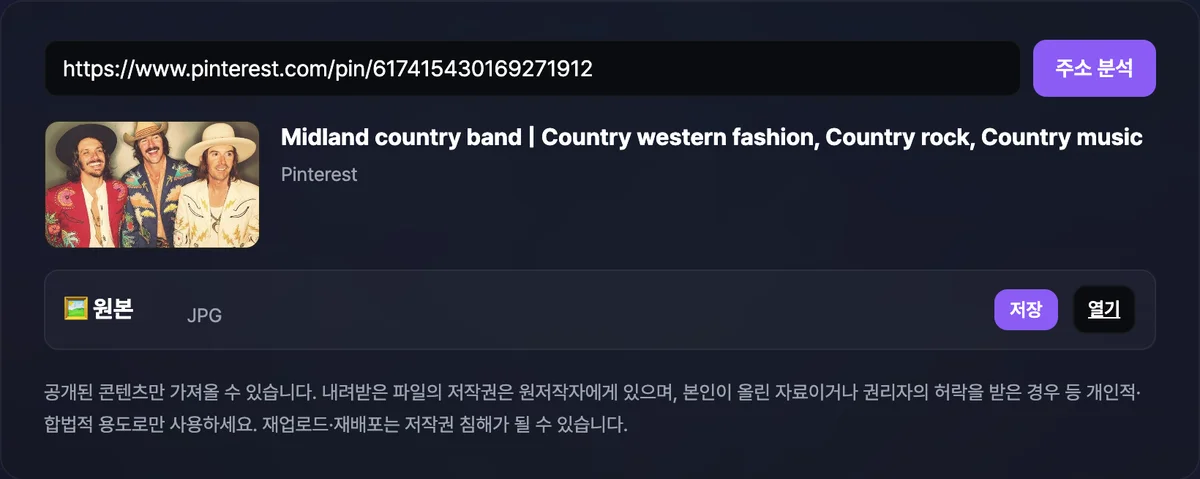
Our tool handles this for you: paste in a pin page URL or a shareable pin.it short link, and it does the work. If an 'originals' path exists, it shows you that original; if not, it automatically finds and shows the displayed size.
Free · no sign-up · paste a pin link and we'll find the original image and video for you
Why the Difference Happens: How Pinterest Stores Images
Pinterest keeps images in multiple versions for a simple reason. Pinterest isn't a service for showing off a single photo — it's a service for discovery. People scroll endlessly through the feed, skimming dozens or hundreds of images.
If every photo loaded at its original size, pages would load slowly and data use would climb. So when you upload an image, Pinterest generates and stores several sizes ahead of time: a shrunken copy for fast display, and a larger version big enough to hold up when you zoom in. Depending on which screen you're viewing, it pulls the size that fits.
This approach isn't unique to Pinterest — it's common across any service that handles photos at scale. Resizing images on the fly for every request puts a heavy load on servers, so it's far more efficient to pre-build a few frequently used sizes and pull them out when needed. The tighter the layout and the more endless the scrolling — like the Pinterest feed — the more this structure matters.
The catch is that you can't tell from the screen which of those sizes is currently loaded, or whether a bigger original even exists. It varies from pin to pin, and even two pins that look identical can produce different results. So rather than guessing before you save, you need to check the actual file every time.
The largest of these versions — the one closest to the file the uploader originally posted — is what's called the "originals." When we analyzed an image pin ourselves, we confirmed a JPG file labeled "originals." In other words, a larger original file really does live on Pinterest's servers, and you can get it if you reach that path.
Open a single pin page and you'll find several image resources come along with it. It's not just the one photo tag you see on screen — the page data often carries information pointing to multiple size versions of that photo. When we looked inside an image pin ourselves, we found an entry named "originals" in the data, separate from the on-screen image. Our tool reads that information, figures out whether an originals entry exists, and then works in this order: the originals entry if it's there, and the on-screen image if it isn't.
The size shown on screen isn't just one size, either. The small photo you see while browsing search results or the feed, the photo you see when you click a pin and open its detail view, and the photo you see when you click again to zoom in often pull resources of different sizes. When our tool can't find the original, the "display size" it falls back to is based on the image actually used on the pin detail screen.
The catch is that this original path doesn't show up the same way on every pin. Some pins have an originals path you can confirm, and some don't. Our tool first looks for an originals path and, if it finds one, shows the file at that path. If it can't find one, it falls back to showing the display size.
Smartphone cameras these days shoot at fairly high resolution. But when you post those photos online, most services don't serve them at full size — they shrink them to fit the screen. Pinterest is one of those services, though it does keep the original file on its servers, which is how our tool can find that path and show it to you.
Display size isn't automatically a bad thing. For a social media profile picture or a blog post body, the display size is often plenty. The problem stands out when you need near-original resolution — for print, or on a large screen. So a pin without an original isn't a pin you can't use at all; depending on what you need it for, the display size may be enough.
In other words, it's not "I only ever give you the original" — it's "the original if it exists, the best alternative if it doesn't." That's why some pins come down noticeably larger and others come down at roughly the size you saw on screen. The difference comes down to how the image was originally posted, not the tool behaving differently each time.
When the same photo has been repinned and scattered across several pins, some of those pins may retain the original path and others may not. It's hard to pin down from on-screen information alone exactly why that happens, but in practice, once you use the tool, you'll run into cases where the same photo gives different results depending on the pin. So if one pin doesn't give you what you want, try finding another pin of the same photo and giving it another shot.
Pins with video attached are handled a little differently. Unlike image pins, video pins can be saved as playable MP4 files. The whole thumbnail-versus-original split shows up in a different form with video, and when our tool detects a video, it shows the MP4 as a separate item you can download.
For photos, it's natural to pre-build a single still image at several resolutions, but video is media that needs a separate playback process. So when you check a pin with video attached, the approach is less about comparing original and display sizes the way you would with a photo, and more about checking the video file contained in the pin and pulling it as-is.
Pins on private boards are blocked for a different reason. That's not a quality issue — it's an access permission issue. When you set a board to private on Pinterest, only the specific logged-in account can see the pins on it. Our tool works by pulling only publicly viewable information without a login session, so private content that requires a login was never something it could check in the first place. This isn't a feature we plan to add later — it's an area that's structurally out of reach.
Whether a pin's board is public or private follows the board's settings, not the pin's own properties. So even within the same account, pins from one board may open without issue while pins from another board return nothing even when you paste the address. If the photo doesn't show up when you put that pin page address directly into your browser's address bar without logging in, you can assume the tool won't be able to see it either.
The reason pin.it short links exist separately ties into this same structure. When you share a pin in a messenger app such as KakaoTalk or WhatsApp, or in an intro post on another social network, Pinterest tells you to use the short pin.it address instead of the original long pin page URL — and that address is ultimately just a route to the same pin page. So whichever address you paste in, the actual data the pin points to is identical, and the original-file result comes out the same.
Some people, unhappy with the quality, try to enlarge a photo with an AI upscaling tool. Those tools do artificially increase the on-screen size, but they don't bring back the detail that was in the original file. They generate and fill in information that never existed. So if you can get the original, finding it is more accurate than upscaling.
To sum up: the quality difference comes from Pinterest's design of pre-building copies at multiple sizes, and whether you can access a pin comes down to whether that pin is public or private. Keep the two problems on separate layers like this, and it gets much easier to understand why some pins work and others don't.
Quality and Format, Compared by Situation
Here's a table of how the result changes depending on the pin type and the saving method.
| Situation | Quality | File format | Notes |
|---|---|---|---|
| Image pin, original path found | exactly the original | JPG | confirmed in actual analysis cases |
| Image pin, original path not found | on-screen display size | the format shown on screen | shows display size instead of the original |
| Pin with an attached video | the uploaded video as-is | MP4 | can be saved separately from the image |
| Right-click save from the screen | the size on screen at that moment | the format shown at the time | no way to know whether it's the original |
| Pin on a private board | cannot be checked | - | login required, not supported |
| Opened through a pin.it short link | handled the same as the pin's address | depends on the pin type | share short links are supported too |
As the table shows, what decides quality isn't how you saved it — it's whether that pin has an original path at all. If a pin has no original path, no method will get you more than the on-screen display size.
Items marked "on-screen display size" in the table mean the image actually used on the pin detail page. How big that is varies from pin to pin, and also depends on the size of the photo the uploader started with, so it's hard to predict ahead of time with a fixed rule. In the end, you have to check for yourself which of the six situations in the table your pin falls into.
Other photo-sharing sites sometimes show you explicit choices like small, large, or original. Pinterest doesn't offer those choices on screen, so you have to figure out for yourself which of several sizes you're currently looking at. The table above is a rough guide to help you make that call.
If you plan to print the image, check the dots per inch in an image editor and work out ahead of time whether you have enough pixels for the print size you want. An image can look sharp on screen but be scaled differently when printed, so checking the real size of the saved file early saves you trouble later.
Where People Get Stuck
When you actually use the tool, there are a few spots where things stall. Most come down to either quality or access permission, and the rest come from mistaking the address type or the pin type. Here are the symptoms, the causes, and the fixes.
| Symptom | Cause | Fix |
|---|---|---|
| The saved photo breaks up when you zoom in | a downscaled copy meant for on-screen display was saved | check the originals path and save again |
| You paste a pin address and it won't analyze | you entered a board or profile address instead of a single pin | use the address of the individual pin page where one photo is shown large |
| A pin.it address won't open | the pin was deleted or the short link is no longer valid | copy a fresh address from the original pin page |
| A private board pin returns no result | it's private content that requires login | confirm that only public pins are supported |
| A video pin shows no video entry | the pin isn't actually in video format, or detection failed | first check that the video actually plays on the pin page |
| The same photo gives an original from a different pin | each repinned pin may or may not have an original path | find another pin of the same photo and try again |
The two most confusing cases are the first and the fourth. It's easy to lump quality problems and access permission problems together as one cause, but as we saw earlier, they're problems on completely different levels. And once you know that the same photo can be spread across several pins, like the sixth row, you don't have to give up the moment one pin doesn't give you the original.
If the problem keeps happening, open the pin page address directly in your browser and check first that the photo appears normally. The data the tool relies on is the same information anyone can see publicly on that page, so if the page itself won't open properly, the tool can't get a result for the same reason.
To sum up, here's the order to check things in. First, confirm the address points to an individual pin page. Next, confirm that page opens normally without logging in. Finally, look at the result entries that match whether you want a photo or a video. Working through it in that order narrows down the cause of most snags.
Can You Use a Saved Image However You Like?
Most photos on Pinterest weren't taken or drawn by the account holder — they were pulled from somewhere else and repinned. In other words, the copyright in the photo you see usually belongs neither to Pinterest nor to the account that pinned it, but to the person who originally made it.
Saving for your own reference, or collecting ideas for yourself — interior design, hairstyles, that kind of thing — isn't a problem. It's different if you want to reuse the image commercially: reposting it on a blog, using it as a product image for sale, or using it in ad material. In those cases you need permission from the original creator.
Pinterest itself usually offers report and copyright menus on screen. That also tells you the service operates on the premise that much of the content posted to the platform belongs to third parties. It's also why you should be extra mindful of copyright when using saving features like ours.
Of course, sometimes you pinned a photo you took or made yourself and later save it again from another device. In that case you're relatively free of copyright concerns. But this tool doesn't tell you whose photo a pin is, so whether it's your own work is something only you can judge, using what you already know.
Reposting or redistributing without permission can amount to copyright infringement. Unless the saved photo is something you made yourself or you've been given permission by the copyright holder, it's safest not to use it commercially. This tool, too, is built to fetch only public pins that anyone can see without logging in, and how you use a saved image afterward is something each user has to judge and take responsibility for.
Plenty of cases sit in a gray zone — a moodboard you glance at and delete during your own work, or a slide deck you show only inside your company and never publish. When you're unsure, there's one question to use as your standard: does using this image end up showing it to other people or distributing it without the original creator's consent? If the answer is yes, it's safer to trace the source and ask for permission before you use it.
Pin pages often carry clues to the original creator: the account that posted the photo, or a link to the original website. If you save only the image, that source information doesn't come with it, so if you might widen your use later, record the source details from the pin page at the moment you save.
Sometimes the link attached to a pin leads somewhere other than the original creator's site. Repinning can replace the original source with an intermediate stop along the way. If you're not sure where the photo first came from, it's safer to search for the image on its own, find the original source, and then decide whether to use it. If you're planning commercial use, don't skip that check.
How is this different from other download tools?
Search for ways to save Pinterest images and you'll find everything from browser extensions to right-clicking photos one at a time. The methods vary, but the same image quality problem tends to follow them around.
Browser extensions require an install, and many ask for broad permissions, which can feel like a lot to hand over. On top of that, if an extension just grabs whatever image is displayed on screen, it likely carries the same quality problem as right-click saving. And if it bothers you that an installed extension keeps running in your browser even when you're on other sites, that's a real downside.
Some website-based download tools ask you to log in with your Pinterest account. Typing your ID and password into a strange third-party site is risky in itself. If a tool asks for your login, it's safer to question whether that step is truly needed for the feature.
Our tool works differently: no install, no login. You just paste a pin URL or a pin.it short link, and it checks first whether an originals path exists and shows you the result. If a pin has a video attached, you can get it as an MP4 too, so you don't have to hunt for the photo and the video separately.
There are also all-in-one download sites that advertise handling many platforms at once. They look convenient, but each platform stores images differently, so some of them can't properly handle Pinterest at all. A tool built specifically for Pinterest has a process for finding the originals path that fits this service's structure — that's the difference.
You can also contact the creator directly and ask for the file. Follow the link attached to the pin to find the original post, then use that site's download feature or contact channel. This is the surest way to get the original, but it takes time because you have to find and visit the original site and go through a separate process every time. If you want to check right there on the Pinterest screen, our tool is faster.
It's also different from the basic press-and-hold save on your phone. Press-and-hold saves only the size that happens to be on screen at that moment, but with a tool, it checks whether an originals path exists first and then shows you the result, so you don't have to judge it yourself every time.
That said, like other download tools, it can't retrieve private content that requires a login. That's less a limitation of a specific tool and more a shared trait of any approach that only handles publicly available information without logging in. If a tool advertises that it bypasses private content, that's the one to be suspicious of.
The bottom line
If a photo you saved from Pinterest looks blurry, it's almost certainly a scaled-down display copy rather than the original. The difference stands out most when you zoom in or print.
Pinterest pre-builds several sizes of each image and stores them, then shows the size that fits the situation on screen. So which size you're seeing can vary from pin to pin.
You can check whether a pin has an original by looking at the 'originals' path. If there isn't one, the display size is your best option. If checking every time is a hassle, the tool finds it for you automatically.
Pins with a video attached can be saved as MP4, but pins on private boards can't be accessed without logging in.
Most images you save are the original creator's copyrighted work, so using them beyond personal purposes requires separate permission. The broader the use — re-uploading or redistributing — the more careful you should be.
Free · no sign-up · paste a pin link and we'll find the original image and video for you
Frequently asked questions
Why do photos I save from Pinterest come out blurry?
The file isn't corrupted. What happened is that the size displayed on screen at the moment you saved is the size you got. Pinterest pre-builds images at several sizes and shows the one that fits the situation, so if the smaller size is what gets saved, it looks blurry when you zoom in. This happens especially often when you save straight from a scrolling feed, and the result can differ each time depending on whether the pin still has its original.
What exactly is the difference between the 'originals' file and the display size?
The original is the largest version, closest to the file the uploader posted, while the display size is a smaller version pre-built to load quickly in a feed or on screen. For pins where an originals path is confirmed, you get that file; for pins where it isn't, you get the display size instead. When one image pin was actually analyzed, a JPG file labeled 'Original' showed up, which confirms that at least some pins really do have an original file.
Does right-click saving always give me a small photo?
Not always, but the result can vary depending on which screen you saved from. Saving directly from the feed tends to get you a small thumbnail, while saving from an opened, enlarged pin view may get you a larger image. Even that enlarged view isn't guaranteed to be the original, though, so to know for sure you need to check separately whether an originals path exists.
Do you support pin.it links? How are they different from regular pin URLs?
Yes. A pin.it link is a shortened address used when sharing a pin elsewhere, and it ultimately leads to the original pin page. If it's hard to copy the pin page URL directly, you can paste the pin.it link from the share button as is — it gets analyzed the same way, with no difference in the original-check result. Both forms are handled identically, so you don't need to think about which one to use.
Can I save pins with video in original quality?
Pins with video attached can be saved as MP4 files. This is separate from the scaled-down versus original issue for images — the tool checks and fetches the video contained in the pin itself. If you first confirm the video actually plays on the pin page, it's easier to predict the result. If the pin is a still image, this option won't appear at all.
Can I save pins from private boards?
No. Private boards are content set to be visible only to a specific logged-in account, so an approach that only handles publicly available information without logging in can't reach them at all. Only public pins are supported, and that's a matter of access permission, not image quality.
Can I use saved images on my blog or for commercial purposes?
We don't recommend it. Most Pinterest photos are works created by third parties, so going beyond personal reference to posting on a blog or commercial use requires the original creator's permission. Re-uploading or redistributing without permission can amount to copyright infringement, so the broader your intended use, the safer it is to check the source first.
This article was adapted from our Korean original. Read the Korean original