
JFIF File Won't Open? Rename It or Re-encode It
Contents
If a .jfif file you saved on Windows has ever been rejected by a forum or online store upload box with "this file type isn't supported," your file isn't corrupted. A .jfif holds exactly the same compressed data as a JPEG, so just renaming the extension to .jpg makes it open in most programs right away.
If it still won't open, or you need to shrink the file size, that's when you stop renaming and actually re-save the image (re-encode it).
Summary ① A .jfif file uses the same JPEG compression, so renaming the extension to
.jpgopens it normally in most cases. ② If the upload is still rejected or the image looks broken, that's a case where you need a real re-encode, not a rename. ③ Converting with canvas in your browser lets you re-save as JPG or PNG right there, without uploading the file to a server.
Why the .jfif extension shows up, and why it gets rejected
When you use "Save image as" in a Windows browser, or download an image from Paint, an email attachment, or some messenger apps, the extension sometimes gets saved automatically as .jfif. The first bytes of the file — the marker FF D8 FF that signals the start of an image — are identical to a regular .jpg.
The problem is that many web upload forms don't open the file and look at its contents. They only check the extension string at the end of the file name. If the allow list has .jpg and .jpeg but leaves out .jfif, a JPEG with identical contents gets rejected as an unsupported format.
"JFIF" (JPEG File Interchange Format) is one of the most common ways to wrap JPEG-compressed image data into a file. It differs from the Exif format common in smartphone photos only in where the metadata sits inside the file. The way the pixels are compressed is the same JPEG either way.
First, check whether renaming alone does the job
Changing just the name without touching the file contents is the simplest route, and it solves the problem at this stage most of the time. Here's the order.
Step 1: Turn on file extensions
In Windows File Explorer, open the "View" menu at the top and check "File name extensions." On macOS, go to Finder > Settings > Advanced and turn on "Show all filename extensions." Renaming with extensions hidden is how people end up with a doubled name like photo.jfif.jpg.
Step 2: Change only the extension to .jpg
Right-click the file, choose Rename, and change the .jfif at the end to .jpg or .jpeg. If a warning asks whether you're sure you want to change the extension, go ahead. The bytes inside the file are untouched, so the file size stays exactly the same.
Step 3: If that still doesn't work, you need to re-encode
If it won't open or the upload is still rejected after renaming, it's one of these: the file itself is damaged or was cut off during download, the upload form is unusually strict and checks markers inside the file rather than just the extension, or you need to change the format itself to shrink the size or get a transparent background.
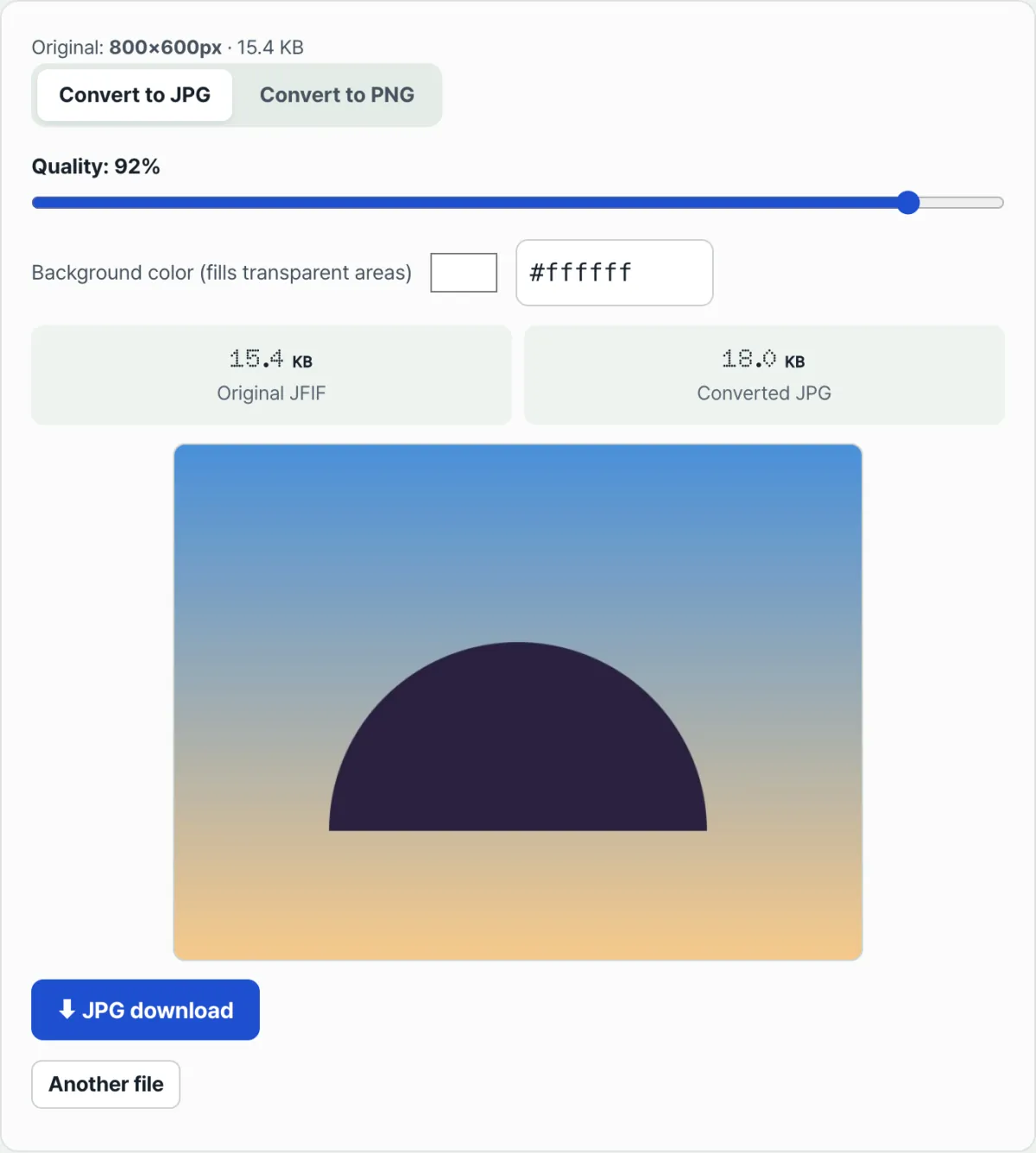
In those cases, don't just rename — actually re-compress and save the image. Our tool makes this easy to check.
Conversion happens right in your browser. Neither the original nor the converted file is uploaded to a server.
Where people usually get stuck
| Situation | Cause and fix |
|---|---|
| Still won't open after renaming | The file is damaged or was cut off mid-download. Re-encoding shows you right away whether it's a valid image |
The name becomes photo.jfif.jpg | You added .jpg on the end while extensions were hidden. Turn extensions on and make sure only the last extension remains |
| Renamed it, but the upload is still rejected | Rarely, the form is strict enough to check markers inside the file. Re-encoding gives it a brand-new file to read |
| You want a smaller file | Renaming leaves the original bytes in place, so the size doesn't change. You have to lower the quality and re-compress |
| You need a transparent background | The JPG family can't store transparency (an alpha channel) at all. Save as PNG instead — and if your original had no transparent areas, switching to PNG keeps the background filled in |
| The background color looks wrong after converting | Check the background color setting that fills transparent areas when saving as JPG |
The short version
- A .jfif uses the same compression as JPEG, so renaming the extension to
.jpgopens it without trouble in most cases. - Renaming doesn't touch a single byte inside the file, so the file size stays the same.
- A damaged file, a strict upload form, a smaller file size, or a transparent background can't be fixed by renaming alone — those need a real re-encode.
- Re-encoding means re-compressing as JPG with an adjusted quality setting, or saving as PNG when you need transparency.
- Everything runs in your browser, so your file never gets uploaded to a server.
Conversion happens right in your browser. Neither the original nor the converted file is uploaded to a server.
Frequently asked questions
Are JFIF and JPG actually different file formats?
The way the pixels are compressed is the same JPEG. The names differ because of the container — the way that compressed data is wrapped into a file — and the first bytes of the file are the same for both. That's why renaming the extension works in most cases.
If renaming is enough, why do I need a converter?
Renaming doesn't touch a single byte inside the file. So it won't help when you need to repair a damaged file, shrink the file size, or switch to a PNG with transparency. Those are the only times you actually need to re-compress and save again.
Is my converted file stored on a server?
No. This tool draws the image onto a canvas inside your browser and re-encodes it there, so your file is never sent anywhere. It's only saved to your computer when you click the download button.
This article was adapted from our Korean original. Read the Korean original