
HEIC to PNG Lossless Conversion: Keep Photo Quality for Print
Contents
If you've ever tried to send iPhone photos to a print shop or open them in a design program like Photoshop, you've probably seen HEIC files get rejected—or not show up in the file list at all. In that case, you don't want WebP; you want PNG, so you can keep working from the original with no loss in image quality. This post explains why HEIC is a compressed format to begin with, and why PNG is the right choice for the job.
Summary ① HEIC, the format the iPhone camera shoots in, uses lossy compression from the start to save storage space ② Converting it again to another lossy format like WebP stacks a second round of compression on top, which costs you more image quality ③ PNG is lossless, so it stores the decoded pixels exactly as they are—meaning no further quality loss in printing or design work down the line
Why HEIC Doesn't Work for Printing and Design Work
If your iPhone photo settings are on the default (High Efficiency), every photo you take in the Photos app is saved with a HEIC extension. Send one of those files to a print shop, or open it in an older version of Photoshop, and you'll get an error saying the format isn't recognized—or the file won't appear in the file picker at all.
HEIC is a file that stores photos by applying the still-image compression method from the HEVC (H.265) video codec to HEIF, the image container standard Apple uses. It's lossy compression that discards information your eye is less likely to notice. The upside is files roughly half the size of a JPEG at the same visual quality. The tradeoff is that some of the original data is already gone the moment you press the shutter.
A lot of online converters hand you WebP files back, too. WebP was also built to speed up page loads on the web, so its default setting is usually lossy. Convert a photo that's already been through lossy compression into another lossy format and you've compressed it twice, which can make banding—those blotchy edges—more visible in areas where colors blend smoothly, like skies and skin tones.
How to Convert HEIC to PNG With No Quality Loss
On a Mac, open the photo in Preview, choose Export from the File menu, and set the format to PNG before saving. This process re-saves the decoded pixel values from the original HEIC as they are, so the conversion happens with no additional loss.
On Windows, install the HEIF Image Extensions from the Microsoft Store, open the HEIC file in the Photos app, and change the file type to PNG when you save a copy. You can also batch-convert a folder of files with the sips command in the Mac terminal, but you have to name each output file individually, so it's only practical when you're dealing with a handful of photos.
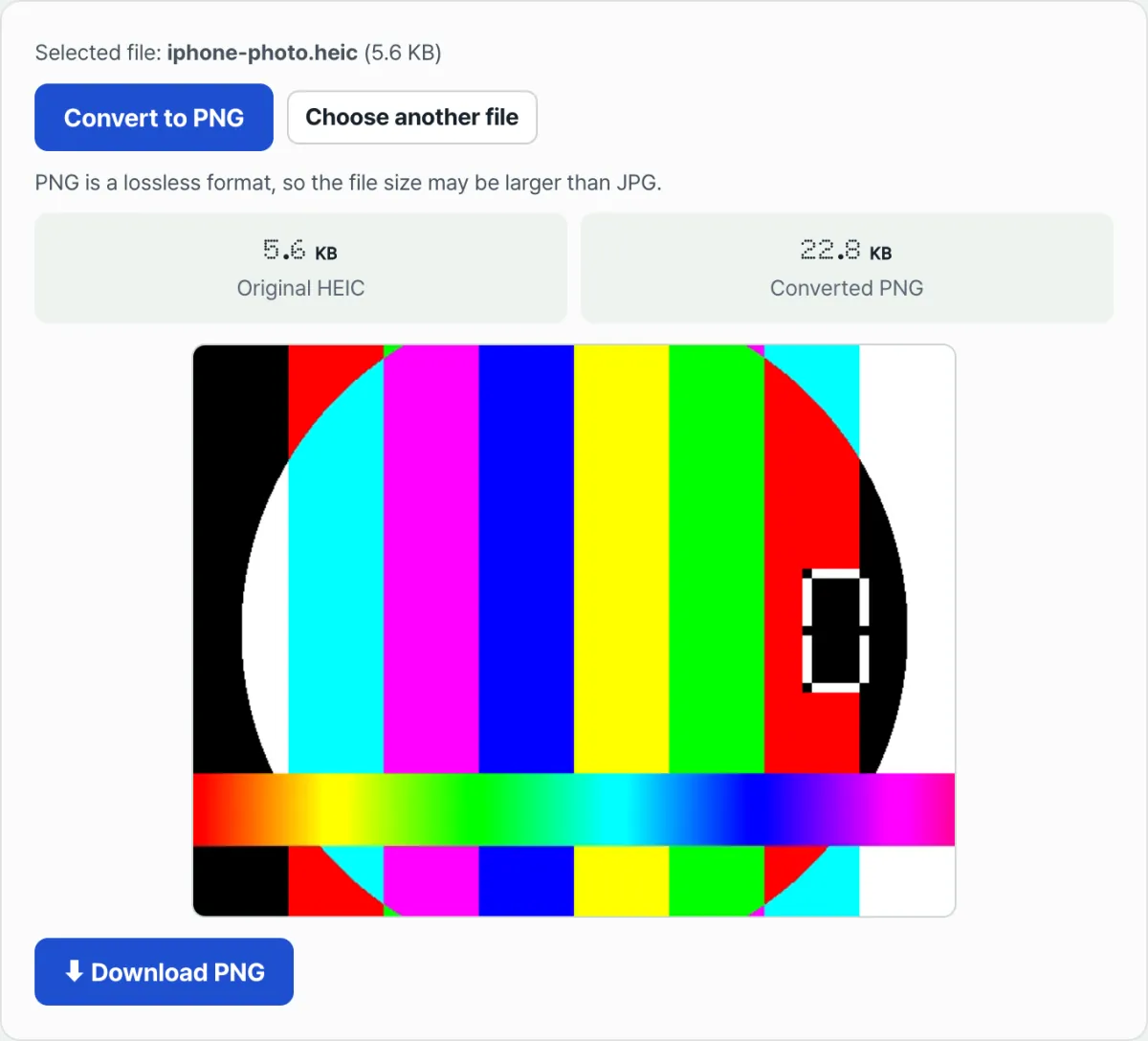
If you have a lot of photos or just don't want to install anything, processing them right in your browser is faster. Check it with our free HEIC to PNG Converter. Upload your files and they're converted to lossless PNG right in the browser, ready to download.
Free · No sign-up · Lossless PNG conversion right in your browser
Common Sticking Points
| Situation | Why it happens |
|---|---|
| An online converter gives you WebP files | Most of these tools exist to speed up web loading, so the default is lossy WebP |
| The image still looks muddy after converting to PNG | The original HEIC was already lossy, so detail lost inside it can't be recovered |
| The print shop says it can't open the file | Older editing software and print RIP software don't support HEIC decoders |
| The file got bigger after conversion | PNG is lossless, so a larger file than the original HEIC is normal—it's the price of keeping your image quality |
The Takeaway
HEIC is a lossy format built to save storage space, so it isn't a good fit for anything where original image quality matters, like printing or design work. PNG is lossless, so it stores the decoded pixels exactly as they are and no further quality is lost during conversion. WebP is a format for the web, and its default setting is often lossy, which makes it a worse choice than PNG for print and design work. For a few photos, Mac Preview or the Windows Photos app is plenty—but if you need to handle a batch at once, a browser tool is faster.
Free · No sign-up · Lossless PNG conversion right in your browser
Frequently Asked Questions
Does converting HEIC to PNG make the image quality better?
No. Converting to PNG can't bring back detail that's already gone from the HEIC. All it does is keep the quality from dropping any further from the moment you convert.
Can't I just use WebP's lossless mode for print?
WebP does have a lossless mode, but a lot of print-oriented editing software and print shop RIP software still doesn't support WebP decoding. PNG opens in most programs without installing anything, which makes it the safer choice.
Can I send the converted PNG straight to the print shop?
Most print shops will accept the file format as-is. That said, converting to a print color profile (CMYK) is often a separate step that varies from shop to shop, so it's worth asking them up front.
This article was adapted from our Korean original. Read the Korean original