
Image to Base64 Data URI: Why Size Grows 33% and How to Use It
Contents
- Why Convert Images to Base64 Text: Eliminating HTTP Requests
- Why Does the Size Grow by Exactly 33.3% (4/3×)?
- How It Works Under the Hood: Data URI Scheme Syntax and the Rendering Pipeline
- Inline Base64 Images vs. External Static File URLs
- 5 Common Mistakes When Converting Images to Base64
- A Flawless 5-Step Image to Base64 Workflow
- 7 Practical Tips for Base64 Images
- Final decision tree: convert to Base64 or keep it as a file?
- Cheat sheet of key image Base64 and web optimization terms
- Frequently Asked Questions
When you build web pages, put together HTML email templates, or talk to a JSON API, you've probably run into a long string that starts with 'data:image/png;base64,iVBORw0KGgo...' instead of an actual image file.
Instead of uploading a separate image file (.png, .jpg) to a server and linking to its URL, you convert the image's binary data directly into a text string and paste it whole into your HTML or CSS. That's the "Base64 Data URI" technique.
Turning an image into text cuts down on network requests (HTTP requests), but it also inflates the file size by exactly 33.3% (4/3×) — that's just math. Below, I'll walk through why you should only use this for small icons under 10KB, plus real-world CSS and HTML snippets you can copy.
Key Takeaways ① Data URI structure: The format is 'data:[MIME-type];base64,[data]', which inlines the image binary directly into text code. ② Exactly 33.3% bigger: 3 bytes (24 bits) become four 6-bit characters, so the payload always grows to 4/3× (about 1.33×) the original, no matter the file size. ③ The trade-off (performance vs. caching): You save one HTTP request, but your HTML document gets bigger and you lose the benefit of browsers caching the image on its own. ④ Our tool generates the Data URI, the '<img>' tag, and the CSS 'background-image' code the moment you drag an image in — right in your browser, in about a second.
Why Convert Images to Base64 Text: Eliminating HTTP Requests
A typical web page downloads the HTML first, then reads the <img src="icon.png"> path inside it and makes an extra network round trip (HTTP Round Trip) to fetch the image from the server.
With a Base64 Data URI, though, the image data is already part of the HTML document or CSS stylesheet:
- Zero HTTP connection cost: The image renders instantly without a separate request to the server.
- No broken images in email: Even in secure email environments that block external image links, the image shows up in the body right away.
- Single-file delivery: You can ship every graphic in one HTML/JSON file with no external file dependencies.
Why Does the Size Grow by Exactly 33.3% (4/3×)?
A binary byte (8 bits) can hold 256 possible values, but Base64 uses only 64 characters that are safe to send as text (26=64, 6 bits):
- When you process 24 bits (3 bytes) of data:
- In an 8-bit system, 3 bytes is enough,
- but in a 6-bit system, you need 4 characters to represent 24 bits (24 / 6 = 4).
So the size increase works out arithmetically to 4/3 ≈ 1.3333 (exactly +33.33%).
Free · Just drag in an image to get a Base64 Data URI plus HTML/CSS code in one second
How It Works Under the Hood: Data URI Scheme Syntax and the Rendering Pipeline
Here's how browser rendering engines (WebKit/Blink) decode Base64 text and paint it on screen.
1. The Standard Data URI Syntax (RFC 2397)
- PNG image example: data:image/png;base64,iVBORw0KGgoAAAANSUhEUgAAAAEAAAABCAYAAAAfFcSJAAAADUlEQVR42mNk+M9QDwADhgGAWjR9awAAAABJRU5ErkJggg==
- SVG vector example: data:image/svg+xml;base64,PHN2ZyB4bWxucz0iaHR0cDovL3d3dy53My5vcmcvMjAwMC9zdmciIHdpZHRoPSIxMCIgaGVpZ2h0PSIxMCI+...vw==
2. The Browser's Decoding Load (CPU Trade-off)
- A regular image file arrives as a network stream and goes straight to the GPU decoder progressively.
- An inline Base64 image goes through the HTML/CSS parser first ➔ then Base64 decoding ➔ then conversion to a bitmap, which burns main-thread CPU cycles.
- That's the core engineering reason you should limit Base64 to tiny assets under 10KB.
Inline Base64 Images vs. External Static File URLs
| Item | Inline Base64 Data URI | External static file (CDN URL) |
|---|---|---|
| HTTP requests (RTT) | 0 (embedded in HTML/CSS) | One per image |
| Bytes transferred | +33.3% larger than the original | Stays at 100% of the original size |
| Browser caching | No independent caching (re-sent whenever the HTML changes) | Long-term browser caching (304 Not Modified) |
| First-render blocking | Large payloads delay HTML rendering | Downloads in parallel with HTML parsing |
| Recommended size | Under 10 KB (icons, logos) | 10 KB to tens of MB (all photos) |
5 Common Mistakes When Converting Images to Base64
- Inlining high-resolution photos over 100KB: Your HTML document balloons and the mobile first page load gets painfully slow.
- Leaving out or mistyping the MIME type (header): Writing data:base64, instead of data:image/png;base64, makes the browser fail to render it.
- Inlining shared assets that need their own caching: Pasting the same 50KB site-wide logo into every page's HTML wastes traffic.
- Needlessly rasterizing an SVG into a PNG Base64 string: You lose vector scalability and end up with a bigger file for no benefit.
- Dropping or mangling line breaks when copying the Base64 string: Long strings get truncated in editors, and the image shows up broken.
A Flawless 5-Step Image to Base64 Workflow
- Step 1 (Prepare the image file): Get a favicon, logo, or button icon in PNG/JPG/SVG under 10KB.
- Step 2 (Drag and drop it into this converter): Drop the file into the box and it becomes a Base64 Data URI in about 0.01 seconds.
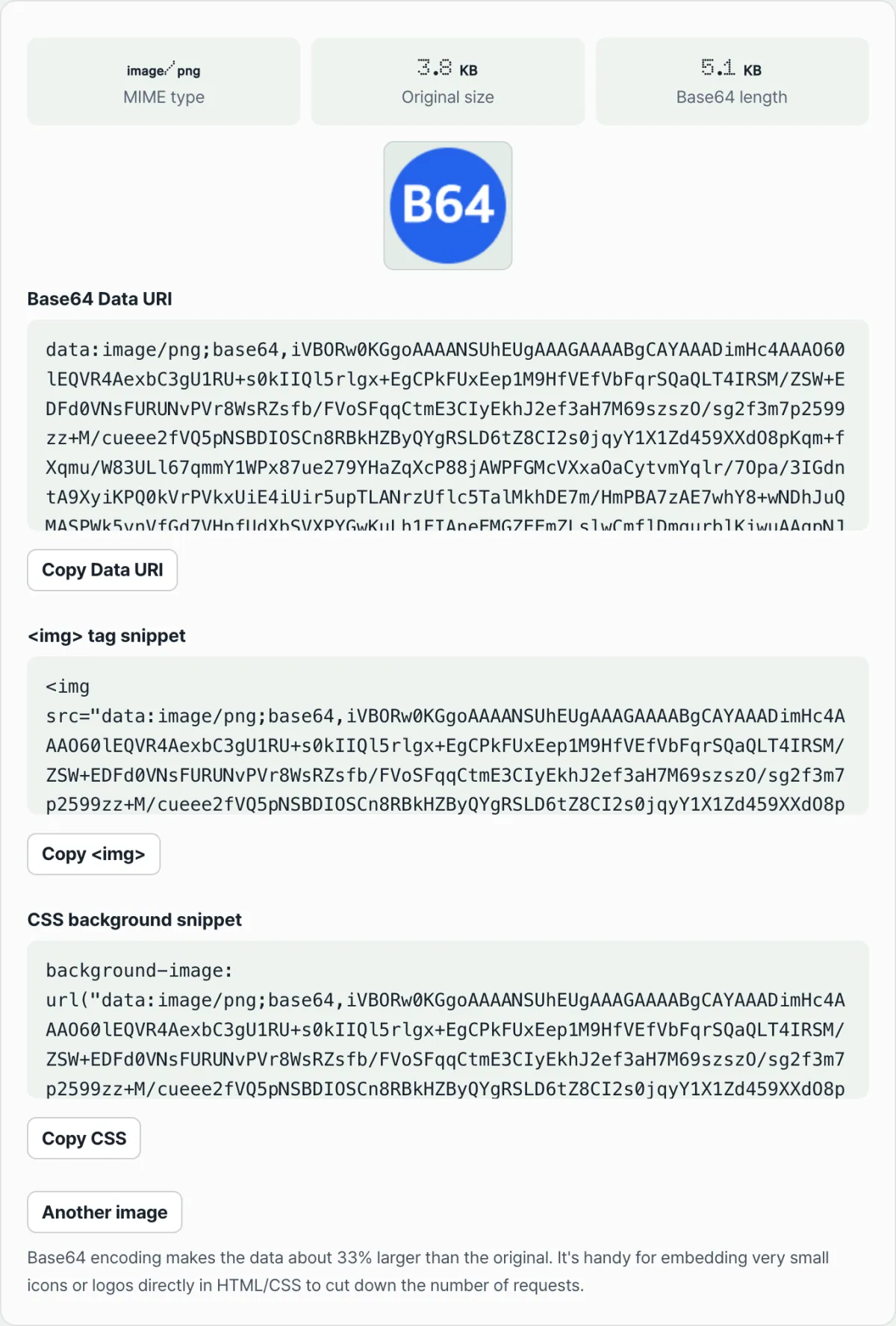
- Step 3 (Compare the original and converted sizes): Check the original byte count and the 33%-inflated Base64 string length shown on screen.
- Step 4 (Copy the code you need with one click):
- For HTML: Copy the <img src="data:image/png;base64,..."> snippet.
- For CSS: Copy the background-image: url("data:image/png;base64,..."); snippet.
- Step 5 (Use it in your project): Paste it into your source code or email template and check the Network tab to confirm the request is gone.
7 Practical Tips for Base64 Images
- Use a Data URI for your HTML favicon: Using <link rel="icon" href="data:image/svg+xml;base64,..."> completely eliminates favicon.ico 404 errors and extra requests.
- Prevent flicker on CSS hover: If you put the button image that changes on hover into your CSS as Base64, there is zero delay on the first hover.
- 1px transparent placeholder GIF: data:image/gif;base64,R0lGODlhAQABAIAAAAAAAP///yH5BAEAAAAALAAAAAABAAEAAAIBRAA7 (ideal as a lazy loading default).
- Send a single response from a JSON API: When talking to a mobile app, put the user profile thumbnail in the JSON as Base64 and handle it with just one API call.
- Build a single offline HTML document: When you package a portfolio or report into one HTML file and distribute it, embedding the images as Base64 is perfect.
- gzip / Brotli compression efficiency: Base64 text has many repeating character patterns, so once it goes through your web server's Gzip/Brotli compression, much of the inflated size shrinks back down.
- Bookmark this tool in your browser: When you need to turn an icon into code during web development, solve it in one second without launching a program.
Final decision tree: convert to Base64 or keep it as a file?
- Case A (UI icons, arrows, logos, favicons under 1KB–10KB) ➔ Apply Base64 Data URI inline (fewer HTTP requests)
- Case B (key graphics in an email newsletter template) ➔ Base64 Data URI (prevents broken images in secure mail clients)
- Case C (body photos, thumbnails, background images of 50KB or more) ➔ Serve as separate WebP/AVIF files + CDN (take advantage of browser caching)
- Case D (profile photos uploaded by users) ➔ Upload to storage, then serve via URL link
Cheat sheet of key image Base64 and web optimization terms
- Data URI Scheme: A URI scheme that embeds the data itself inline in URL form.
- RTT (Round Trip Time): The round-trip time it takes for a client to send a request to a server and receive a response.
- MIME type (Multipurpose Internet Mail Extensions): A standard identifier that specifies a file's format (image/png, image/jpeg, image/svg+xml, etc.).
- Critical Rendering Path: The entire process from the browser receiving HTML, CSS, and JS to painting the first pixel on screen.
Frequently Asked Questions
Does converting to Base64 reduce image quality or cause compression loss?
Not at all. Base64 is a reversible encoding that swaps binary pixel data for a string 1:1 without loss, so the original quality is preserved exactly.
Why shouldn't I embed large photos over 10KB as Base64?
Because the extra 33% of data directly inflates the size of the HTML/CSS document, slowing down initial page parsing, and it defeats the browser's separate image caching mechanism, which actually makes your site slower.
Is there a risk that uploaded image files leak to an external server?
None at all. All Base64 encoding in this tool runs locally inside your PC or smartphone through the modern browser's FileReader API, so your personal photos never leave your device.
This article was adapted from our Korean original. Read the Korean original