
HEIC to PDF: Combine Multiple iPhone Photos in Order
Contents
If you've photographed several paper documents with your iPhone and need to turn them into one PDF for submission, converting each photo individually isn't enough. You also need a separate step to set the order and merge everything into a single file. The real problem isn't the HEIC format itself — it's getting several pages into one file in exactly the order you want. This post covers how to do it by hand with nothing but built-in iPhone and Mac features, plus the points where people usually get stuck.
Summary ① The default format iPhones use to store photos (HEIC/HEIF) won't open on some websites or in older programs, so you may need to convert to a compatible format before submitting. ② Making several photos into a single PDF requires a step that sets page order, separate from the format conversion. Sharing straight from the Photos app often doesn't keep that order. ③ Whether you fit each page to A4 paper or keep the photo's original proportions affects how submission-ready the finished document looks.
Several document photos won't merge into one PDF
There are plenty of situations where you need to shoot multiple paper documents with your iPhone camera and submit them as they are: insurance claims, school or agency paperwork, government applications. If you attach each photo as a separate file, you'll often hit a file-count limit on the upload screen, or the person reviewing them opens them in an order that doesn't match the order you shot them in.
Format adds another layer to the problem. iPhones save photos in HEIC (still images) or HEIF by default, and outside macOS or a recent version of iOS — older Windows, some web submission systems — those files won't open directly, so you get messages like "This file cannot be opened."
Converting one photo to JPEG doesn't solve this on its own. It only becomes something you can actually submit once several photos are merged into one file in the order you set.
How to make several photos into one PDF with built-in iPhone and Mac features
If you have a Mac, use the Preview app. Select several photos in Finder and open them in Preview, and a thumbnail of each photo appears side by side on the left. Drag the thumbnails into the order you want, then choose File > "Export as PDF" and you get a single PDF file in exactly that thumbnail order.
If you only have an iPhone, tap the photos one by one in the order you want in the Photos app, then choose "Print" from the share sheet. Pinch out on the print preview with two fingers and it changes into a full-page preview. Share that screen again, and you can save or send a PDF bundled in the order you selected.
The catch is that this method gives you very little control over image quality or margins, and the more photos you have, the more fiddly it gets to tap them in exactly the right order. That's where our free tool comes in.
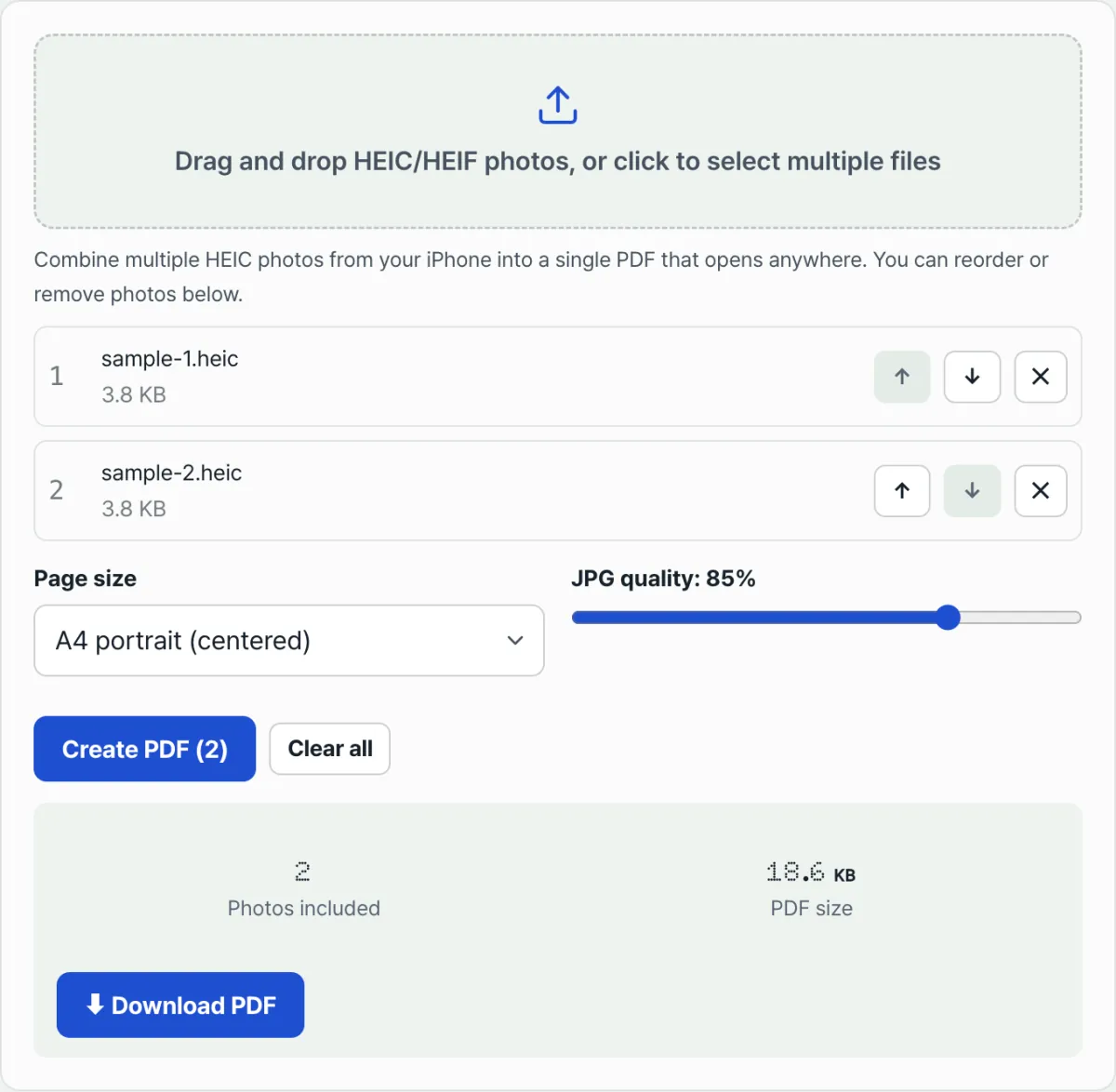
Combines multiple HEIC photos into a single PDF in the order you set, right in your browser. Your photos are never uploaded to a server — they're processed on the spot.
Where people get stuck
| Situation | What actually happens |
|---|---|
| You add a file that isn't HEIC or HEIF | You only see the message "Only HEIC or HEIF photos can be added," and the file doesn't go into the list |
| You want to change the photo order | Use the ↑ and ↓ buttons next to each item to move it one spot, or the ✕ button to remove just that one page |
| You're picking a page size | "A4 portrait (centered)" places the photo in the center of an A4 sheet, while "Fit to photo's original size (no margins)" makes each photo a full page at its own proportions with no margins |
| You want a smaller file | Lower the JPG quality slider (40–100%, default 85%) and the PDF gets smaller, but image quality drops with it |
| The conversion fails | If a corrupted or unsupported HEIC file is mixed in, you get an error message. Remove that file from the list and try again |
Recap
- The default iPhone format (HEIC/HEIF) won't open in some environments, so you may need to convert before submitting.
- Merging several photos into one PDF takes a separate step to set the order. You can also do it by hand with the Preview sidebar on a Mac or the print preview on an iPhone.
- Page size (A4 vs. fit to original) and JPG quality (40–100%) determine whether the finished PDF looks like a standard sheet of paper and how large the file ends up.
- This tool converts and assembles your photos right in the browser, so nothing is sent to a server, and you can fix the order instantly with the ↑ and ↓ buttons in the list.
Combines multiple HEIC photos into a single PDF in the order you set, right in your browser. Your photos are never uploaded to a server — they're processed on the spot.
Frequently asked questions
I added my photos out of order. Do I have to pick them all again from scratch?
No. Even after they're in the list, you can move each item one spot with the ↑ and ↓ buttons next to it, and the ✕ button removes just that one photo. You don't have to reselect everything in order from the start.
Should I choose A4 or "Fit to photo's original size"?
For anything you're submitting, "A4 portrait (centered)" is usually the safe choice. It places the photo in the center of an A4 sheet regardless of the photo's aspect ratio, so a printed copy won't fall outside standard paper size. If instead you want to keep each photo's proportions exactly and have each one fill a page with no margins, choose "Fit to photo's original size."
I added photos, but only some of them show up in the list.
This tool is built to accept only files with a .heic or .heif file extension, or a MIME type of image/heic or image/heif. Photos already saved as JPEG or PNG aren't HEIC or HEIF, so they're never added to the list — you just see the notice. You'll need to handle other formats separately.
This article was adapted from our Korean original. Read the Korean original