
PDF Header Date Not Updating? Why It Stays Fixed
Contents
You add today's date to a PDF header, reuse the file, and a few days later the date is still the day you created it. That's not a bug. The date stamped into a PDF isn't a value that gets recalculated — it's text that's fixed the moment you insert it. This post explains where that difference comes from, and how to check for yourself whether the date in the file you have is actually fixed.
Summary
- A date printed in a PDF becomes fixed text at the moment you insert it. Opening or printing the file later won't update it on its own.
- An "auto-update date" field in Word or Hangul is recalculated every time inside that program's window only. The moment you save to PDF, it turns into fixed text.
- You can check whether the date in your PDF is fixed by changing your system date and reopening the file.
When the date stays the same after reopening days later
It's common to build a report in the same format every week and expect the cover page or header to fill in "Date: today" automatically. In Word or Hangul, once you drop in a today's-date field, the date on screen really does change every time you open the document.
But if you export that document to PDF and save it, then next week pull out only that PDF, the header date is still the date you exported last week. You opened the file today and the date didn't update, so it looks like an error — but it's actually a property of the PDF format itself.
Why it doesn't change on its own: and how to check whether it's fixed text
An "auto-update" date in Word or Hangul is a field: a small calculation that works out today's date each time the program opens the document and draws it in place. The document file doesn't store the date number. It stores the instruction "insert today's date," and the number you see is the result of a fresh calculation every time.
PDFs, on the other hand, mostly carry no such calculation. They store already-computed characters drawn at fixed coordinates on the page, like a picture. The moment you export to PDF, that one result value — "today's date" at that instant — is baked into the page as a fixed string, and the "recalculate every time" instruction from the original never makes the trip.
Checking whether the date in your PDF is actually fixed text is easy enough. Set your computer's system date forward by one day, then open the PDF again. If the header date is still the same, it's fixed text. When you're done checking, set the system date back to where it was.
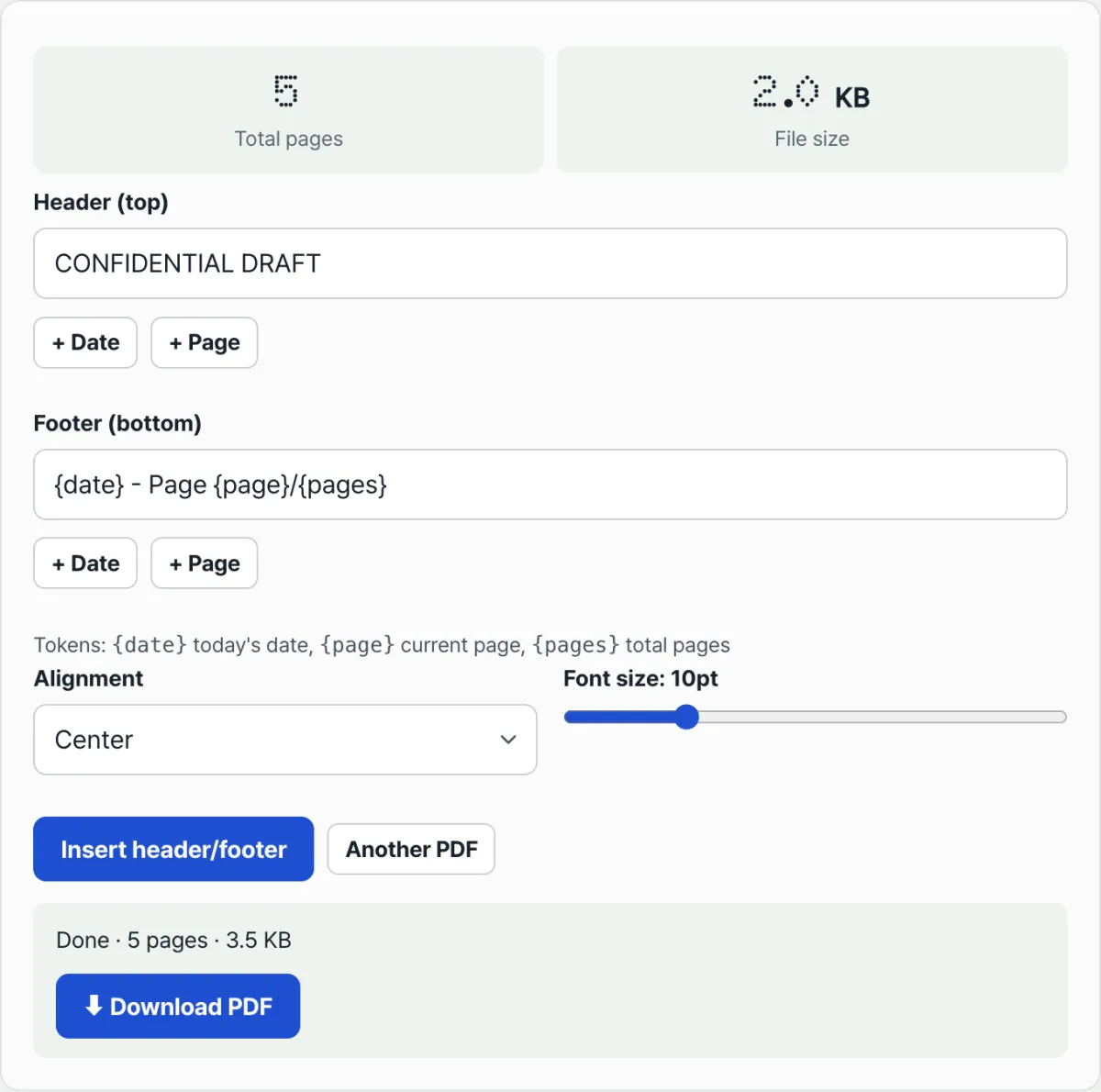
Checking it yourself isn't hard, but opening the source document and exporting to PDF again every time you need a fresh copy with the current date gets tedious. If you'd rather stamp today's date onto a PDF you already have — with no source document — try our free tool, PDF Header & Footer.
Free · No sign-up · Files are processed in your browser only (never sent to a server)
Common sticking points
| Symptom | Cause / what to check |
|---|---|
| The header date is still the old one even though you opened the file today | It's fixed text from the moment the PDF was saved (or stamped). If you need the current date, insert it again |
| Print preview shows the current date but the saved file shows the old one | Preview recalculates on the spot, but the actual save is frozen at that moment's value |
| You changed the date in the source document but the PDF you already made didn't change | The source document and the PDF are separate, independent files. Editing the source doesn't automatically change an existing PDF |
| You drag over the text and nothing gets selected | It's a scan, so there's no text data to begin with. Checking with the system date proves nothing here |
The short version
- A date stamped into a PDF stays as fixed text from the moment you insert or save it, and it doesn't recalculate itself.
- An auto-update date field in Word or Hangul recalculates only inside that program's window, and freezes the moment you export to PDF.
- To confirm whether the date in your PDF is fixed, change your system date and reopen the file.
- Page numbers like {page}/{pages} work the same way: at insert time, the document's total page count is calculated and a fixed number is stamped onto each page.
- Every time you need a PDF with the current date again, you have to insert it again — and you can do that with an existing PDF alone, no source document needed.
Free · No sign-up · Files are processed in your browser only (never sent to a server)
Frequently asked questions
How do I check whether the date in my PDF is really fixed?
Set your computer's system date forward by about a day, then reopen the PDF. If the header or footer date is still the same, it's fixed text — and that's normal behavior for most PDFs. When you're done, set the system date back to what it was.
Can I keep a date I inserted with an auto-update field in Word after converting to PDF?
If you export to PDF the usual way, the date value at that moment is saved as fixed text, and it won't recalculate when you open the file later. Some interactive PDF forms or documents with special scripts may behave differently, but with a plain save or export to PDF, you can count on it being fixed.
Do page numbers like {page}/{pages} renumber automatically if I add pages later?
No. Page numbers work the same way as the date: at insert time, the document's total page count is calculated and a fixed number is stamped onto each page. If you add or remove pages in the PDF afterward, the numbers already stamped stay as they are, so you have to insert them again to get the count right.
How do I make a PDF with the current date every time?
If you still have the source document (Word, Hangul, and so on), open it, check the date, and export to PDF again. If all you have is the existing PDF with no source, it's faster to use our free tool, PDF Header & Footer, to put today's date back into the header and footer and save a new PDF.
This article was adapted from our Korean original. Read the Korean original