
PDF Page Numbers vs. Viewer Count: How to Set a Start Number
Contents
Sometimes the page count your PDF viewer shows and the numbers printed at the bottom of the pages don't match. This happens most often with reports or papers that have a cover and table of contents up front. Here's why the two numbers differ, and how to restart numbering from the value you want.
Summary ① The page number a PDF viewer shows is a straight count of the physical order inside the file, so it always starts at 1 on the first page. ② The number printed at the bottom of a page is separate — when a document is built, it's common practice to skip the cover and table of contents and restart counting at the body. ③ By setting a start number, you can match the printed numbers to any starting value you want, but the limitation remains that the same rule applies to every page in the file.
Why the Viewer Page Count and the Printed Number Differ
The page indicator in a PDF viewer (for example, "3 / 12") is a straight count of the physical page order stored in the file. No matter what the content is, the first page of the file always shows as 1.
The number printed at the bottom of a page, on the other hand, is a value set separately when the document was created. It's common in reports and papers to leave the cover and table of contents unnumbered and restart at "1" from the first page of the body.
Take a 12-page file made up of 1 cover page, 1 table of contents page, and 10 body pages. The viewer counts the whole file as 12 pages. But the first body page has "1" printed on it, so viewer page 3 and the printed "page 1" point to the same page.
That means when someone says "see page 5," which sheet you actually need to open depends on whether they mean the viewer page count or the printed number. If you don't check which one they mean, you'll end up on a different page.
How to Check: Matching Printed Numbers to the Value You Want
The first thing to check is which physical page in the PDF you have open has the number you want printed on it. Type a physical page number directly into the page navigation box of a viewer such as Chrome or Acrobat and jump there, and you can compare it right away with the number printed at the bottom of that page.
If you still have the source document from a word processor such as Word or Hangul, you can set a start number in the page number format settings so the numbering begins at the value you want from the start. If the PDF has already been saved, you'd have to reopen the original program and edit it there, which is a hassle.
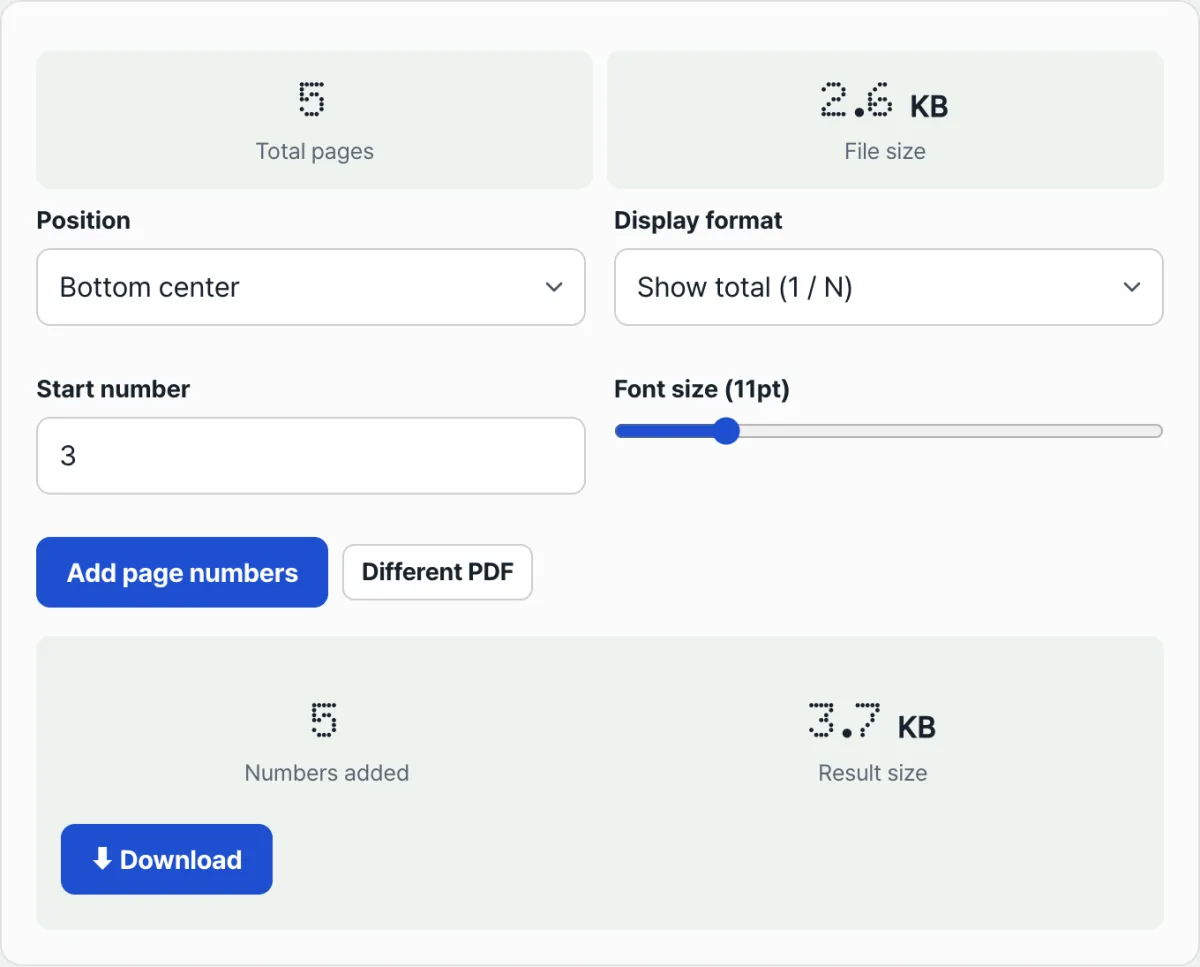
Check it with our tool. If you don't want to reopen the original program and instead want to stamp new numbers onto the PDF file itself starting from the value you choose, here's how.
Free · No sign-up · Runs in your browser only, files never sent to a server
This tool starts numbering at the first physical page of the uploaded file using the start number you specify, then continues in order through the following pages. If the cover is included as the first page of the file, the cover gets a number too — there's no way to skip specific pages.
Common Sticking Points
Here are the places people actually get stuck when renumbering.
| Situation | What to check |
|---|---|
| Setting the start number to 0 | The number "0" is printed on the first page as-is. This is not a feature for leaving the cover blank without a number |
| Choosing the "Full display (1 / N)" format | The N at the end is the start number plus the actual page count minus 1, so if the start number isn't 1, it won't match the actual number of pages in the file |
| Wanting to exclude only the cover and table of contents from numbering | This tool applies the same rule to every page in the file, so you need to split those pages into a separate file before adding numbers |
| Number position | You can choose only bottom center, bottom right, or bottom left — top isn't available |
The Bottom Line
- The page count the viewer shows just reflects the physical order of the file, while the number printed at the bottom was set separately when the document was created, so the two numbers can differ.
- Because of the practice of restarting numbering at the body after the cover and table of contents, the viewer page and the printed number often disagree.
- Setting a start number lets you stamp new numbers starting from the value you want, but the same rule applies to every page in the file.
- When you use the "Full display" format, keep in mind that if the start number isn't 1, the total shown won't match the actual page count.
Free · No sign-up · Runs in your browser only, files never sent to a server
Frequently Asked Questions
Is it normal for the page count in a PDF viewer to differ from the page numbers printed in the document?
Yes, it's normal. The viewer counts and displays the physical page order stored in the file, while the printed numbers are values set separately when the document was created — often by skipping the cover and table of contents and restarting at the body.
If I set the start number to 0, does that mean the cover won't get a number?
No. Setting the start number to 0 prints the number "0" on the first page of the file as-is. There's no feature for excluding specific pages from numbering; the same rule applies to every page in the file.
Why does N in the "Full display (1 / N)" format come out different from the actual page count?
Because N in the full display is calculated as the start number plus the actual page count minus 1. If you set the start number to 1, N equals the actual page count, but starting at any other value shifts it by that amount.
How do I add numbers only to the body and not the cover?
This tool applies numbers uniformly to every page in the uploaded file. If you want to leave the cover out, the safe approach is to split the cover page into a separate file before adding numbers, then add numbers to the file that contains only the body.
This article was adapted from our Korean original. Read the Korean original