
How to Convert PDF to JPG: Choose DPI and JPG vs. PNG
Contents
Converting a PDF to JPG means rendering a PDF page at a set resolution (DPI) and saving it as a single image file. For screens and messaging apps, 150 DPI (1240×1754 pixels for an A4 page) is enough. For print, 300 DPI (2480×3508 pixels) works. Use JPG for pages with photos and PNG for pages with only text or tables. This guide covers how to convert a PDF and how to choose a resolution and format, with numbers from real conversions.
Summary ① One PDF page becomes one image. Text that becomes an image can't be searched or copied. ② Image size (pixels) = page size (inches) × DPI. Use 150 DPI for screens and 300 DPI for print. ③ For pages with photos, JPG is much smaller. For text-only pages, the file size difference from PNG is small. ④ Each page becomes its own image, so downloading them as a ZIP is easier.
What changes when you convert a PDF to JPG?
Each page becomes one image made of pixels, and the text on it becomes part of the picture. In a PDF, text is stored as font data, so it stays sharp when you zoom in and you can search and copy it. Once you convert to JPG, it is fixed as dots (pixels) at the resolution you chose.
So decide what you need the image for first. People usually convert to send a page in a messaging app so it shows up as a preview, to paste it into a blog post or presentation, or to upload it somewhere that only accepts images. If you need to edit or search the text, keep the original PDF too.
What DPI should you use?
Use 150 DPI for images you'll view on a screen and 300 DPI for images you'll print. A PDF uses 72 points per inch, so an image's width and height in pixels equal the page size (in inches) times the DPI. At 72 DPI, the image matches the PDF page size exactly (about 595×842 for A4), so text looks small.
| DPI | A4 (210×297mm) | US Letter (8.5×11in) |
|---|---|---|
| 150 | 1240×1754 | 1275×1650 |
| 200 | 1654×2339 | 1700×2200 |
| 300 | 2480×3508 | 2550×3300 |
Doubling the resolution quadruples the pixel count, and the file gets about that much bigger. For an image you'll view on a phone, 150 DPI is plenty to read the text. Choose 200 to 300 DPI only when you need to zoom in on small print or drawings. That keeps file size and speed in check.
Should you choose JPG or PNG?
JPG suits pages with photos or scanned images. PNG suits pages with only text, lines, and tables. JPG shrinks images with smooth color changes, like photos. PNG doesn't lose quality, but its files get large with photos.
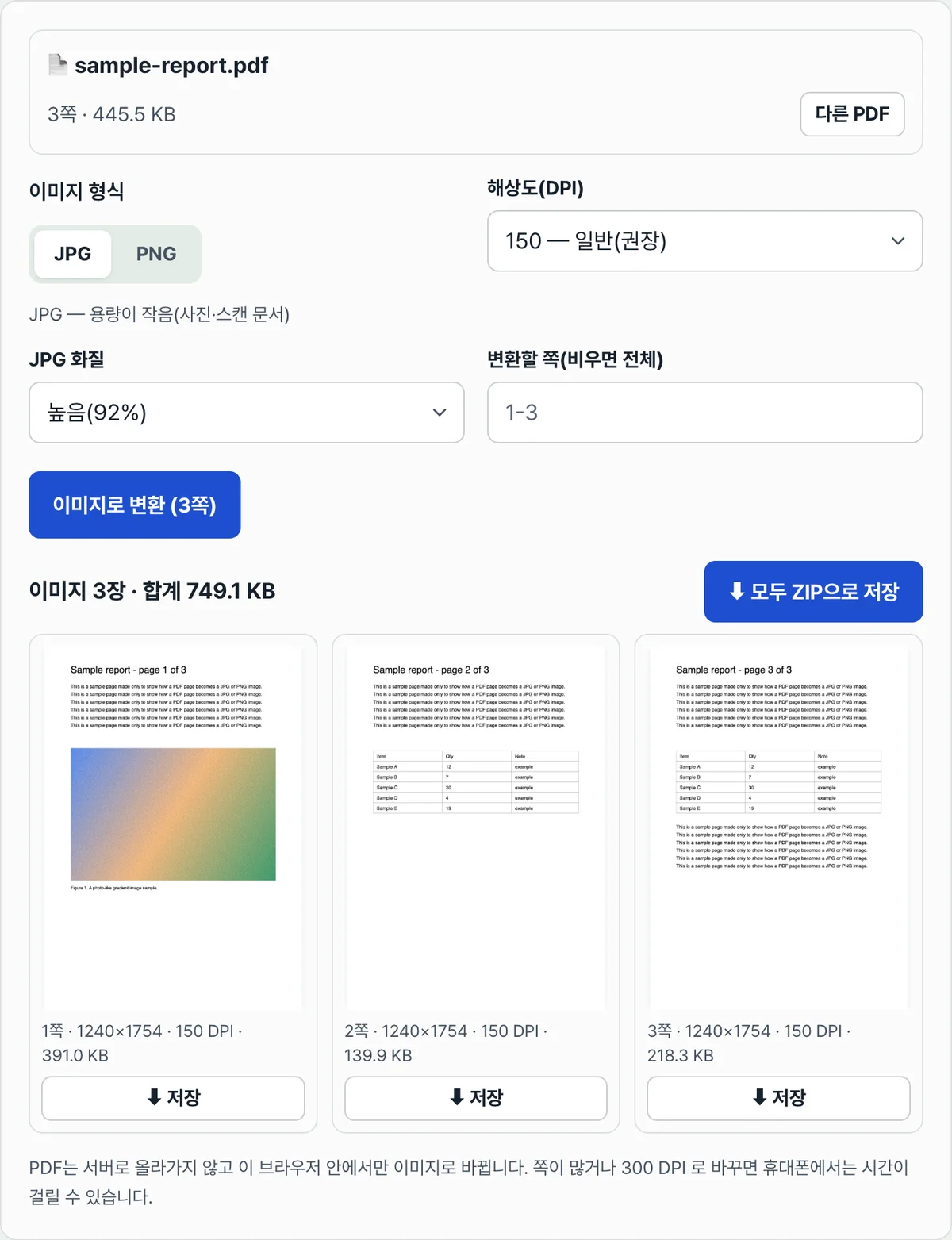
I converted the same PDF (3 A4 pages) twice at 150 DPI and compared file sizes. Page 1 has a photo-like image. Pages 2 and 3 have only text and tables (November 18, 2026, JPG quality 92%).
| Page | Content | JPG | PNG |
|---|---|---|---|
| Page 1 | Text + photo | 391.0 KB | 1.22 MB |
| Page 2 | Text + table | 139.9 KB | 150.4 KB |
| Page 3 | Text + table | 218.3 KB | 222.9 KB |
| Total | 749.1 KB | 1.59 MB |
On page 1, with the photo, the PNG was about 3 times the size of the JPG. On the pages with only text and tables, the difference was just 2 to 8%. For text-only pages, choosing PNG doesn't add much file size, and you avoid the blurring around letter edges that JPG can cause. Results vary by document, so treat these as examples only.

How do you convert a PDF to JPG without installing software?
You can convert one page at a time with features already on your computer. But you often can't choose the resolution, or you have to repeat the steps for every page, so it gets tedious as the page count grows.
- macOS Preview: Open the PDF, choose "Export" from the "File" menu, and pick JPEG as the format. The page you're viewing is saved as an image. For multiple pages, repeat for each page.
- Windows Snipping Tool: Press Windows key + Shift + S to crop the page shown on your screen and save it. The image size is tied to how large the page appears on screen, so small text can look blurry.
- PDF editing software: A paid PDF editor such as Adobe Acrobat can export all pages as images at once.
Some online converters upload your file to a server for processing. For sensitive documents, such as contracts or copies of ID, check first whether the site uploads your file.
Try our tool. PDF to JPG Converter: Turn PDF Pages into JPG or PNG Free (No Upload) lets you drag in a PDF, choose JPG or PNG, a resolution (72, 150, 200, or 300 DPI), and the pages to convert. It then creates an image for each page, and you can save them one by one or as a single ZIP. It's free and needs no login. Your PDF isn't uploaded to a server; it's converted only inside your browser.
Free · No login · Your PDF is never uploaded to a server

How do you get multiple pages as images at once?
Set a page range, convert, and download everything as one ZIP file. If you enter "1-3, 5", only pages 1 through 3 and page 5 are converted. If you leave it blank, all pages are converted. Each downloaded image keeps the original file name with a page number added, like -p01 or -p02, so the order never gets mixed up.
If a PDF has dozens of pages and you convert at 300 DPI, it can take a while on a phone, and you might run out of memory. In that case, lower the setting to 150 DPI, or split the page range and convert in several batches.
Can you convert a password-protected PDF?
If a PDF asks for a password when you open it, you need to remove the password first. Open it in a PDF viewer with the password, save it again without a password, and then load that copy. A PDF that only restricts printing or copying can still be opened, so it usually converts as is.
Summary
- One PDF page becomes one image. The text becomes part of the picture, so you can't search or copy it.
- Image size = page size (inches) × DPI. Use 150 DPI for screens and 300 DPI for print.
- For pages with photos, JPG is much smaller. For text-only pages, the size difference from PNG is small.
- For multiple pages, set a page range and download a ZIP.
- For sensitive documents, choose a method that converts without uploading.
Free · No login · Your PDF is never uploaded to a server
Frequently Asked Questions
Does converting a PDF to JPG reduce quality?
It does if you choose a low resolution. 72 DPI matches the PDF page size exactly, so text gets muddy when you zoom in. 150 DPI is enough to read on a screen, and 300 DPI looks sharp even when printed. If blurry text edges bother you, choose PNG.
How many pixels is an A4 page at 300 DPI?
2480×3508 pixels. A4 is 210×297mm, or about 8.27×11.69 inches, multiplied by 300. At 150 DPI, it's 1240×1754 pixels.
Can you combine multiple PDF pages into one image?
PDF to JPG Converter creates one image per page. To put several pages on one image, stitch the converted images together in a photo editor. Or first create a PDF using your print settings' option for multiple pages per sheet, then convert that.
Can you convert a PDF to JPG on your phone?
Yes. Pick the PDF file in your phone's browser and it converts the same way. You can save the images one by one or download a ZIP. It takes longer with many pages or at 300 DPI.
Is PDF to JPG Converter free? Does my PDF get uploaded to a server?
It's free with no login, and there's no page limit. The conversion runs inside your browser using Mozilla's PDF engine (pdf.js), so your PDF isn't uploaded to a server. It only downloads public resource files, such as fonts, when it needs them.
Sources
- Mozilla pdf.js — an open-source engine that renders PDFs in the browser (https://github.com/mozilla/pdf.js, checked November 18, 2026)
- Page pixel calculation: based on the PDF base unit of 1/72 inch, A4 at 210×297mm, and US Letter at 8.5×11 inches
- JPG and PNG file sizes: values shown on screen after converting a sample PDF (3 A4 pages, 445.5 KB) at 150 DPI with PDF to JPG Converter on November 18, 2026
This article was adapted from our Korean original. Read the Korean original