
How to Reduce PDF File Size: Shrink Photos, Keep Text Sharp
Contents
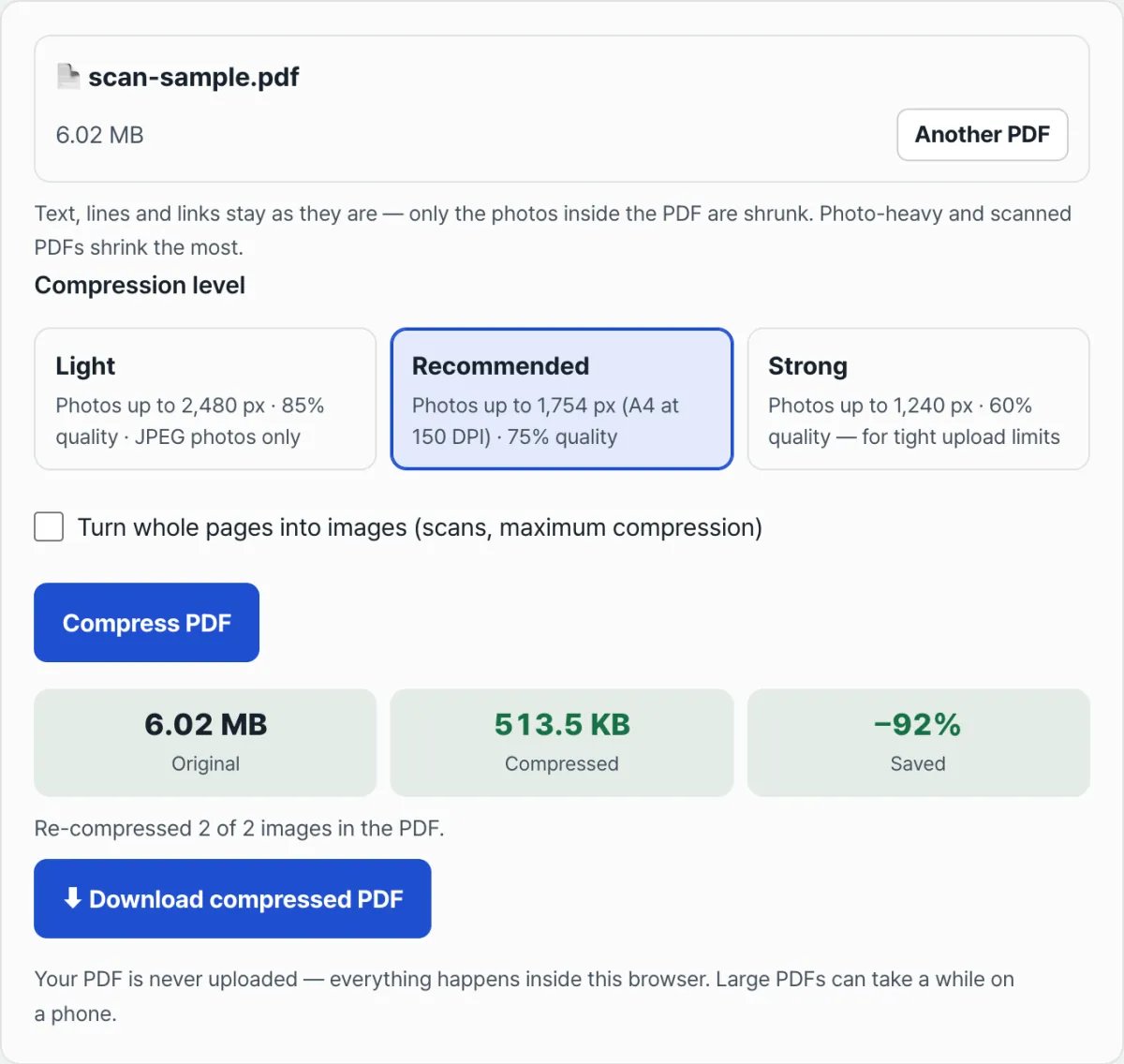
To reduce a PDF's file size, lower the resolution and quality of the photos (images) inside it. Text and lines don't need to change, and most of the file size comes from photos and scanned images. A 2-page sample PDF scanned at A4, 300 DPI (6.01 MB) dropped to 511.6 KB when only the photos were reduced to about 150 DPI.
Summary ① A PDF is almost always large because of the photos and scanned images inside it. The text takes only a few KB. ② If you re-compress only the photos, the text stays sharp, and search and copy still work. For screen viewing or submission, A4 at 150 DPI (1,754 pixels on the long side) is enough. ③ On a Mac, use Preview's "Reduce File Size." In Word, use "Compress Pictures." For everything else, a free browser tool will do.
Why Is My PDF So Big?
Most of the file size comes from the photos inside it. Text in a PDF is stored as font and position data, so a page needs only a few KB. A photo stores every single pixel.
An A4 page scanned in color at 300 DPI is 2,480×3,508 pixels, or about 8.7 million pixels. Uncompressed, that's 3 bytes per pixel, or about 26 MB. Even with JPEG compression, a page can still run several MB (the sample scan in this article is about 3 MB per page). That's why a scanned document of just a few pages quickly grows to tens of MB.
A report with phone photos is the same. A 12-megapixel photo may look small in a PDF, but it still holds all of its original pixels. It's much heavier than its size on screen suggests.
How Do I Reduce a PDF's File Size?
The key is to lower the photo resolution to match screen viewing or submission. You can do it before you create the PDF or after.
Scan at a Lower Resolution
If you can rescan, scan at 150–200 DPI instead of 300 DPI, and in black and white (grayscale) instead of color. That's the most reliable fix. Cutting the resolution in half cuts the pixel count to one quarter. Documents with only text are perfectly readable in black and white.
Mac: Preview's "Reduce File Size"
Open the PDF in Preview, choose File > Export, pick "Reduce File Size" from the Quartz Filter menu, and save. Apple's support documentation also notes that compressing can make the PDF quality lower than the original. You can't choose how much it shrinks, so photos can get too blurry. Zoom in and check after saving.
Word: "Compress Pictures" Before Saving as PDF
If you're turning a Word document into a PDF, first lower the resolution with "Compress Pictures" on the Picture Format tab. According to Microsoft's support documentation, the default picture resolution in Microsoft 365 is 220 ppi, and you can choose a lower one. This doesn't work on a PDF that already exists.
An Existing PDF: A Tool That Re-Compresses Only the Photos
If you don't have the original file and only have the PDF, use a tool that picks out just the photos inside the PDF and compresses them again. It doesn't touch text, lines, or tables, so search and copy still work and everything stays sharp when you zoom in.
Shrink it right now with a free tool. The tool below re-compresses only the photos inside your browser without uploading the PDF to a server. It shows the original size and the reduced size side by side.
Free · No sign-up · Your PDF is processed in your browser, never uploaded to a server
How Do I Choose a Compression Level?
For a PDF you'll view on screen or submit online, "Recommended" (1,754 pixels on the long side of photos) is enough. 1,754 pixels is the size of a photo that fills an A4 page at 150 DPI. If you'll print the PDF, choose "Light."
| Level | Photo long side | Sample result |
|---|---|---|
| Light | 2,480px · 85% | About 1.7 MB |
| Recommended | 1,754px · 75% | 511.6 KB |
| Strong | 1,240px · 60% | 157.8 KB |
The sample results are the values from reducing the 6.01 MB sample scan above (A4, 300 DPI, 2 pages) with this tool. A PDF with few photos won't shrink this much.
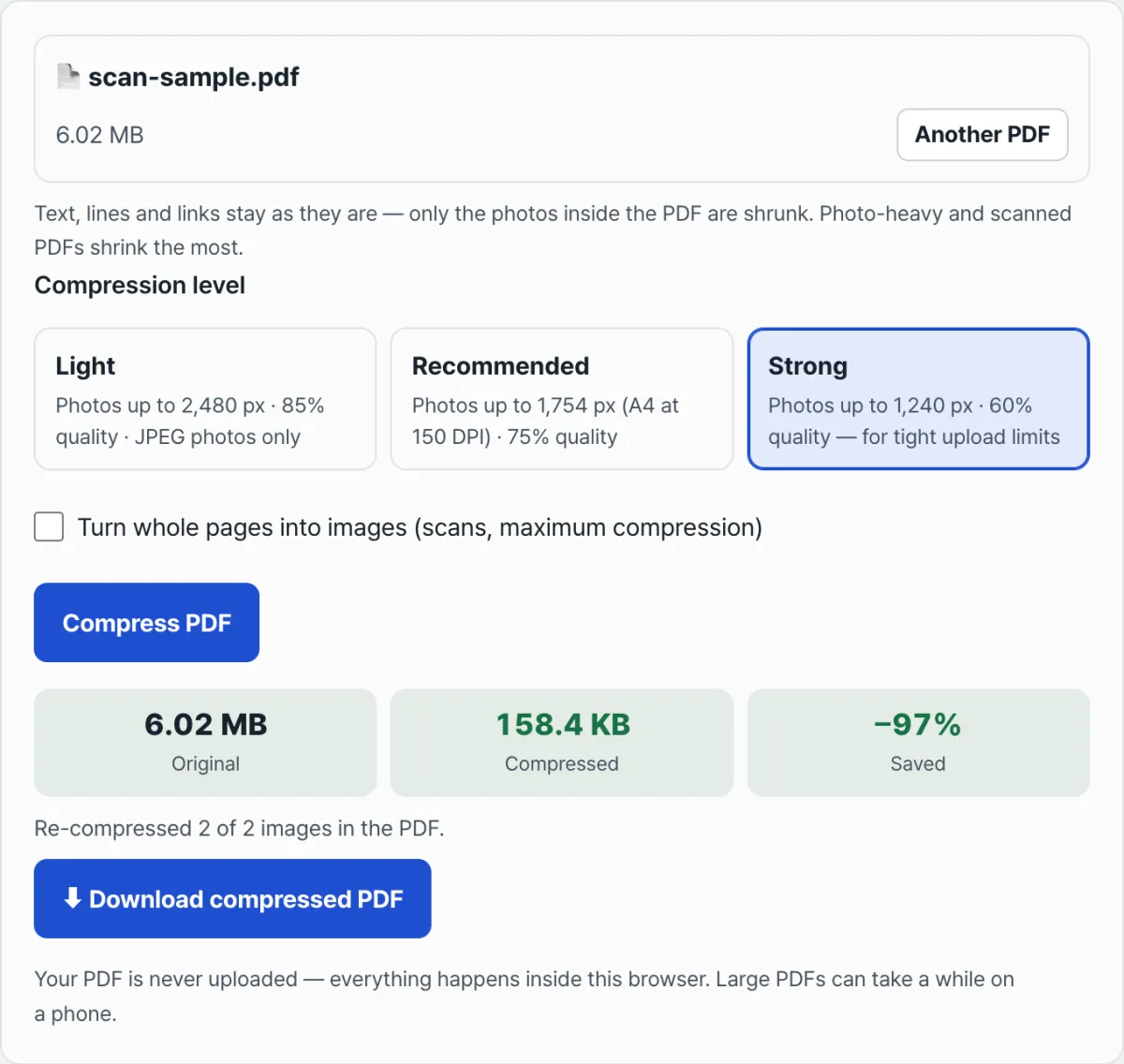
Use "Strong" when the size limit where you're submitting is tight. In a scanned document, the text is part of the picture too. At this level, the edges of small text can blur a little, so zoom in after saving and make sure it's still readable.
What If the File Size Doesn't Change?
The PDF probably has very few photos, or its photos are already compressed small. Re-compressing the photos in such a PDF gains nothing, so the tool shows a message instead of saving.
- Convert whole pages to images: Each page is redrawn as a single picture and bundled together. This can shrink the file more, but you can no longer select, copy, or search text, and links, bookmarks, and form fields disappear.
- Remove pages you don't need: Taking out the cover, blank pages, or duplicate pages reduces the size accordingly.
- Upload in parts: If where you're submitting accepts multiple files, splitting the PDF is an option. Keep in mind that the split files may add up to more than the original.
This tool doesn't shrink fonts. If a PDF is large even though it has no photos, check the options when you re-save it as a PDF from the program that created it.
How Much Quality Do I Lose?
Text loses no quality, and photos shrink to a level where the difference is small on screen. That's because the photos-only approach doesn't touch the text. Photos lose pixels and JPEG quality, so you may see a difference if you zoom in a lot or print.
Your original stays as it is. Save the reduced copy for submission separately and keep the original.
Summary
- Most of a PDF's file size comes from photos and scanned images. The text takes only a few KB.
- If you re-compress only the photos, the text stays the same. For screen viewing or submission, about A4 at 150 DPI (1,754 pixels on the long side) is enough.
- On a Mac, use Preview's "Reduce File Size." In Word, use "Compress Pictures." For an existing PDF, use a tool that reduces only the photos.
- If it doesn't shrink enough, use "Strong" or convert pages to images, but keep in mind that text search and links will be lost.
Free · No sign-up · Your PDF is processed in your browser, never uploaded to a server
Sources
Checked against the materials below on November 17, 2026.
- Reduce the size of a PDF in Preview on Mac — Apple Support
- Reduce the file size of a picture in Microsoft Office — Microsoft Support
- The sample results (6.01 MB → 511.6 KB and 157.8 KB) are values from reducing a fake scan, made while writing this article, with the Compress PDF tool on this site.
Frequently Asked Questions
Can I reduce a PDF's file size for free?
Yes. On a Mac, use Preview's "Reduce File Size." In Word, use "Compress Pictures" before saving as PDF. For an existing PDF, use a free tool that needs no login, like Compress PDF: Reduce PDF File Size Free (Text Stays Sharp, No Upload) on this site, to re-compress only the photos.
Does compressing a PDF make the text blurry?
Not when you reduce only the photos. Text is stored as font data, so it isn't touched. With a scanned PDF, though, the text is part of the picture too. If you compress heavily, small text can blur, so zoom in and check.
Is it safe to upload my files to a PDF compressor site?
It depends on the site. If a site uploads your file to a server to process it, check that company's storage and deletion policy. The tool on this site doesn't send your PDF to a server. It processes the file only inside your browser, so even sensitive documents like IDs and contracts never leave your device.
How much will a scanned PDF shrink?
It depends on the scan resolution and the number of pages. The sample in this article, a 2-page A4 scan at 300 DPI, went from 6.01 MB to 511.6 KB at the Recommended level and 157.8 KB at Strong. A PDF that was already scanned at a low resolution shrinks less.
What if my PDF is still bigger than the submission limit after compressing?
First reduce it at the Strong level. If it's still too big, remove pages you don't need or convert the pages to images. If it's still over the limit, check the submission instructions to see whether you can upload the PDF in parts.
This article was adapted from our Korean original. Read the Korean original