
Trim PDF Margins Without Cutting Off Text on Some Pages
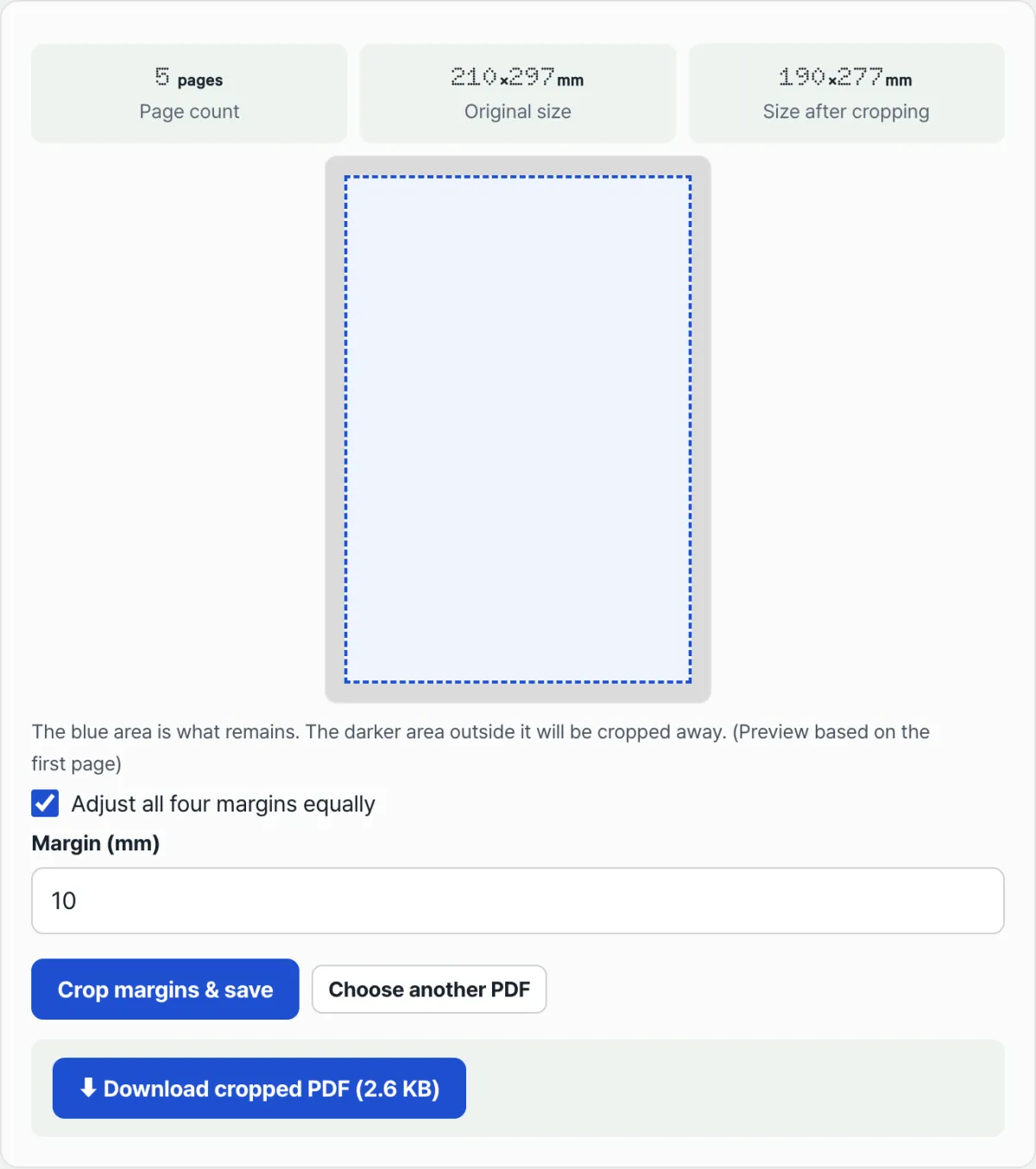
When you trim PDF margins all at once, the first page can look clean while a few pages further in end up losing text or table borders. The cause is usually that the tool's preview shows only the first page, while the actual trim applies the same mm values to every page. If each page has slightly different natural margins (the space between the edge and the content), the trim cuts into the content on the page with the narrowest margin.
Summary ① The preview is based on the first page only, but the trim applies the same mm values to every page equally. ② In scanned documents or PDFs assembled from multiple sources, the natural margins differ slightly from page to page, so a value that looks safe on the first page can be risky on another. ③ If the margin you set is larger than the page size on even one page, the entire trim fails at once, and it doesn't tell you which page caused it.
The problem
A PDF made by scanning several pages and combining them into one (a contract, lecture notes, a document scanned over several sessions) doesn't have identical margins on every page. Because the paper shifts slightly each time you place it on the scanner, one page might have a 12mm top margin while another has 9mm.
If you pick your margin values by looking only at the first page, you'll run into trouble. The first page's margin is 12mm, so trimming 10mm looks safe. But if a page with a 9mm margin is mixed in, that page loses the ends of its text or its table borders along with the trim.
Some PDFs also mix in pages with a different original page size, such as a cover or an appendix. In that case, if the margin you set is larger than that page's size, the whole trim fails outright, and it doesn't tell you which page is the problem, so you have to keep lowering the values and trying again.
The fix
If you want to estimate a safe value by eye without a tool, it helps to start by understanding that trimming PDF margins happens on page coordinates (points, pt). 1mm is about 2.83pt (72pt ÷ 25.4mm), and trimming works by keeping only the rectangle that sits that far in from each of the four edges of each page and removing the page information in the outer area.
The key is to base your values on the narrowest page, not the widest-looking one. In your PDF viewer, open a few more pages besides the first — middle pages, the last page, and pages where the scan direction changes — and check the distance to where the content starts with a ruler or by eye. Use the shortest margin you measure as your trim value, and no page will get cut.
If the document has pages of a different size (a cover in another size, for example), it's safer to split those pages out and trim them with different values, or to leave them out of the trim entirely. The more you apply the same margin values to the whole document at once, the more a single odd-sized page can affect the entire result.
If you'd rather not measure every page by hand, and you want to see the trim previewed and the result checked with your own eyes, try our tool.
Upload a PDF, adjust the margins in millimeters with Crop PDF (Trim Margins), and check the new size right away.
Common snags
| Symptom | Cause / what to check |
|---|---|
| The first page is fine but text on later pages is cut off | The preview is based on the first page, so a narrower margin on another page isn't reflected → flip through a few pages yourself to check |
| "Margins are larger than the page size, so the page can't be trimmed" error | The document contains one unusually small or differently sized page that blocks the trim → lower the values or handle that page separately |
| You linked all four edges to the same value but one side looks narrower | Uncheck "Adjust all four margins equally" to enter top, bottom, left, and right values separately |
| It's a scanned document and the cut position differs from page to page | The paper shifted slightly each time you scanned, so the natural margins themselves differ from page to page (a common scanning offset) |
| The size drops more than you expected after trimming | Use the "Size after trimming" statistics to double-check how much of the original size the top+bottom or left+right margins add up to |
Recap
Accidents where content gets cut off along with the margins usually happen because the preview shows only the first page while another page's margin is narrower. Set your values based on the page you measured as the narrowest, and make a habit of flipping through a few pages after trimming to check the edges. With our tool, check the size after trimming and the preview first.
Upload a PDF, adjust the margins in millimeters with Crop PDF (Trim Margins), and check the new size right away.
FAQ
How do I trim the top, bottom, left, and right margins differently?
Uncheck "Adjust all four margins equally" and you can enter the top, bottom, left, and right values separately. This is handy for documents where the scan direction or the binding makes just one margin unusually wide.
If I try a trim and don't like it, does the original file disappear?
No. Trimming creates a new file for you to download, so the original file stays exactly as it was. You can change the values and try again, or start over by loading it again with the "Another PDF" button.
This article was adapted from our Korean original. Read the Korean original