
What Is PDF Flattening? How Form Fields Get Locked
Contents
Have you ever filled in every field on a PDF application, opened it again later, and found the boxes empty or showing different values? It happens because the file is still a "form." Just because you can see a value on screen doesn't mean that value is locked into the page.
The fillable boxes inside a PDF are stored as separate objects called "fields" that float independently of the page artwork. Removing those fields and baking the values you see right now into the page is called flattening.
Summary ① The input boxes and checkboxes in a PDF form are stored as "field" objects separate from the page content, so their values can change at any time. ② Flattening means stamping the current value of each field onto the page as fixed text or graphics, and removing the field object itself. ③ Once a PDF is flattened, it's no longer recognized as a form, so you can't accidentally change a value or have a field get reset later.
What's the difference between a "form" and a "flattened document"?
The PDF spec lets you stack objects called "fields" on top of the fixed page content — text, images, and so on. Text boxes, checkboxes, and dropdowns are all fields. A field exists even when it's empty, and even when it's filled in, the field frame itself stays put.
So a program that opens a PDF in form state shows you the filled-in values on screen, and at the same time leaves open a path for you to click a box and edit it. Each viewer renders fields a little differently, which is also why the same file can show up with empty or different-looking values depending on the program.
| State | Recognized as a field | Chance the value changes again |
|---|---|---|
| Original form | Recognized as a field | Editable every time it's opened |
| After flattening | Not recognized as a field | Fixed as page content; can't be edited through normal means |
What goes wrong when fields stay "alive"
Picture a single application form that several people open in turn to review. The last reviewer casually clicks a box once, and the value gets wiped — or gets edited to the wrong value and saved. That really does happen.
Or the file gets opened in a different program, or merged and converted with another PDF tool, and the field values revert to defaults or show up empty. It happens because the field is still stored as "a box that can change at any time," not as "this value, right now."
That's why documents that need a signature, or final versions that must be submitted exactly as filled in, are safer with the fields removed before you send them out.
What are your options if you want to flatten a file yourself?
Some programs that view and edit PDFs can lock the fields in place during a "Save for printing" or "Save as" step. The principle is the same: copy the current field values into the page content and delete the field objects.
The problem is that this feature exists in some programs and not others. If you force flattening by "printing to a PDF printer and saving again," the whole document turns into something like an image — you can't select or copy the text, and the file often gets bigger. To remove only the fields while keeping the original document quality, you have to weigh that trade-off every time.
Instead of digging through program settings file after file, it's simpler to use a tool that picks out just the fields and locks them.
Upload a PDF and it shows the page count and number of form fields right away. One click locks the fields and gives you the flattened file to download.
How the tool actually handles this
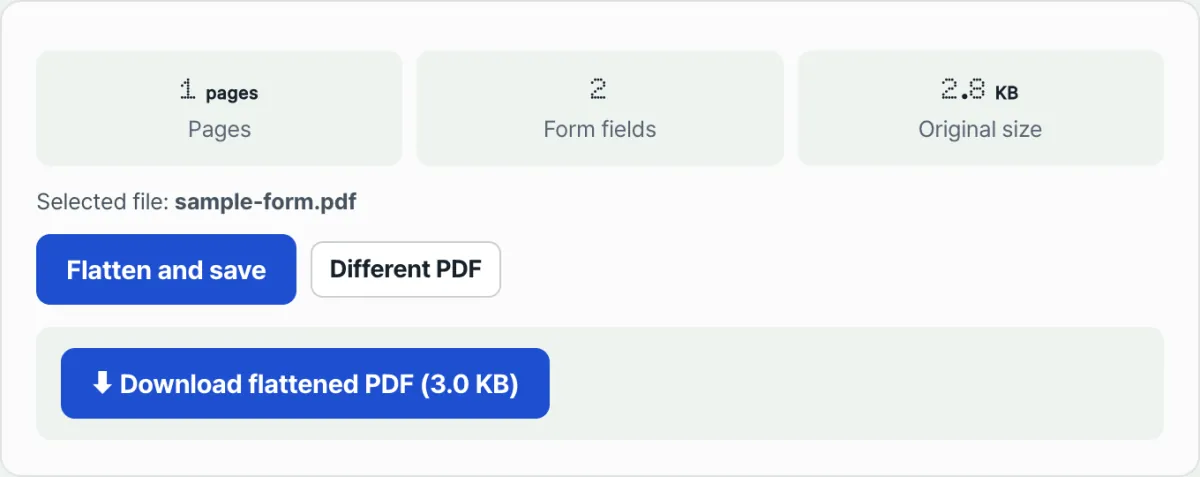
When you drag and drop a file into the Flatten PDF tool, or click to select one, it immediately shows the page count, the number of form fields inside, and the original file size. The file is opened and checked right in your browser without being sent to a server, so there's no upload at all.
Press the "Flatten and save" button, and the tool bakes the current field values into the page and produces a new PDF with the field objects removed. If the file had no editable fields to begin with, it tells you it saved the file back safely without changing anything.
When it's done, a button appears that lets you download the new PDF with "-flattened" added after the original filename, and the size of the new file shows next to it. To check another file, hit the "Another PDF" button to go back to the starting screen.
The short version
- The input boxes and checkboxes in a PDF form are stored as "field" objects separate from the page content, so their values can change at any time.
- Flattening stamps the field values onto the page as fixed text or graphics and removes the field objects themselves.
- If you pass a document along with its fields still alive, a value can get erased by accident or appear reset in another program.
- Documents that need a signature, or final submissions that are fully filled in, are safer flattened before you distribute them.
- The Flatten PDF tool opens your file right in the browser, shows you how many fields it has, and gives you a new PDF with the fields locked in — one button, done.
Upload a PDF and it shows the page count and number of form fields right away. One click locks the fields and gives you the flattened file to download.
Frequently asked questions
Does flattening turn all the text in my PDF into an image?
No. Flattening leaves the body text and images already on the page alone. It only stamps the values of the fillable fields into place as fixed text or graphics. The parts that used to be fields stop being recognized as fields — the whole document doesn't become one big image.
Can I edit the values again after flattening?
Once flattening is done, the field objects are gone, so you can't click a box and change the value through normal means. If there's any chance you'll need to change a value later, it's safer to keep an unflattened copy of the original file.
Can I flatten a PDF that has no fields at all?
Yes. If the tool detects 0 form fields when it opens the file, there's nothing to change, so it saves the file back safely without touching the content. PDFs that are already flattened, or that were never forms in the first place, go through without a problem.
Does flattening give a document legal effect?
Flattening is a technical measure that keeps a document's values from being changed by accident or reset later. Whether that document carries any legal weight or evidentiary value depends on the situation and how it's used — that's a separate question, and it's outside the scope of this article.
This article was adapted from our Korean original. Read the Korean original