
Extract PDF Pages in the Order You Want: How Page Ranges Work
Contents
When you pick specific pages from a PDF and save them as a new file, the page order in the result depends on how you type the numbers.
Numbers listed one by one with commas go into the new PDF in the order you typed them, but a range joined with a hyphen always expands in ascending order, no matter which direction you write it. If you don't know that difference, you might try to reverse the order and end up with a file in the exact same order as the original.
Summary ① If you separate numbers with commas and enter them one by one (for example, 5, 2, 8), they go into the new PDF in the order you typed them. ② A range joined with a hyphen (for example, 8-5) always expands from the smallest number up in ascending order, regardless of direction. ③ If you enter the same number more than once, only the first occurrence stays and later duplicates are filtered out automatically.
Why you get the original order back when you try to reorder pages
Say you have a report or a slide deck PDF, and you want to pull just the summary slides at the front and the conclusion slides at the back, then put the conclusion first to make a condensed version.
It's tempting to type a range that runs from a bigger number to a smaller one (for example, 10-1) into the page number field to flip the order itself.
But when you open the result, the pages often come out as 1, 2, 3 … 10, unchanged. That's because a page range is built to put the smaller of the start and end values first and expand in ascending order, so writing the direction backwards doesn't change the sort direction.
How to get exactly the order you want: you can do it without a tool
There are two ways to control the order of the result. You can skip ranges entirely and list numbers one by one, or you can use a method with no range concept at all and arrange the order visually.
On a Mac, the Preview app is the simplest option. Open the PDF, drag the thumbnails in the left sidebar into the order you want, select and delete the pages you don't need, then choose "Save As" and the file is saved in the order you see on screen. Because you're arranging it by eye, there's no ascending-order restriction at all.
On Windows, doing it without extra software takes more work. You open the pages you want one at a time and use "Microsoft Print to PDF" to create single-page files named in order, then select those files in the order you want and combine them into one.
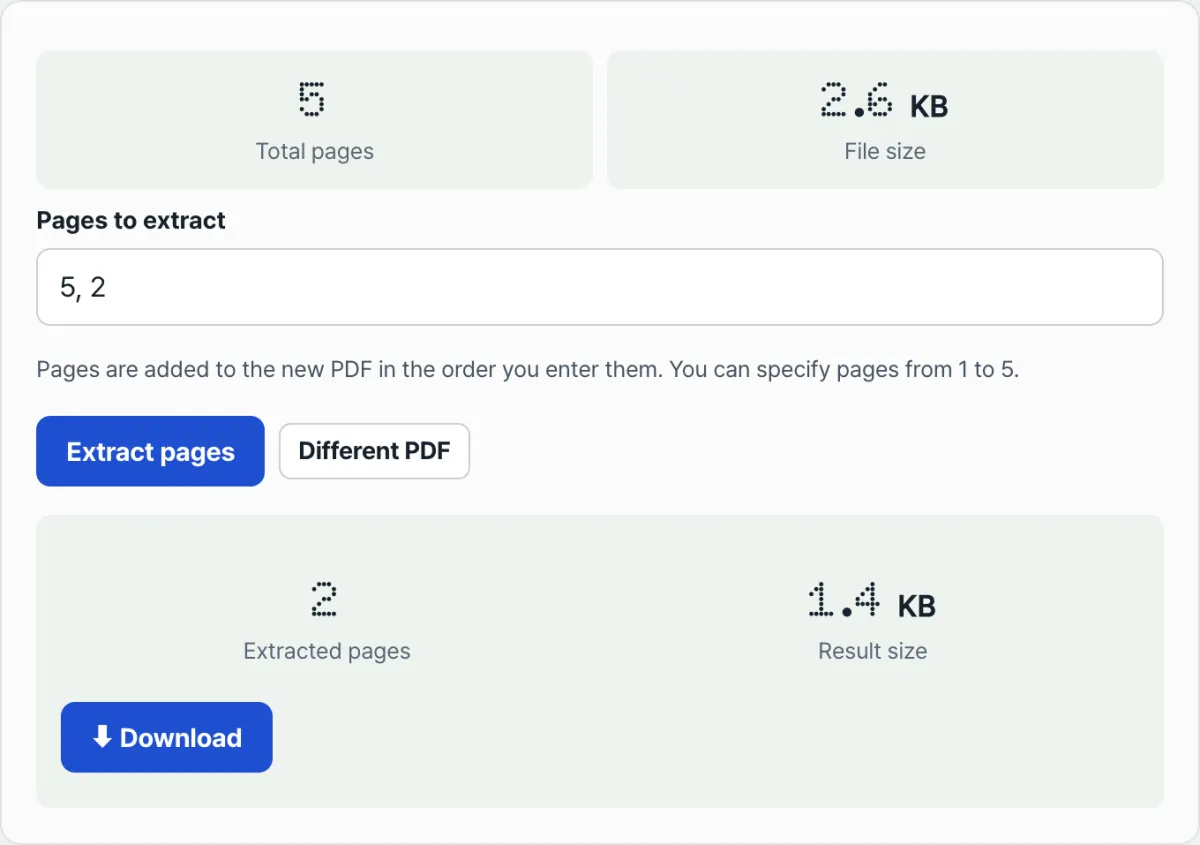
Try it with our tool. If you just list numbers separated by commas (no range notation), they go into the new PDF in the order you typed them.
Free · no sign-up · files are processed only in your browser
Common sticking points
| Input | What actually happens |
|---|---|
5, 2, 8 | Loaded in the order you typed: 5 → 2 → 8 |
8-5 | Expands in ascending order as 5 → 6 → 7 → 8, regardless of direction |
3, 3, 1 | Only the first 3 stays; the duplicate is removed, so you get 3 → 1 |
| A number outside the total page count (for example, 15 in a 10-page file) | Silently ignored with no error, and not included |
| Characters other than digits, commas, and hyphens | An error message appears and nothing is created |
Recap
- Numbers separated by commas go into the new PDF in the order you typed them.
- A hyphen range always expands in ascending order regardless of direction, so to reverse the order you have to list the numbers one by one instead of using a range.
- Repeating the same number is fine — duplicates are filtered out automatically and only the first position stays.
- Numbers outside the range drop out silently, while a format mistake triggers an error message.
- Some methods, like dragging thumbnails in Mac Preview, have no range input at all, so if exact order matters, check the method first.
Free · no sign-up · files are processed only in your browser
Frequently asked questions
Can I extract PDF pages in reverse (descending) order?
Not with range notation (10-1). A range joined with a hyphen always expands in ascending order starting from the smallest number. To get reverse order, list the numbers one by one with commas, like 10, 9, 8 …, and they'll be included in the order you typed them.
What happens if I type a page number wrong?
If the input contains characters other than digits, commas, and hyphens, you'll see an error message and no file is created. A number outside the total page count (for example, 15 in a 10-page file), on the other hand, just drops off the list with no error.
If I enter the same page twice, does it appear twice in the result?
No. For example, if you enter 3, 5, 3, the second 3 is ignored, so the pages are included once each in the order 3 → 5. You can't use this to intentionally repeat a page.
Are the extracted pages the same quality as the original?
Yes. The pages aren't re-rendered or compressed — the original PDF's page data is copied as-is into the new file, so text and image quality match the original.
This article was adapted from our Korean original. Read the Korean original