
Scanned PDF Pages Out of Order? Fix the Order Without Rescanning
Contents
- Why scanned PDFs end up in the wrong order
- How to fix the order without rescanning
- Where people get stuck
- The bottom line
- Under the Hood: The PDF Page Tree and Non-Destructive Reordering
- Solution matrix by type of scan order error
- 5 common mistakes when organizing a scanned PDF
- A 5-Step Workflow to Fix the Order of a Scanned PDF
- 7 Tips for Cleaning Up a Scanned PDF
- Final Decision Tree: Which PDF Editing Feature Should You Use?
- PDF Document Structure & Scanning Glossary Cheat Sheet
- Frequently Asked Questions
You scanned a multi-page document in one pass with an office copier or a scanner app, opened the finished PDF, and found the pages scrambled or saved in the exact reverse of the original order. You don't need to reload the paper and rescan from scratch. You can fix the file you already have by moving pages around inside it. This post covers why scan order gets flipped and how to fix it without rescanning.
Summary ① Automatic document feeder (ADF) scanners pull sheets in one at a time from the bottom (or top) of the stack, so the file often ends up saved in the exact reverse of the order you fed in ② If your scanner has no duplex scanning, you scan the fronts first, flip the stack, and scan the backs — but the back pages alone get saved in the opposite order from the fronts, so you have to interleave them one page at a time to restore the original document order ③ You don't have to rescan pages that are out of order. You can fix them inside the PDF you already have just by moving pages to new positions or deleting the pages you don't need
Why scanned PDFs end up in the wrong order
You load a stack of paper into the office copier or a scanner app and run a single scan, then open the finished PDF and find the last sheet sitting on page 1 and the first sheet at the very end. An automatic document feeder (ADF) pulls sheets one at a time from either the top or the bottom of the stack, so depending on which way you loaded the paper, the entire file can end up saved in reverse.
The same thing happens when you scan double-sided documents on a scanner without a duplex unit. You scan the front stack first, flip the whole stack over, and scan the backs. The feed order flips along with the paper, so the back pages alone get saved in the exact opposite order from the fronts. For example, if the fronts were saved as 1, 2, 3, 4, 5, the backs are saved as 5, 4, 3, 2, 1 — and if you just append one stack to the other, the pages don't line up with the document at all.
A paper jam mid-scan causes the same problem. Most scanning apps append the pages you rescan to the end of the file instead of putting them back where they belong, so the late pages end up at the very back instead of in the middle of the document.
How to fix the order without rescanning
Start by writing down the order the file is in now next to the order it should be in, and compare the two. If the whole file is reversed, the rule is simple. If there are n pages total, the page currently in position i belongs in position (n+1−i).
You can reverse a fully reversed file without any extra tools, using the page order option in the print dialog. In the Mac Preview app, open the print dialog, select Reverse page order under Pages & Sorting, then save as PDF, and you get a new file with all the pages flipped. On Windows, the reverse option in Adobe Reader's print dialog gives you the same result.
The tricky case is when the front and back stacks are interleaved. If the fronts are in order 1, 2, 3, 4, 5 and the backs are attached in order 5, 4, 3, 2, 1, the final order has to alternate: front page 1, the last page of the back stack, front page 2, the second-to-last page of the back stack, and so on. With a few pages you can work this out by hand and move them yourself, but as the page count grows, doing that calculation and dragging each page into place one by one gets tedious.
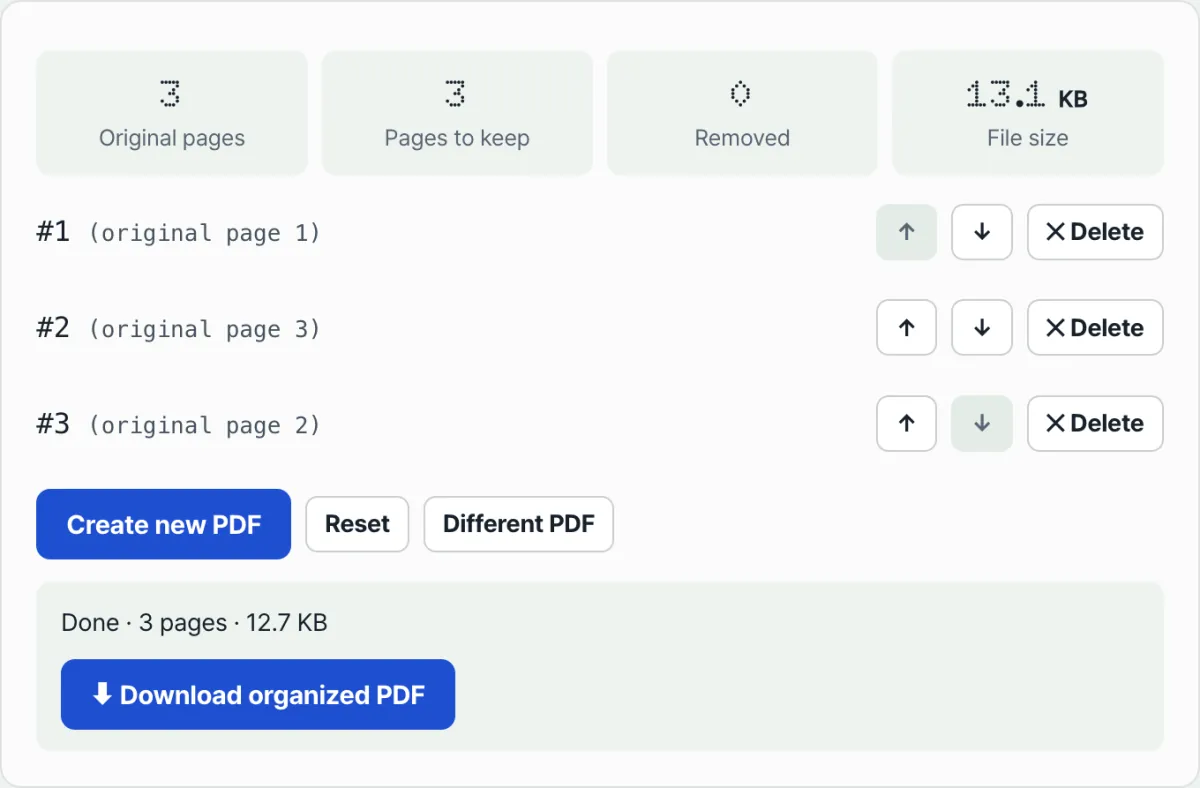
Check it with our tool. Upload your PDF and every page appears as a thumbnail. Drag pages where you want them, delete the ones you don't need, and save it straight to a new PDF.
Free · no install · upload a PDF, drag pages to move them or delete them, then save as a new file right away
Where people get stuck
| Situation | Why it happens |
|---|---|
| Scanned with the ADF and the pages came out completely reversed | The feeder picks up sheets starting from the bottom (or top) of the stack, so it scans them in the opposite order from how you loaded them |
| Scanned two-sided pages in two passes and the fronts and backs don't match up | Flipping the stack to scan the backs flips the feed order too, so only the back pages get saved in reverse |
| A page jammed partway through and the rescan got tacked onto the end | Most scanning apps always add newly scanned pages to the end of the file and never insert them back in their original spot |
| Wondering whether page numbers shift up automatically after you delete a page | When you delete a page, the remaining pages are renumbered in order with no gap and saved that way |
The bottom line
- If the whole scanned file is reversed, flip it with the rule that the page in position i goes to position (n+1−i).
- If you scanned the fronts and backs in two passes, remember that only the back stack is reversed — that's enough to work out the correct order by hand.
- You don't need to rescan. Just move pages to new positions inside the PDF you already have, or delete the pages you don't need.
- Your edits are saved as a separate file from the original, so if you move something wrong you can start over from the original.
Free · no install · upload a PDF, drag pages to move them or delete them, then save as a new file right away
Under the Hood: The PDF Page Tree and Non-Destructive Reordering
What actually happens inside the file when you change the page order of a scanned PDF?
1. PDF object structure and the /Pages catalog
- A PDF isn't just a bundle of images. It's an object-oriented document format that defines the document structure as a tree.
- The PDF's top-level catalog contains a /Pages node, and under that node each page's unique object ID (Reference ID) is recorded in array order, in the form /Kids [ 3 0 R 5 0 R 7 0 R ].
- Non-destructive reordering: To change page order you don't need to re-encode the high-resolution image bitmaps. Swap the reference order inside the /Kids array ([ 7 0 R 5 0 R 3 0 R ]) and the order flips in 0.1 seconds with 0% loss of file size and 0% loss of image quality.
2. How scanner hardware kinematics produce reverse order
- Top-feed: Sheets are pulled from the top of the stack, passed over the scan glass, and ejected below, so they're saved in forward order: 1 ➔ 2 ➔ 3.
- Bottom-feed: Copiers that feed from the bottom of the stack scan the last page at the bottom of the stack first, so they save in reverse order: n ➔ ... ➔ 1.
- Rather than changing scanner settings every time, flipping the order of the finished PDF with one click is much safer and faster in practice.
Solution matrix by type of scan order error
| Error type | Cause | Recommended fix | Time needed |
|---|---|---|---|
| Fully reversed (n ➔ 1) | Bottom-feed automatic document feeder | Reverse the entire page order in 1 second | 1 second, instant |
| Front/back interleaving error | Split front/back scan on a simplex scanner | Interleave odd pages forward + even pages reversed | 5 seconds |
| Unwanted blank pages included | Scanning the blank backs of single-sided documents | Select multiple thumbnails ➔ delete in bulk | 3 seconds |
| Missing page rescanned later | Late rescan after a paper jam | Drag the last page to the position you want | 2 seconds |
5 common mistakes when organizing a scanned PDF
- Rescanning repeatedly and degrading quality: Feeding the original paper over and over until a paper jam tears an important signed contract.
- Taking screenshots and building a new PDF: Rebuilding a PDF from screen captures just to change page order drops the resolution to 72 DPI and makes the text blurry.
- Security leaks from server-upload free PDF tools: Uploading documents containing ID numbers, account numbers, or contract amounts to an unknown overseas server.
- Forgetting to rotate pages: Changing only the order and leaving pages that were scanned sideways on their side, which hurts readability.
- Overwriting the original with no backup: Saving over the original instead of keeping it in case you delete a page by mistake, which makes recovery impossible.
A 5-Step Workflow to Fix the Order of a Scanned PDF
- Step 1 (Load the PDF file): Upload the out-of-order PDF to the client-side PDF page organizer on this site.
- Step 2 (Check the live thumbnail grid): Every page opens in a high-resolution thumbnail grid so you can see the document flow at a glance.
- Step 3 (One-click reverse order or drag and drop): If the whole file is backwards, click the Reverse All button. For individual pages, drag them with your mouse and drop them where you want them.
- Step 4 (Delete blank and duplicate pages & rotate): Click the trash icon to remove blank pages that got scanned by mistake, and rotate pages that came in sideways by 90 degrees.
- Step 5 (Lossless instant download): Click Save as new PDF, and a clean, properly ordered new PDF saves instantly at the same quality as the original.
7 Tips for Cleaning Up a Scanned PDF
- Fan out the stack of paper before scanning: Before you load the paper into the copier, fan it so air gets between the sheets. That cuts down on static electricity pulling two sheets through at once.
- Remove PDF encryption before editing: If a PDF is password-protected, open it in a viewer, print it to Microsoft Print to PDF, and save it again. Then you can organize it without restrictions.
- 300 DPI for text and 200 DPI for color is the sweet spot: At 600 DPI, files go past 100 MB and everything just gets slower, so 300 DPI is the best choice.
- Multi-select by dragging (Shift / Ctrl click): Select 10 pages in a row at once and move them all together with a single mouse drag.
- Lock in page order before you run OCR (text recognition): If you run OCR while the pages are out of order, the text search index gets scrambled too. Fixing the order comes first.
- For confidential documents, use a tool that doesn't send files to a server: Use a tool that processes files inside your browser instead of uploading them to an outside server.
- Standardize version naming when you save: Rename files as you go — contract_original.pdf ➔ contract_v1_reordered.pdf — to prevent human error.
Final Decision Tree: Which PDF Editing Feature Should You Use?
- Scenario A (the entire order is backwards) ➔ One-click Reverse All
- Scenario B (one or two pages landed in the wrong spot during scanning) ➔ Drag and drop with your mouse
- Scenario C (blank sheets or mis-scanned pages are mixed in) ➔ Checkbox multi-select ➔ delete in bulk
- Scenario D (the scan is lying on its side) ➔ Rotate page 90 degrees clockwise (Rotate)
PDF Document Structure & Scanning Glossary Cheat Sheet
- ADF (Auto Document Feeder): The automatic document feeder on top of a copier that pulls sheets in one at a time.
- Interleave: A sorting technique that merges a stack of odd pages and a stack of even pages by alternating one page at a time.
- PDF Page Tree: The object catalog node inside a PDF file that defines the hierarchy and display order of its pages.
- DPI (Dots Per Inch): The number of dots per inch. The standard for document scanning is 300 DPI (ideal for printing and OCR).
Frequently Asked Questions
Can this tool fix pages that were scanned upside down or rotated?
No. This tool changes the order pages are arranged in and deletes pages you don't need. It doesn't handle images that are already rotated 90 or 180 degrees. For pages that are turned the wrong way, organize the order first, then rotate just those pages in a separate tool or a scanning app that has a rotate feature.
Can I organize the order if the front-side PDF and the back-side PDF were saved as separate files?
This tool moves pages around inside a single PDF that's already been merged. If the front sides and back sides were saved as separate files, it's best to combine them into one file first using your scanning app's continue scanning feature, then organize the order with this tool.
If I delete pages, does the original file change too?
No. The result of reordering or deleting pages is saved as a new PDF file, and the original stays as it was. If you organize it wrong, just load the original again and start over.
This article was adapted from our Korean original. Read the Korean original