
PDF Bates Numbering: How to Stamp Sequential Numbers in Bulk
Contents
- The decisive difference between ordinary page numbers (1/50) and Bates numbers
- How the "sequence" of numbers catches missing pages (tampering) instantly
- Under the hood: the Bates numbering formula and PDF coordinate rendering
- Bates numbering vs. ordinary page numbers vs. digital watermarks
- Five common mistakes when applying Bates numbering
- A complete 5-step PDF Bates numbering workflow
- Seven practical Bates numbering tips
- Final Decision Tree: Which Bates Format Should You Use?
- Cheat Sheet: Key Bates Numbering and Document Management Terms
- Frequently Asked Questions
When you scan hundreds or thousands of pages of corporate audit materials, licensing documents, or contract binders — or merge several PDFs into one — a major disaster like missing pages or scrambled order happens all the time.
"Bates Numbering" is the global standard used by legal and accounting professionals worldwide to confirm in just one second whether a specific page is missing (a break in integrity) — without reading thousands of pages line by line from start to finish.
This guide covers the decisive difference between a simple "1/50" page number and a Bates number, how to design a prefix and six-digit zero-padded numbering scheme, and a practical technique for stamping sensitive contracts safely in your browser in one second with no server upload.
Key takeaways ① The core of integrity tracking: Assign a unique ID of "prefix (owner group) + sequential number (order)" so that scanning only the sequence (ABC000001 ➔ ABC000003) reveals a gap in 0.1 seconds. ② Unified identification across documents: Ordinary page numbers lose their meaning once you merge files, but Bates numbers let you trace the original bundle and its original position even after dozens of individual PDFs are mixed together. ③ Zero-padding for sorting: Fixing the length at six digits (000001) keeps the order correct both when scanning by eye and when a computer sorts by file name. ④ 100% client-side security: Confidential contracts and litigation documents never go to an external server — numbers are stamped instantly by the pdf-lib engine running locally in your browser.
The decisive difference between ordinary page numbers (1/50) and Bates numbers
Page numbers like "1/50" or "2/50" that Word or Hangul inserts automatically are valid only inside that one file.
- The limits of ordinary page numbers: The moment you merge 10 PDFs into one or copy a single evidence page out on its own, you can no longer tell which project this page came from or which file it was in.
- The power of Bates numbering: A prefix permanently locks in the owning bundle, and a sequential number establishes order (for example, CASE2026-000001). Even if tens of thousands of pages get scattered as loose sheets, the prefix alone tells you where they belong, and the number alone tells you the exact order.
How the "sequence" of numbers catches missing pages (tampering) instantly
The real value of Bates numbering isn't in applying the numbers — it explodes when you verify integrity later.
For example, say you have a technical review report made up of 500 pages, PRJ-000001 through PRJ-000500:
- What if, while flipping through, the page after PRJ-000042 is PRJ-000044?
- Without reading a single line, you can immediately catch that page 43 was skipped by the scanner or deliberately removed by someone.
- Conversely, if the same number shows up twice, you catch a double-feed error on the copier in one second.
Free · no install · just drag in a PDF to stamp a prefix plus sequential numbers in one second
Under the hood: the Bates numbering formula and PDF coordinate rendering
A look at the Bates numbering scheme for efficient document archiving and how pdf-lib renders the graphics.
1. The Bates number formatting formula
- Example (prefix: 'ACME-', digits: 6, starting number: 42):
- Page 1: ACME-000042
- Page 100: ACME-000141
2. Why six-digit zero-padding is essential
- If you number without zero-padding — DOC1, DOC2, ..., DOC10 — computer file sorting (lexicographical sort) jumbles them into DOC1, DOC10, DOC100, DOC2.
- Matching the digit count as DOC000001, DOC000002, DOC000010 makes lexicographical string order agree with the actual numeric order.
Bates numbering vs. ordinary page numbers vs. digital watermarks
| Comparison | Bates numbering | Ordinary page numbers (1/50) | Digital watermark |
|---|---|---|---|
| Main purpose | Document integrity tracking and evidence identification | Convenience when reading | Confidentiality marking and copyright protection |
| Works across merged documents | 100% uniquely traceable (prefix combined) | No (duplicates or resets when merged) | Not applicable |
| Missing-page detection | Extremely strong (gaps found instantly) | Average | Impossible |
| Typical placement | Usually bottom-right or top-right corner | Bottom center | Diagonal, translucent, center of page |
| Where the standard is used | Court evidence, audits, public tenders | General reports, books, papers | Confidential documents |
Five common mistakes when applying Bates numbering
- Setting too few zero-padding digits: Assigning only three digits (001–999) to a 5,000-page document, so the format breaks starting at page 1,000.
- Stamping the number where it covers existing body text: The number lands on top of text or a table in a PDF with no margins (always check the margins first).
- Entering a Korean prefix, which isn't supported outside letters and digits: Because of the limits of the standard built-in PDF font (Helvetica), Korean characters break into boxes (□).
- Restarting at 1 when splitting into another volume: Creating volume 2 to follow volume 1 (1–500) but resetting the starting number to 1 instead of 501.
- Using a server-upload site to convert confidential documents: Sending corporate secrets that must never be exposed to an unknown web server.
A complete 5-step PDF Bates numbering workflow
- Step 1 (Upload the PDF): Drag a one-page or hundreds-of-pages PDF into this tool.
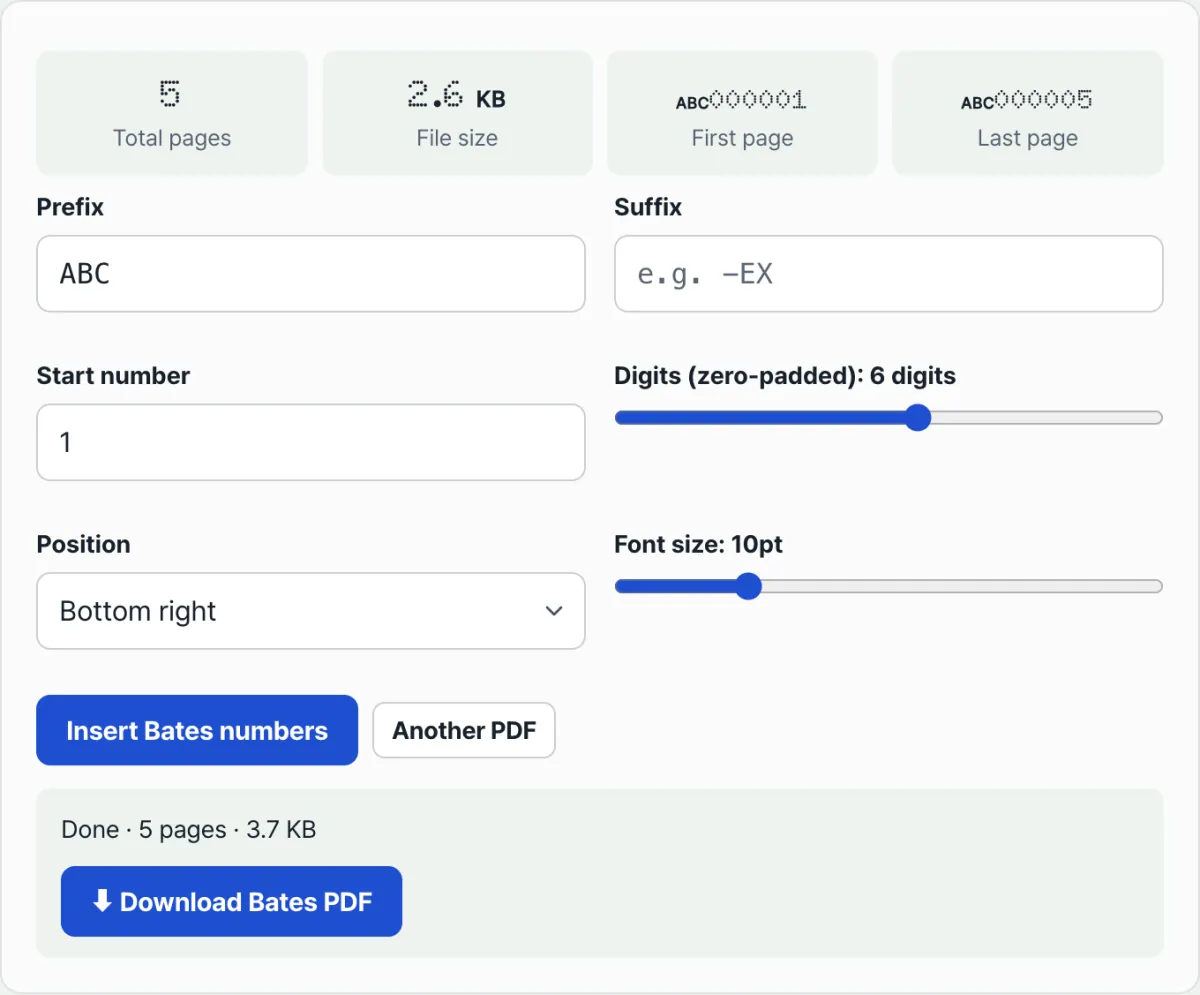
- Step 2 (Set the prefix and digits): Enter an English prefix for the case number or project code (for example, SEC2026-) and six-digit padding.
- Step 3 (Set the starting number and placement): Choose the starting number (default 1), the placement (bottom-right is recommended), and the font size (10pt).
- Step 4 (Check the first and last page): Review the first number (SEC2026-000001) and the last number shown in the stats panel.
- Step 5 (Stamp locally in one second and download): Click Add Bates numbers and immediately download the PDF with every number perfectly applied.
Seven practical Bates numbering tips
- Bottom-right is the global standard: When you flip through a binder, your right thumb finds the number fastest there.
- Include the project year in the prefix: A prefix like 2026-AUDIT-000001 with the year in it completely prevents duplicates in archives kept for years.
- Use an 8pt font when PDF margins are tight: To avoid running into body text, drop the font size to 8–9pt and set the margin to 15pt.
- Link one-to-one with an index table: When you build an evidence index in Excel, add Bates Start and Bates End columns to speed up cross-checking.
- Continue numbering across split scans: After the first scan (1–300) is done, set the starting number to 301 when you upload the second scan and the sequence continues perfectly.
- Prefer uppercase English prefixes: Uppercase (PRJ-) is easier for OCR readers and for people to recognize than lowercase.
- Leave the original untouched: Submit the stamped copy and keep the original PDF separate, so you can start over if you ever need to renumber.
Final Decision Tree: Which Bates Format Should You Use?
- Case A (litigation exhibits filed with a court, exhibit binders for a law firm's brief) ➔ Exhibit 1-000001 or PLTF-000001 (bottom right)
- Case B (evidence for a corporate accounting audit and internal audit records) ➔ AUDIT-2026-000001 (6-digit zero padding)
- Case C (license applications and technical proposals for government and public agencies) ➔ PROP-000001 (top right or bottom)
- Case D (gathering multiple reports for simple internal circulation) ➔ PAGE-001 (simple 3-digit numbering)
Cheat Sheet: Key Bates Numbering and Document Management Terms
- Bates Numbering: A document identification system for legal and audit work, named after the automatic sequential-numbering machine invented by Edwin Bates in the late 19th century.
- Integrity: The state in which a document has stayed whole since it was first created, with no forgery, tampering, or missing pages.
- Zero-padding: Padding the front of a number with "0" so that every number has the same number of digits.
- Client-side PDF Processing: A technique that processes a PDF directly in the JavaScript engine of your browser instead of sending the document to a server.
Frequently Asked Questions
Does Bates numbering break the text or formatting of the original PDF?
Not at all. The tool leaves the existing PDF's vector fonts, images, and layout untouched and safely lays only the number text on top as a transparent overlay layer at the specified margin coordinates.
Why do I get an error when I add a Korean prefix (such as "증제1호-")?
Because the PDF standard's built-in font (Helvetica) supports only the English ASCII character set. To prevent broken characters, use only English uppercase and lowercase letters, digits, hyphens (-), and underscores (_) in the prefix and suffix.
Is there any risk that confidential company contracts or litigation documents get stored on a server or leaked?
The tool uses the open-source pdf-lib engine to read your PDF and stamp the numbers offline, entirely inside your browser's memory. Not a single byte of document data is sent to an external server.
This article was adapted from our Korean original. Read the Korean original