
Why Extracting PDF Pages Doesn't Shrink the File Size
Contents
Sometimes you pull just a few pages out of a PDF and the file size barely drops compared to the original. Your tool isn't broken. This is normal, and it comes down to how resources like fonts and images are stored inside a PDF regardless of page count. Depending on which pages you keep, the size may shrink a lot or stay almost the same.
Summary ① PDF size depends not on page count but on how much font and image data those pages reference. ② If the pages you keep use a font shared across the whole document, the entire font gets included in the new file, so the size barely drops. ③ On the other hand, if you remove a page with big images, that image data goes with it, so the size drops noticeably.
Why the file size stays the same when you only cut pages
Picture this: you pull just 3 pages out of a 100-page report and save them as a new PDF, and the file size ends up close to half the original instead of a few percent. The page count clearly dropped a lot but the size didn't, so it's easy to suspect the extraction failed or the tool has a problem.
In reality, this is a property of the PDF format itself. A PDF page is built not just from its own content, like text and shapes, but by "referencing" resources such as the fonts or images used on it. Within a single document, many pages often share the same font, and that font data (especially fonts that include Korean characters) can be anywhere from hundreds of KB to a few MB on its own.
The catch is that if even one of the extracted pages uses text in that font, the entire font data has to be included in the new file too. No matter how many pages you cut, the size of the font itself doesn't shrink, so it's only natural that the output size doesn't scale down with page count.
What to check before you extract
Before you use a tool, you can get a sense of why this happens just by opening the original PDF.
- Open the file in a PDF viewer (for example, macOS Preview or Adobe Acrobat Reader) and check "Document Properties" (or "PDF Properties"). Most viewers have a separate "Fonts" tab in that menu that lists which fonts are "Embedded" in the document.
- Look at whether the fonts in that list are used repeatedly across all the pages. If the whole body text is typeset in the same font, there's a good chance that font comes along no matter which page you pull.
- On the other hand, if the pages you want to extract contain large images used only on those pages, like a cover image or a scanned graphic, check whether the size drops noticeably when you leave those pages out.
- Once you separate "shared resources (fonts)" from "individual resources (images)" this way, you'll immediately know that an unexpected output size isn't a tool problem but a result of the original file's structure.
Once you understand this principle, you'll want to see for yourself how the size comes out when you actually extract a few pages.
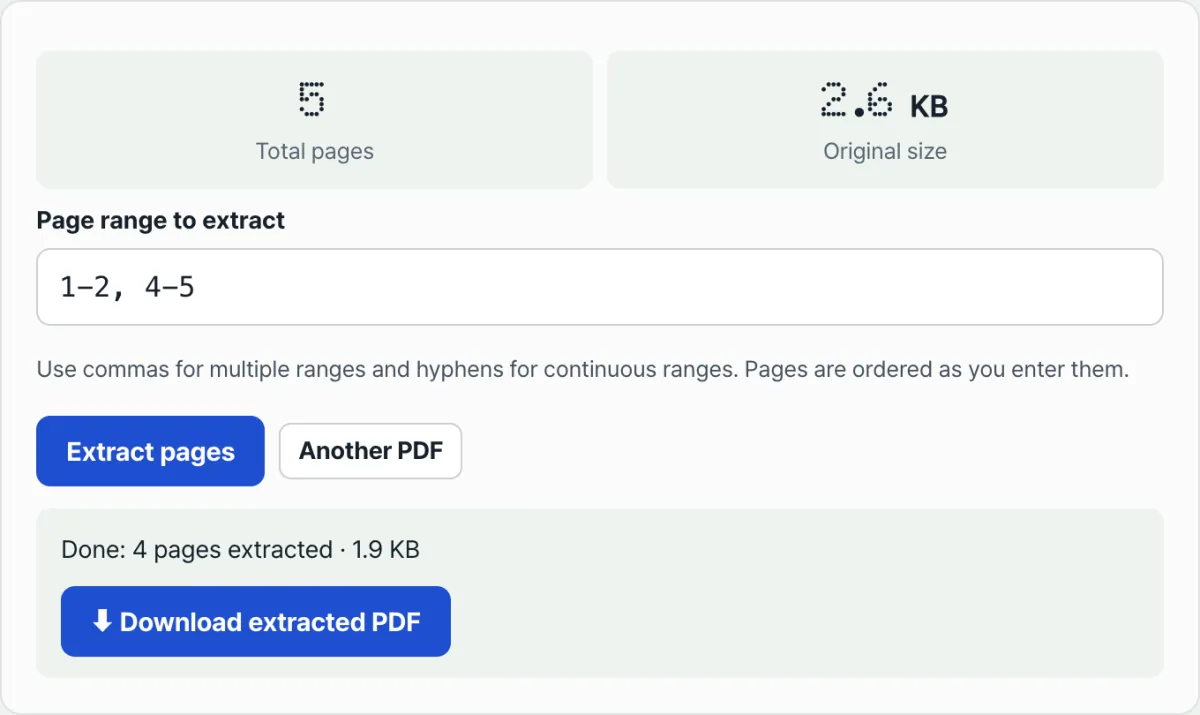
Try it with our tool. Enter just a page range and it shows the original size next to the extracted size so you can compare them right away.
Free · No sign-up · Runs only in your browser (nothing sent to a server)
Where people usually get stuck
| Symptom | Cause | How to check |
|---|---|---|
| You cut a lot of pages but the size is about the same | The remaining pages include a font used throughout the document | Check the embedded font list under "Document Properties → Fonts" in your viewer |
| Removing just the image-heavy pages shrinks the size dramatically | Images are individual resources tied to their page, so removing them takes effect right away | Check first whether the page has a large graphic or photo |
| "Couldn't read the PDF" error | The original PDF is password-protected | Try again with a file that has the password removed |
| You entered a range and got a "Check the page range" message | The numbers you entered go beyond the total page count | Re-enter the range within the "Total pages" count shown at the top of the screen |
The takeaway
If the size doesn't drop after you extract a few pages from a PDF, it's usually not a malfunction. In most cases, the remaining pages include a font that's shared across the whole document. Conversely, if you remove a page with large images, that data definitely goes away and the size drops noticeably. Checking "Document Properties → Fonts" in your viewer once before extracting is enough to predict the result.
Free · No sign-up · Runs only in your browser (nothing sent to a server)
Frequently asked questions
Why is the file still large when I keep only one page?
Because that one page uses a font shared across the whole document, so the entire font data is included in the new file. The font itself takes up a fixed amount of space no matter how many pages there are.
How do I actually make the file smaller?
Leave out pages with lots of images, or use a separate PDF compression tool to recompress the fonts and images. Extracting pages alone can't reduce the font data itself.
What format do I use for page ranges?
Use a hyphen for a continuous range (for example, 1-3) and commas for multiple ranges (for example, 1-3, 5, 8-10). Pages appear in the new PDF in the order you enter them, and you can reverse the order by putting the larger number first, like 5-1.
Can the extracted file look different from the original or come out corrupted?
Password-protected PDFs can't be read at all, and some PDFs built in unusual ways can throw errors during page copying. In those cases, an error message appears on the screen, and you can switch to a file with the password removed and try again.
This article was adapted from our Korean original. Read the Korean original