
line-clamp CSS: Truncate Single and Multi-Line Text
Contents
If you add just -webkit-line-clamp: 3; to your CSS and multi-line truncation doesn't work at all, there's usually one reason.
line-clamp only works as part of a set of four properties: display: -webkit-box, -webkit-box-orient: vertical, overflow: hidden, and line-clamp itself. If one is missing, it gets ignored.
This post is for anyone trying to lock the number of lines on screens where text length varies, such as card titles or list previews.
Summary ① -webkit-line-clamp only works when display: -webkit-box, -webkit-box-orient: vertical, and overflow: hidden are present too. ② Single-line truncation uses white-space: nowrap + text-overflow: ellipsis; multi-line truncation uses -webkit-line-clamp. They're different property combinations. ③ Even with the same text, changing the line-clamp value or the container width changes where the text gets cut.
The problem you often run into with card lists
On screens that list many items, like message boards or product listings, cards need equal heights for the layout to look clean. But titles and summary text vary in length from item to item.
Cards with short text have extra space left over, and cards with long text stretch lower than the others.
Many people search for -webkit-line-clamp and add that one line to their CSS to fix this. But when you add only that line, the text just keeps wrapping and no ellipsis appears.
That's because -webkit-line-clamp doesn't work on its own.
Single-line truncation: when text-overflow actually works
The browser cuts text on a different basis for single-line and multi-line truncation. So the property combinations differ too. For single-line truncation, these three properties are enough:
.truncate-single {
  white-space: nowrap;
  overflow: hidden;
  text-overflow: ellipsis;
}
white-space: nowrap prevents wrapping and forces the text onto one line, overflow: hidden cuts off anything wider than the container, and text-overflow: ellipsis draws an ellipsis where the text is cut.
Each property does its own part, in order.
Multi-line truncation: why it takes four properties
text-overflow: ellipsis only works when text is locked to a single line with nowrap and overflows horizontally. It doesn't apply to multi-line text that wraps.
That's why multi-line truncation uses a different set of properties.
.truncate-multi {
  display: -webkit-box;
  -webkit-box-orient: vertical;
  -webkit-line-clamp: 3;
  overflow: hidden;
}
These four properties don't work on their own. Together they make one instruction.
display: -webkit-box and -webkit-box-orient: vertical turn on the layout model that -webkit-line-clamp is interpreted in. Without both, the browser doesn't recognize the value -webkit-line-clamp: 3 at all and ignores it.
overflow: hidden actually hides content beyond the number of lines you set. Without it, text past the line limit isn't cut off and keeps running down the page.
If any one of the four is missing, the truncation either doesn't happen or only half works.
Why the line-clamp value and container width change the result
Change the number of lines (the line-clamp value) or the container width, and the cut-off result changes too. The browser first wraps the text based on the container width, then keeps only the lines up to the count you set.
With the same text, a wider container fits more characters per line, so more content fits within the same line limit.
A narrower container wraps more often, so fewer characters show within the same line limit. The line-clamp value controls how many lines you show; the container width controls how many characters fit on a line. They're two different variables.
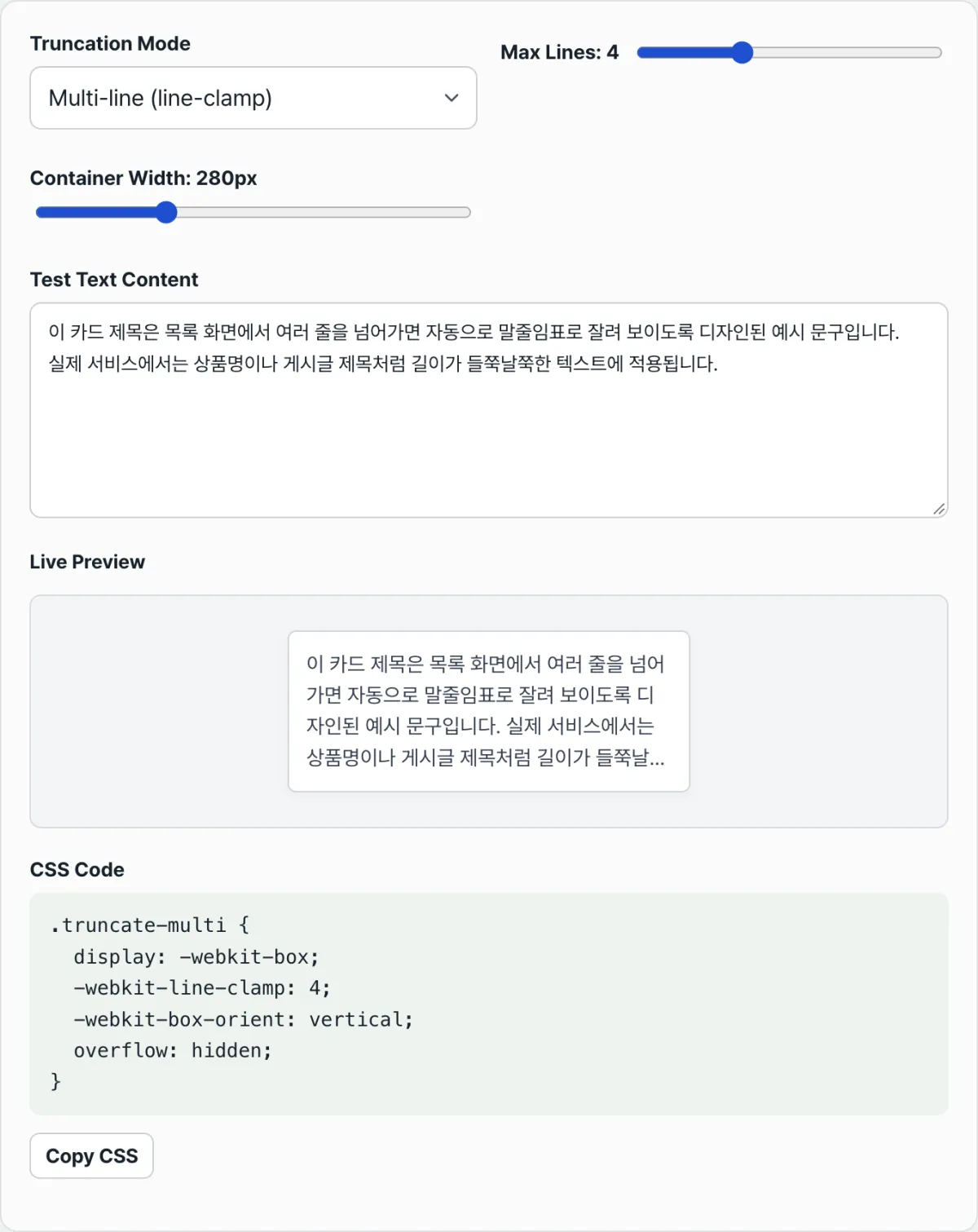
Check it with our tool.
Change the truncation mode, line count, or container width and the CSS updates live. Your text never leaves the browser.
Common points of confusion
Here are the spots people often get stuck on when they first try line-clamp.
| Symptom | Cause |
|---|---|
| I set a line-clamp value, but nothing is cut off | display: -webkit-box and/or -webkit-box-orient: vertical is missing |
| The line count is right, but text sticks out below | overflow: hidden is missing |
| Applying single-line truncation code to multiple lines as-is | text-overflow: ellipsis only works on one line with nowrap |
| Changing the width makes no difference | The container has no width (or max-width) limit at all |
The -webkit- prefix makes it look Safari-only, but most modern browsers, including Chrome, Edge, and Firefox, now recognize this property.
If you need to support older browsers, though, it's safer to prepare a fallback style such as single-line truncation (text-overflow: ellipsis).
The takeaway
- -webkit-line-clamp only works when it's combined with display: -webkit-box, -webkit-box-orient: vertical, and overflow: hidden.
- Single-line truncation (white-space: nowrap + text-overflow: ellipsis) and multi-line truncation (-webkit-line-clamp) cut text on different bases, so the property combinations differ.
- The line-clamp value determines how many lines you show; the container width determines how many characters fit on a line.
- If any one of the four properties is missing, the line limit doesn't apply, or the overflowing text shows through.
Change the truncation mode, line count, or container width and the CSS updates live. Your text never leaves the browser.
Frequently asked questions
Does -webkit-line-clamp work in every browser?
Most modern browsers, including Chrome, Edge, Safari, and Firefox, recognize -webkit-line-clamp.
But as the name suggests, it has a WebKit prefix. If you need to support older browsers, it's safer to prepare a fallback style such as single-line truncation.
Why do single-line and multi-line truncation use different properties?
Single-line truncation uses white-space: nowrap to prevent wrapping, then uses text-overflow: ellipsis to mark the part that overflows horizontally.
Multi-line truncation assumes that wrapping will happen, so it uses -webkit-line-clamp to hide everything past the set number of lines.
The cut is horizontal on one line in one case and vertical across several lines in the other, so the property combinations split.
I set a line-clamp value, but the text still shows in full. Why?
The most likely cause is that display: -webkit-box and -webkit-box-orient: vertical are missing.
-webkit-line-clamp is only interpreted on the layout model those two properties enable, so if either is missing, the value itself is ignored.
If only overflow: hidden is missing, the text past the line limit sticks out below instead.
Why does changing the container width change how many characters get cut off?
The browser first wraps the text based on the container width, then keeps only the lines up to the count you set.
A wider container fits more characters per line, so more text fits within the same line limit. A narrower container does the opposite.
This article was adapted from our Korean original. Read the Korean original