
localStorage vs sessionStorage: Spot the Difference Fast
Contents
To check what's stored in localStorage or sessionStorage from the browser console, you have to open DevTools and look up each value one by one. When a login session logs out for no clear reason or a value you saved suddenly disappears, tracking down the cause means repeating that process over and over, which gets tedious.
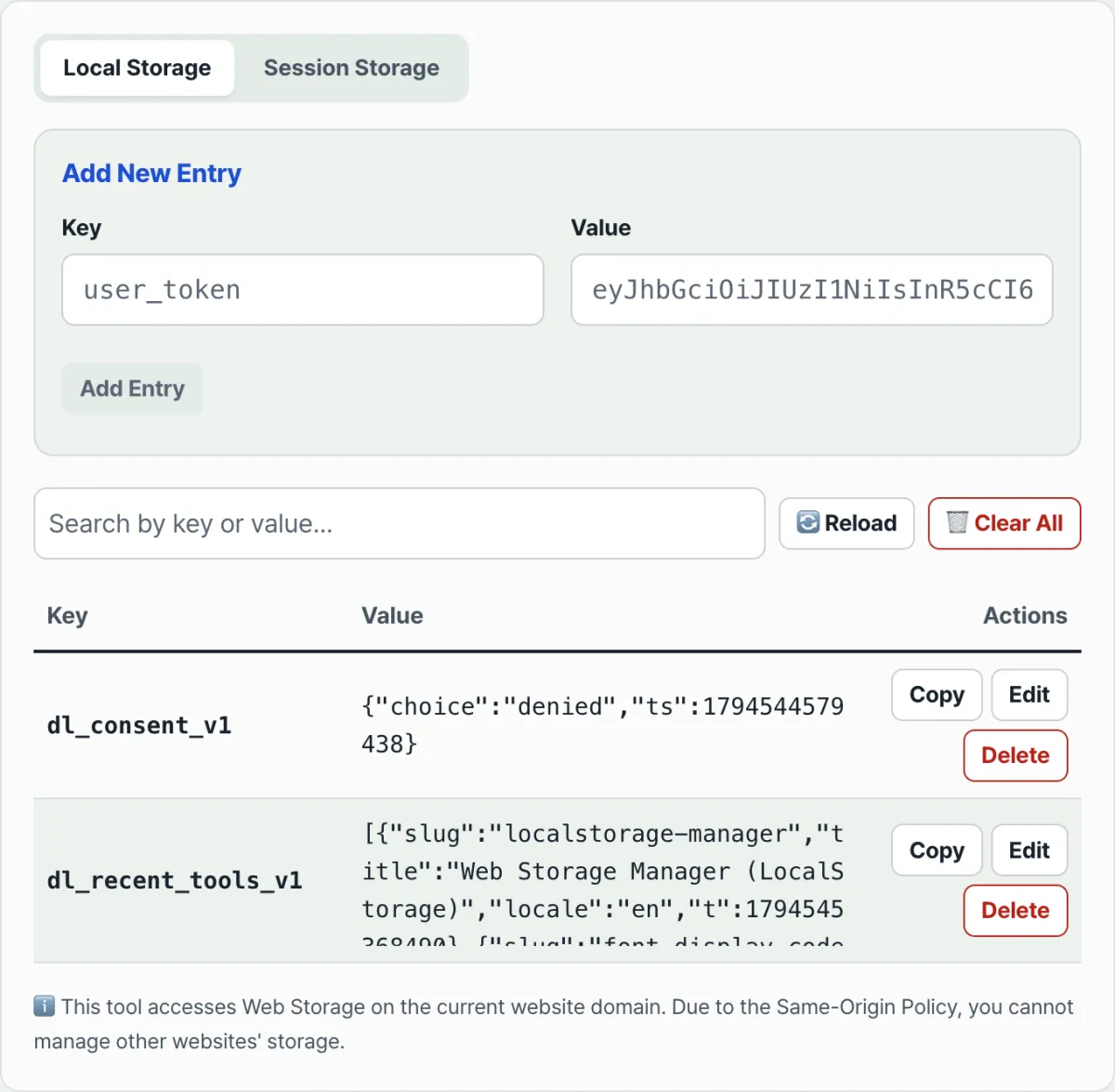
Local storage and session storage work almost the same way, but they keep data for different lengths of time. If you don't know the difference, you can run into problems like "I know I saved it, but it was gone after I refreshed" or, the other way around, "I thought I deleted it, but it's still there days later." This post shows how to check values directly with DevTools and introduces Web Storage Manager (LocalStorage), a tool that lets you view, edit, and delete localStorage and sessionStorage entries right in your browser from a table view. One caveat: this tool isn't a browser extension or bookmarklet—it's a page on Dynamic Labs (dynamiclabs.co.kr) itself, so under the same-origin policy, it can only show storage for the domain this page is running on.
Local Storage vs. Session Storage: What's the Difference?
Both storages are bound by the browser's Same-Origin Policy and separated by domain, and both store only string key-value pairs. The difference is how long the data lives.
- Local storage: It stays until the user clears browser data directly or code runs
localStorage.clear(). Restarting the browser or shutting down and restarting your computer doesn't remove it. - Session storage: It lasts only while that tab is open. Close the tab and the data disappears immediately. A refresh (F5) or back/forward navigation won't clear it, though.
Checking Values Directly in the DevTools Console
You can check without a tool using features built into the browser. In Chrome, open DevTools (F12) and select the Application tab → Storage → Local Storage (or Session Storage) to see a table of the key-value pairs stored for the current domain. You can also save and retrieve values in the console with code like this.
// Save (storage only stores strings, so serialize objects)
localStorage.setItem("user_theme", JSON.stringify({ mode: "dark" }));

// Read (you need to parse the string back into an object)
const theme = JSON.parse(localStorage.getItem("user_theme"));
Instead of switching to the DevTools tab and typing console commands every time, use Web Storage Manager (LocalStorage) below to see the storage for this page (Dynamic Labs) in a table on one screen and add, edit, or delete values on the spot. Keep in mind that because of the same-origin policy, to check values from another site, you have to open DevTools on that site directly rather than using this tool.
View your localStorage and sessionStorage entries in a table right in your browser, and test adding and deleting keys right away.
It shows the key-value pairs in local and session storage for the current page's domain in a table. You can narrow the list with search or edit and delete values right away. Because of the same-origin policy, the browser won't hand this tool another site's storage in the first place.
Common Places People Get Stuck
| Situation | Cause |
|---|---|
| You saved a value, but it's gone after a refresh | You used sessionStorage instead of localStorage, or you fully closed the tab and opened it again |
QuotaExceededError | You tried to write more than the per-domain storage limit (usually 5–10 MB) |
JSON.parse error | Storage only holds strings, so you put an object in without JSON.stringify, or the stored format is broken |
What to Check Before Saving
Anyone who opens DevTools can see values in local storage, and if the site has an XSS (cross-site scripting) vulnerability, scripts can read them too. It's safer not to store anything that would be a problem if leaked, such as passwords, card numbers, or authentication tokens with no expiration. Also, wrap JSON.parse in try-catch when reading values so the page doesn't break if a stored value is malformed.
Summary
- Local storage stays until you clear it yourself; session storage disappears when you close the tab.
- A refresh or back/forward navigation won't clear session storage either.
- The per-domain storage limit is usually 5–10 MB, and going over it throws
QuotaExceededError. - It's safer not to store sensitive values in the first place.
To see current values in a table and fix them without console commands, use the tool below.
View your localStorage and sessionStorage entries in a table right in your browser, and test adding and deleting keys right away.
Frequently Asked Questions
Can I use this tool to check local storage on other sites?
No. This tool isn't a browser extension or bookmarklet—it's a page on the dynamiclabs.co.kr domain. Because of the browser's Same-Origin Policy, this page can only ever read and write storage for its own domain: Dynamic Labs. If you open another site in a new tab, this tool isn't there, so to see that site's values, open DevTools (F12) on the site itself and check under the Application tab → Storage.
Should I use the Local Storage tab or the Session Storage tab?
If the value you're looking for needs to survive a refresh, check the Local Storage tab. If it's only needed for the current tab and can disappear, check the Session Storage tab. Even on the same domain, the two tabs show different lists, so if you don't see the key you're looking for, check the other tab too.
Can I edit the values in the table or add new entries?
Yes. You can edit or delete existing entries directly in the list, and you can enter a key and value in the add-new-item form to save a new entry. It's the same action as typing localStorage.setItem in the console, just done with clicks and typing on screen.
This article was adapted from our Korean original. Read the Korean original