
Markdown to HTML Conversion Rules and CSS Styling
Contents
When you write technical blog posts or documentation, you often use Markdown syntax for its readability instead of typing HTML tags by hand. The problem is that web browsers can't render Markdown syntax on their own.
To display it on screen, you need a conversion step that turns Markdown text into HTML tags. This post covers the rules for how Markdown becomes HTML, and how to style the converted HTML with CSS.
How Markdown Syntax Maps to HTML Tags
A Markdown converter looks for Markdown's characteristic symbol patterns in the source text and replaces them with the corresponding HTML tags. The syntax you use most often and the tags it actually turns into look like this.
| Markdown syntax | Resulting HTML |
|---|---|
# to ###### (headings) | <h1> to <h6> |
**bold** | <strong>bold</strong> |
*italic* | <em>italic</em> |
[text](url) | <a href="url">text</a> |
| Text wrapped in backticks | <code>text</code> |
The details vary a little from one converter to another. For example, if a span wrapped in bold markers (**) sits right before a Korean particle — that is, if a letter follows the closing marker immediately with no space or punctuation after it — some converters fail to recognize it as emphasis and leave the asterisks in place.
When emphasis doesn't take, adding a single space after the closing ** solves it most of the time.
How to Style Converted HTML with CSS
If you only convert the Markdown, you get plain HTML default styles: no spacing, and it looks flat. To improve readability, you need to apply typography CSS to the container that wraps the conversion output. Here are some common examples.
/* The top-level container that wraps the Markdown render output */
.markdown-body {
  line-height: 1.6;
  color: #24292e;
  font-family: -apple-system, BlinkMacSystemFont, "Segoe UI", Helvetica;
}

/* Add a subtle divider line under headings */
.markdown-body h2 {
  padding-bottom: 0.3em;
  border-bottom: 1px solid #eaecef;
}

/* Tidy up readability in code areas */
.markdown-body code {
  padding: 0.2em 0.4em;
  background-color: rgba(27, 31, 35, 0.05);
  border-radius: 3px;
  font-family: SFMono-Regular, Consolas, monospace;
}
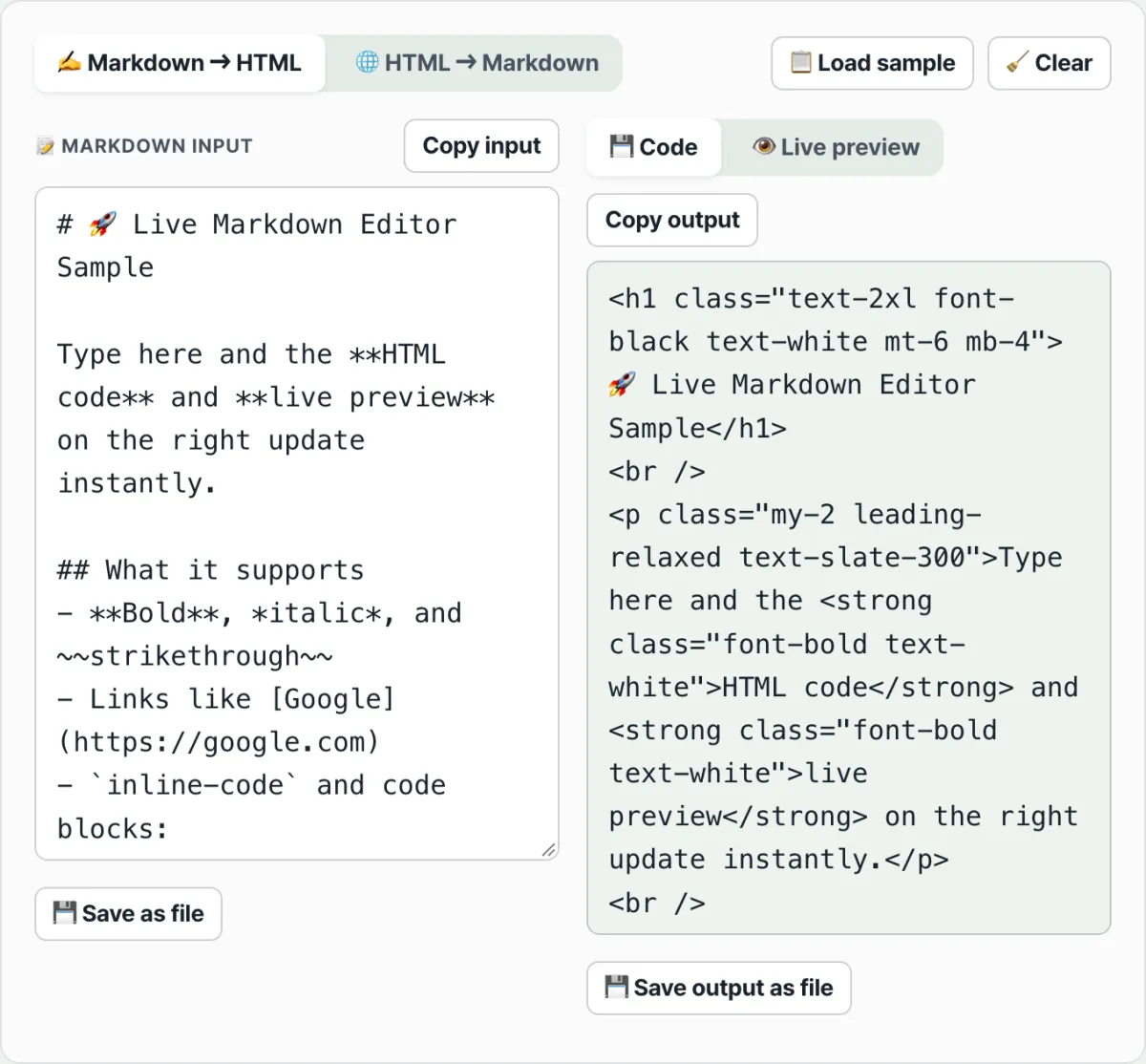
Instead of running a conversion script in the terminal every time, you can use the Markdown ↔ HTML Real-Time Converter: the Markdown you type on the left shows up instantly on the right as a preview and as HTML code. You can also go the other way and paste HTML code to turn it back into Markdown.
Want to try converting it yourself? Enter Markdown below to see the HTML code and the preview side by side.
Type text or Markdown symbols freely in the left panel, then check and grab the live HTML raw markup tags and styled preview for yourself.
Where People Get Stuck
| Situation | Cause |
|---|---|
Bold markers (**) don't work | A letter follows the closing marker with no space or punctuation |
| Markdown inside a code block gets converted anyway | The code fence (```) isn't closed properly |
| Text containing backticks breaks | The backtick count doesn't match, so code span detection goes wrong |
| Images don't show up | In , the url is a relative path that doesn't match where the file actually is |
Summary
Markdown is syntax that web browsers can't read directly, so it always needs one conversion step into HTML. Basic syntax like headings, emphasis, links, and code follows similar rules across converters, but some details differ — for example, emphasis markers failing in front of a Korean particle. Converted HTML has no default styling, so you need to apply typography CSS to make it look good.
Type text or Markdown symbols freely in the left panel, then check and grab the live HTML raw markup tags and styled preview for yourself.
Frequently Asked Questions
Should I write in Markdown or HTML first?
Markdown is easier while you're writing. You don't have to type tags, and it's readable as a plain text file. Just convert it to HTML when you publish it to the web.
Why do different converters give slightly different results?
Markdown has standard specs like CommonMark, but each converter handles extension syntax and edge cases a little differently. Even with the same source text, switching converters can give you slightly different HTML.
This article was adapted from our Korean original. Read the Korean original