
QR Error Correction Levels L, M, Q, H: What Each One Means
Contents
This post is for anyone who was making a QR code, hit "error correction level," couldn't decide between L, M, Q, and H, and just left the default. Here's the short answer: those four letters set how much damage the code can take and still recover its original content — roughly 7%, 15%, 25%, and 30%, in that order.
And when you raise that level, more recovery data gets packed into the code along with your content. That's why the same URL can produce a denser pattern with more modules.
Summary ① L, M, Q, and H are levels that let the content survive even if about 7%, 15%, 25%, and 30% of the codewords are damaged, respectively. ② Because recovery data sits inside the code too, raising the level pushes the same content to a higher version with more modules per side. ③ If the big squares in the three corners get covered, scanning fails no matter what level you picked.
So what exactly am I choosing?
Every QR generator shows the same set of options under names like "error correction level," "error recovery level," or "Error correction." Usually there are four — L, M, Q, and H — with 7%, 15%, 25%, and 30% printed next to them.
That's where the confusion starts. Those percentages are not "scan success rates." They mean what percentage of the code can be damaged while the original content still comes out intact.
One more thing. This isn't free. The same content at a higher level makes a bigger code, and if you print it at the same size, every module gets smaller.
What L, M, Q, and H actually mean
A QR code doesn't just draw your content as-is. It first groups the content into 8-bit chunks called codewords, then calculates error correction codewords with Reed–Solomon and appends them before drawing everything together.
The level sets the ratio between those two kinds of codewords. More correction data means more damage can be recovered — but less room for your content.
The smallest version, version 1 (21×21 modules), is made of 26 codewords total. Here's how they're split by level.
| Level | Data codewords | Error correction codewords | Characters that fit (byte mode) |
|---|---|---|---|
| Low L | 19 | 7 | 17 characters |
| Medium M | 16 | 10 | 14 characters |
| High Q | 13 | 13 | 11 characters |
| Highest H | 9 | 17 | 7 characters |
Same 21×21 size, but the character capacity drops from 17 to 7. That's the price of a higher level, right there.
Why it still scans when part of it is covered
Error correction codewords aren't a copy of your content — they're check values calculated from it. So even if some codewords go missing or get flipped, the remaining values let a scanner work backward to the original content.
Here's a fact you can use right away: damage is counted in codewords, not modules. A single codeword is drawn as 8 modules on the code, and if even one of those 8 modules is off, the whole codeword counts as damaged.
So for the same damaged area, scattered specks are worse than one solid smudge. Each scattered speck takes out a separate codeword.
There's one exception. The big squares in three corners (finder patterns) and the position and format information around them are what a scanner uses to locate the code. If that area is covered, scanning never even begins, no matter how high the level is.
How to check it yourself without a tool
You can't tell the level by eye. It's recorded in the format information area inside the code, and the scanner reads that first. But the results the level produces can be counted by hand.
Step 1 — Count the modules on one side. QR codes run from version 1 (21×21) to version 40 (177×177), and each version adds 4 modules per side. As a formula: side = 4 × version + 17.
Flip it around and you get version = (modules per side − 17) ÷ 4. Zoom in on a printed code and count one side: 21 modules is version 1, 25 is version 2, 29 is version 3.
Step 2 — Compare against a capacity table. As the table above shows, even the same version holds a different number of characters depending on the level. If your content didn't change but the version went up, all the extra room went to error correction.
Step 3 — Keep the content and change only the level. This is the surest way to see what the level does. The catch is that you have to regenerate the code each time and count the modules per side by eye to compare.
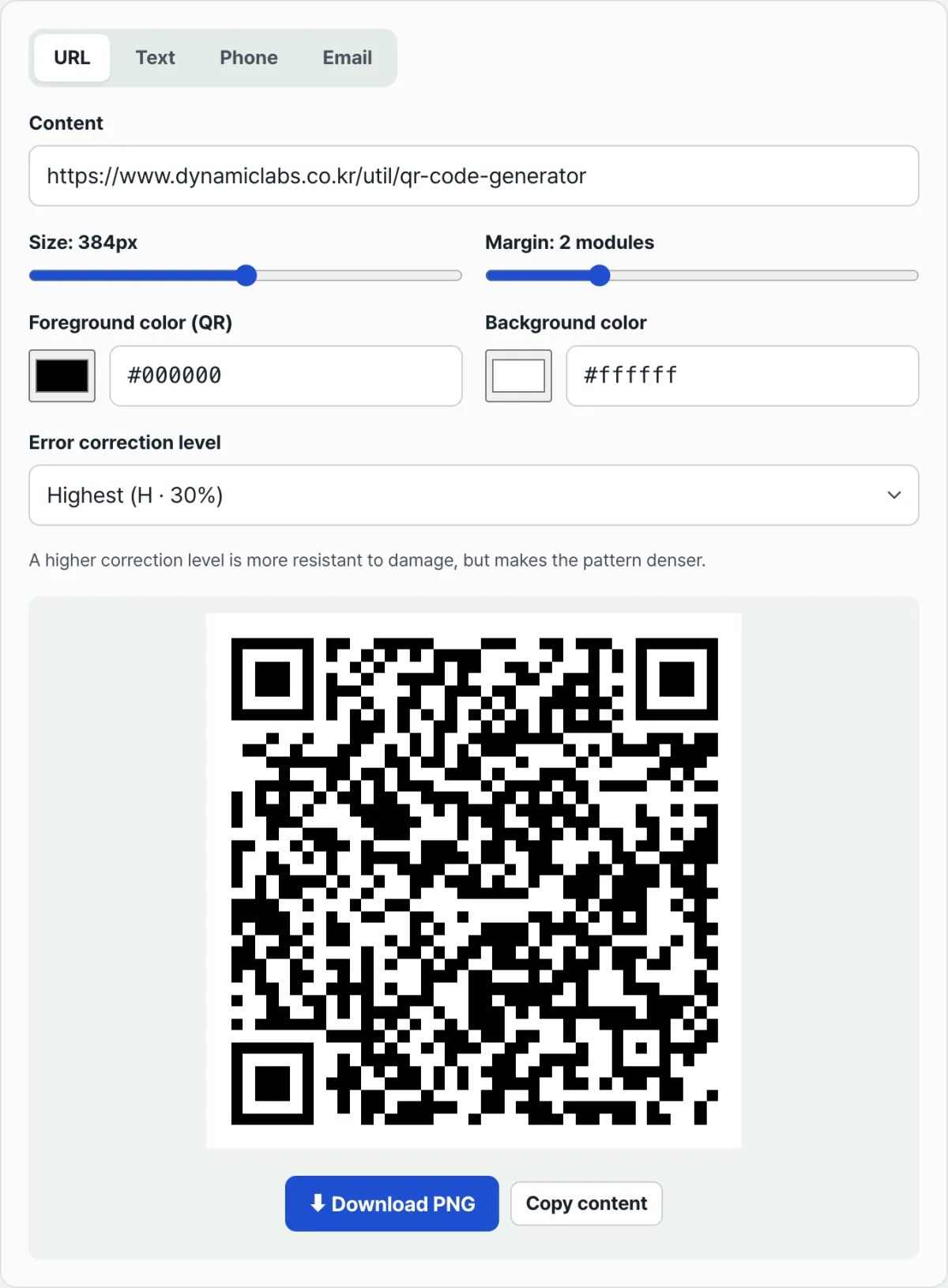
Check it with our tool. Type your content once, then change only the "Error correction level" selection between Low, Medium, High, and Highest — the pattern redraws in place.
It runs right in your browser with no install and no sign-up, and what you type is never sent to a server.
Why a higher level makes the pattern denser
Even with the same content length, more error correction codewords means you run out of room. The QR code then moves up one version, adding 4 modules per side.
Take a 52-character URL, change only the level, and it splits like this.
| Error correction level | Version | Modules per side | Total modules |
|---|---|---|---|
| Low L | 3 | 29 modules | 841 modules |
| Medium M | 4 | 33 modules | 1,089 modules |
| High Q | 5 | 37 modules | 1,369 modules |
| Highest H | 6 | 41 modules | 1,681 modules |
The gap between L and H is 12 modules per side — double the total area. What matters here is that if you fix the print size, each module gets smaller by that much.
Fit the code itself into a 3 cm square (excluding the margin) and L gives you modules of about 1.03 mm, while H gives about 0.73 mm. If camera resolution or print quality can't keep up, the level you raised for durability ends up causing scan failures instead.
Where people get stuck
| Situation | What happens |
|---|---|
| Covering the big squares in three corners | Fails regardless of level — the scanner can't find the code |
| Putting a logo in the center | It's in the data area, so it can be recovered, but it fails if the covered share exceeds the level's limit |
| Smudges scattered in several places | Damaged codewords pile up faster than with one solid smudge |
| Setting the margin to 0 modules | Without the 4-module quiet zone the standard requires, surrounding artwork can be mistaken for the code |
| Inverting foreground and background | The standard assumes dark modules on a light background, so some scanners can't read it |
| Low contrast between foreground and background | Modules can't be told apart, so it fails regardless of level |
The margin is the one people forget most. The standard calls for 4 modules on all sides, and the "Margin" field in this tool defaults to 2 modules with a range of 0 to 8. When you're putting a code in print, set it to 4 or more to be safe.
When you add a logo, don't flip the order either. Don't raise the level to H and then enlarge the logo — scan the actual finished piece on several devices; that's the only reliable check.
The short version
- L, M, Q, and H are levels that let the content survive even if about 7%, 15%, 25%, and 30% of the codewords are damaged.
- Those percentages are not scan success rates — they're the share of recoverable damage.
- Because error correction codewords live inside the code, raising the level leaves less room for content and pushes the version up.
- For a 52-character URL, L is 29 modules and H is 41. At the same print size, each module gets smaller.
- Damage counts in codewords, which are groups of 8 modules — not in single modules — so scattered specks hurt more than one solid smudge.
- The big squares in three corners and the 4-module quiet zone on all sides can't be fixed by any level.
It runs right in your browser with no install and no sign-up, and what you type is never sent to a server.
Frequently asked questions
Can I put a logo in the middle of a QR code?
The center is the data area, so that's the part error correction has to rebuild. The 30% at level H is an upper limit based on codewords, and every module your logo covers eats into that budget. It's not enough to just avoid the three big squares in the corners — after you generate the code, you need to actually print it and scan it with several devices to confirm it works.
Why not just always use the highest level?
Even with the same content, a higher level bumps up the version, which means more modules. If you keep the print size fixed, each module gets smaller, which can actually make it harder for low-resolution cameras or small labels to read. DENSO WAVE, the company that created the QR code, notes in its guidance that M — the middle level — is generally the most common choice, and it's also the default in this tool. Q or H is recommended for environments where contamination is expected, like factories and job sites.
Can you tell the error correction level just by looking at a QR code?
Not with the naked eye. The level is recorded in the format information area inside the code, and the scanner reads that value. You can, however, figure out the version by counting the modules along one side. ((modules per side − 17) ÷ 4) gives you the version. If you generate the same content twice at different levels and compare the two, you can see the difference for yourself.
Is what I type sent to a server?
No. All QR generation in this tool happens inside your browser, and the URL or text you enter is never sent to a server or stored. The "Download PNG" button just saves the image your browser has already built.
This article was adapted from our Korean original. Read the Korean original