
Transparent PNG Signature: Draw on Canvas and Save
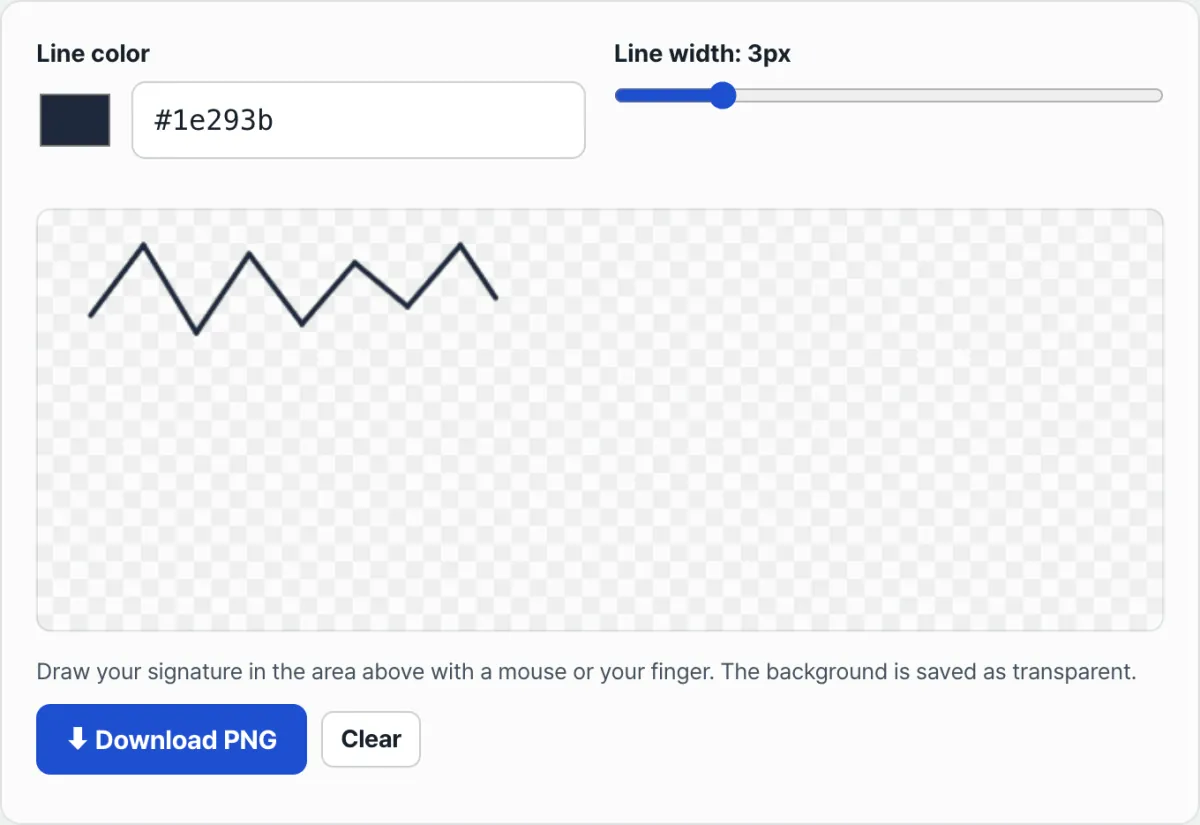
When you save a signature stroke drawn with a mouse or finger as a PNG, the parts you never touched stay completely transparent, so you can drop it onto any document and only the signature lands — no white box behind it. That's not a coincidence: the canvas records a separate transparency value (alpha channel) for every pixel, and the PNG format stores those values as they are. Here's how that works, and how an image signature differs technically from a certified electronic signature when you use one on a contract.
Summary ① Only the pixels your stroke passes over get filled with color. Everything else stays at alpha 0 (fully transparent). ② PNG stores that transparency data as-is, but JPG has no alpha channel, so saving as JPG gives you a white background. ③ Image signatures and certified electronic signatures (certificate-based) verify tampering in technically different ways.
The problem
Online contracts and application PDFs often leave the signature line blank. Printing the page, signing by hand, and scanning it back in is a hassle, and if you just crop a scanned signature and paste it in, a white rectangle hangs around it and looks wrong on the document.
You can remove the background in an editor like Photoshop, but scanning → removing the background → saving a PNG every time you need one signature gets old fast.
The solution
If you follow the mechanics, you can see why this happens. A browser canvas records not only color but also a transparency value for each pixel as it draws (the alpha channel, 0–255). A canvas with nothing drawn on it starts with every pixel at alpha 0, meaning fully transparent.
When you draw a stroke, only the pixels the stroke passes over get filled in; the rest stay transparent. Save that state as a PNG and the file carries the per-pixel alpha values with it, so wherever you place it, only the drawn part shows and everything else lets the background through.
Save the same drawing as a JPG and you get a different result. The JPG format doesn't support an alpha channel, so the areas that should be transparent get forced to a solid color like white. That's why signature images always need to be PNG.
If you want to digitize a signature you already wrote on paper, scan it or take a photo, then use the background removal feature in an editor like Photoshop or GIMP to select and delete the white background and export as PNG. You can get a similar result that way. But if the background isn't uniform or there are shadows, the edges tend to come out messy.
If you draw on a canvas that's transparent from the start, you skip the background removal step entirely. Let's check that with our free tool.
Draw a signature with your mouse or touch and download it right away as a transparent PNG.
Where people get stuck
| Symptom | Cause | Fix |
|---|---|---|
| The PNG shows a white background when I open it | Your image viewer displays transparent areas as white | Insert it directly into a document app like Word or Hangul to check |
| The download button won't click | Nothing has been drawn on the canvas yet | The button turns on once you draw at least one stroke |
| The saved file has a white background | It was re-saved or converted as JPG instead of PNG | JPG has no alpha channel, so use the PNG file as-is |
| The signature looks squished in my document | It was resized away from the original ratio (640 wide : 240 tall) | Resize with the lock aspect ratio option in your document app |
| I want to redraw, but I can't erase just part of it | The Clear button resets the entire canvas at once | Clear everything and draw again instead of editing part of it |
Wrapping up
The canvas records both color and transparency for every pixel, and PNG stores those values exactly as they are. That's how you get a transparent PNG with only the signature stroke on it, with no separate background removal step. When you put it in a document, keep the original ratio, and always check that the save format is PNG.
Draw a signature with your mouse or touch and download it right away as a transparent PNG.
Frequently asked questions
Can I change the signature color and line thickness and draw again?
Yes. You can change the line color and line thickness (1–12px) each time you draw, so you can mix several colors and weights on one canvas. If you want to start over, hit the Clear button to empty the whole canvas and draw again.
Can I upload a photo of my signature and turn it into a PNG?
This tool only supports drawing directly on the canvas with a mouse or touch. There's no way to upload an image file. If you want to digitize a signature you wrote on paper as-is, you'll need to go through the scan-and-remove-the-background method described above.
Is this image signature legally valid on a contract?
Korea's Electronic Signature Act recognizes that electronic signatures have legal effect. That said, an image signature made with this tool and a certified electronic signature that uses a certificate issued by a certification authority work in technically different ways. An image signature is just a picture file, so if the document changes after signing, the image alone won't tell you. A certificate-based signature is cryptographically bound to the document as it was at signing time, so later changes can be detected during verification. Which approach you need depends on what the other party or the institution requires, so if the document matters, confirm it in advance.
This article was adapted from our Korean original. Read the Korean original