
Resume photo URL not showing: how to check a direct image link
Contents
If you paste a link into the photo URL field in Resume Builder and the preview doesn't show the photo, you're not alone. The link opens fine in your browser, but when you put it in the resume, the photo space is empty or all you see is a broken image icon.
This isn't because the file is damaged or the tool is broken. It almost always happens when you confuse the "web page address" that contains the photo with the address of the "image file itself." Here's how to tell the two apart and check the link yourself.
Summary ① The photo URL field needs the address of the image file itself, not the address of a web page where the photo appears. ② To check whether it's the right kind of link, paste the address into a new tab — if only the photo fills the screen, it's correct; if you also see menus and buttons, it's wrong. ③ This tool doesn't upload photos to a server. It uses the address you enter as-is, so the same result applies to the preview and the PDF for printing.
Why the photo doesn't show up: web page addresses and image file addresses are different
For a browser to draw a photo on screen, the address has to return the image file data itself. Most links people share or copy are the addresses of web pages that contain the photo.
Typical examples include Google Drive share links, Naver Blog post URLs, links sent through a messenger app such as KakaoTalk, and Instagram post URLs. When you open these addresses, you see the photo along with page elements such as menus, comments, and download buttons.
If you put that web page address into the photo field as-is, the resume screen tries to load the entire page as if it were a photo, and fails. The result is an empty photo space or a broken image icon.
Resume Builder only links to the photo by URL
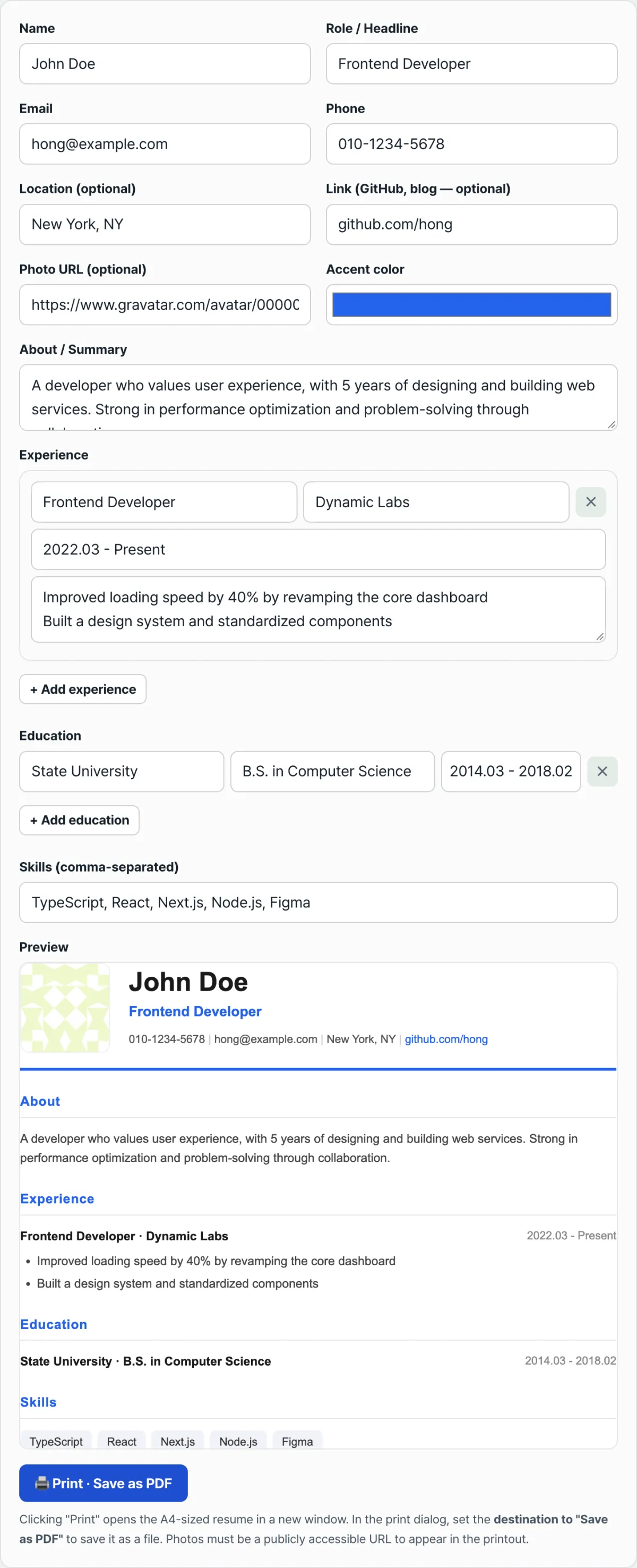
This tool has no separate feature for uploading a photo to a server. It connects the address you enter in the photo URL field directly to the image spot on the resume.
So if that address doesn't point to an actual image file, there's nothing to display. There's no intermediate step that fixes the address for you, which means the address itself has to be correct.
How to check whether an image link is real
Paste it into a new tab
Paste the link you have into your browser's address bar and go to it. If a single photo fills the screen, it's an image file link. If you see menus, buttons, or other text around the photo, it's a web page link, so you can't use it in the resume photo field.
Right-click the photo and copy the address
The most reliable method is to hover over the photo you actually see on the web page, right-click it, and choose "Copy image address" (Chrome and Edge) or "Copy Image Link" (Firefox). The address you copy this way is the direct link to the image file itself.
If you don't see that menu item at all, the photo is drawn as a background image (a CSS background) rather than as an image file. For photos like this, use a separate save or download option to download them, upload them again to another service that allows image uploads, and get a new direct link.
Check it with our tool. Instead of opening a new tab every time and comparing by eye, you can paste the direct link you got into the photo field and see right away how it will look on the resume.
Free · No sign-up · What you enter is not saved on our servers
Common places people get stuck
| Symptom | Cause |
|---|---|
| I put a link in the photo field and nothing shows up | You entered the address of a web page that contains the photo, not an image file |
| The photo opens fine in a new tab, but the resume shows only a broken image icon | The site hosting the image blocks other pages from embedding it |
| I enter a photo address that requires a login | The request is made without logging in, so a different screen is returned instead of the photo |
| I enter the file path for a photo on my computer | It's not a public web address, but a path the browser can't access |
The bottom line
Most resume photo problems aren't a malfunction. They're a matter of using the wrong kind of address. The web page address where the photo appears is different from the address of the image file itself, and the resume photo field only takes the latter.
There are two reliable ways to check: paste the address into a new tab and see whether only the photo appears, or right-click the photo and use "Copy image address" to get the direct link.
This tool doesn't send photos to a server; it uses the address you enter as-is. Once you check the link correctly, it will appear the same way in both the preview and the PDF.
Free · No sign-up · What you enter is not saved on our servers
Frequently asked questions
Do I have to include a photo on my resume?
No. If you leave the photo URL field blank, the resume starts with your name and contact information, with no photo. The photo is optional.
How can I check whether my photo URL is correct?
The easiest way is to paste the address into a new browser tab. If only the photo fills the screen, it's a direct link. If you see menus or other text along with it, it's a web page link. Right-clicking the photo and choosing "Copy image address" is even more reliable.
Why does my photo look almost square and cropped?
Because the resume template fills a rounded frame that is 96 pixels wide and 96 pixels tall with the photo. The frame fills from the center of the photo and crops the rest, so if the person is off to one side, part of their face may be cut off.
Are my photo address or resume details saved on a server?
No. Everything you enter — your name, work history, education, and photo address — is processed only in your browser. The preview and printing (saving as PDF) also happen in your browser. Nothing is sent to or stored on a server.
This article was adapted from our Korean original. Read the Korean original