
Why Profile and Banner Images Get Cropped on Every Platform
Contents
- Why don't banner photos look the way I uploaded them?
- It's square, so why is it cropped into a circle? Circular cropping of profile photos
- Why does the same "cover photo" look different on different devices?
- In vertical video, the problem isn't cropping, it's covering
- A free way to check right now
- The short version
- Frequently asked questions
You've probably had this happen: the same profile photo looked fine on YouTube, but once you uploaded it to Instagram, the side of your face was chopped off. That's not an upload mistake. Each platform crops a single image using different rules, so this is a structural problem. Once you understand how it works, you can prepare images that don't get cut off in the first place.
Summary ① For banner images, only a "safe area" much narrower than the actual upload size is guaranteed to show on every device ② Square profile photos are mostly cropped into a circle, so all four corners disappear ③ Even the same cover photo slot renders at different sizes and ratios on mobile and desktop
Why don't banner photos look the way I uploaded them?
The YouTube channel banner is a quick way to see this. You upload a master image at 2560×1440px, but the area guaranteed to show on every device is only the 1546×423px in the center. The rest of the outer margins get cropped differently depending on what device is viewing it.
The reason is that banners land on screens with different aspect ratios. A TV or desktop shows something close to the whole banner on a wide screen, while mobile has a narrow screen, so it cuts off more on both sides and shows mostly the center. That's why placing a logo or text at the edge of the image means it disappears on some devices.
So there's really one rule to follow when you make a banner: put the important text, logo, and faces inside the center safe area, and treat the outer margins as decorative background only.
It's square, so why is it cropped into a circle? Circular cropping of profile photos
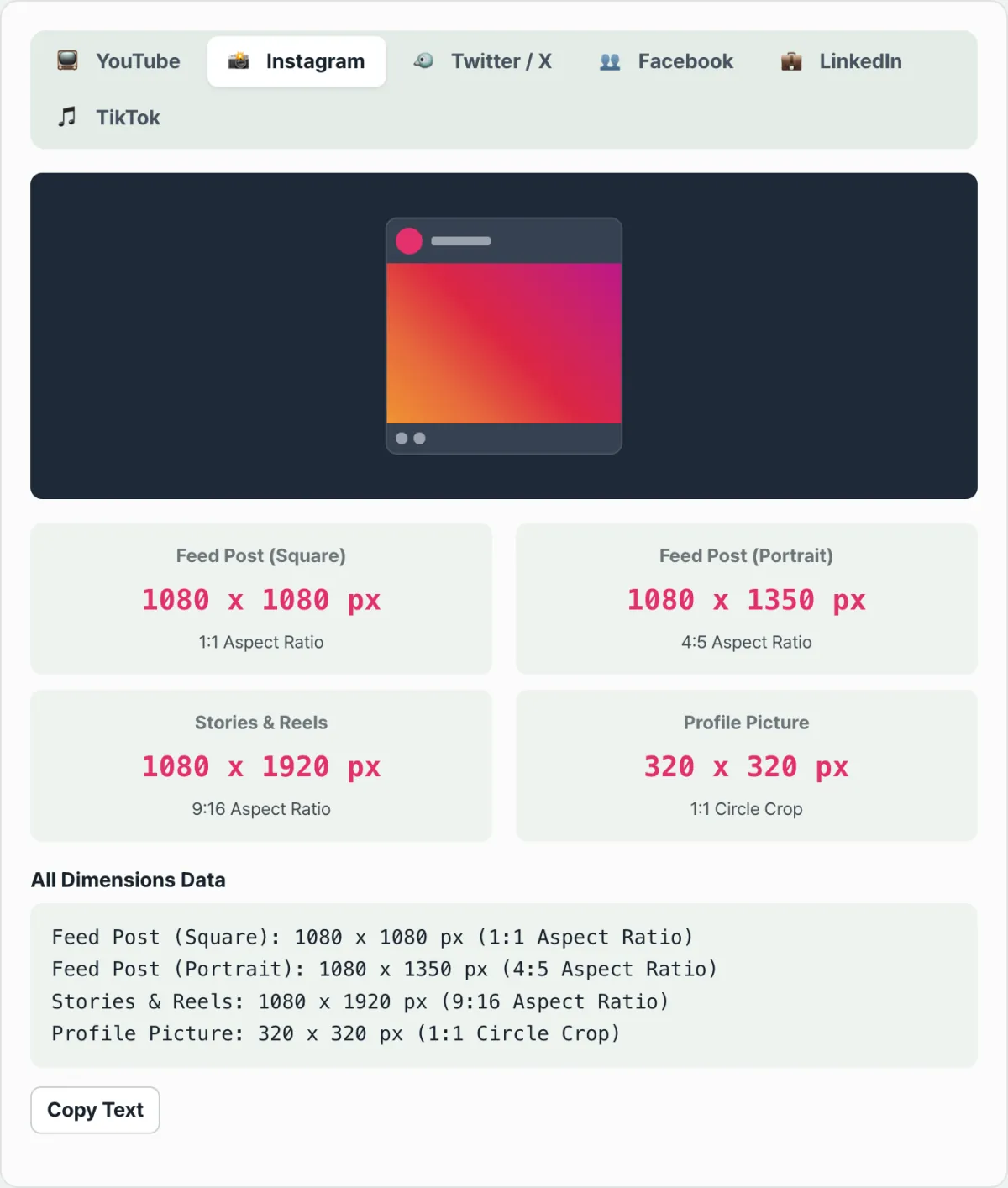
Most platforms accept profile photos as square uploads but display them as circles on screen. Instagram at 320×320, X (Twitter) at 400×400, and TikTok at 200×200 all work the same way: square upload, then circular crop.
When you fit a square inside a circle, all four corners fall outside the circle and never appear on screen. If you placed a face or logo near the corner of the photo, it looks fine in the upload preview but gets cut off once it's actually posted. That's the whole reason. To be safe, keep the key elements gathered inside the circular area at the center of the photo.
Facebook is a little more complicated. Even if you upload a profile photo at 170×170, it's displayed at a smaller 128×128 on mobile. So the upload size and the actual display size differ again depending on the device.
Why does the same "cover photo" look different on different devices?
Separate from banners and profile photos, sometimes the same slot renders at completely different pixel sizes on different devices. The Facebook cover photo is the clearest example. On desktop it appears at 820×312, but on mobile it's recalculated and shown at 640×360.
Those two have different aspect ratios to begin with. That means the platform isn't just scaling the image down. It applies a separate cropping standard for each device. If you design only for the desktop dimensions, mobile may crop the top and bottom or the sides in ways you didn't intend.
In vertical video, the problem isn't cropping, it's covering
Platforms built around vertical (9:16) video, like TikTok, have a different kind of trap. The video itself isn't cropped, but on-screen elements like the like, comment, and share buttons, the caption, and the username display sit pinned over the bottom and right edges of the screen.
So if you place subtitles, faces, or important text right up against the edge, the video is fine but those elements end up hidden behind the UI buttons. When you make vertical video, get in the habit of leaving some margin along the edges.
A free way to check right now
The most reliable method is to check the current specs directly on each platform's official support or help pages. Platforms change their policies and UI all the time, so rather than trusting numbers you saw somewhere, it's safer to check once more right before you upload.
A more practical approach is to preview your photo or banner on both your phone and a desktop browser before you finalize it. Even on the same platform, cropping results differ by device, so checking both environments means you won't miss anything.
Still, searching YouTube, Instagram, X, Facebook, LinkedIn, and TikTok one by one to check safe areas and pixel dimensions is a hassle. A tool that lays out the numbers for each platform in a table finishes that process in one step.
See the image specs for YouTube, Instagram, X, Facebook, LinkedIn, and TikTok on one screen, and copy the whole list as text.
Below are some typical slots where the master upload size and the area actually guaranteed to show are different. These are the current specs listed in our free tool, and it's worth rechecking periodically whether platform policies have changed.
| Platform slot | Upload (master) size | Area actually guaranteed |
|---|---|---|
| YouTube channel banner | 2560×1440px | Safe area 1546×423px (center) |
| X (Twitter) header | 1500×500px (3:1) | Bottom left is partly covered by the profile photo |
| Facebook cover (desktop/mobile) | 820×312px | Re-rendered at 640×360px on mobile |
| TikTok vertical video | 1080×1920px (9:16) | Bottom and right UI button areas are covered |
The short version
- With banners, keep key elements only inside the "safe area," which is much narrower than the master size, so they're safe on every device
- Profile photos get cropped into a circle even though you upload a square, so don't put anything important in the four corners
- Even the same cover photo slot can render at different pixel sizes and ratios on desktop and mobile
- Vertical video may not get cropped, but it can be covered by UI elements on the bottom and right, so leave some margin at the edges
- Check the exact, current numbers in the platform's official help pages, and preview on both mobile and desktop before your final upload
See the image specs for YouTube, Instagram, X, Facebook, LinkedIn, and TikTok on one screen, and copy the whole list as text.
Frequently asked questions
I uploaded my profile photo as a square, so why does it look cropped?
Because most platforms display square images as circles. In the upload window you see the whole square, but after you post, the four corners that fall outside the circle are gone. Keep faces and logos close to the center of the photo.
Why does text in my banner photo keep getting cut off?
Banner slots are designed so that only part of the center is visible on every device, not the full upload size. That area is called the safe area, and text and logos have to go inside it so they don't get cut off on mobile. The outer margins are best used for background imagery only.
It looked fine on desktop, but on my phone it's cropped differently
Because even for the same cover photo slot, platforms apply separate size and ratio standards per device. The Facebook cover photo is the classic example: the actual rendered pixel size differs between desktop and mobile. Get in the habit of previewing in both environments before you upload.
The specs I find are slightly different from platform to platform. Which one should I trust?
Platforms change their policies and UI all the time, so older material is more likely to be off. The most accurate approach is to recheck the current specs on that platform's official support or help pages. Use a tool that keeps your most-used numbers in one place, but if the information is old, double-check it.
This article was adapted from our Korean original. Read the Korean original