
MP3 bitrate explained: 320k vs 128k file size and quality
Contents
- What Is Bitrate: The Data Budget per Second
- How Lossy Compression Shrinks Audio: Psychoacoustics
- Core Technical Mechanics: Audio Codecs and the Bitrate Formulas
- Recommended Bitrates and Codecs by Use Case
- 5 Common Audio Compression Mistakes
- A 5-Step Audio Diet Workflow That Actually Works
- 7 Tips for Choosing a Bitrate
- The Final Decision Tree: Which Bitrate Should You Compress To?
- Cheat Sheet: Key Audio Compression and Sound Engineering Terms
- Frequently Asked Questions
You downloaded the same 4-minute song, and one file is only 3MB while another is over 10MB. Same track, same playtime — so why is the file size more than three times bigger?
The answer isn't in the melody. It's in the bitrate — the data rate per second. An audio file's size is determined not by the genre of the song but by how many kilobits (kbps) of data were assigned to store one second of sound. It's deterministic.
Here's a detailed look at the audible difference between 320kbps and 128kbps, the psychoacoustics that let lossy MP3 compression fool the human ear, and how to pick the right bitrate for podcasts and music streaming.
Key takeaways ① File size formula: Audio file size is calculated exactly as Size (MB) = Bitrate (kbps) × Duration (seconds)/8 × 1024. ② Psychoacoustic lossy compression: Frequencies the human ear struggles to perceive — masking (quiet sounds buried under loud ones) and ultra-high frequencies above 20kHz — are permanently removed, cutting file size by 80%. ③ The law of irreversibility: Re-encoding an MP3 that's already been lossy-compressed at 128kbps up to 320kbps won't bring back the discarded quality. It only wastes file size. ④ Best bitrate by use case: 192–256kbps for everyday music listening, and 64–96kbps (mono) for podcasts and spoken-word lectures.
What Is Bitrate: The Data Budget per Second
Bitrate is the amount of digital bits (0s and 1s) used to play one second of audio. It's usually measured in kbps (kilobits per second).
- 320 kbps: Uses 320,000 bits to represent one second of sound (the highest MP3 quality).
- 128 kbps: Compresses one second of sound into 128,000 bits (the standard web size).
- 64 kbps: Uses only 64,000 bits per second, so files are very light (voice only).
A 4-minute (240-second) track encoded at 320kbps comes out to about 9.37 MB. At 128kbps it shrinks to about 3.75 MB.
How Lossy Compression Shrinks Audio: Psychoacoustics
The trick to cutting the data to one-fifth while keeping the difference barely noticeable is a psychoacoustic model that exploits the perceptual limits of the human brain and cochlea:
- Absolute Threshold of Hearing: Frequencies outside the range humans can hear (20Hz to 20,000Hz) — the deepest bass and the highest treble — are cut away without hesitation.
- Simultaneous Masking: The moment a drum or bass hits loud, faint background instruments playing in the adjacent band aren't audible to the human ear, so that data gets deleted.
- Temporal Masking: Faint sounds that occur just before a loud sound (pre-masking, 5ms) and just after it (post-masking, 100ms) are removed.
Free · no install · just pick a bitrate and shrink your audio file by up to 80% in one second
Core Technical Mechanics: Audio Codecs and the Bitrate Formulas
Let's break down the mathematical pipeline a digital audio engine runs to process an audio stream.
1. File Size Formula Based on Bitrate
- Example (3 minutes 30 seconds = 210 seconds, at 192 kbps): Size = 192,000 × 210/8 = 5,040,000 Bytes ≈ 4.81 MB
2. Comparison with Uncompressed PCM (CD Quality, 1,411 kbps)
- CD audio standard: 44.1kHz sampling rate, 16-bit depth, 2-channel stereo BitrateCD = 44,100 × 16 × 2 = 1,411,200 bps ≈ 1,411 kbps
- Compression ratio comparison:
- 320 kbps MP3: about 22.7% the size of CD audio (77% compression)
- 128 kbps MP3: about 9.1% the size of CD audio (91% compression)
3. CBR (Constant Bitrate) vs VBR (Variable Bitrate)
- CBR (Constant Bitrate): Allocates the same amount of data every second, whether it's a silent passage or a booming highlight (great for streaming and compatibility with older devices).
- VBR (Variable Bitrate): Drops to 96kbps for simple passages and rises to 320kbps for complex orchestral sections, achieving the best quality-to-size efficiency at the same average size.
Recommended Bitrates and Codecs by Use Case
| Content type | Recommended bitrate | Channel mode | Suggested codec | Estimated size (per 10 minutes) |
|---|---|---|---|---|
| Podcasts / audiobooks / lectures | 64 ~ 96 kbps | Mono | MP3 / AAC / Opus | 4.8 ~ 7.2 MB |
| General web background music / mobile app sound effects | 128 kbps | Stereo | MP3 / WebM | About 9.6 MB |
| YouTube / mainstream music streaming | 192 ~ 256 kbps | Stereo | AAC / MP3 (VBR) | 14.4 ~ 19.2 MB |
| Serious music listening / high-resolution audio | 320 kbps | Stereo | MP3 / AAC | About 24.0 MB |
| Music mixing / mastering archive | 1,411 kbps or higher | 24bit / 96kHz | WAV / FLAC (lossless) | 100 MB or more |
5 Common Audio Compression Mistakes
- Accumulating multiple re-encodes (generation loss): Editing an MP3 and re-saving it as MP3 over and over produces a metallic, scratchy artifact in the high end.
- Insisting on stereo (2 channels) for voice: Using stereo for a voice recording splits the data between left and right at the same bitrate, halving the quality.
- Mismatched sample rate conversion (44.1kHz vs 48kHz): Resampling introduces interpolation errors that add subtle distortion to the sound.
- Pumping up a low-quality source to a high bitrate: Raising the bitrate on already-damaged audio just wastes space. It's wasted effort.
- Ignoring file size limits when sending on mobile: Going over the 300MB KakaoTalk limit or the 25MB email attachment limit makes the send fail.
A 5-Step Audio Diet Workflow That Actually Works
- Step 1 (Check your source file and your purpose): Decide whether this is for music listening or for a lecture/podcast.
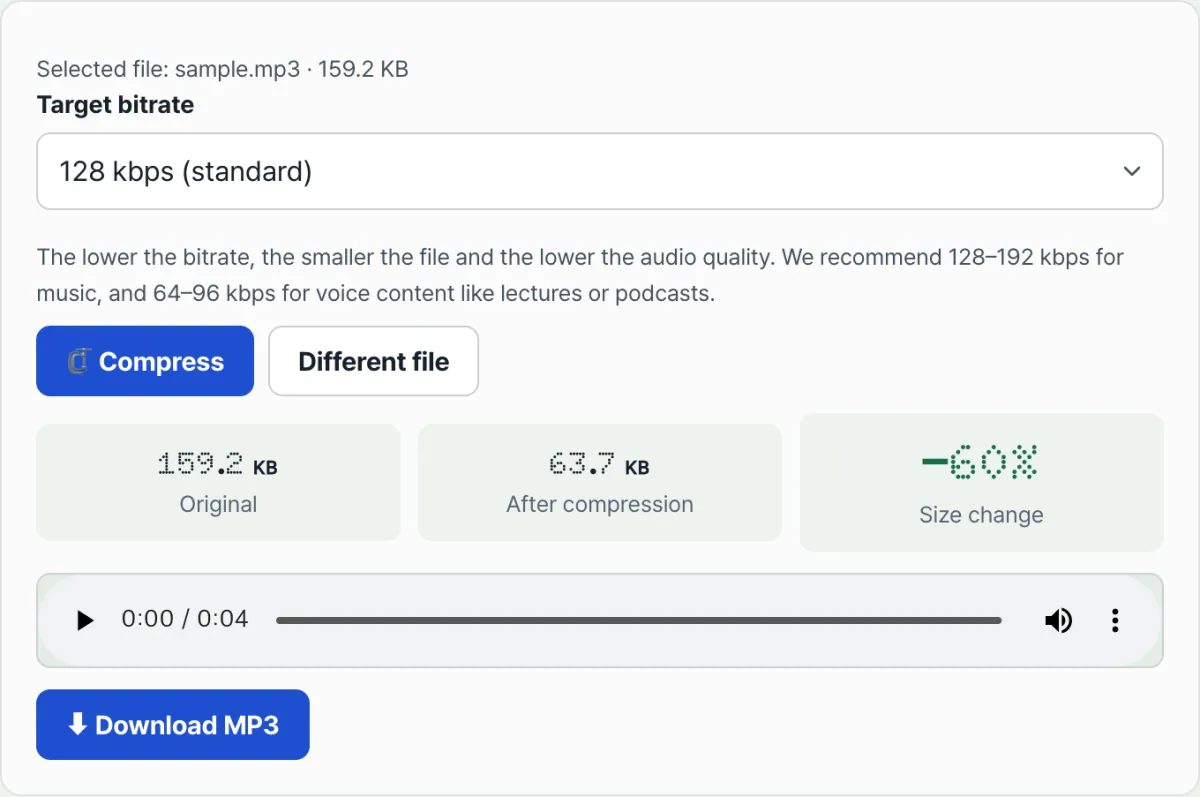
- Step 2 (Upload the file to this audio compressor): Drag an MP3, WAV, M4A, or FLAC file onto the browser window.
- Step 3 (Pick a target bitrate): Click the best preset among 320k (high quality), 192k (recommended for music), 128k (standard web), and 64k (lightweight voice).
- Step 4 (1-second on-device real-time compression): Conversion runs instantly in a browser WebAssembly audio engine, with no server upload.
- Step 5 (Check the compression rate and listen): Preview the audio in the result player, check the size saved (%), then download.
7 Tips for Choosing a Bitrate
- Always record voice in mono at 64kbps: you get sound quality identical to stereo 128kbps while the file size drops to exactly half.
- Always keep your master in FLAC/WAV: stay lossless for editing and archiving, and apply MP3 lossy compression only once, for the final version you distribute.
- Opus is dramatically more efficient: on any modern web setup, you can get MP3 128kbps quality at Opus 64–80kbps.
- Listen for yourself before you decide: depending on your playback setup, you may not hear the difference between 192kbps and 320kbps, so listen to the same track at both bitrates and choose.
- Fade background music in and out: adding a 0.5-second fade at the start and end before compression prevents tick noise from the file header and buffer.
- Normalization: leveling loudness to -14 LUFS (the YouTube/Spotify standard) before compression gives you the best compression efficiency with no distortion.
- Check the size limit before you send: look at the attachment limit in your messenger or email app first, then pick a bitrate that fits.
The Final Decision Tree: Which Bitrate Should You Compress To?
- Case A (music with rich instrumentation, live concert recordings, album releases) ➔ 320 kbps (or lossless FLAC)
- Case B (background music for typical YouTube videos, personal music collection, web streaming) ➔ 192 kbps ~ 256 kbps (the best balance)
- Case C (website background audio, mobile game sound effects, sharing in a messenger) ➔ 128 kbps (standard web compression)
- Case D (podcasts, language lessons, conference call recordings, sermons) ➔ 64 kbps ~ 96 kbps (mono voice only)
Cheat Sheet: Key Audio Compression and Sound Engineering Terms
- Bitrate: the number of data bits processed or stored per second (kbps).
- Psychoacoustics: the study of how the human ear and brain perceive sound.
- Masking effect: when one sound is covered up and made inaudible by another sound.
- Lossless compression: a method that restores data 100% identical to the original with not a single bit of difference when decompressed (FLAC, ALAC).
- Lossy compression: a method that permanently deletes data your ears don't need, shrinking file size dramatically (MP3, AAC, OGG).
Frequently Asked Questions
Is the sound quality difference between 320kbps and 128kbps actually big?
On a phone's built-in speaker or cheap earbuds, it's hard to notice. On good headphones or audio speakers, though, you can hear 128kbps smear very high frequencies like cymbals and hi-hats and narrow the sense of space.
Does converting MP3 to WAV improve sound quality?
No. The high-frequency audio information that was already deleted during MP3 compression does not come back just because you switch to a lossless format like WAV. You only end up with an empty shell of data and a file that's several times bigger.
Is there any risk the audio file I upload gets stored on a server or stolen?
None at all. Audio Compressor converts files offline, inside your own computer, using a local WebAssembly audio engine in your web browser, so your personal voice recordings and copyrighted audio never leave your device.
This article was adapted from our Korean original. Read the Korean original