
Audio Trimming Errors: How to Cut MP3 to the Millisecond
Contents
- Compressed audio is stored in "blocks" (frames)
- Plain "stream copy" vs. "PCM decode and re-encode"
- Under the hood: zero-crossing and sample-level time math
- Technical comparison of audio cutting methods
- 5 common mistakes when trimming audio
- A 5-step workflow for a perfect cut
- 7 audio trimming tips
- Final decision tree: which cutting method should you use?
- Audio cutting & sound editing key terms cheat sheet
- Frequently asked questions
You typed the start and end times into your audio editor down to a hundredth of a second. Then you play the MP3 you just cut, and the first syllable of the vocal is slightly clipped, or 0.1 seconds of dead air sits at the front and makes it thud. Sound familiar?
You didn't type the wrong number. The error comes from how compressed audio like MP3 and AAC is stored: it's packed into fixed frame blocks (about 26 ms each).
Here's what's actually going on: the difference between a plain stream copy and a precision decode-and-re-encode, the zero-crossing principle that kills that sharp pop, and the practical technique for cutting audio down to the millisecond, right in your browser.
Key takeaways ① The MP3 frame limit: MP3 compresses 1,152 samples (about 26.1 ms) into one block, so a stream copy can't cut precisely at a point that falls between block boundaries. Your timing drifts. ② Ultra-precise decode cutting: To cut exactly where you want with no error, you have to decompress the audio completely, cut the PCM waveform, and then encode it again. ③ Avoiding tick and pop noise: If the sound starts at a point where the waveform isn't at 0 V, the sudden jolt to the speaker cone produces a "tick!" A 0.05-second fade in and out prevents it. ④ 100% client-side privacy: Our tool runs a WebAssembly audio engine, so nothing is uploaded to a server. It re-encodes to 192 kbps MP3 right inside your browser.
Compressed audio is stored in "blocks" (frames)
Lossy formats like MP3 and AAC don't record sound millisecond by millisecond. At the standard 44.1 kHz rate, 1,152 audio samples (about 0.02612 seconds, or 26.12 ms) are grouped into a single frame, and then MDCT (modified discrete cosine transform) compression is applied.
So if you want to cut at "1 minute 30.05 seconds" but that point lands in the middle of a frame, an old-school program that only cuts on frame boundaries has to either include the whole frame or throw it away. Your cut ends up off by up to tens of milliseconds in either direction.
Plain "stream copy" vs. "PCM decode and re-encode"
1. Plain stream copy
- How it works: The file's binary frames are sliced and spliced as-is, with no decompression.
- Upside: No computation, so it saves in 0.1 seconds.
- Downside: It only cuts on frame boundaries (26 ms), so precise timing is impossible, and sync drift shows up at the top of the track.
2. Decode to PCM, then re-encode precisely (how our tool works)
- How it works: The compressed MP3/WAV is fully decompressed into a 44,100 Hz uncompressed continuous waveform (PCM). It's then cut at the exact millisecond you specify and encoded again as high-quality LAME MP3 (192 kbps).
- Upside: Perfect pinpoint cutting down to 0.001 seconds (1 ms), with smooth anti-click processing applied at the start and end.
Free · no install · just enter start and end times for millisecond-precise audio cuts in one second
Under the hood: zero-crossing and sample-level time math
A look at the math an audio DSP engine uses to slice a waveform without distorting the sound.
1. The sample-rate position formula
- For a 44,100 Hz source (44,100 samples per second), the exact sample index S at T seconds is: S = ⌊ T × 44,100 ⌋
- Time resolution of one sample: 1/44,100 ≈ 0.00002268seconds = 0.02268ms
- So with PCM decoding, you can control the cut point to within about 0.02 ms — microsecond territory.
2. Zero-crossing points and tick noise removal
- An audio waveform swings between positive (+) and negative (−) amplitude around a center line (0 V).
- Cut the sound abruptly at peak amplitude (+1.0 V) and the speaker coil gets a sudden DC interruption, which produces an irritating "tick" pop.
- The fix: Either find the point just before the cut where the waveform crosses exactly zero (a zero-crossing), or multiply the first and last 5–10 ms by a cosine fade curve (fade in/out) so the amplitude eases smoothly to zero.
Technical comparison of audio cutting methods
| Feature | Plain stream copy | PCM decode and re-encode (our tool) | Professional DAW (Cubase/Logic) |
|---|---|---|---|
| Time resolution | Frame-level (about 26 ms error) | Millisecond-level (about 0.02 ms precision) | Sample-level (under 0.02 ms) |
| Risk of losing the first syllable | Very high (can't cut mid-block) | None (cuts exactly where you want) | None |
| Click/tick noise prevention | Not possible (cuts the raw waveform) | Anti-click fade applied automatically | Manual fade curve editing |
| Processing speed | Instant (0.1 seconds) | Very fast (1–2 seconds via WebAssembly) | Minutes to launch and render |
| Setup and convenience | Requires separate dedicated software | Runs free in your browser, instantly | Paid software costing hundreds of thousands of won |
5 common mistakes when trimming audio
- Roughing in times as whole seconds (e.g. 1 minute 30 seconds): Skipping the 0.1-to-0.01-second fine-tuning and clipping the vocal breath or the first drum hit.
- Skipping the micro-fade at the start point: Playback kicks in mid-waveform and a speaker pop fires.
- Leaving large WAV/M4A files in a format you can't re-encode losslessly: Exporting to an odd format that won't play or share from a phone or a messenger app such as KakaoTalk or WhatsApp.
- Chopping the reverb tail off the end point: Cutting before the instrument's ring-out dies away, so the sound stops dead and feels unnatural.
- Uploading personal audio to a site that processes on its server: Putting call recordings or unreleased tracks on someone's server and exposing yourself to a privacy leak.
A 5-step workflow for a perfect cut
- Step 1 (upload your file): Drag an MP3, WAV, M4A, AAC, or OGG file into our tool.
- Step 2 (find your start and end times): Play the audio and locate the start (minutes:seconds, e.g. 01:23.50) and end of the section you want.
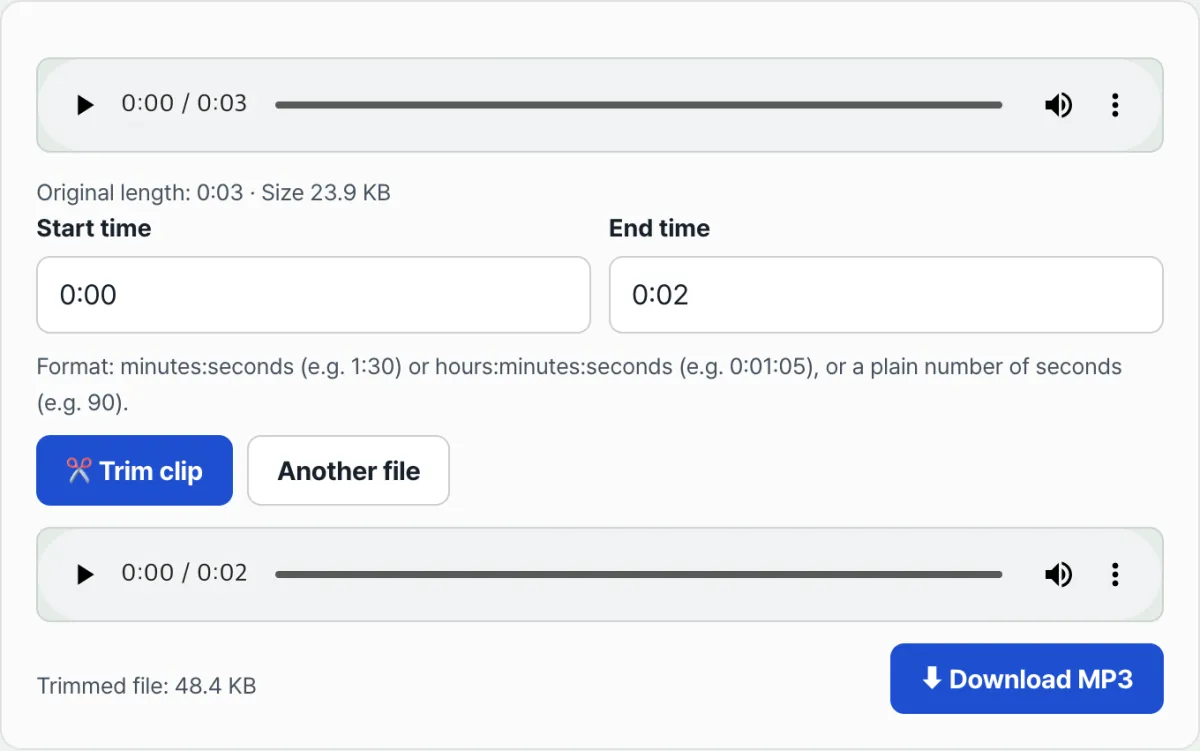
- Step 3 (enter the times and preview the section): Type the start and end times down to the millisecond and hit the cut button.
- Step 4 (listen in the results player): Use the player on the cut audio to check that the first syllable comes through cleanly and the ending fades out smoothly.
- Step 5 (download the 192 kbps MP3): Download the high-quality MP3 immediately — it plays everywhere — and drop it into a ringtone or a video.
7 audio trimming tips
- Set the start point 0.1 seconds early: Including 0.05–0.1 seconds of the natural breath just before the vocal or the first instrument attack sounds much sweeter.
- Leave 0.5 seconds of reverb tail at the end: Give the last note another half second to ring out and fully dissolve into the air.
- Making an iPhone ringtone (M4R): Cut a clip under 30 seconds with our tool, download the MP3, then change the extension to .m4r (or convert it in iTunes).
- Cut background music loops on the measure: Trim exactly in 4-beat or 8-beat units and the loop will repeat endlessly behind a video with no jarring seam.
- Trim out the hum: Cutting the microphone hum at the very start or end of a track makes it cleaner to listen to.
- 192 kbps LAME is the safe standard: It plays as-is with no compatibility issues in car USB players, phones, or video editors.
- Bookmark our tool in your browser: Every time you need a YouTube Shorts background track or a ringtone, you're done in 30 seconds with nothing to install.
Final decision tree: which cutting method should you use?
- Purpose A (smartphone ringtones, alarm sounds, and vocal highlight extraction) ➔ Precision cutting with PCM decoding (preserve the first syllable)
- Purpose B (extracting 15–30 seconds of background music for YouTube Shorts / Reels) ➔ Millisecond cutting & 192kbps MP3 export
- Purpose C (cutting just 10 minutes from a 1-hour call recording) ➔ Local WebAssembly cutting in your browser (no server exposure)
- Purpose D (multitrack mixing for an orchestra with dozens of tracks) ➔ Use professional DAW software (such as Pro Tools)
Audio cutting & sound editing key terms cheat sheet
- Audio frame: a group of audio samples that the MP3 codec compresses in one pass (about 26ms).
- PCM (Pulse Code Modulation): uncompressed raw data created by converting an analog sound signal into digital 0s and 1s.
- Zero-crossing: the point where the amplitude of an alternating audio signal crosses the 0V center line.
- Pop noise / click: the noise that comes from a speaker when the waveform's amplitude is abruptly and discontinuously cut off.
Frequently asked questions
I set the start time to 01:15.5. Why is it a good idea to leave a 0.05-second buffer on either side?
It prevents the singer's natural attack transient and breath right before the first line from getting cut off, so the first note starts smoothly and naturally.
Does cutting a file and exporting it as MP3 reduce sound quality?
Our tool uses the industry-standard, high-performance LAME MP3 encoder and re-encodes at a constant bitrate of 192kbps, the standard for broadcast audio quality, so any loss in sound quality is completely imperceptible to the human ear.
Are the songs or personal recordings I upload kept on a web server?
Not at all. All decoding, waveform cutting, and MP3 re-encoding operations are processed locally inside your device through your browser's WebAssembly audio engine, so you can use the tool with peace of mind.
This article was adapted from our Korean original. Read the Korean original