
Why Screen-Recorded Reels Look Blurry vs. the Original MP4
Contents
- It saved, but it's not the video you were watching
- How to Check the Original File Yourself, No Tool Required
- Why Screen Recordings Look Different From the Original File
- Screen Recording vs. Saving the Original MP4: Side-by-Side Comparison
- Common Sticking Points
- Copyright and Legal Use
- How This Compares With Other Methods
- Summary
- Frequently Asked Questions
Saving a Reel with a screen recording lowers the quality a notch. The original isn't bad. The problem is that you're playing a video that's already compressed, then recording that screen and compressing it a second time. Instagram's servers store the same video as an MP4 file, and if the post is public, you can download that file as is.
Summary ① A screen recording works by "re-filming what's playing on your screen," so it compresses an already compressed video one more time. ② Reels are stored on the server as MP4 files. If the post is public, you can download that original without re-encoding. ③ A watermark isn't "removed." It's just "not added." A logo the uploader burned into the video itself won't disappear.
It saved, but it's not the video you were watching
Say you want to save a recipe Reel so you can watch it again later. You start playback, tap the screen record button, leave your phone alone until the video ends, then stop recording. So far, nothing seems wrong.
The problem shows up when you open the file in your gallery. It looks blurrier than it did in the Instagram app. The edges of the on-screen captions are especially smudged. Small text, like ingredient names, can become hard to read.
Why everyone starts with screen recording
There's a reason this method comes to mind first. It's already built into your device, so you don't need to install anything, and it looks like there's nothing that could go wrong.
The result also lands in your gallery right away. You don't have to hunt for where it was saved, which is convenient.
That's why the problem shows up late. At the moment you save, it looks like it worked. You only check the quality days later, when you try to use the file again.
Things that aren't the video get recorded too
A screen recording captures, quite literally, everything visible on screen at that moment. So the like button, caption, account name, and music info floating over the video all stay in the file.
If a message notification slides across the screen while you're recording, it gets burned into the video too. To redo it, you have to turn on Do Not Disturb and start over from the beginning. For a 3-minute video, that means waiting another 3 minutes.
The aspect ratio can also be off. A Reel is a tall, vertical video, but what gets recorded is your device's entire screen. If the device and the video have different aspect ratios, the top and bottom get cut off, or black bars get added instead.
When the audio and video drift apart
Sometimes you run into a problem that's more annoying than lower quality. Playback looked fine, but in the saved file, the mouth movements and the voice are slightly out of sync.
This isn't a mistake on your part. Screen recording happens in real time, so if your device is underpowered or another app is using resources, frames get delayed along the way. The audio keeps flowing during that time, so the gap between the two widens.
Once the sync has drifted, it's hard to fix later in editing. The amount of drift may not be consistent throughout the video.
When it's your own Reel and you don't have the original
The opposite situation comes up often too. It's not someone else's video. It's a Reel you posted yourself, but you don't have the original file.
This happens after you've deleted a project in an editing app, lost the original footage when you switched devices, or cleared it out to free up storage. It's even more frustrating because the Reel plays just fine in the app.
Even then, the first reaction is usually a screen recording. But the file you get that way isn't your original footage. It's a "copy that's been compressed one more time." Its condition is bound to disappoint if you want to use it as material for other edits.
If your original footage is already gone, the best version left is the distribution file uploaded to the server. At least that one hasn't gone through an extra round of compression.
In the end, it means the original exists separately
This points to one important fact. Every problem a screen recording creates comes from the fact that you "re-filmed the screen instead of copying the video."
Put another way, if you grab the original file as is instead of re-filming, these problems never happen in the first place. And Reels really are uploaded to the server as MP4 files.
How to Check the Original File Yourself, No Tool Required
You can check this claim yourself. The developer tools already built into your browser will show you a Reel's actual video file and its resolution. Here are the steps for a desktop browser.
Step 1: Copy the link. On the Reel, tap the share icon and choose "Copy link." In a desktop browser, you can also just copy the address from the address bar.
Step 2: Make sure the post is public. Open an incognito window (a private browsing window) and paste the link. If the video plays while you're logged out, the post is public.
If the video doesn't play and you see a login screen instead, the post requires you to be logged in to view it. That includes posts from private accounts and Stories.
Step 3: Open the Network tab in developer tools. In Chrome or Edge, right-click an empty area outside the video, choose "Inspect," and go to the "Network" tab. In Safari, you first need to turn on the "Develop" menu in Settings.
Step 4: Play the video and look at the request list. With the Network tab open, refresh the page and play the video. File requests will start piling up in the list. Choose "Media" in the filter at the top to show only video and audio requests.
If you see an item with an mp4 extension, that's the actual video file being used for playback. It's a file stored on the server, not pixels drawn on your screen.
Step 5: Check the resolution. If you downloaded the file, on a Mac you can right-click it and choose "Get Info." On Windows, open "Properties → Details." Either way, you'll see the width and height in pixels.
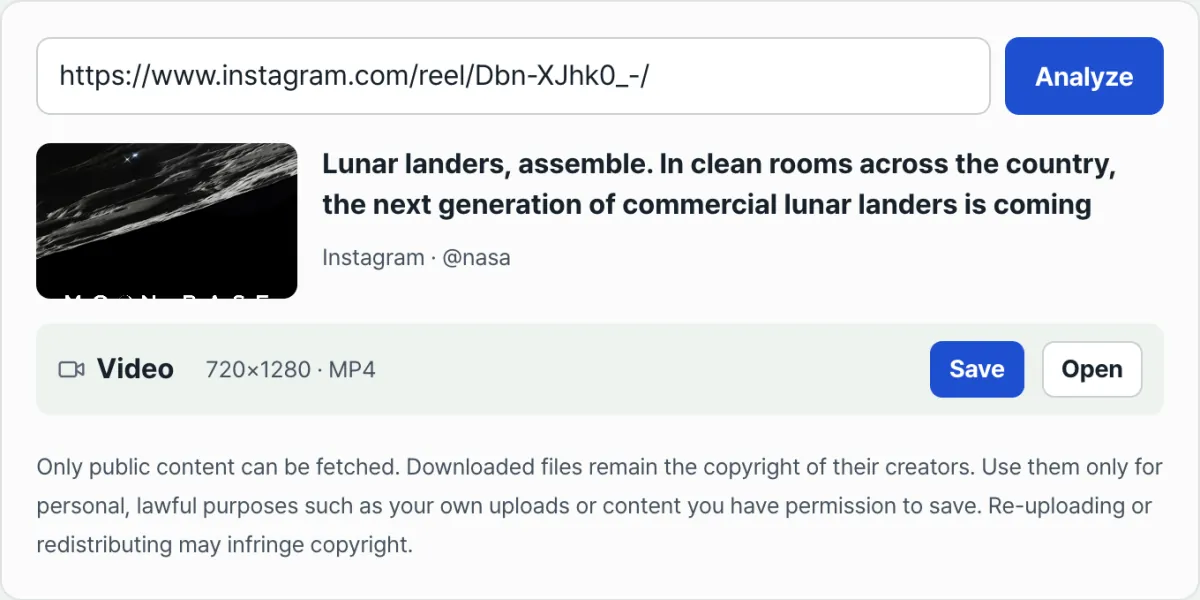
Trying it yourself gives you a feel for it. In one case we checked, a Reel from NASA's official account was an MP4 file measuring 720×1280. That means a tall 9:16 video file exists on the server as is.
Put that next to a screen recording of the same video and the difference gets clearer. The recording is captured at your device's screen size, so its pixel dimensions may actually be larger. But if you zoom in on the edges of the captions, the original looks sharper.
Tell the Content Type from the Link
You can usually tell what kind of content you have by looking at the link you copied. Instagram links include a different word in the middle depending on the content type.
If the link contains reel or reels, it's a Reel. If it contains p, it's a regular post with a photo or video, and that includes multi-image posts.
If it contains stories, it's a Story. Stories require you to be logged in, so they're out of scope from the start. Filtering them out by link saves you some wasted effort.
A link with just an account name is also out of scope. That points to an entire profile, not a single post, so there's no way to tell which video you mean.
How to Compare the Two Files Yourself
Comparing them yourself is more convincing than taking our word for it. Get the same Reel as a screen recording and as the original file, then check three things.
First, the width and height in pixels. The recording is based on your device's screen, and the original is based on the server file, so the numbers differ. Even if the recording shows larger numbers, that doesn't mean it's sharper.
Second, the running time. A recording lasts from the moment you press start to the moment you press stop, so it picks up extra footage before and after the video. The original contains only the video's own length.
Third, a visual check. Find a scene with large caption text, zoom in as far as you can on each file, and compare the edges of the letters. That's where the difference shows up best.
If you only have a phone, this comparison isn't easy. Mobile browsers don't open developer tools by default. To see network requests, you'd need to connect to a computer and inspect remotely.
Limits of This Method
This method has some drawbacks. The Network tab also fills up with ad, image, and font requests, and the video address sometimes shows up as a temporary name starting with blob:. That name points to browser memory, not a file address, so saving it as is won't give you a file.
Even if you find the address, it was made for playback, so it's very long, and it may stop working if you open it again later. Opening developer tools every time you want to save one Reel isn't practical.
Still, we recommend doing this once. After you see with your own eyes that the original MP4 really exists on the server, you can judge for yourself what any given method is doing.
From the second time on, you can let something handle the same job automatically. The tool below does exactly this process.
Free · No install or sign-up · Original MP4 of public Reels
Why Screen Recordings Look Different From the Original File
From here on, we're getting into how it works. The difference isn't about the quality of your recording app. It happens because the two methods do completely different things.
Lossy compression can't be undone
A video file doesn't store every pixel as is. It shrinks the file by calculating which details the human eye is unlikely to notice and throwing them away. This is called lossy compression.
The key word is "throwing away." Once information is discarded, it's no longer in the file, and no method can bring it back later. There's no setting that boosts the quality.
The Reels MP4 sitting on the server has already been compressed once, too. It's a file prepared for delivery. So that file is the best version of this video we can get.
Screen recording adds another generation of compression
Here's what a screen recording actually does, step by step. First, your device decodes the compressed video it received from the server and draws it on the screen. So far, that's normal playback.
Then the recording feature reads that screen again, compresses it again, and builds a new file. In other words, it throws away information a second time from something that already lost information once.
Compressing something that's already compressed makes the losses pile up. Saving the original file skips this second round of compression entirely, because it copies the file as is.
MP4 is a container, and the tracks are stored separately inside
The name MP4 describes a container more than a video format. A video track and an audio track each go inside it, along with a record of what should play at which moment.
When you download the whole file, this structure is carried over untouched. The relationship between video and audio, the length, and the frame spacing all stay exactly as they were on the server.
Screen recording builds a new container instead. It puts the picture it captured from the screen and the sound it captured from the device into that container, and it recalculates the timing between the two on the spot. That's where things can drift out of sync.
How much data is used decides the quality
Two videos with the same resolution can still look different. The result depends on how much data is used per second.
A scene where the screen barely moves stays clean even with a small amount of data. By contrast, moments where the camera shakes or the whole scene changes need much more data.
If the encoder can't meet that demand, the picture turns mushy in those moments. If a video looks messy only during fast walking shots or right after a transition, this is usually why.
Screen recording has one more disadvantage here. It has to play and encode in real time at the same time, so there are situations where it can't spend data generously.
What breaks down first
In the second round of compression, the first thing to show damage is anything with sharp edges. Think of the outlines of caption text, the angular corners of a logo, or thin lines on a bright background.
Compression splits the picture into small blocks. Where colors change sharply, the block edges tend to become visible. That's why the area around text can look messy or smeared.
Fast-moving scenes and dark gradients are weak spots too. If shading that should be smooth looks broken into steps in a night scene or a dark indoor video, that's the trace.
Resolution numbers don't guarantee quality
This is where people often get confused. The resolution number of a screen recording can sometimes be larger than the original's.
If your device's screen is denser than the original, the recorded file's width and height in pixels end up larger than the original's. But that's closer to copying an already blurry picture onto a bigger sheet of paper.
Information that wasn't there doesn't suddenly appear. So you can end up with a bigger number that looks worse to the eye than the original. The right measure isn't the pixel count. It's how many times the video has been compressed.
Why Reels are tall, and the problem that causes
The 720×1280 we confirmed has a 9:16 aspect ratio. It matches the shape of a phone screen held upright.
The problem is that a device screen isn't always that ratio. Depending on the model, the screen may be longer or shorter, and the space taken up by the camera area at the top or the controls at the bottom differs too.
So a screen recording loses something equal to the gap between the video's ratio and the screen's ratio. If the video was playing edge to edge, the top and bottom get cropped. If it was playing with margins, those black margins become part of the video.
The original file has no such variable. It keeps the uploaded ratio, so wherever you use it later, you don't have to worry about trying to recover cropped parts.
When you edit a file that's been compressed twice
The gap is widest when saving isn't the end of the process. The moment you edit the video and try to upload it again, the compression steps keep stacking up.
If you start with a screen recording, you're already at two. Export from an editing app and it's three. Upload it somewhere again, and that service processes it for delivery, adding one more.
Each step loses a little more information, so the final result ends up noticeably different from what you first saw on screen. The more captions a video has, the sooner this difference shows.
If you start from the original file, you take one link out of this chain. No matter how many steps follow, you begin from a better state.
Why the timing drifts
Screen recording is a real-time job. It grabs one frame of the screen at set intervals and stitches them together. If your device is busy with something else at that moment, it misses a frame and moves on.
The audio keeps flowing the whole time. So as missed frames pile up, the picture falls behind the sound, and lip movement and voice look out of sync.
Downloading the original file has no such process. The timing information for video and audio is already recorded in the file, and the whole file is copied over, so it doesn't depend on the playback environment.
Where the audio comes from
The audio side has the same kind of problem. Screen recording captures the sound your device plays, and depending on your settings, if the microphone is also on, it mixes in the sound around you.
If you thought you were in a quiet spot but the saved file has clothes rustling or voices in it, that's the case. Silent mode or volume settings can also affect the recording, and sometimes the audio drops out entirely.
The original file has no such variables. The audio track is already inside the file and is copied over as is, so it doesn't depend on your device's state during recording.
What was on screen was the screen, not the video
Finally, there's the most fundamental difference. What a screen recording captures isn't the video. It's "the screen where the video was displayed."
That means any interface elements layered on top become part of the video. The like button, the caption, the account name, the progress bar, and even a notification that happens to pop up all get baked into the pixels.
The aspect ratio problem comes from the same cause. The Reels file on the server is tall, but your device's screen may have a different ratio, so a recording gets cropped or gets margins added. The original file has no cropped-off parts and no added margins.
Screen Recording vs. Saving the Original MP4: Side-by-Side Comparison
Here is the earlier explanation in table form. Neither method is always better. It helps more to see what each one does and what each one gives up.
| Item | Screen recording | Saving the original MP4 |
|---|---|---|
| Compression passes | Original compression + recompression during recording (2 passes) | The server file as is (no extra compression) |
| On-screen UI and notifications | Likes, captions, and notifications get recorded too | Only the video itself remains |
| Aspect ratio | Cropped or padded to fit your device screen | Original ratio, unchanged |
| Audio sync | Can drift if frames are dropped | Exactly as recorded in the file |
| Time required | You have to wait for the full length of the video | Only the time it takes to download the file |
| Resolution | Based on your device screen (a bigger number doesn't mean better quality) | Based on the server file (measured example: 720×1280) |
| Watermark | Anything visible on screen gets burned in | We don't add a logo on top |
| What it applies to | Anything visible on screen can be recorded | Only public Reels and public post videos |
The last row is the one to look at. Screen recording seems to have no limits, since it only needs to see something on screen. That is both an advantage and a risk. Technically, it can even capture content that was shared with you privately.
Saving the original file is the opposite. It only works with public posts that anyone can view without logging in. Anything else can't be fetched in the first place. That isn't a missing feature. It's a line drawn on purpose.
So when should you use which?
If you need a public Reel or a public post's video as a file, saving the original is the right choice. You don't have to wait, no screen elements get mixed in, and there is one less round of compression.
There are still times when screen recording makes sense. One is when you need to show the steps of using something while it plays, such as recording a screen flow to explain how to use an app.
In that case, capturing the UI isn't a downside. It's the point. The test is simple: do you need the video itself, or do you need the screen?
Common Sticking Points
These are the situations that come up most often, organized by symptom. Once you know the cause, you can usually settle it on the spot without trying again.
| Symptom | Cause | Fix |
|---|---|---|
| You pasted a link, but no video appears | The post is from a private account | Only public posts that can be viewed without logging in will work |
| A Story link isn't processed | Stories require you to log in to view | Not supported. Only public Reels and public post videos work |
| The saved video still has a logo or captions | The uploader added them to the video itself | They're part of the original, so they can't be removed |
| You can't see the video in a multi-slide post | That slide is a photo | Check that the post actually includes a video slide |
| The copied link has a long string at the end | A parameter that tracks how the link was shared | Keeping only the part before the question mark usually works |
| The video plays in the browser instead of saving | The browser treats the MP4 as a playable format | Press and hold the link, or right-click it, and choose "Save as" |
| The file doesn't show up in your photos app | It was saved to the browser's download folder | Find it in your Files app and move it to your photos app |
| The top and bottom of the video are cut off | It's a screen recording, so it was captured at your device's aspect ratio | Download the original file to get the uploaded ratio |
| The audio has background noise | The microphone was on during the screen recording | The original file contains the audio track as is |
The second row causes the most confusion. Some sites say they save Stories, but Stories can only be viewed while you're logged in. Our tool doesn't touch them.
The third row needs a closer look too. "No watermark" means we don't add a new logo. It doesn't mean we remove anything that's already in the video.
A logo or caption that the uploader placed on screen during editing becomes pixels at that moment and is part of the video. It comes along no matter how you download it.
Links cause trouble too. When you tap "Copy link" in the app, a string that shows where the link was shared from gets added to the end. After passing through a messenger app a few times, the link can get even longer or get cut off in the middle.
When that happens, keep only the part before the question mark and try again. If that still doesn't work, open the post directly in a browser and copy the address from the address bar. That's the most reliable way.
Multi-slide posts need one more check. In a post that mixes photos and videos, if the first slide is a photo, it's hard to tell from the screen whether there's a video at all.
Swipe through the slides and look for one with a play icon. If a post is made up of photos only, there is no video file to begin with.
For multi-slide posts, the results appear as a list. The items in the post are listed in order, so just pick the video item and download it.
It also helps to know that a link points to a whole post. There's no separate link for only the third slide. The post has one link, and you choose the slide you want from inside it.
It's also a good idea to rename downloaded files early. Original files are often saved with names that are long strings of characters no one can read, so after just a few downloads you can't tell which is which.
Adding just the account name and the date makes files much easier to find later. Renaming a file before you move it saves time in the end.
How to Tell an Original Problem from a Saving Problem
When something looks off, first ask: is the original like that, or did it happen during saving? Separating the two saves you wasted effort.
The method is simple. Play that Reel again in the Instagram app or a browser and check the same spot.
If the captions are blurry and the logo is there in the app too, the original is like that. Changing how you save it won't change anything.
On the other hand, if it looks clean in the app but only the saved file looks mushy, that's a sign an extra round of compression happened during saving. In that case, switching methods will change the result.
Copyright and Legal Use
Being technically able to download something is a completely different matter from being free to use it however you like. Whether you can save a video and whether you have the right to use it are separate questions, and most real problems come from the second one.
First, what you can download is limited. Only public posts that anyone can view without logging in can be fetched. Posts from private accounts and Stories aren't covered.
Even for a public post, the copyright stays with the original creator. A post being public doesn't mean permission to use it was granted.
Two things often get mixed up here. One is "can I view it?" and the other is "can I use it?" The first is about whether something is public. The second is about the rights holder's permission.
It's like walking past a store and looking at the display window versus taking an item and using it. Being public sets the range of who can look. It doesn't open up the range of use.
So keep your use narrow. It's safest to limit it to getting back material you uploaded yourself, material you have the original creator's permission to use, or other personal and lawful purposes.
Be especially careful about reuploading and redistributing. Downloading someone else's Reel and posting it to your own account, editing it and posting it on another platform, or using it commercially, such as in promotional material, can be copyright infringement.
It's easy to think that crediting the source makes it fine, but a credit is not a substitute for permission. Crediting and getting permission are two different steps.
If the video shows someone else's face or voice, there is one more thing to consider. Apart from copyright, that person has rights of their own.
Background music works the same way. The rights to a track in a video can be separate from the rights to the video itself. Even if you got permission from the video's creator, that doesn't necessarily cover the music.
So if you plan to repost it somewhere else, it's safer to think about the video and the music separately. If you're only keeping it for yourself, you don't need to go that far.
If you run an account, the line needs to be even clearer. Saving someone else's Reel as a reference and studying how it's put together is a completely different act from posting that video as is and using it as content on your account.
It's also safer to define "distribution" more broadly than you might expect. It isn't only posting to a public account. Circulating it as internal company material or sending it to a group chat can also count as passing it to many people.
If you're not sure, the rule is simple. First decide whether the file will stay on your own device or whether you intend to show it to other people. If it's the latter, the right move is to ask for permission.
How This Compares With Other Methods
There are several ways to save a Reel. Each one costs you something. If you compare only convenience, the differences are hard to see. Put the costs next to it, and the picture gets clearer.
Screen recording needs no install, and it can capture anything that appears on your screen. But as covered earlier, it comes with a cost: recompression, on-screen UI, cropped aspect ratios, and audio sync drift. You also have to wait as long as the video runs.
Saving inside the Instagram app (the bookmark) is not a download feature. It works more like a list you keep so you can watch something again later.
So if the original post is deleted or the account goes private, you can no longer watch it, even though it's still on your list. It also doesn't help if you want to open it somewhere with no internet connection.
Installing a dedicated saver app is convenient once it's set up, but it requires installation and permission to access your storage. It's a good idea to check which permissions it asks for before you install it.
Browser extensions are similar. They're very convenient, but they usually ask for permission to read the content of the pages you visit. Look at the scope of those permissions before you decide.
Services that require you to log in with your Instagram account call for extra caution, because you're handing your account details to someone else. It's worth asking first whether a login should be needed at all to download a public post.
Finding the file yourself with developer tools really is possible, as explained in the previous section. But you have to pick the video file out of the request list, and it takes a lot of manual work to repeat every time.
Our tool takes the place of that last method and does it automatically. You paste in a link with no install and no sign-up. It points to the original MP4 on the server and doesn't add a logo on top.
The limits stay the same, too. It works only for videos from public Reels and public posts. It doesn't work for Stories or posts from private accounts. Switching tools shouldn't get you past that line.
Whichever route you take, the things to check are the same: what you're installing, what permissions it asks for, whether it wants you to hand over your account details, and whether a logo appears on the result that wasn't there before.
Checking those four things settles most choices. If you pick based on convenience alone, you often end up paying the cost in a way that's hard to undo later.
Summary
Screen recording doesn't copy the video. It re-films the playback screen, so it compresses an already compressed video one more time. That's why quality drops another step.
If frames slip, the audio and picture fall out of sync. Screen elements such as the like button, captions, and notifications get captured too, along with your device's screen aspect ratio.
A Reel is stored on the server as an MP4 file, and if the post is public, you can download that original as is, with no re-encoding. In the case we measured, the file was 720×1280.
A watermark isn't "removed." It's "not added." Logos and captions the uploader burned into the video are part of the original, so they can't be erased.
The copyright on a downloaded video belongs to the original creator. Use it only for personal, lawful purposes, such as your own material or content you have permission to use, and avoid re-uploading or redistributing it.
Free · No install or sign-up · Original MP4 of public Reels
Frequently Asked Questions
Is the quality really better than screen recording?
The methods are different. Screen recording re-films what's playing and compresses it one more time. Saving the original file pulls the MP4 straight from the server, so no re-encoding happens. That's why the difference shows up in the parts that are weak against compression, like the edges of caption text or fast-moving scenes. It won't look better than the original, though. The file just stays in the same state it's in on the server.
Does it remove the watermark?
To be precise, we just don't add a logo on top. That means no new mark from this tool gets added to the saved file, so "not added" is a more accurate description than "removed." On the other hand, a logo or caption the uploader placed inside the video during editing became pixels at that moment and is part of the original. It comes along no matter how you download it. You can't erase it.
Can I save Stories too?
No. Stories can only be viewed when you're logged in, so they aren't supported. The only things that work are videos from public Reels and public posts that anyone can view without logging in. If the link you copied has "stories" in the middle of it, it's a Story, so you can rule it out before you paste it in. If you've seen a site claiming it can save Stories, that description may not match how it actually works.
What about Reels from a private account?
You can't get them. Posts from a private account are visible only to approved followers, so they aren't supported. There's a simple way to tell in advance. Open an incognito window and paste the link. If it plays without a login, it's a public post. If a login screen appears, it's not supported. The result is the same even if you follow the account.
Can I upload a saved Reel to my own account?
Not without the original creator's permission. A post being public doesn't mean the creator allowed others to use it, and the copyright stays with the creator. Crediting the source doesn't replace permission, either. Use it only for personal, lawful purposes, such as getting back something you posted yourself or something you have permission to use. Re-uploading or redistributing can be infringement, so it's safest to avoid it.
Can I choose the quality?
The quality you can get depends on what file is on the server. In the case we checked, it was a 720×1280 MP4. A quality that isn't in the original can't be created. Information already thrown away by lossy compression doesn't come back. A screen recording sometimes shows a bigger resolution number, but that's more like copying a blurry picture onto a bigger sheet of paper.
Can I download just the video from a multi-slide post?
Yes. The items in the post are listed in order, so you can pick the one that is a video and download it. The link is for the whole post, not for a single slide, so you don't need to look for a link that points to one specific slide. If the post is made up of photos only, though, there's no video file to begin with. Swipe through first and check whether any slide has a play icon. That can save you a wasted trip.
Does it work on a phone?
Yes, as long as you have a browser. The flow is the same as on a computer: tap "Copy link" on the Reel, then paste it in. There's nothing to install. The difference is where the file goes. On a phone, the file often lands in the browser's downloads folder rather than your photos app, so you need to find it in the Files app and move it to your photos app before it shows up in your gallery. If the video plays instead of saving, press and hold the link and choose download.
This article was adapted from our Korean original. Read the Korean original