
What Is a CRF Value? Why Lower Numbers Mean Better Quality
Contents
When you open a video compression tool, the first value you run into is CRF. But it's often unclear which way to move that number to make the file smaller. Lower the number and the file gets bigger. Raise it and the file shrinks, but the quality turns to mush. After that happens once or twice, it gets even more confusing.
That confusion comes from thinking of CRF as a "compression rate." CRF isn't a setting for how hard the encoder squeezes. It's a setting for the quality target the encoder has to hit. Once you get that direction straight, it makes sense why the number and the result move in opposite ways.
Summary ① CRF doesn't set a compression rate; it sets a quality target. So a lower number means better quality and a bigger file. ② The encoder spends only as many bits as it needs to hit that quality target. That's why the same CRF can produce different file sizes depending on what's in the scene. ③ If you need the output size to land on an exact number, setting a target bitrate yourself is a better fit than CRF.
Why CRF Is a Quality Target, Not a Compression Rate
When people hear "file compression," they usually assume you pick a ratio first — how much to shrink it. CRF (Constant Rate Factor) works the other way around. You don't set the output size first. You set a quality line — "keep it at least this good" — and the encoder distributes however many bits it needs, scene by scene, to stay on that line.
So moving the CRF slider isn't really about squeezing harder or softer. It's closer to choosing where to put the line for how much quality loss you'll accept. The output size is just a side effect that shows up after the target is met.
Why a Lower Number Means Better Quality and a Bigger File
A low CRF value means a strict target: "barely degrade the quality at all." To hold that strict standard, the encoder spends more bits on each scene. More bits means more detail survives, and the file gets bigger along with it.
A high CRF value is the opposite — a loose target that says "some quality loss is fine." The encoder strips detail more aggressively, saves bits, and the file gets smaller while the quality drops with it. The number and the result move in opposite directions because the value points at a quality line, not at a file size.
Why the Same CRF Gives You Different File Sizes on Different Videos
The key to CRF is that the encoder spends bits "only as needed to hit the quality target." But how many bits are needed varies a lot with what's on screen.
Scenes with frequent cuts or lots of movement have a lot of new information to draw every frame. Holding the same quality line means the encoder has to pour more bits into those scenes. A static shot with a locked-off camera and a background that barely changes, on the other hand, overlaps heavily with the previous frame, so it needs far fewer bits to hold that same quality line.
The upshot: set CRF to 28 on both, and the high-motion video ends up bigger than the static one. Nothing is misconfigured. That difference is built into how CRF works — it's designed around per-scene bit allocation, not a fixed compression ratio. If you're in a situation where you have to guarantee an exact output size (say, under a certain number of MB), specifying a target bitrate directly fits better than CRF.
Free tool that compresses video right in your browser with adjustable CRF and resolution. Your files never get uploaded to a server.
How the Tool Handles This Calculation for You
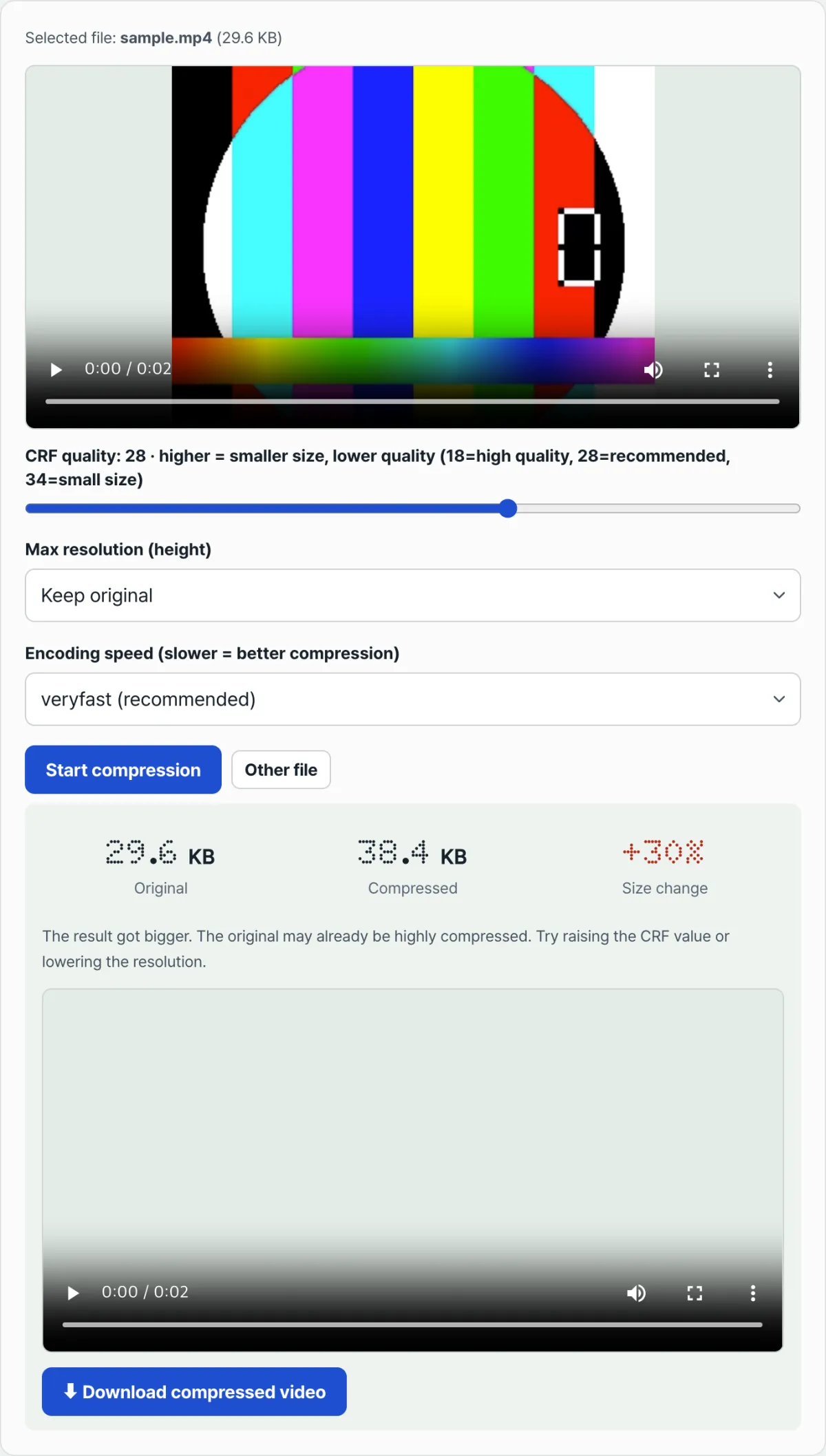
The Video Compressor takes the CRF concept above and puts it on a single slider. The labels show the direction right away: closer to 18 means a stricter quality line and a bigger file, and closer to 34 means a looser line and a smaller file. Pair that with the option to lower the maximum resolution, and the amount of image data the encoder has to deal with shrinks at the source, cutting the size down a second time.
Pick a video file and the screen shows the original filename and size. Set the CRF value and resolution however you want, then hit the start button and processing begins. This is a real H.264 re-encode running in your browser, so it takes a while. When it finishes, you see the original size, the compressed size, and the difference (percentage change) together, so you can check the CRF effect in numbers right away.
Because the same CRF value produces different sizes depending on the video's content, don't guess whether "this is probably enough." Run it once, look at the actual size and quality, then nudge the CRF up or down and run it again. That's far more accurate.
Recap
- CRF sets a quality target, not a compression rate. A lower number means a stricter quality standard, so quality goes up and the file gets bigger.
- A higher number loosens the standard. The encoder saves bits, so the file gets smaller — and image quality drops with it.
- The encoder spends only the bits it needs to hold the quality target, so at the same CRF, high-motion scenes use more bits than static ones.
- That's why compressing at the same CRF still gives you different file sizes depending on what's in the video.
- If you need to lock in an exact output size ahead of time, specifying a target bitrate directly fits better than CRF.
Free tool that compresses video right in your browser with adjustable CRF and resolution. Your files never get uploaded to a server.
Frequently Asked Questions
If I keep lowering the CRF value, will the quality keep getting better?
Yes, the quality target does keep getting stricter — but past a certain point, you're already at a level where the eye can't tell the difference from the original. Lower it further and you're in the zone where the file keeps growing with no visible quality gain.
How is CRF different from just setting a bitrate (kbps) myself?
CRF sets the quality line first and then spends bits differently on each scene as needed, so the output size depends on the video's content. Setting a bitrate fixes the amount of data per second up front, which makes the output size easier to predict — but when a scene gets complex, quality can dip within that fixed budget.
I compressed two videos at the exact same CRF, so why is one so much bigger than the other?
Because CRF isn't a fixed compression ratio — it spends whatever bits it takes to hold a quality standard. Videos with lots of motion and frequent cuts need more bits to keep the same quality, so they come out bigger. Static videos with little on-screen change can hold the same quality with fewer bits, so they come out smaller.
Can compressing a video actually make the file bigger than the original?
Yes. If the original was already heavily compressed at a low bitrate, hitting the quality line you set with CRF may require more bits than the original had, and the output can end up larger. In that case, raise the CRF value or lower the maximum resolution and run it again — that moves things in the right direction.
This article was adapted from our Korean original. Read the Korean original