
Why Converting Video to GIF Makes Files Bigger: fps and Size
Contents
You've probably heard that converting an animated GIF into a video makes the file size drop a lot. But what happens when you go the other direction — turning an already well-compressed video file into a GIF? Oddly enough, the result is the opposite. Image quality gets worse, and the file often gets bigger.
This isn't a bug in the conversion. It's a predictable outcome of the structural limits built into the GIF file format itself. It's also why any tool that makes GIFs from video gives you separate controls for fps (frames per second) and width.
Summary ① Unlike video codecs, GIF doesn't predict motion between frames. It just strings together still images, each with a color table (palette) applied. ② A single GIF frame can hold at most 256 colors, so color expression falls behind a video that was already using millions of colors. ③ The fps and width options are how you keep this structural loss at a level you can live with.
Why a GIF gets bigger even though the video was already compressed
A video file like MP4 doesn't store every frame in full. It compresses by recording only what changed compared with the previous frame (motion prediction), so in stretches where the picture barely changes, the data gets very small.
GIF has no such predictive compression. For each frame it builds a still image with a palette applied, compresses that, and then chains them in order. So even in a stretch where the picture is nearly identical, every frame has to be stored again from scratch. You're taking a video that was already compressed efficiently and unpacking it into this structure, which is why the file often ends up larger.
The 256-color palette: the real reason quality drops
The GIF format caps a single frame at 256 colors. Even if the source video was showing millions of colors, the moment it becomes a GIF those colors get squeezed into a 256-entry table.
That's why you see blotchy banding with hard, abrupt edges in areas where color shifts gradually, like skies or skin. Rebuilding the palette specifically for that clip (palette generation) can reduce the banding somewhat, but it doesn't remove the 256-color limit itself.
What lowering fps and size actually reduces
Every frame a GIF stores is file size. So when you lower the frames per second, the number of frames you have to store drops, and the file gets smaller. The tradeoff is that motion starts to look choppy. If the source video showed 30 frames per second and you cut it to 12, you shrink the file but give up that much smoothness.
Width (resolution) works the same way. Fewer pixels means less data per frame, so the total file size drops too. In the end, fps and width are the knobs you turn to decide how much quality and smoothness you're willing to give up for how much smaller a file. Cranking those knobs by hand every time is a hassle.
Pick the clip range, fps, and width, then convert to GIF. Your file never goes to a server — it's processed only in your browser.
How the tool handles this tradeoff
The video → GIF tool lets you upload a video file and set the segment (start point and length), fps, and width yourself. fps ranges from 5 to 24, and width can be picked from 240px up to 640px. When you hit the convert button, it re-decodes the original frames, pulls them out at the fps you specified, builds a fresh palette for that clip, applies it, and generates a real GIF. It doesn't copy the stream over — it re-encodes every time.
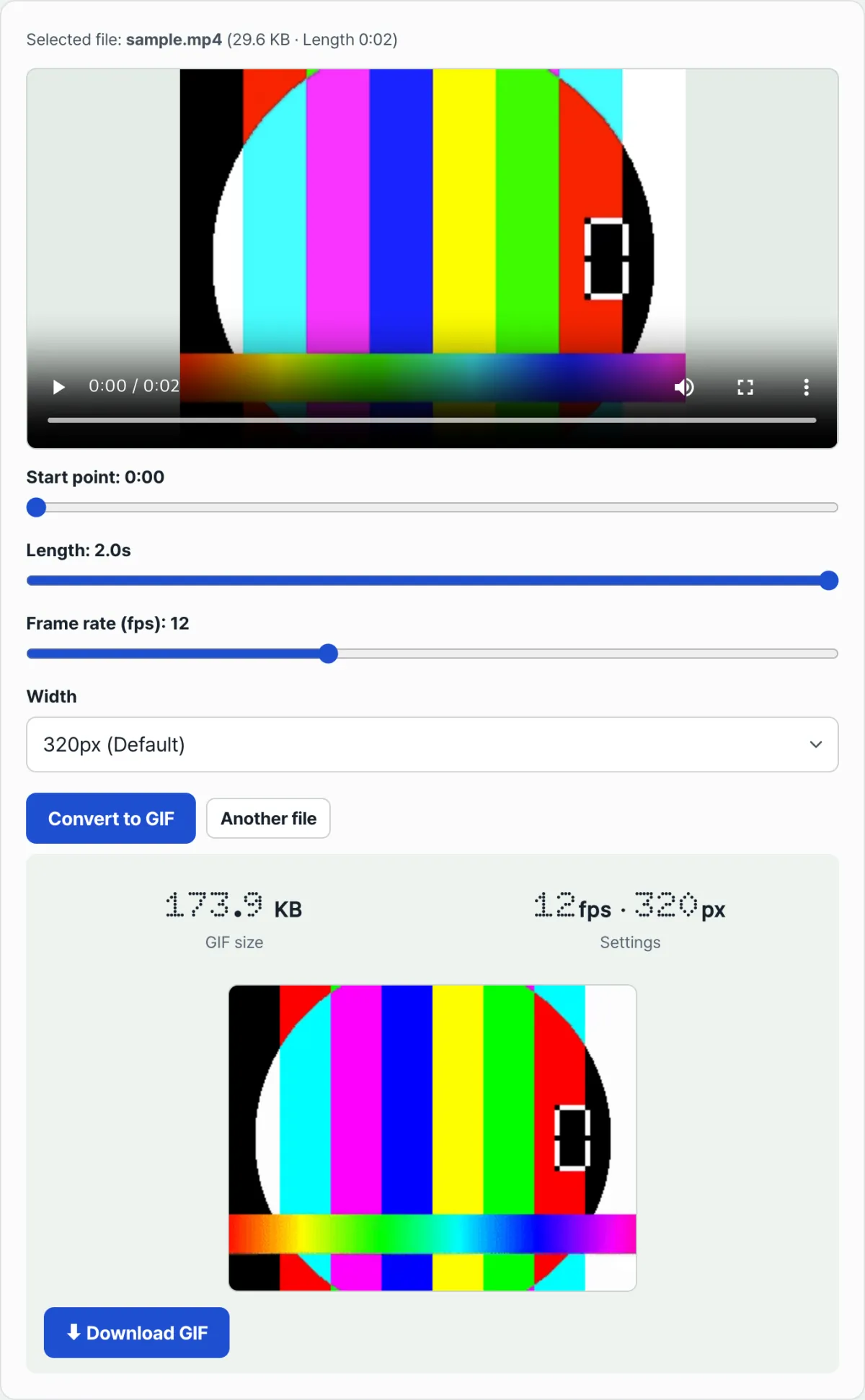
When the conversion finishes, the result screen shows the GIF file size together with the fps and width settings currently applied. You can watch the number drop right away when you lower fps or shrink the width on the same video. All of this happens inside your browser, and your file is never uploaded to a server.
The takeaway
- Unlike video codecs, GIF doesn't predict motion to compress. It chains still images frame by frame, so converting an already-compressed video to GIF can actually make the file bigger.
- A single GIF frame holds at most 256 colors, so color expression drops compared with the source video, and banding tends to show up wherever colors shift gradually.
- Rebuilding the palette for the clip can reduce banding, but it doesn't remove the 256-color limit.
- Lowering fps means fewer frames to store and a smaller file, but the motion looks choppy.
- Shrinking the width lowers file size the same way, by reducing pixel count. In the end, fps and size are the controls you use to decide where you land between quality and file size.
Pick the clip range, fps, and width, then convert to GIF. Your file never goes to a server — it's processed only in your browser.
Frequently asked questions
I converted a video to GIF and the file got bigger than the original video. Did I do something wrong?
No. Video compresses by recording only what changed from the previous frame, but GIF stores a still image with a color table applied for every single frame, with no predictive compression. Even in stretches where little changes, each frame is stored separately, so it's common for the GIF to be larger — even for a short clip.
Why does lowering fps make my GIF look choppy?
fps is the number of frames stored per second. Lower that number and you have fewer frames to store, so the file gets smaller — but the gap between frames grows, so motion looks uneven and jerky to the eye. It's a straight trade between file size and smoothness.
If I lower the width (resolution), does quality get worse too?
Yes, it can. Lowering the width reduces the number of pixels in each frame, so fine detail can get coarser. What's certain is the effect on file size: fewer pixels means less data to store, so this is usually the first value to try when you want a smaller file.
Is there a way to keep as much quality as possible and still shrink the file?
GIF itself has a hard limit of 256 colors per frame, and there's no way around that. Building a palette tailored to the clip can reduce how much colors get muddied, but you can't push quality infinitely high without lowering fps and size. The reliable approach is to try a few combinations and find the point where both the file size and the quality are acceptable to you.
This article was adapted from our Korean original. Read the Korean original