
Why browser recordings are webm, not mp3 (and how to check)
Contents
When you record your voice in the browser and save it, the file often ends with an unfamiliar ".webm" extension instead of mp3 or wav. If you send that file in a messenger app such as KakaoTalk or WhatsApp, or open it in an older playback program, it often won't play. The short answer: you didn't choose this format. Your browser picked it automatically from the codecs it supports.
Summary ① The format of a browser recording isn't chosen by you — the browser picks it automatically from the codecs it supports. ② Chrome, Edge, and Firefox mostly save webm (Opus); Safari saves mp4 (m4a). ③ Both webm and m4a are standard audio formats, so if playback fails, the file isn't damaged — that program just doesn't support the codec.
The recording won't open: why does this happen?
You record a meeting or an idea in the browser and save it. Then you send the file to someone or open it in an older media player, and it won't play. You look at the extension and it's ".webm" or ".m4a" instead of something familiar like mp3, which is confusing.
At that point you might assume the recording went wrong or the file is corrupted, but the file itself is usually fine. The problem is that the program you're opening it with doesn't support that audio codec.
How to check what format your browser is saving right now
Recording from a mic in the browser mostly uses MediaRecorder, a web standard API. This API can only choose from a list of codecs the browser maker has already defined for audio compression, and a webpage can't add a new codec on its own.
In practice, the page's code calls something like MediaRecorder.isTypeSupported('audio/webm;codecs=opus') to check whether the browser supports that format as true/false, then starts recording with the highest-priority format it supports. You can reproduce this yourself by typing the same code into the developer tools (F12) console.
So "save as webm or save as mp4" isn't an option you pick on screen. It's a value the browser decides by scanning its supported codec list the moment recording starts. That's why the same website gives you a different file extension in Chrome than it does in Safari.
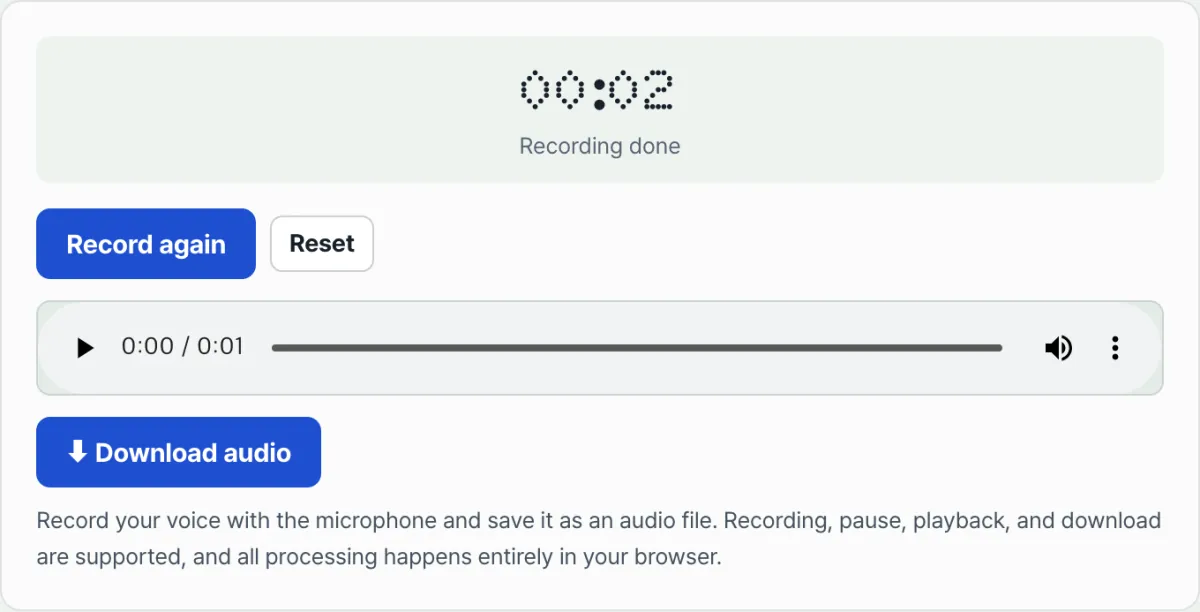
Check it with our tool. Instead of typing console commands one by one, you can record directly in Voice Recorder and see right on the results screen which format your current browser actually picks.
Free · No install · Recording is processed only inside your browser
Different browsers save different formats
Because each browser has its own list of supported codecs, the same recording tool produces different file formats. Here are the combinations you'll run into most.
| Browser | Actual saved format |
|---|---|
| Chrome / Edge | webm container + Opus codec (.webm) |
| Firefox | webm container + Opus codec (.webm) |
| Safari (Mac, iPhone) | mp4 container + AAC-family codec (.m4a) |
That's also why the same person recording on the same site can get a different extension after switching to another browser. A format change doesn't mean the recording feature itself is broken.
What to check when webm or m4a won't play
If a recording you received won't play in one particular program, the fastest check is to open it in a general-purpose media player. Most modern players and the default playback apps on smartphones handle webm and m4a without any issue.
If you still need a format like mp3 for a specific older program or device, converting a single file with an audio conversion tool is simpler than trying to change the format at the source. Leave the original recording as it is and use only the converted copy in that program.
If a file won't play when you send it in a messenger, the issue may be the transfer method rather than the codec. Some messengers don't recognize audio extensions, so instead of showing a player they send it only as a "file". In that case, the person receiving it can download the file and open it in a separate app, and it will play normally.
The bottom line
A browser voice recording saved as webm or m4a instead of mp3 isn't an error. It's because the web standard MediaRecorder API picks a format automatically from the codecs each browser supports. Chrome, Edge, and Firefox use webm (Opus) by default, and Safari uses mp4 (m4a).
If you get a file that won't play, in most cases it isn't damaged — the program just doesn't support that codec. Open it in a general-purpose player, or convert it to mp3 only if you need to.
Free · No install · Recording is processed only inside your browser
Frequently asked questions
What do I open a webm file with?
Most modern browsers, default playback apps on smartphones, and general-purpose media players like VLC play it without installing anything extra. If it won't play, the program is either outdated or doesn't support this codec.
Can I save directly as mp3 while recording?
No. The MediaRecorder API itself is designed to use only the codecs built into the browser, and most browsers don't include mp3 encoding in their supported list. If you need mp3, finish recording first, then change the format with an audio conversion tool.
What happens if I close the browser tab while recording?
Your recording data stays in browser memory only, until you press the stop button to turn it into a file. If you close the tab or refresh before pressing "Stop", everything you recorded up to that point is lost and not saved.
Is my recording uploaded to a server?
No. Recording, playback, and download all happen inside your browser. No audio is sent to or stored on an external server.
This article was adapted from our Korean original. Read the Korean original