
Trim a Video Without Heavy Editing Software: Fast, Lossless Cuts
Contents
When you just want to keep the useful part of a meeting recording or lecture video, installing a heavy editing program like Premiere Pro just to trim the ends often feels like too much. The thing is, if trimming is all you need, you can get it done in seconds by cutting the original stream exactly as-is, with no re-compression. Once you understand how that works, you can decide for yourself which approach fits each situation.
Summary ① Compressed video is made up of keyframes at regular intervals, with predicted frames in between ② Trimming with a lossless copy is very fast and loses no quality, but the start point can snap back to the nearest keyframe ③ To cut at an exact point you need to re-encode, which adds processing time
Why do you reach for an editing program when all you need is a trim?
It's common to want only a certain section from a meeting recording, a lecture video, or a clip you shot yourself. The problem is that even though "trimming" is a simple task, people assume they need to install a heavy editing program to do it.
But editing programs are heavy because of subtitles, effects, color grading, and other features — not because of trimming itself. If you're purely cutting off the front and back, a much lighter approach is enough.
Most video files are compressed with a codec like H.264, so they don't store every frame in full. Instead, a "keyframe" holding the whole picture is placed at regular intervals, and the frames in between record only what changed from the frame before. Because of this structure, how you process the file depends on where you start cutting.
Fast lossless trimming vs. precise trimming: how to check and fix it
If you want to try it yourself, you can install the free program ffmpeg and run it from the terminal. For example, ffmpeg -ss 10 -i input.mp4 -t 20 -c copy output.mp4 copies the stream as-is, without re-compressing, cutting 20 seconds starting at the 10-second mark.
This method (stream copy) doesn't redraw any frames — it just joins pieces of the file together, so it finishes in seconds and loses no quality. The catch is that the start point may not be exactly the time you specified; it can be adjusted automatically to the nearest keyframe before it.
If you want to cut at an exact, frame-level point, you have to re-encode the video instead of stream copying. That means decoding every frame and re-compressing from the specified point, so it's accurate, but re-encoding the whole file takes longer.
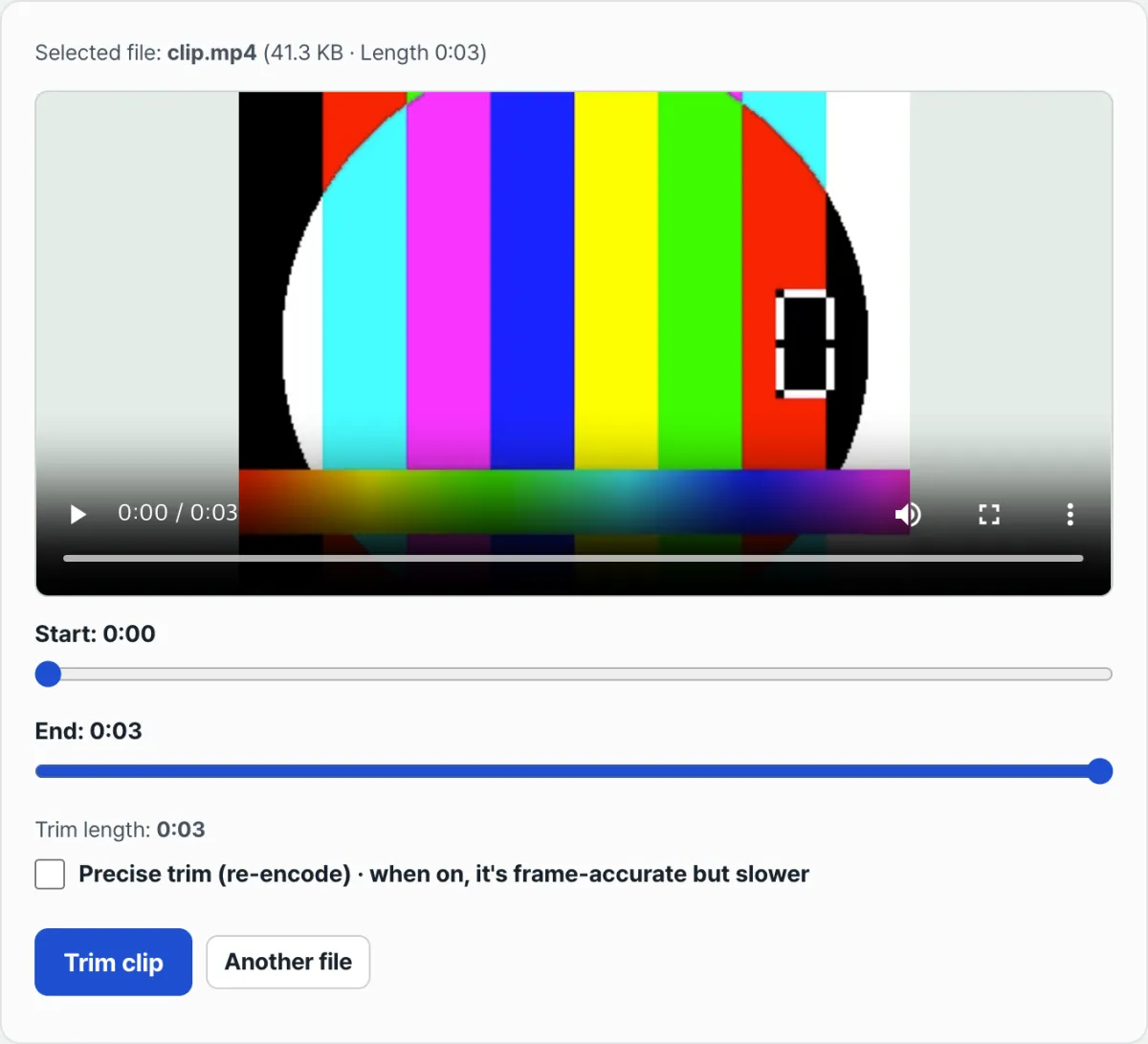
Check it with our tool. You don't have to memorize terminal commands — set the start and end points with sliders, turn on "Precise trim" only when you need it, and the same processing happens right in your browser.
Free · No sign-up · Trim a clip right in your browser
Common places people get stuck
| Situation | Cause |
|---|---|
| I trimmed losslessly, but the start point is slightly off | Stream copy only cuts on keyframe boundaries, so it starts at the nearest keyframe instead of the time you specified |
| It takes a long time after turning on "Precise trim" | It re-decodes and re-encodes every frame, so longer files take longer to process |
| The trimmed video won't play or the picture is broken | The source codec doesn't match stream copy; turning on "Precise trim" fixes most of these cases |
| I set a short start and end, but the resulting length is different | The slider values move in fixed steps, so the actual length can differ from your setting by a fraction of a second |
As the table shows, most problems come from the fact that lossless copy only cuts on keyframe boundaries. If accuracy at the start point matters, it's better to turn on "Precise trim" from the beginning.
The bottom line
You don't need a heavy editing program to cut out just the section you need from a video. Compressed video is made of keyframes and predicted frames, so copying the stream as-is without re-encoding lets you trim very fast with no loss of quality.
The catch is that the start point can snap back to the nearest keyframe, so if you need frame-level accuracy, turn on re-encoding and spend a little more time.
Free · No sign-up · Trim a clip right in your browser
FAQ
Why isn't the start point exact when I trim losslessly?
A lossless copy doesn't re-compress the file — it just joins pieces together — so it cuts from the nearest keyframe before your chosen time rather than at that exact time. If you need the exact point, turn on "Precise trim (re-encode)."
Does turning on "Precise trim" make the quality worse?
Re-encoding means compressing the video one more time, so in theory it can introduce some loss. Choose re-encoding only when cutting at the exact point matters more to you than quality.
Where does the processing happen? Do I have to upload my video?
It all happens in your browser, and the file is never sent to a server. That said, since the copy or compression runs in the browser, processing can take longer with large files or when re-encoding is turned on.
This article was adapted from our Korean original. Read the Korean original