
Video Rotates Sideways in Some Apps? Here's How to Fix It
Contents
When you shoot a video vertically on your phone and then move it to a computer or upload it to another program, sometimes the picture plays sideways, rotated 90 degrees. The file itself isn't damaged — the program just isn't honoring the rotation info saved inside the file. Here's what that rotation info actually is, and how to lock the direction so the video looks the same everywhere you open it.
Summary ① Smartphone camera sensors are mostly fixed in landscape orientation, so even when you shoot vertically, the pixels are stored lying on their side, and how many degrees to rotate them for display is recorded separately as rotation info. ② Programs that read and apply this info always show the video upright, but programs that ignore it and draw the pixels as-is show the same file sideways or upside down. ③ If you actually rotate the pixels and re-save instead of just changing the rotation info, the video will look the same in any program from then on.
Why vertical videos look different in different programs
Even when you hold your phone vertically to record, the camera sensor itself is mostly fixed in a landscape orientation. So the pixel array actually written to the file is often lying on its side, and the reason it looks upright on screen is the separately stored rotation info.
The device uses its gyroscope and accelerometer at the time of recording to detect which way the phone was tilted, and saves how many degrees to rotate the video as rotation info inside the file. The problem is that not every program applies this info the same way.
Your phone's gallery app and modern browsers read this info and rotate the video automatically, but some editing programs and players that cut and splice video as-is or process it the old way ignore the info and show the stored pixels exactly as they are. As a result, the same file can look upright in one place and rotated 90 or 180 degrees in another.
Rotation info and actually rotating pixels are different things
The key distinction here is that "changing the rotation info" and "rotating the pixels themselves" are two different jobs. Changing only the rotation info means rewriting a single display value inside the file, which takes no time at all, but programs that ignore that value will still show the wrong orientation.
Rotating the pixels themselves, on the other hand, means turning the actual picture drawn on screen by 90 or 180 degrees and then compressing (encoding) it again from scratch. A file made this way already contains a correctly oriented picture, so it looks the same even in programs that never read rotation info at all.
The catch is that re-compressing the pixels takes longer than changing a single rotation value, and because the video is compressed again, some compression loss can add up a little each time.
How to check and lock the orientation without a tool
To find out whether your current file has a rotation info problem, open the same file in two or more different players and compare. If it looks upright on your phone but sideways in one particular program, that means the file isn't wrong — that program just doesn't apply the rotation info.
If you want to lock the orientation for good, rotate the video to the direction you want in a video editing program on your computer and save (export) it again. Most editors actually rotate the picture and re-compress it during this step, so a file saved that way will look the same in any program afterward.
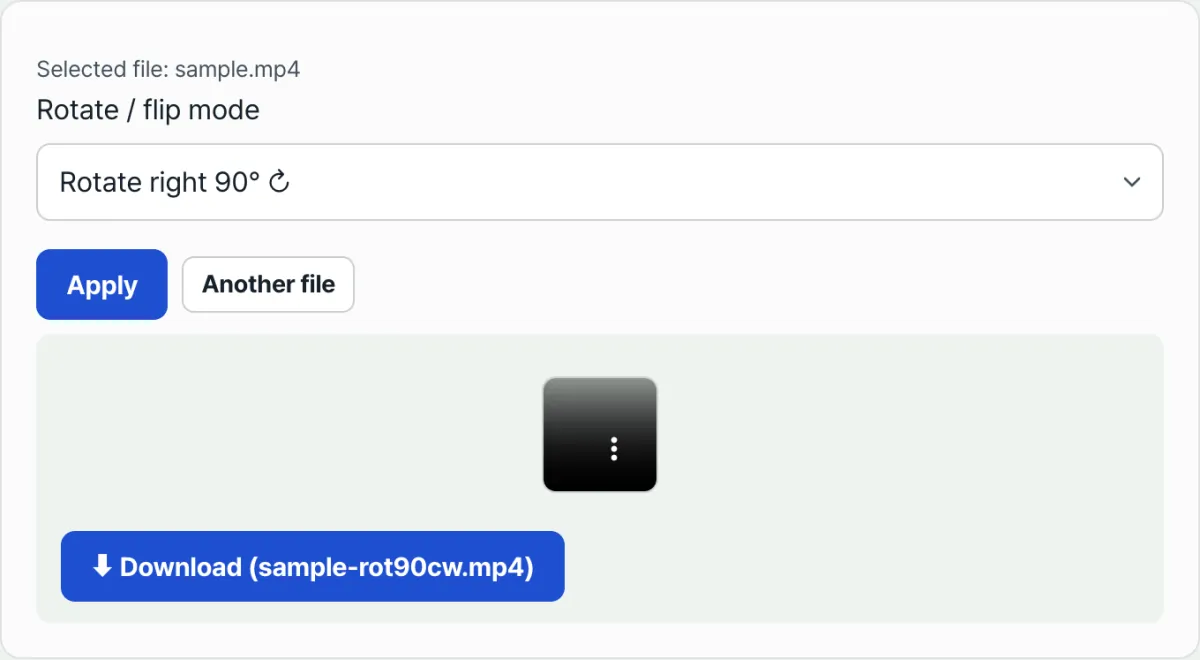
Check it with our free tool. If installing an editor and dialing in export settings feels like a hassle, just upload your file, pick a direction, and let a tool that rotates the actual pixels and re-saves do it in one step.
Free · No sign-up · Runs in your browser (no server upload)
Common sticking points
Here's a rundown of when rotation problems show up.
| Situation | Cause |
|---|---|
| Fine in your phone gallery, sideways in a certain editing program | That program doesn't apply the rotation info and displays the pixels as-is |
| Only lies sideways after posting to a messenger app or some websites | The upload process re-compresses the file its own way, so rotation handling can differ from the original |
| Direction gets weird after putting an already pixel-rotated file back into a rotation tool | The pixels themselves were already rotated, not just the rotation info, so you have to recalculate and pick the direction again |
The takeaway
- Phone videos often store rotation info separately from the pixels, and whether a program applies that info varies, so the same file can look different.
- You can find out which program shows it wrong by opening the same file in another program and comparing.
- To lock the orientation for good, you need to rotate the actual pixels and re-save rather than change the rotation info — then it will always look the same wherever you open it.
- Dynamic Labs' Rotate & Flip Video uses exactly this approach: it rotates the pixels and re-saves right in your browser, without sending the file to a server.
Free · No sign-up · Runs in your browser (no server upload)
Frequently asked questions
Does it actually rotate the pixels instead of just changing the rotation info?
Yes. This tool rotates or flips the actual pixels drawn on screen, then re-encodes and saves them. It doesn't just change the rotation value, so the video looks correctly oriented even in programs that ignore that info.
Is my file uploaded to a server?
No. Rotating and flipping all happen inside your browser, and the video is never sent to or stored on a server. That said, the first run needs to download the processing engine (about 30MB), so it may be slow for a moment.
Does image quality keep dropping if I rotate it multiple times?
Because it re-compresses the actual pixels, each pass on the same file can add a bit more compression loss. Rather than trying different directions by trial and error, picking the direction you want once up front is better for quality.
Why is the output always an mp4?
After rotating or flipping, the file is saved as an mp4 using the h.264 codec, so it plays reliably on most devices and platforms regardless of the original format. If you need another format, you can follow up with a separate video conversion tool.
This article was adapted from our Korean original. Read the Korean original