
CSV contacts not opening on iPhone? Convert CSV to vCard
Contents
You've probably organized client and coworker contacts in a spreadsheet in Excel or Google Sheets, then tried to load the whole thing into your phone's contacts app at once — and hit a wall. Often the file just won't open, or only one person comes through and the rest vanish.
Summary ① The iPhone Contacts app has no way to import a CSV spreadsheet file. It only reads vCard (.vcf), a fixed text format. ② One CSV row becomes one block in vCard, starting with BEGIN:VCARD and ending with END:VCARD. Stack those blocks together and you get many people in a single file. ③ The CSV column names (name, phone, email, and so on) have to line up exactly with the standard fields, or the values land in the wrong place.
Why You Can't Just Drop a Spreadsheet File Into Your Phone
The iPhone Contacts app and iCloud Contacts have no CSV import menu at all. Open a CSV attached to an email and it's treated as a plain text document — you never get a prompt asking whether to add it as contacts. But if the same content is in vCard (.vcf) format, opening it in the Mail app or Files app brings up an "Add Contact" screen right away.
Google Contacts on the web does support CSV import, but not just any CSV — it has to match the column order and names Google defines. In the end, the one common format that works without exception on both iPhone and Android is vCard.
How to Move CSV Rows Into vCards by Hand
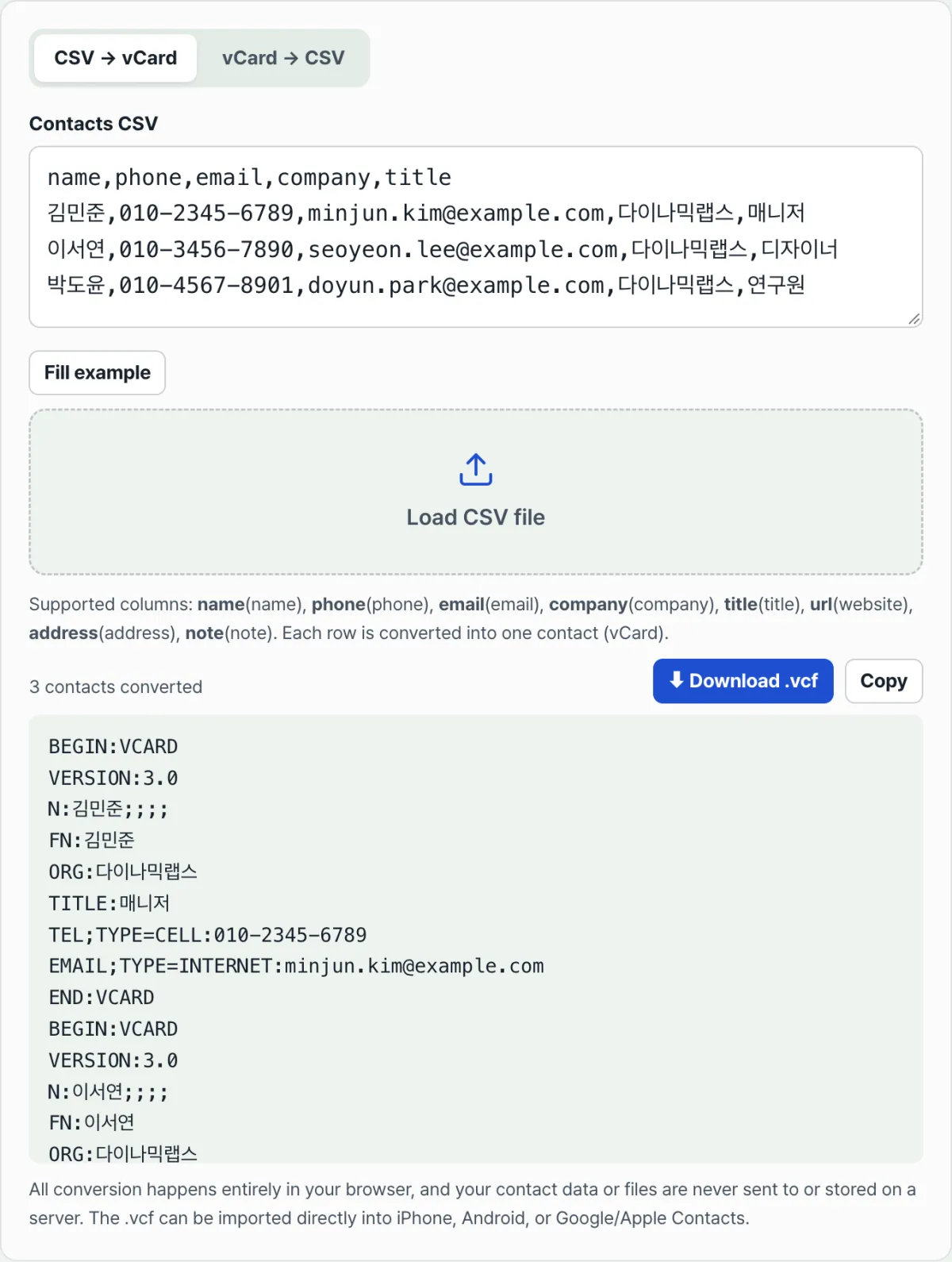
A vCard file isn't some special program format. It's text you can open in Notepad. A single contact looks like this: one chunk that starts with BEGIN:VCARD and ends with END:VCARD.
BEGIN:VCARD
VERSION:3.0
FN:김민준
TEL;TYPE=CELL:010-2345-6789
EMAIL:minjun@example.com
END:VCARD
Copy one row from your CSV — name, phone number, email — into this format, then join the chunks with line breaks, one per contact, and a single .vcf file holds all of them. The catch is that if a company name or note contains a comma, semicolon, or line break, it collides with the field separators and breaks the file. You have to escape those values by hand with a backslash. Two or three contacts, maybe that's fine. Past a few dozen, repeating this line by line just isn't realistic.
There's a free tool that handles the whole process — you just upload your CSV. It builds a vCard block for each row, escaping included, and packs them into one file. It's called Contacts CSV ↔ vCard Converter.
Free · No sign-up · CSV ↔ vCard converter that runs entirely in your browser
How CSV Column Names Map to vCard Fields
The column names in the first row of your CSV (the header) are matched automatically to the right vCard fields. For example, a column labeled name or 이름 goes into FN and N, and phone or 전화 goes into TEL. If that matching misses, you end up with contacts where the values are blank, so get the column names in your CSV aligned with the standard names first.
Where People Get Stuck
| Situation | Cause |
|---|---|
| No conversion result at all | The header has no recognized column name for name, phone, or email |
| A notice says some rows were skipped | Those rows had no name, phone, or email, so they couldn't be treated as contacts |
| Company and address columns look shifted | A comma inside a value wasn't wrapped in double quotes, so the CSV itself was split into the wrong columns |
| Photos and group info disappeared when converting .vcf to CSV | The conversion focuses on text fields (name, phone, email, etc.), so items like photos aren't in scope |
Recap
- The iPhone Contacts app can't import CSV directly and only reads vCard (.vcf), and on Android and Google Contacts too, vCard works without exception where CSV doesn't.
- One CSV row becomes one block running from BEGIN:VCARD to END:VCARD, and joining those blocks puts multiple contacts in a single file.
- The column names in your CSV header have to match standard fields like name, phone, and email exactly for values to land in the right place.
- Commas, semicolons, and line breaks inside values are exactly where manual handling goes wrong, which is why automatic conversion makes such a difference here.
Free · No sign-up · CSV ↔ vCard converter that runs entirely in your browser
Frequently Asked Questions
Google Contacts can import CSV, so why do I need vCard?
Google Contacts' CSV import only accepts files that match the column order and names Google defines. The iPhone has no such feature at all, so CSV can't satisfy both platforms at once. Since vCard is the format both sides read without exception, you still have to convert your CSV to vCard in the end.
If I open a .vcf file on my iPhone, is it added automatically?
When you open a .vcf file you got as an email attachment or over AirDrop, the Contacts app shows the list of contacts inside it, and you have to tap "Add All" to actually save them. Just receiving the file doesn't save anything on its own.
Company name or job title doesn't show up in the converted file. Why?
If your CSV has no column for company or title, or the column name doesn't match a recognized name (like company or title), that field gets skipped. Fix the header names in your original CSV to match the standard names and it'll work.
Does the same approach work on Android?
Yes. vCard isn't a proprietary format for one company — it's an open standard, so Android's contacts app and contacts in your Google account can import .vcf files as they are.
This article was adapted from our Korean original. Read the Korean original