
Excel CSV Garbled Text: Save as UTF-8 to Fix Encoding
Contents
When you save a table from Excel as CSV and open it in another program, the Korean text sometimes shows up as question marks (?) or unknown symbols. The file isn't corrupted. The character encoding used when saving is simply different from the encoding the other program expects. This post explains why the problem happens and how to convert to a CSV that keeps Korean text intact no matter where you open it.
Summary ① By default, saving as "CSV (Comma delimited)" in Excel on Windows uses the Korean Windows code page (CP949), not Unicode ② Most web systems and other operating systems expect UTF-8 by default, so Korean text saved as CP949 looks garbled ③ If you choose "CSV UTF-8 (Comma delimited)" when saving, or re-save as UTF-8 with BOM, Korean text displays correctly wherever you open it
Why Korean text in an Excel CSV breaks in other programs
Say you save a member list or product list from Excel as CSV, then upload it to a shopping mall admin page or a database import feature. The columns with names or addresses may come out as question marks or unknown symbols. If the columns with only numbers or English look fine and only the columns with Korean text are broken, it's an encoding problem, not file damage.
When you save with the file type just set to "CSV (Comma delimited)" in Excel on Windows, the file is actually saved in your system locale's ANSI code page. On Korean Windows, that code page is CP949 (the standard that extends the older EUC-KR), which maps each Korean character to a fixed 2-byte value. Web servers, databases, and programs on Linux or Mac, on the other hand, expect UTF-8 by default, a single system for representing characters from around the world. The same character has different byte values in CP949 and in UTF-8.
When a program expecting UTF-8 runs into CP949 bytes, it interprets them as undefined byte combinations and replaces them with question marks or broken symbols. The reverse happens too. If you save a CSV as UTF-8 and then double-click it to open it straight in Excel on Windows, Excel misreads it as the system default encoding (CP949) unless there's a BOM marker at the start of the file, and this time the Korean text looks garbled in Excel.
How to convert Excel to CSV without breaking Korean text
In Excel, go to File > Save As, then pick "CSV UTF-8 (Comma delimited)" from the file type list instead of plain "CSV (Comma delimited)". This option is included in Excel 2016 and later. It encodes the text as UTF-8 and also writes a BOM (Byte Order Mark) at the very start of the file. Thanks to that BOM, when you open the same file in Excel later, it automatically recognizes the file as UTF-8 and the Korean text stays intact.
If you already saved as plain CSV and the Korean text is broken, open the file in Notepad, bring up the Save As dialog, change the Encoding setting at the bottom to UTF-8, and save again. One caveat: if the text already appears as question marks or broken symbols when you open it in Notepad, the original character information is gone and can't be recovered. You have to go back to the original Excel file and save it again from there.
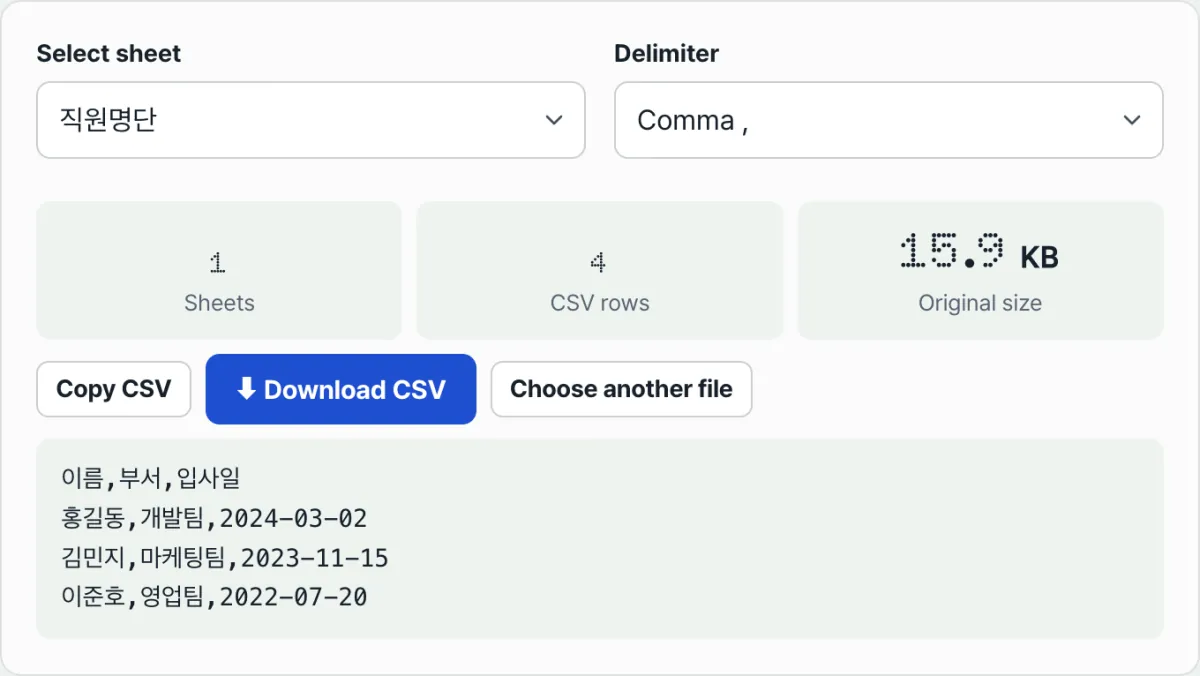
Check it with our tool. Upload your Excel file and choose an encoding (UTF-8, for example) and a delimiter, and you can generate and download a CSV file with the Korean text intact right away.
Free · no sign-up · upload your Excel file as is and convert it straight to UTF-8 CSV
Common stumbling blocks
| Situation | Why it happens |
|---|---|
| You just saved as "CSV (Comma delimited)" in Excel | The file is saved in your system locale's code page (CP949 on Korean Windows), so programs expecting UTF-8 show garbled text |
| You saved a CSV as UTF-8 and double-clicked it in Excel, and it's garbled | Without a BOM, Excel misreads it as the system default encoding |
| A cell contains a comma or a line break | The program can't tell the delimiter from the value, so columns look shifted. Wrap that value in double quotes |
| Leading zeros disappear from ZIP codes or business registration numbers | Unrelated to encoding. Excel auto-detects the value as a number format, which is a separate issue |
The bottom line
Excel's default CSV save uses the Korean Windows code page (CP949), but most outside systems expect UTF-8. That mismatch is the root cause of Korean text showing up as question marks or broken symbols. If you choose "CSV UTF-8 (Comma delimited)" when saving, the file is saved as UTF-8 with a BOM, which solves the problem in most cases. A file that's already broken can't be recovered. Go back to the original Excel file, set the encoding again, and convert it fresh.
Free · no sign-up · upload your Excel file as is and convert it straight to UTF-8 CSV
Frequently asked questions
What's the difference between CSV UTF-8 and plain CSV?
Both use commas to separate values, but they encode characters into bytes differently. Plain CSV uses your system locale encoding (CP949 on Korean Windows), while CSV UTF-8 uses the international UTF-8 standard and puts a BOM at the start of the file so Excel recognizes it too.
Can I just change the encoding in Notepad and save?
Yes, you can. But if the text already appears as question marks or broken symbols when you open it in Notepad, the original character information is gone and can't be recovered. In that case, you have to go back to the original Excel file and save it again.
Do disappearing leading zeros in ZIP codes or business registration numbers have the same cause?
No. That's not encoding. Excel automatically treats values that look like numbers as number format, which is a separate problem. An encoding problem shows up as garbled characters, while this one changes the value itself (001 becomes 1), so the cause and the fix are different.
This article was adapted from our Korean original. Read the Korean original