
Excel Table to Markdown: Fix Broken Pasted Tables
Contents
You've probably copied a table from Excel or Google Sheets, pasted it straight into a GitHub README or a Notion page, and ended up with nothing but line breaks — no table structure, no column separation. That's not a paste mistake. It's because Markdown describes tables in a completely different way than Excel does. Once you understand the mechanics, you can move a table over as-is instead of rebuilding it by hand every time.
Summary ① Markdown uses its own syntax for tables: pipe (|) characters plus a divider row (---) under the header ② Data copied from Excel or Google Sheets is plain text with tabs between columns, so it has none of that syntax ③ Follow just two rules — a pipe between each cell and a divider under the header — and the table comes through intact
Why does a pasted table collapse into plain line breaks?
When you copy a cell range in Excel or Google Sheets, the clipboard holds plain text where each cell is separated by a tab character and each row by a newline character. It looks like a table on screen, but what's actually there is ordinary text plus invisible tab characters.
Markdown doesn't recognize that text as a table. To make a table in Markdown, you put a pipe (|) between each cell and you must add a divider row directly under the header line, something like |---|---|---|. Without those two pieces of syntax, the renderer just treats the whole thing as a regular paragraph.
That's why pasting tab-separated text into a GitHub README or a Markdown editor doesn't draw a table — there are no pipes and no divider. Only the line breaks survive, and the tabs between cells get flattened into roughly a single space on screen, so the text looks jammed together.
Notion does convert tab-separated data into a table block automatically when you paste it into an empty page. But if you paste into an existing text block or into the Markdown source view, the tabs stay exactly as they are and the table breaks the same way.
How to check: convert it to Markdown table syntax by hand
First count how many rows and columns the table has, then start with the first line (the header). Put a pipe before and after each cell value so it looks like "| Name | Score |".
On the line right after the header, add dashes (---) joined by pipes, one per column, to create the divider row. Two columns means |---|---|; three means |---|---|---|. That divider is what tells Markdown the first line is a header.
Do the same for the remaining rows, placing a pipe between each cell. If the table contains a literal pipe (|) character, escape it with a backslash so it isn't mistaken for a column divider. Then just repeat this by hand for the whole table.
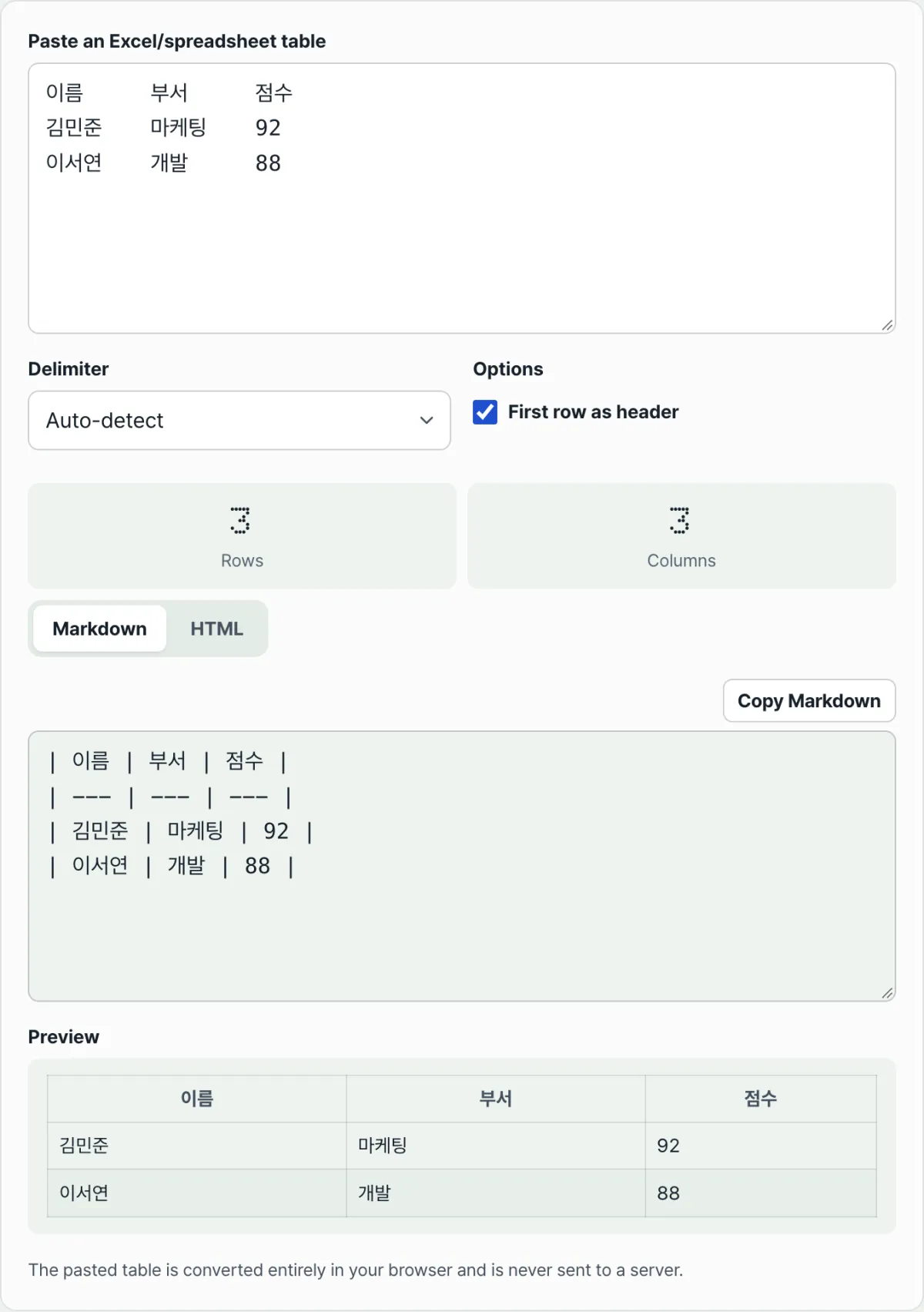
Check it with our free tool. Paste the copied table and it turns the tabs into pipes, adds the divider for you, and converts everything into both a Markdown table and an HTML table at once.
Free · No sign-up · Just paste and your Markdown table is ready
Where people get stuck
| Situation | Cause and fix |
|---|---|
| Pasting data separated by commas instead of tabs | Set the delimiter to comma (CSV) so the columns split correctly |
| A cell contains a line break (Alt+Enter) | It breaks the one-line-per-row structure of table syntax, so replace the line break with a space |
| A cell contains a pipe ( | ) character |
| A table with data only, no header | Set whether the first row should be used as the header so the header slot is filled correctly |
As the table shows, broken tables almost always come down to two things: what the delimiter is, and whether a cell contains special characters. Check those two before pasting and you'll cut conversion mistakes way down.
The short version
Markdown has its own table syntax built on pipes and a divider row, and data copied from Excel or Google Sheets is tab-separated plain text without that syntax — which is why the table shape collapses. Follow just two rules, a pipe between every cell and a divider under the header, and any table comes through intact.
Instead of typing pipes by hand every time, use a tool that converts on paste — the bigger the table, the more time you save.
Free · No sign-up · Just paste and your Markdown table is ready
Frequently asked questions
Notion creates the table automatically, so why doesn't GitHub?
Notion has a feature that recognizes tab-separated text when you paste it into an empty page and converts it into its own table block. A GitHub README or a plain Markdown editor just stores the characters in the file as they are, so you have to write the pipes and the divider yourself for it to render as a table.
What happens if a cell contains a line break?
A Markdown table maps one line to one row, so a line break inside a cell cuts the row off at that point. Replace the line break with a space to keep it on one line and the table structure holds.
When should I use an HTML table instead of a Markdown table?
You need HTML table tags when you require something Markdown tables can't express, like merged cells or formatting inside a cell. For a plain list of text, a Markdown table is enough — and its source is shorter and easier to read.
This article was adapted from our Korean original. Read the Korean original