
Why HTML to Markdown Conversion Drops Tables and Colors
Contents
If you've ever converted an HTML document to Markdown to move it into Notion, GitHub, or a static site draft, you've probably seen this happen. In the original, two cells in a table were merged into one. Open the converted Markdown and the merge is gone — so is the table itself. All that's left is the text from each cell, dumped out line after line. Text color works the same way: after conversion it's just black text with no color information at all.
That's not a sign the conversion failed. It's the structurally expected result of Markdown simply not having syntax for that kind of information in the first place.
Summary ① Markdown is a simple format designed to express only basic document formatting like bold, italics, lists, and tables, so it often has no syntax at all for HTML's more elaborate features. ② Information with no Markdown equivalent — merged table cells, specific text colors, nested inline styles — either disappears during conversion or gets flattened into something else. ③ So don't trust the output as-is. You always need to check it by eye, especially around tables and anywhere color or emphasis was applied.
What was Markdown originally designed to express?
Markdown is a format designed to express basic formatting — headings, bold, italics, lists, blockquotes, links, code — using plain text that's easy to write by hand, plus a minimal set of symbols. There are few enough symbol types that a single syntax table can cover the whole spec.
HTML, on the other hand, lets every tag carry a range of attributes, and once you add CSS on top, you can produce practically unlimited combinations of color, size, and alignment. The two formats were built to cover different scopes from the start.
So moving HTML into Markdown is closer to "summarizing" than "translating." Only the information with a Markdown equivalent gets carried over. Anything without one naturally drops out during conversion.
Things HTML has that Markdown syntax doesn't
The most common snag is merged table cells. An HTML table can make one cell span several columns (colspan) or several rows (rowspan). But Markdown table syntax is just a simple grid: a header row, a separator (---) row, and data rows that all need the same number of cells. The idea of cells merging doesn't exist in the syntax at all.
Color and inline styles are the same story. HTML can set text color, background color, and font size freely through the style attribute or a class. Markdown has only a handful of emphasis markers — bold, italics, strikethrough, inline code — and no syntax for color or size whatsoever.
You can see the same situation in this tool's "Heading style" option. The Setext approach, which marks headings with underlines, is defined in the Markdown spec for only two levels: level 1 (=) and level 2 (-). So if the source HTML has headings at level 3 or deeper (h3–h6), those sections come out automatically in # (ATX) notation even when you pick Setext. In other words, it doesn't force levels that can't be underlined into an underline.
Why tables break so often during conversion
What Markdown table syntax supports is left, center, and right alignment — nothing more. You express alignment by putting a colon (:) on one side of the separator row. There's no place in the syntax for vertical alignment, cell background color, or merged cells.
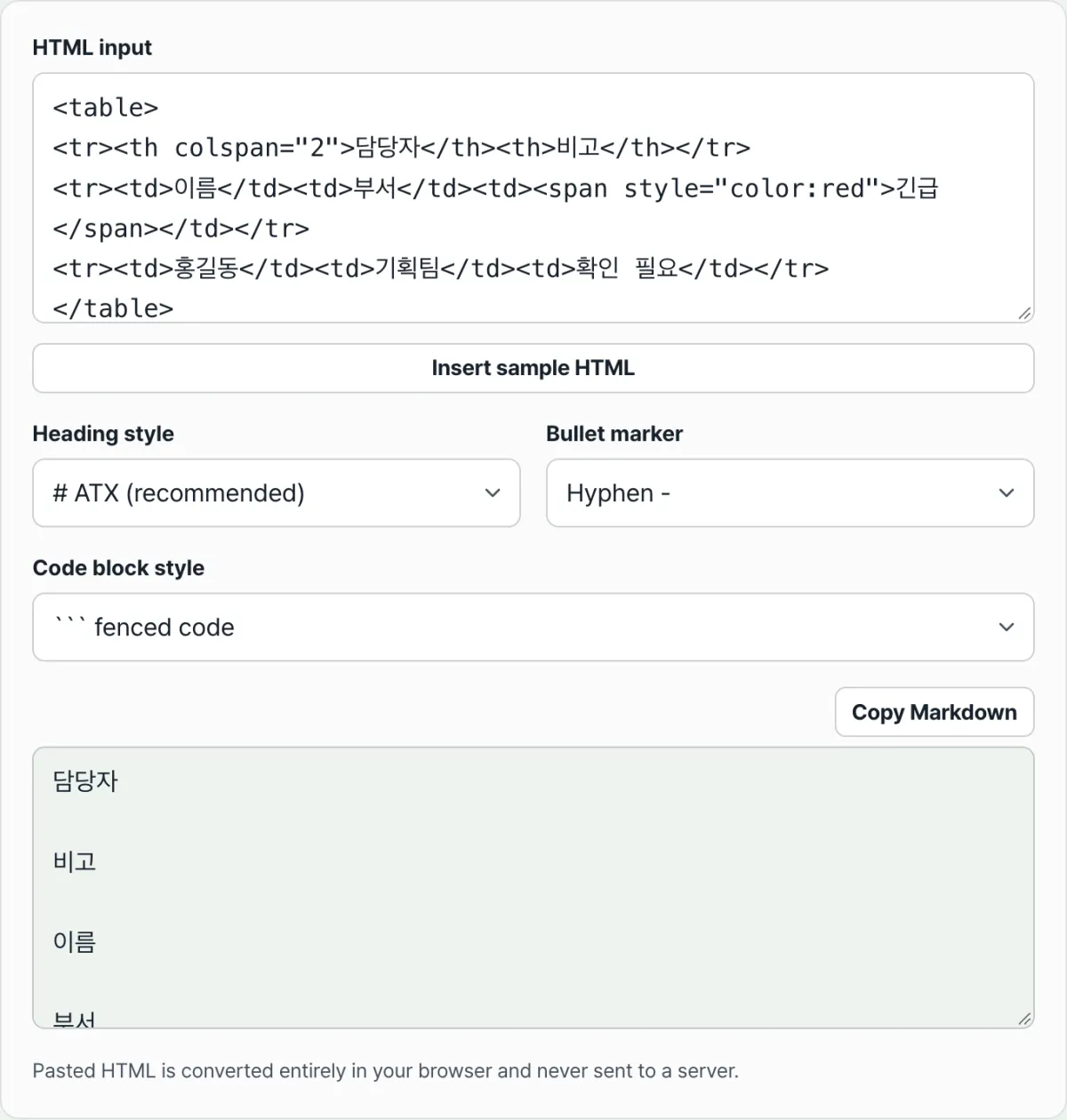
But what this tool actually does is even simpler than that. It doesn't rebuild your HTML table into Markdown table syntax with pipe (|) characters. It just takes the text from each cell, in order, and unwinds it into paragraphs. So where the table used to be, you don't get a table shape divided into rows and cells — you get several paragraphs with the cell contents listed from top to bottom. That's why any post with a table deserves a second look after conversion.
Paste HTML and the HTML to Markdown Converter turns headings, bold, lists, and code blocks into Markdown syntax right away, ready to copy.
What this tool handles for you automatically
The HTML to Markdown Converter automatically carries over everything that has a Markdown equivalent (headings, bold, links, lists, code blocks, and so on) the moment you paste HTML into the input box. There's no separate "Convert" button to press — the result updates as soon as the input changes.
You can also choose the heading style (ATX # or Setext underlines), list marker (hyphen, asterisk, or plus), and code block style (fenced or indented), so you can match the Markdown conventions of wherever you're pasting. All of this is computed in the browser the moment you paste. Nothing is sent to a server.
That said, what the automation does is "accurately carry over what exists in Markdown syntax" — that's it. It can't rebuild a table into pipe syntax, and it can't invent syntax that Markdown doesn't have (merged cells, color). Those are the spots where you need to look at the output and decide for yourself.
What to check first after converting
If there was a table, start with the order of the cell contents. Because the table shape disappears and the cells unwind into paragraphs, check whether the cells that were on the same row continue in order — or whether something got pushed to the wrong place and changed the meaning.
Also revisit any section you emphasized with color or a background. What matters is whether that emphasis survived in some other form, like bold or italics, or whether it got buried as a plain sentence with no marking at all. Where the emphasis is gone, it's safer to reapply it by hand where you're pasting.
The short version
- Markdown is a simple format designed to express only basic document formatting, so it often has no syntax at all for HTML's more elaborate features.
- HTML tables aren't rebuilt into Markdown table syntax (pipe characters). The cell contents unwind into paragraphs in order, and merged cells make the order especially easy to mix up.
- Inline styles like text color and background color have no Markdown syntax at all, so they disappear entirely after conversion.
- The Setext heading style is defined for only levels 1 and 2, so there's no syntax for expressing deeper heading structures.
- This tool automatically carries over formatting that has a Markdown equivalent, but it can't create information the syntax doesn't support. Check tables and emphasized sections yourself after converting.
Paste HTML and the HTML to Markdown Converter turns headings, bold, lists, and code blocks into Markdown syntax right away, ready to copy.
FAQ
What happens to merged cells from an HTML table after conversion?
Markdown table syntax has no concept of merged cells. On top of that, this tool doesn't rebuild tables into Markdown table syntax (pipe characters) — it unwinds the text from each cell into paragraphs, in order. So whether the cells were merged or not, the table shape itself disappears and all you're left with is paragraphs listing the cell contents. If you converted HTML that included a table, make sure the order and meaning of the cell contents still match the original.
I added text color or a background color, and it's gone after conversion. Why?
Because Markdown has no syntax for color in the first place. Only emphasis markers exist — bold, italics, strikethrough, inline code — so information like color or font size has nowhere to go during conversion and disappears. If the emphasis matters, reapply it after conversion using basic Markdown markers like bold or italics.
My headings go three levels deep. What happens if I pick the underline (Setext) style?
The Setext approach is defined in the Markdown spec for only two levels: level 1 (=) and level 2 (-). This tool doesn't force headings at level 3 or deeper (h3–h6) into underlines. Those sections are output automatically in # (ATX) notation instead. So even with Setext selected, the heading levels themselves are preserved — you'll just get a mix of underline notation and # notation in the same document.
Is the HTML I convert saved or sent to a server?
The HTML you paste is converted only inside your browser and is never sent to a server. The resulting Markdown appears only in the result pane on screen, and you move it to your clipboard with the copy button.
This article was adapted from our Korean original. Read the Korean original