
JSON to Excel blank cells: why values disappear
Contents
If you convert a JSON array pulled from an API or database into an Excel file and open it, you may find a column that clearly had values, yet every cell in it is empty.
This is not a failed conversion. It is predictable behavior that happens because the value was a nested object or array. Here is how to tell which blank cells are normal and which are actual data loss before you convert.
Summary ① Blank cells caused by keys that differ from item to item are normal — that item never had the value in the first place. ② If the value is a nested object or array, the column header is created, but the value is not included in the actual Excel file. ③ Running a few lines in the browser console shows you which columns will be blank before you convert.
When an Entire Column Goes Blank After You Convert JSON to Excel
Imagine you download order data from an online store as JSON, convert it to Excel, and send it to the team that needs it. Each order has a field called "options" that stores information such as color and size in { } form. Some orders do not have this field at all.
When you convert it and open the file, the column header "options" is clearly there, but every cell under it is blank. Only orders without the field should be blank. But orders that had values are blank too, so you start to wonder whether the conversion went wrong.
How to Identify the Cause Without a Tool
The two types of blank cells have different causes. If you identify them in the source JSON before converting, the result will not surprise you. Use the console in your browser's developer tools (F12, or Cmd+Option+I on a Mac).
Check Whether the Keys Differ from Item to Item
Assign the source array to a variable in the console, then run the following. It prints a list of every key that appears in the array.
const data = JSON.parse(원본JSON텍스트);
const keys = new Set();
data.forEach(row => Object.keys(row).forEach(k => keys.add(k)));
console.log([...keys]);
These keys become the actual Excel columns. If a particular item is missing one of these keys, only that row will be blank. That is normal. The other items will still be filled in.
Check Whether a Value Is a Nested Object or Array
To find columns where the value itself will disappear, use the code below.
data.forEach((row, i) => {
  Object.entries(row).forEach(([k, v]) => {
    if (v !== null && typeof v === "object") {
      console.log(i + "번째 항목의 \"" + k + "\"는 중첩된 값 — 엑셀 변환 시 빈 칸이 됩니다");
    }
  });
});
Any key printed here will not show up in an Excel cell, even though it has a value. Catch them ahead of time and turn them into strings with JSON.stringify(v), or pull out only the nested values you need into separate keys so they stay in the Excel file.
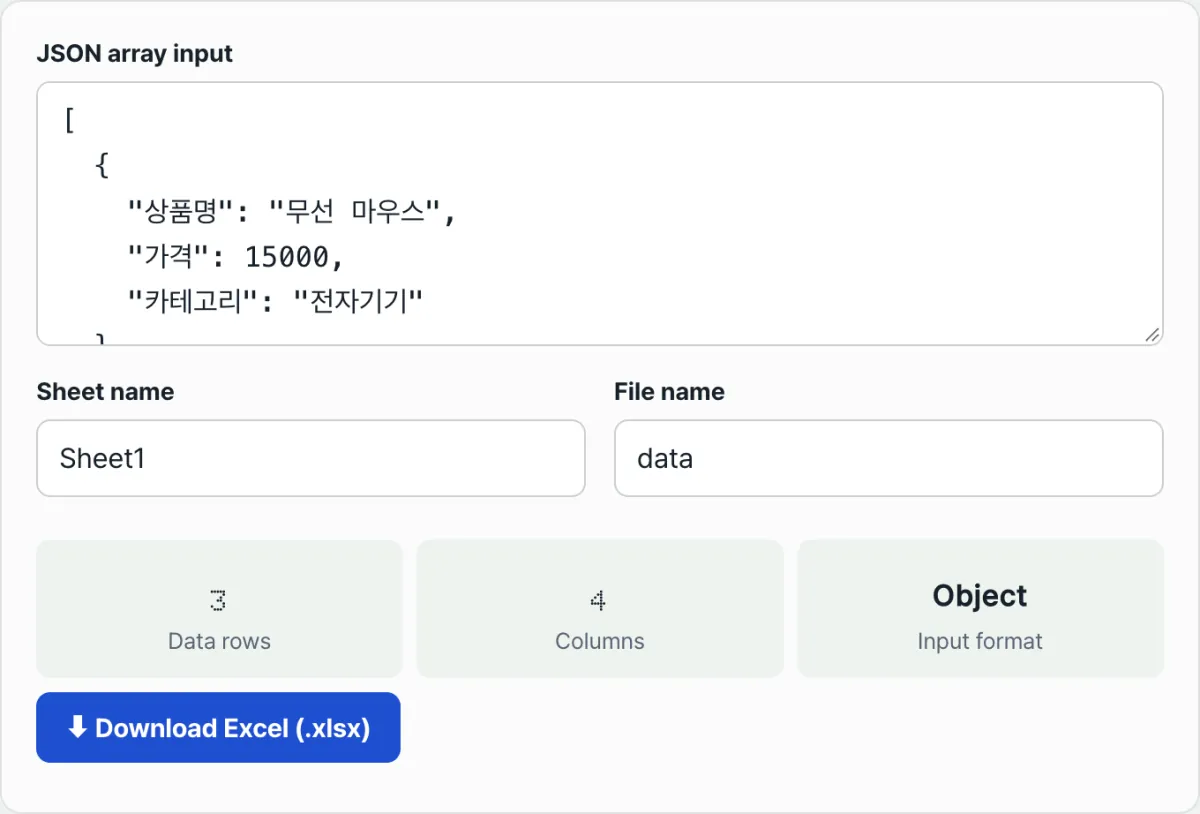
Instead of typing these two checks into the console every time, use our free tool, JSON to Excel (XLSX) Converter. Paste your JSON and it shows the row and column counts right away. It converts a JSON array into an .xlsx Excel file and downloads it, and you can set the sheet and file name.
Free · no sign-up · your JSON never goes to a server — it's converted to xlsx in your browser
Common Gotchas
Here are the facts in a table.
| Situation | What Actually Happens |
|---|---|
| Keys differ from item to item | You get one table that combines all the keys, and missing keys are blank only in that row (normal) |
The value is a nested object { } | The column header is created, but the value is not stored in the actual cell (no error message) |
The value is an array [ ] | Just like an object, it is not reflected in the cell |
The sheet name contains \ / ? * [ ] : | Only those characters are removed automatically, and the rest of the name is saved |
The file name contains " < > | | A different character list than for sheet names applies, so only these characters are removed |
| The sheet name is 32 characters or longer | Only the first 31 characters are saved (Excel's own sheet name limit) |
Sheet names and file names follow different rules. Excel does not allow certain characters in sheet names, and operating systems forbid different characters in file names.
Recap
- Blank cells caused by different key structures from item to item are normal. You get one table that combines all the keys, and only the missing values are blank in that row.
- If a value is a nested object or array, only the column header remains. The actual value is not stored in the Excel cell, and no error message appears.
- You cannot tell these two cases apart from the finished Excel file alone, so check the source JSON in the console before converting.
- The characters forbidden in sheet names and file names are different, and sheet names are cut off at 31 characters.
Free · no sign-up · your JSON never goes to a server — it's converted to xlsx in your browser
Frequently Asked Questions
How Do I Keep Nested Values in the Excel File?
Convert the value to a string in the JSON before converting. Use JSON.stringify(row.옵션) to turn the nested object into a single piece of text, then put it under the same key. Because it is a string, it will show up in the cell as is.
You can also pull out just the nested values you need, such as color and size, into separate keys ahead of time.
Can I Tell a Row That Never Had a Value from a Row Whose Value Disappeared Just by Looking at the Excel File?
You cannot tell from the file alone. Both just look like blank cells. That is why you need to check the source JSON with the console script above before you convert.
What Happens If I Leave the Sheet Name Blank?
If the sheet name is empty, or if it contains only forbidden characters that get removed and leave nothing behind, it is saved as "Sheet1" automatically.
Is the JSON I Enter or the Excel File It Creates Sent to a Server?
No. The JSON you enter and the Excel file that gets created are both processed only in your browser. They are not sent to or stored on a server.
This article was adapted from our Korean original. Read the Korean original