
Convert Markdown Table to CSV for Excel Without Broken Rows
Contents
- Why Markdown tables break in Excel
- How it works under the hood: parsing Markdown pipes and the RFC 4180 CSV spec
- Markdown table conversion methods compared
- 5 common mistakes when moving Markdown tables into Excel
- The 5-step workflow for a flawless Markdown table ➔ Excel conversion
- How different roles use Markdown table conversion
- 7 tips for converting Markdown tables
- Final decision tree: which export should you use?
- Markdown Tables & CSV: Key Terms Cheat Sheet
- Frequently Asked Questions
When you copy a Markdown table from Notion or GitHub and paste it straight into Excel or Google Sheets, the table often doesn't split into cells. Instead it lands jammed into a single row, or the header separator line gets treated as data and the formatting falls apart. This happens because a Markdown table is just text that uses pipe (|) and hyphen (-) characters to make rows and columns easy for humans to read. It isn't the data structure (CSV/TSV) a spreadsheet understands.
Key takeaways ① A Markdown table is text built from pipes (|) and a separator line (|---|), so pasting it directly into Excel collapses it into one column. ② If cells contain commas, line breaks, or escaped pipes (|), a simple find-and-replace shifts your data into the wrong columns. ③ When you open a Markdown table containing Korean text in Excel, you must convert it to CSV with a UTF-8 BOM, or the characters will break.
Why Markdown tables break in Excel
Tables written in Markdown-friendly tools such as Notion, GitHub, and Obsidian usually look like this.
| Name | Department | Title |
|---|---|---|
| Hong Gildong | Development | Senior |
| Lee Younghee | Planning | Principal |
If you drag across this table with your mouse and paste it into Excel, Excel won't recognize the pipe (|) as a column delimiter. As a result, the entire first line "| Name | Department | Title |" lands in a single cell, A1.
Even if you use Excel's Text to Columns feature and set the pipe as the delimiter, the second line, "|---|---|---|", stays behind as a data row, so you have to manually delete that unwanted row every single time.
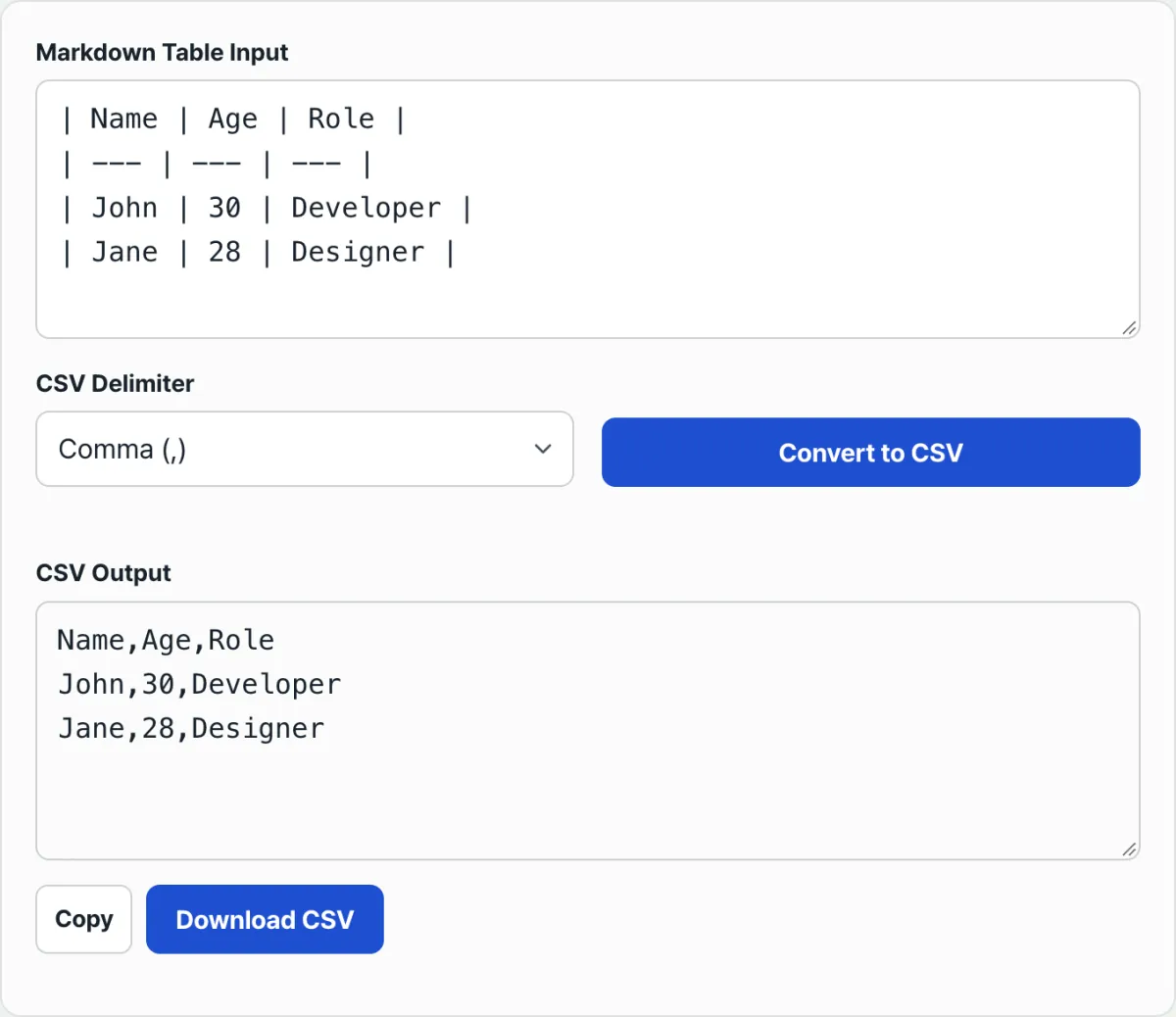
Free · No sign-up · Just paste, and the divider row and alignment colons get cleaned up automatically
How it works under the hood: parsing Markdown pipes and the RFC 4180 CSV spec
Why isn't a Markdown table compatible with Excel, and how should a correct conversion pipeline work?
1. How GFM (GitHub Flavored Markdown) table syntax is parsed
- Trim the outer pipes: You have to remove the border pipes at the start and end of each line first, or Excel ends up with empty columns.
- Filter out the alignment separator: The alignment separator row used by the syntax (|:---|:---:|---:|) must be detected precisely with a regular expression and removed.
- Preserve escape sequences: A backslash-escaped pipe (|) must be kept as plain text rather than treated as a column delimiter, or your columns shift out of place.
2. RFC 4180 international CSV encoding rules
- Cells containing commas: If a value contains a comma, the entire cell must be wrapped in double quotes ("").
- Cells containing line breaks: When converting a Markdown
tag into an actual line break, the entire cell must be wrapped in double quotes so Excel treats it as multiline text inside a single cell. - Insert a UTF-8 BOM (Byte Order Mark): Windows Excel assumes ANSI (CP949) when a UTF-8 document has no BOM signature, which garbles Korean text.
Markdown table conversion methods compared
| Method | Time needed | Handles escapes and line breaks | Prevents Korean text corruption | Best for |
|---|---|---|---|---|
| Plain paste into Excel | 5 seconds | ❌ No (all in one column) | ❌ Encoding errors are common | Simple text of 1–2 lines |
| Manual pipe replacement in Notepad | 5–10 minutes | ❌ Fails (columns shift) | ⚠️ Requires manual ANSI save | Not recommended |
| Excel Text to Columns wizard | 2–3 minutes | ⚠️ Partly (delete the separator by hand) | ⚠️ Tedious extra steps | Advanced Excel users |
| This site's converter | Instant | Automatic | UTF-8 BOM added automatically | Every planner, developer, and student |
5 common mistakes when moving Markdown tables into Excel
- Leaving the header separator line (|---|) in place: The --- characters stay in your data and cause #VALUE! errors in calculations.
- Breaking addresses or amounts that contain commas: Data like 1,000,000 or Seoul, Mapo-gu gets split at the comma and scatters into the wrong columns.
- Blank cells in column A or Z from untrimmed edge pipes: Empty cells get added at the first and last columns, which breaks VLOOKUP formulas.
- Saving as CSV while ignoring Korean text corruption: Saving without a UTF-8 BOM and then opening the file in Excel garbles Korean characters.
- Leaving cells that start with formula characters (=, +, -, @): If the first character of a cell is = or -, Excel reads it as a formula and throws an error.
The 5-step workflow for a flawless Markdown table ➔ Excel conversion
- Step 1 (Copy the Markdown source): In Notion's table block menu, choose Copy as Markdown, or copy the table text from a GitHub Raw document.
- Step 2 (Paste into the online converter): Paste the copied text as-is into the input box of the Markdown table converter on this site.
- Step 3 (Review the live normalization and preview): The tool automatically removes the header separator and restores escaped pipes, so you can check the live table preview it generates.
- Step 4 (Download the CSV or copy to clipboard): Click Download CSV to get a file with the UTF-8 BOM applied, or click Copy for Excel (TSV).
- Step 5 (Open the spreadsheet and use it): Open it in Excel or Google Sheets and immediately use the fully separated, never-shifted data for filtering and formulas.
How different roles use Markdown table conversion
- Developers / engineers: Turn a DB table dump or a Swagger API response schema in Markdown into Excel in one second and polish it into a deliverable document for the planning team and clients.
- Product managers (PMs): Export Notion sprint backlogs and user story map tables into Google Sheets and connect them to project schedule Gantt charts.
- Data analysts / researchers: Convert benchmark result tables from open-source GitHub repositories into CSV and load them directly into a Python Pandas DataFrame.
- Technical writers / bloggers: Export product spec comparison tables written in Obsidian or Velog into Excel, apply formatting, and print them as PDF reports.
7 tips for converting Markdown tables
- Select the whole Notion table with a keyboard shortcut: Click the six-dot handle at the top left of the table block, or press Ctrl/Cmd + A twice, to copy the table as pure Markdown with no formatting in one second.
- Validate GitHub wikis and PR templates: Before copying, check in the Markdown viewer that the pipe count matches on the header and on every row. That blocks stray line-break errors up front.
- Shortcut straight into Google Sheets: Skip the CSV download, click Copy for Excel (TSV), then press Ctrl + V in Google Sheets and the data drops into cells cleanly and instantly.
- Splitting large Markdown tables (1,000+ rows): To ease the load on browser memory, convert in batches of 500 rows and it finishes at top speed.
- Quotes inside cells: If your data already contains double quotes, they're automatically doubled to "" per the RFC 4180 spec, so you can convert without worry.
- Normalizing date formats: Date text in the form 2026.08.11 or 2026-08-11 is recognized by Excel as date data automatically, so you can use it in pivot analysis right away.
- Thousands separators and text: Commas between digits (for example, 1,250,000) are preserved intact as a single currency value through full-cell encapsulation.
Final decision tree: which export should you use?
- Scenario A (open directly in Microsoft Excel) ➔ Choose Download UTF-8 BOM CSV (prevents Korean text corruption in Excel)
- Scenario B (paste directly into Google Sheets / Notion) ➔ Choose Copy TSV to clipboard (paste immediately with no file download)
- Scenario C (web development / JSON API integration) ➔ Choose the JSON converter (automatically converts to an array of key-value objects)
- Scenario D (bulk INSERT into a SQL database) ➔ Choose SQL INSERT generation mode (specify the table name, then extract the query)
Markdown Tables & CSV: Key Terms Cheat Sheet
- GFM (GitHub Flavored Markdown): An extension to the Markdown spec, standardized by GitHub, that adds tables, checklists, and strikethrough.
- RFC 4180: The international standard specification for the CSV MIME type and encoding format, established by the IETF.
- UTF-8 BOM (\uFEFF): A three-byte signature at the start of a file that tells older software such as Excel that the file's encoding is UTF-8.
- TSV (Tab-Separated Values): A lightweight table data format that separates columns with a tab character instead of a comma, eliminating conflicts with commas inside the text.
Frequently Asked Questions
Can I use this method for a table I copied from Notion?
If you export a Notion table as Markdown, you get the same format of text made of pipes and separator lines, so you can move it the same way. However, if you just dragged and copied the table as it appears on screen, it's already a rendered table, so you'll need to handle it differently from the problems described in this post.
I saved a file as CSV and opened it in Excel, but the Korean text looks garbled.
When Excel opens a CSV file, it often interprets the Korean encoding differently by default and shows broken characters. If you save the file with a marker (BOM) at the start that says it's UTF-8, the Korean text will display correctly in Excel too.
What happens to a cell containing a comma when I convert the table to CSV?
A comma is the character that separates columns in CSV, so if a cell value contains a comma, you have to wrap the whole value in double quotes so it doesn't spill into the next column. Without that handling, a single cell's value will appear split across two columns when you open the file in Excel.
This article was adapted from our Korean original. Read the Korean original