
Excel CSV Save Keeps Only One Sheet — Here's Why and the Fix
Contents
You've probably saved a multi-sheet Excel file as CSV and watched a few sheets vanish completely. The file isn't corrupted, and you didn't delete anything by accident. CSV as a format simply has no concept of a "sheet" in the first place.
Summary ① CSV is a plain text format that holds a single table, so the idea of multiple sheets doesn't exist in it. ② When you save an Excel file with multiple sheets as CSV, only the sheet currently open on screen (the active sheet) is saved; the other sheets aren't in the resulting file. ③ The original Excel file itself is untouched, so you can either switch the active sheet and save again for each sheet, or use a tool to do it all at once.
Why the sheets seem to disappear
CSV is pure text: rows of values separated by commas. There's no tab (sheet) concept in the file structure at all, so there's no way to divide multiple sheets across a single CSV file.
That's why when you save a multi-sheet Excel file with "Save As → CSV," Excel exports only the sheet currently on screen (the active sheet) and leaves the rest out of the result. Excel does show a warning that "The selected file format does not support workbooks that contain multiple sheets," but it's easy to miss if you just click OK and move on.
For example, if a file has three sheets — "Q1 Sales," "Q2 Sales," and "Q3 Sales" — and "Q1 Sales" is open on screen, the saved CSV contains only the contents of Q1 Sales. Q2 Sales and Q3 Sales are still visible in the Excel tabs, but they don't exist inside the CSV file you just created.
The important thing here is that the original Excel file isn't damaged at all. Only the newly created CSV file looks like it's missing something. Open the original xlsx file and every sheet is still there.
How to keep every sheet as CSV
You can do this without any tool. Click each sheet tab to make it the active sheet, then run "Save As → CSV UTF-8" each time and give each file a different name. If you don't rename it, you'll overwrite the CSV you made before.
With two or three sheets, this isn't much of a hassle. The problem starts when you have many sheets. You have to repeat switching the active sheet, saving, and checking the file name as many times as there are sheets, and if you skip even one, that sheet quietly never makes it to CSV.
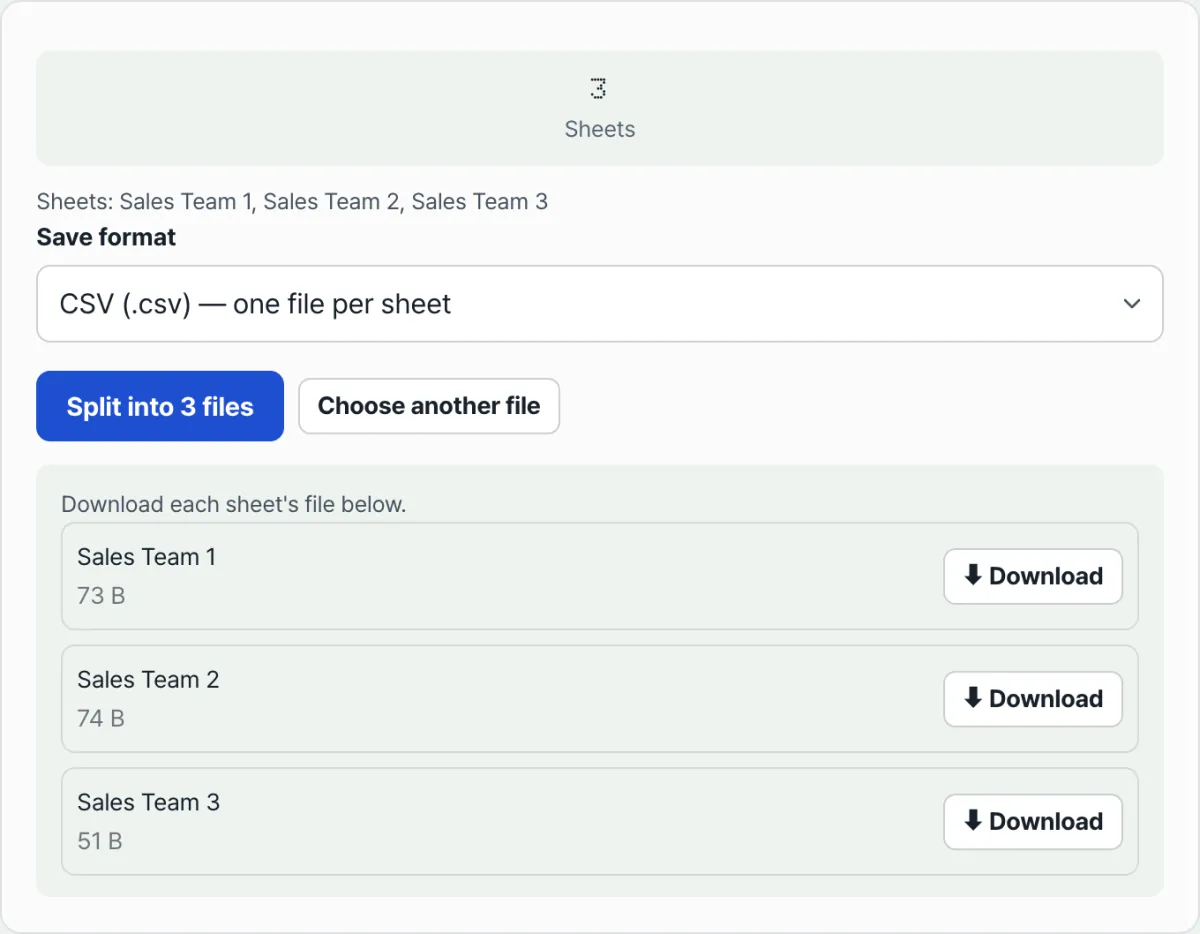
Check it with our tool. When multiple sheets make that repetition a chore, upload a single file and our tool creates one CSV (or individual Excel) file per sheet all at once.
Free · No sign-up · Runs in your browser only (nothing uploaded to a server)
Where people get stuck
| Situation | What actually happens |
|---|---|
| Saving a multi-sheet file as CSV (Save As) | Only the active sheet is saved; the other sheets aren't included in the resulting file |
| It feels like the sheets are gone | The original xlsx file is intact. What's missing is only in the CSV file you just created |
| Several sheets have the same name | Numbers (_2, _3) are added to the end of the download file names to tell them apart |
| Korean text in the split CSV files | A UTF-8 BOM is added automatically, so Korean text doesn't break when you open the file in Excel |
The takeaway
Here's the core of it. CSV is a plain text format with no concept of sheets, so saving a multi-sheet file as-is leaves you with only the active sheet. Your original file is unchanged, so no data is actually gone — but to keep the other sheets as CSV, you have to repeat the save process for each sheet.
With one or two sheets, doing it by hand is fine. As the sheet count grows, the repetition gets tedious and it's easy to miss one, so from that point on, handling it all at once is safer.
Free · No sign-up · Runs in your browser only (nothing uploaded to a server)
Frequently asked questions
How do I know which sheet will be saved when I save as CSV?
The sheet that's selected on screen at the moment you save — the tab at the bottom of Excel that's shaded or pressed — is the active sheet. Click the sheet you want before saving to make it the active sheet.
Does saving sheets as CSV change the original Excel file too?
No. Creating a CSV with "Save As" makes one more new file. It has no effect on the sheet structure or contents of the original xlsx file.
If I split into Excel (.xlsx) format, are the sheet names kept exactly?
Mostly, yes. But if a name contains a backslash, slash, question mark, asterisk, square brackets, or colon, or exceeds 31 characters, it's cleaned up automatically to match Excel's sheet naming rules. CSV has no concept of sheets, so those rules don't apply — only characters the file system can't use are cleaned up in the download file names.
Is my file sent to a server?
No. Uploaded files are read and split only inside your browser and are never sent to a server.
This article was adapted from our Korean original. Read the Korean original