
Remove duplicate lines online and sort a list without Excel
Contents
When the same line shows up over and over in a multiline list of keywords, emails, or URLs, you don't need a special Excel or Notepad feature to fix it. Once you know the principle, you can do it by hand. The core idea is simple: split items by line breaks, decide how to compare case and whitespace, then process them in order.
This post walks through that process step by step, then points you to a tool that does the same work right in your browser.
Summary ① A line break (Enter) is what separates items, and it's also the unit you compare for duplicates. ② If you turn off "Ignore case," Apple and apple stay as two separate items. ③ If you don't turn on "Trim whitespace," invisible leading and trailing spaces keep identical words from being recognized as duplicates.
Why duplicates pile up when you combine lists
This happens a lot when several people merge their own keyword research into one document, or when you copy email addresses from multiple pages into a single list. The same word may appear several times with slightly different formatting (uppercase vs. lowercase, extra spaces before or after), and it's hard to catch just by scanning.
Once a list runs past dozens or hundreds of lines, comparing it line by line by hand takes a long time and is easy to get wrong. That's why you need to define up front what counts as "the same line."
How to remove duplicate lines without a tool
You can clean up a list with nothing but a spreadsheet or a text editor if you follow the principle. Here's the order.
- Put one item per line. A line break (Enter) is what separates items. If your list is separated only by commas or spaces, use Find and Replace to convert those separators to line breaks first so the later steps work correctly.
- Strip invisible whitespace. In a spreadsheet, the TRIM function removes leading and trailing spaces from a string. In a text editor, use Find and Replace (Ctrl+H) to delete trailing spaces at the end of each line. Skip this step and "apple" and "apple " (with one trailing space) stay as two different strings, so they won't be caught as duplicates.
- Decide whether to unify case. Choose whether Apple and apple count as the same item. If they should, create a helper column with the LOWER function in your spreadsheet, convert everything to lowercase, and compare on that column.
- Sort. Sorting puts identical values next to each other, which makes duplicates much easier to spot by eye. If you sort a Korean list, it comes out in ganada order, which follows the consonant sequence (ㄱ to ㅎ).
- Remove duplicates. Spreadsheets usually have a feature for this under the "Data" menu (Excel calls it "Remove Duplicates," Google Sheets calls it "Remove duplicates"). That feature keeps one row only when the values in the selected column are exactly the same, so steps 2 and 3 have to come first for it to do what you want.
The problem is that you have to repeat these five steps by hand every time the list changes. You re-apply the formulas, reset the sort order, change the option combination, and check the result again — every single time.
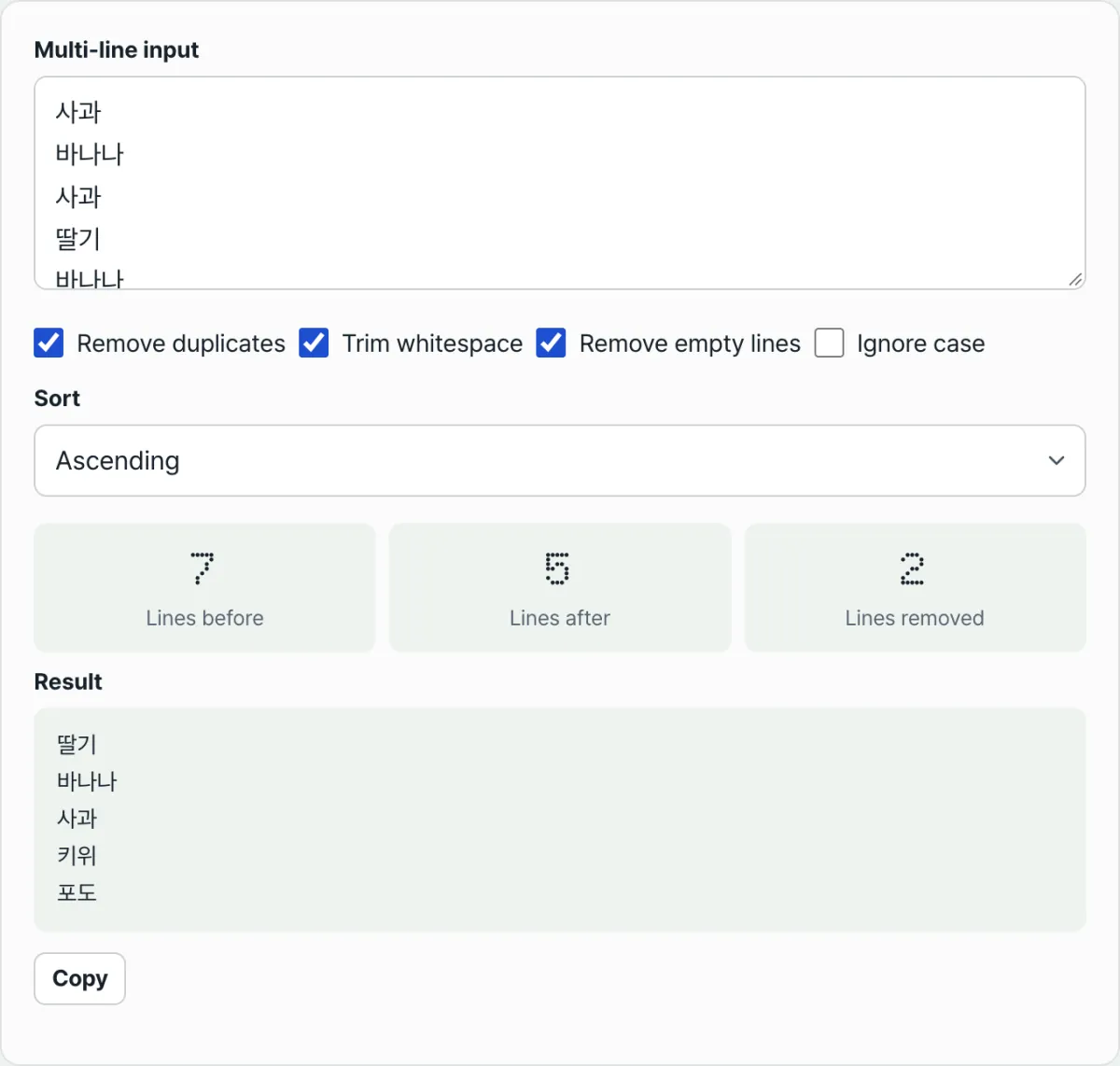
Check it with our tool.
Remove duplicates and sort right in your browser, with no sign-up. The list you paste is never sent to a server.
Common stumbling blocks
These are the points people actually get stuck on when cleaning up a list this way.
| Situation | Result |
|---|---|
| "Ignore case" on + entering Apple, apple | Only the first spelling that appeared (Apple) remains; the two merge into one |
| "Ignore case" off + entering Apple, apple | Treated as different lines, so both remain |
| "Trim whitespace" off + "apple", "apple " (trailing space) | Recognized as different strings, so the duplicate isn't removed |
| "Trim whitespace" on + same input as above | Recognized as the same value, so only one remains |
| "Remove blank lines" off | Blank lines count as items and are included in the line count |
| Sort "Ascending"/"Descending" | Sorted using Korean collation (ganada order) |
| Sort "Random" | Shuffles the items; pressing shuffle again reorders them into a new sequence |
If you choose "Ascending" or "Descending" for the sort, the comparison uses Korean collation. Korean items are listed in ganada order, which follows the consonant sequence (ㄱ, ㄴ, ㄷ … ㅎ), and Latin letters or numbers mixed in are sorted by the same rule.
The number of lines before processing minus the number of lines after gives you the number of lines removed. That figure tells you right away how many lines were actually filtered out.
Recap
- A line break separates items, and duplicate comparison happens one line at a time.
- Decide first whether case counts as the same value (Apple = apple) or as different values.
- If you don't trim leading and trailing whitespace, the same word stays as a different string and won't be removed as a duplicate.
- Korean sorting follows the consonant sequence in ganada order.
- Instead of repeating all five steps by hand every time, it's faster to toggle options on and off and see the result immediately.
Remove duplicates and sort right in your browser, with no sign-up. The list you paste is never sent to a server.
FAQ
Can duplicates that differ only in case be merged into one?
Yes. Turn on "Ignore case" and Apple and apple are treated as the same item, keeping only the line that appeared first. The spelling that remains keeps the original case you entered, and the sort order follows that too.
Does Korean text sort in dictionary (ganada) order?
Yes. The comparison uses Korean collation, so Korean items come out in natural ganada order. You can also choose Ascending or Descending to sort in the opposite direction.
Is my list sent to a server?
No. Everything runs inside your browser, and the list you paste is never sent to or stored on a server.
If I set the sort to "Random," does the result change every time?
Choosing Random shows the list in a shuffled order. Even with the same input, pressing the "Shuffle again" button reshuffles it into a new order each time.
This article was adapted from our Korean original. Read the Korean original